a-text-logo0.png
Contact Profile and Timeline
For every contact that is created in the platform, each will have their own Contact Profile. This is where contact details are stored including company, position, address, contact numbers and social media channels. It is also the area where notes can be added, files can be adhered and opportunities  created. 

Contact > Contacts > Click into Contact

Use the green icons to create new activities against the contact:

Screenshot_2023-07-18_at_12.38.52.png
Send SMS
If the contact has a mobile number contained in the profile, send an SMS. Clicking it will bring up a pop-up box for you to type the message and then after sending it, the SMS will appear on the contacts timeline.

Send Email
Send a personal email to the contact via your email client e.g. Outlook. Upon sending, the outbound email will be added under Timeline > Comments. 

Learn more about the Send Email function.

File
Add a File to the contact e.g.contract or membership file. Files can then be found in the menu under Timeline > Files.

Opportunity
Create an opportunity against the contact. Opportunities can then be found in the contact timeline under Timeline > Opportunities or under Sales > Opportunities in the main menu.

Subscription
Create a subscription for the contact. Subscriptions can be found in the contact timeline under Timeline > Subscriptions or under Sales > Subscriptions in the main menu.

Task
Create a task associated to the contact the same way as any task is created within the platform. Tasks can then be found in the menu under Timeline > Tasks or under Tasks > Tasks.

Customise
Create and edit the Custom fields within the page. 

Comments
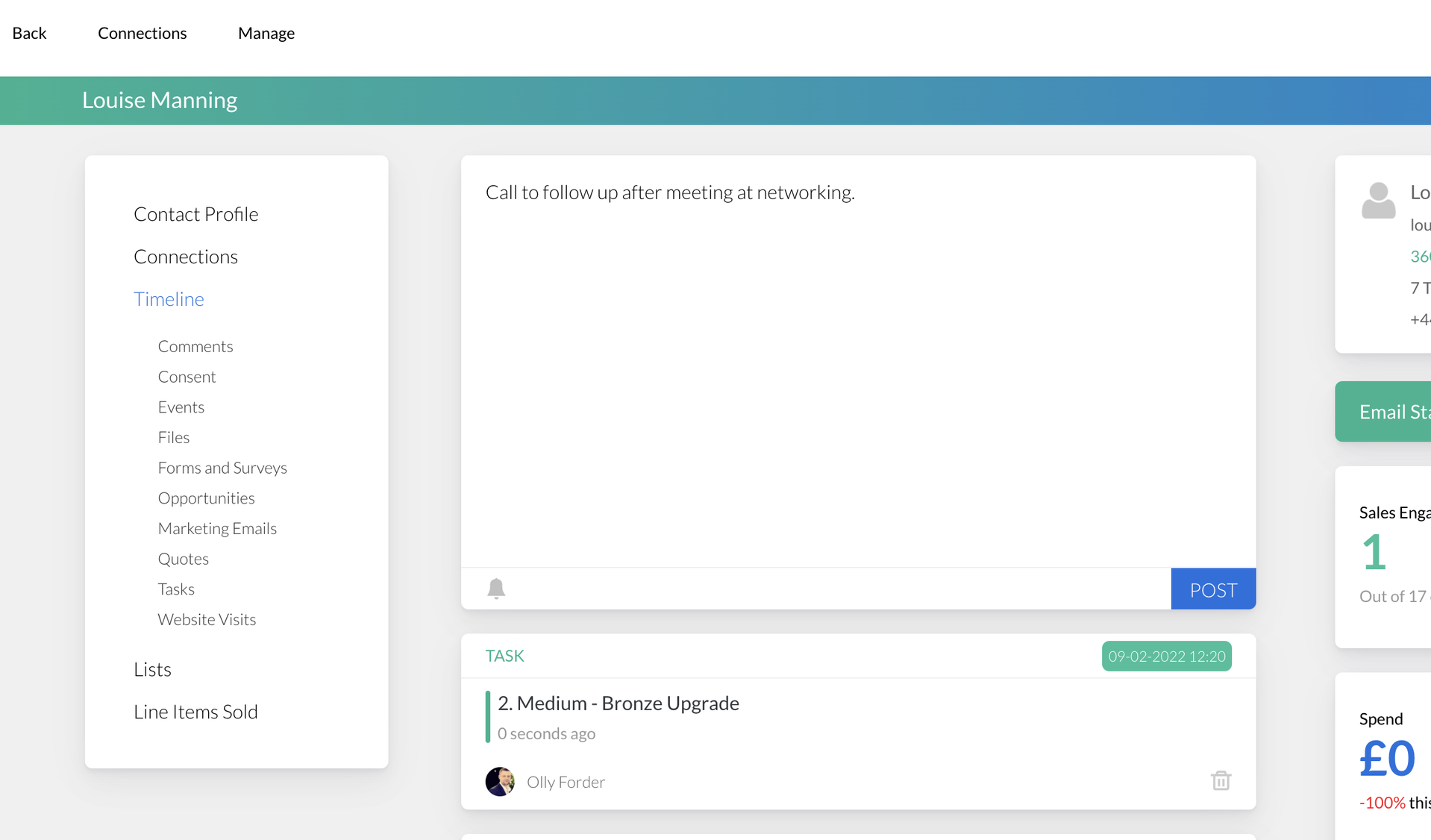
Add comments to the contact timeline via the comment box at the top of the page:

Screenshot2022-02-01at12.23.07.png
Comments can then be found in the menu under Timeline > Comments.
Learn more about adding Mentions in Comments 
Note: There is the ability to add comments to contacts and companies via the Sales Opportunity and Tasks pages with the associated Action Buttons.
Learn more about adding comments via the Activities Calendar.
Contact Owners
You can assign multiple contact owners to a contact, companies and tasks to create a team of owners around the contact, relatable by role.

'Click to assign' in blue to add the first contact owner:
Screenshot2022-03-15at11.41.110.png
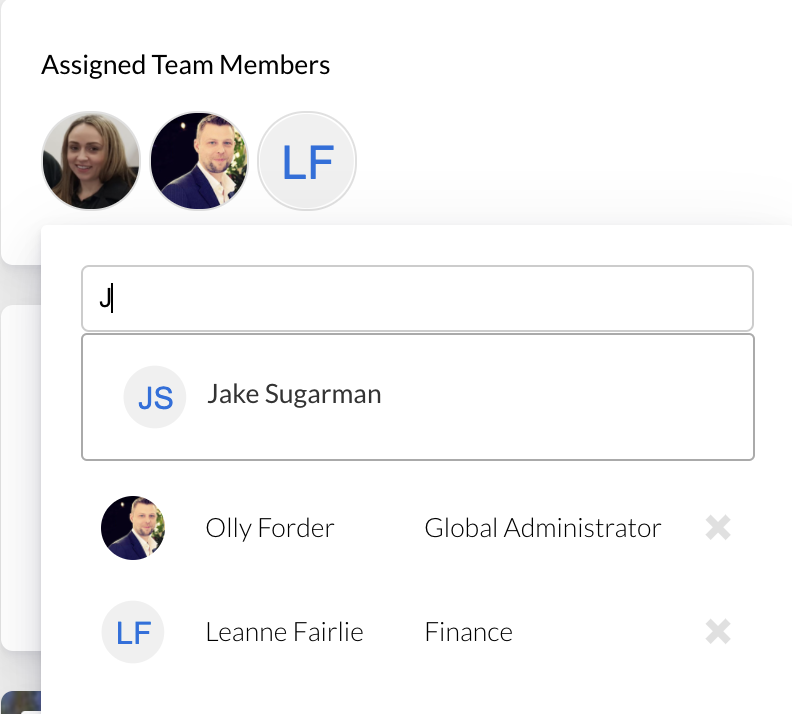
Add users as contact owners by using the type ahead:
Screenshot2022-03-15at11.28.330.png
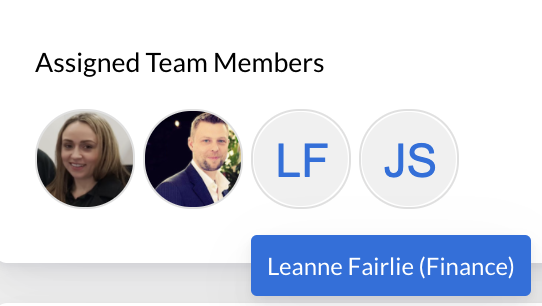
Hover over the contacts owners added to view their associated role:
Screenshot2022-03-15at11.28.500.png
Note: Ensure your teams User Roles are correctly titles and up to date so it is easy to see what role the contact owner plays e.g. Finance
Learn more about Roles and Permissions
View all activities associated to the contact in chronological order.  To filter the timeline to view a particular activity, select the activity under the timeline tab on the left-hand side  i.e. Emails Read, Submitting Forms, Website Visits. The timeline will then filter as requested.

Clicking an activity within the timeline will show a further information blade from the side:

  • Comments made on the profile
  • Form and Survey submissions
  • Opportunity created
  • Emails that were sent/read - both Marketing and Internal
  • Quotes created
  • Tasks created
  • Events and tickets registered
  • Many other activities
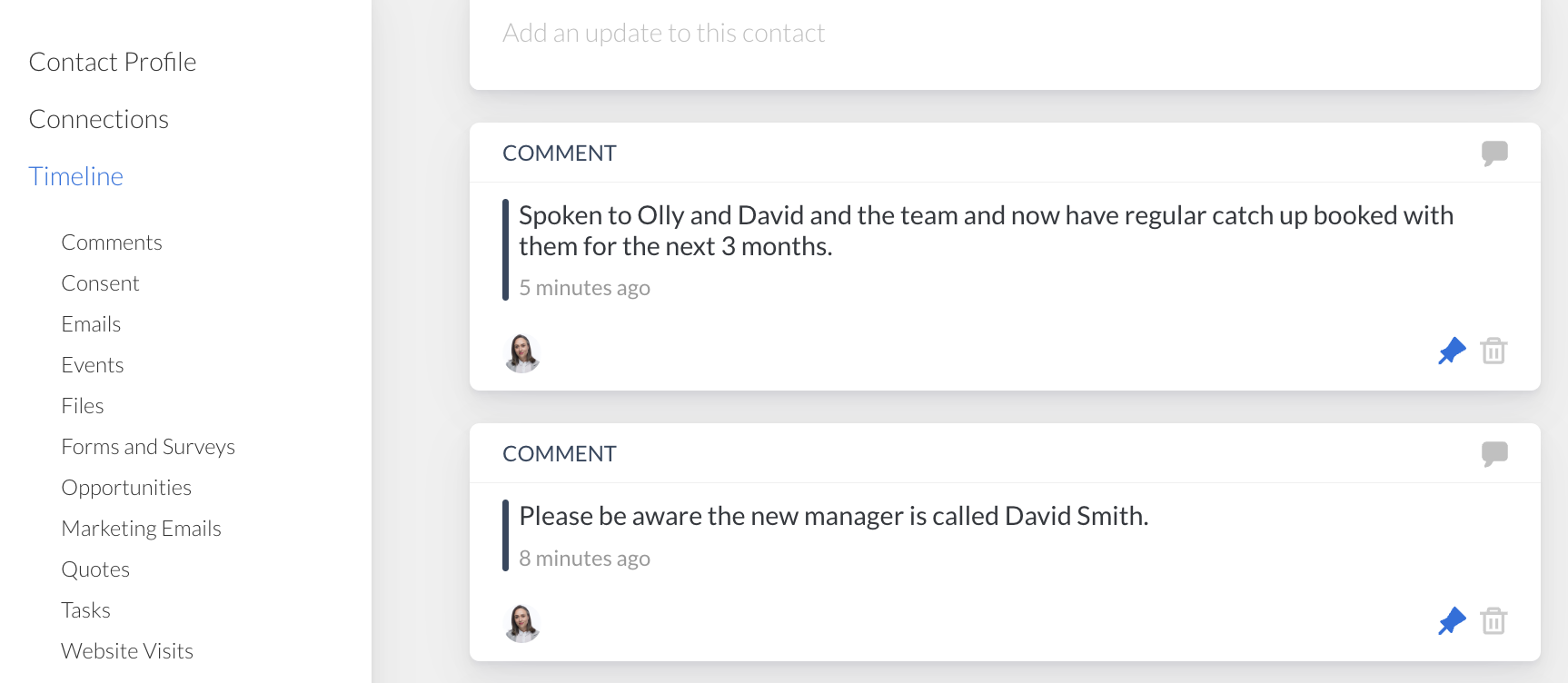
Pin a Comment 
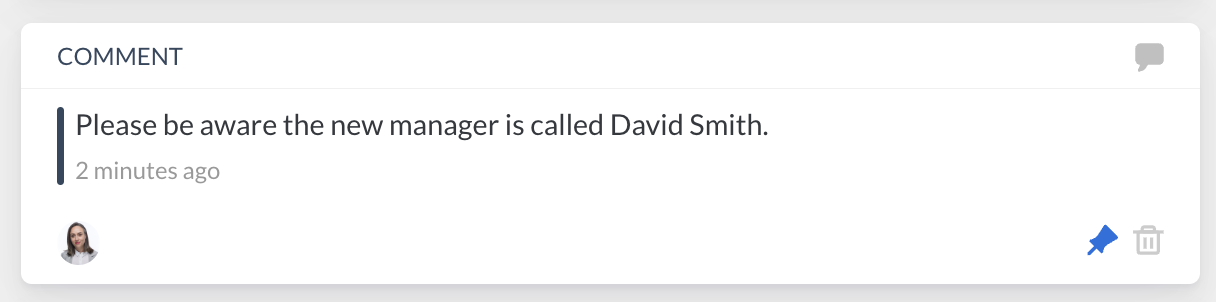
Pin a important comment to the top of the Timeline by clicking the grey pin icon bottom right of the comment:
Screenshot2023-04-03at13.46.49.png
Once pinned, it will turn blue.

If a new comment is pinned, it will appear above the older pinned comment:
Screenshot2023-04-03at13.52.05.png
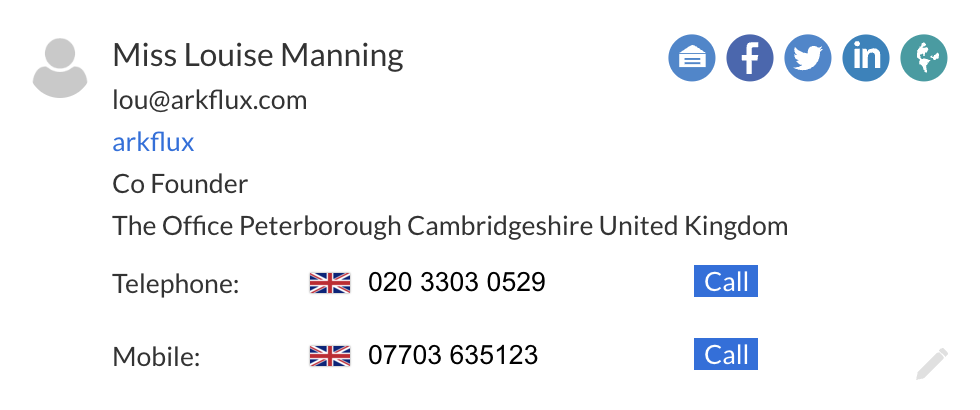
Click to Call
Click through and call contacts with one click using the blue Call button on the contact card:
Screenshot2023-05-30at16.19.25.png
This includes set up on personal computer settings.
Custom Fields
Custom Fields are questions of importance to the business that can be created by arkflux Admins to show against various areas in the platform including contact profiles, opportunities and tasks. Once created, the custom field will show against every contact, opportunity or task for consistency and can be updated manually or via the import spreadsheet process.

Learn more about Custom Fields.

Attribute Fields
Attribute fields are fields of importance to the business, created in the platform and included in outbound forms and survey campaigns. These campaigns and subsequent fields are then submitted by the contacts, with their answers stored not only in the individual campaign dashboard for reference, but also directly against the contact profile, for future use in the Single Customer View.
Primary Contact Details

The main details for the contact including names, addresses and ways of contacting them. This area can be edited from the Timeline page by selecting the grey pen in the contact card box in the top right.


Web Visits
This is a breakdown of the number of times that the contact has visited your website, reported from the website monitor, normally set up during the arkflux onboarding. This will monitor the emails of the people visiting the page and then link it to the contact.

Learn more about the Website Monitor


Email Read Rate
This shows the percentage of emails sent by you, to that contact, that were read by them.


Active Workflows
Contacts that are still moving through a live campaign and are yet to hit a Trigger or Action.


Sentiment
Measure and analyse the sentiment of submitted arkflux forms and surveys.

Customer Satisfaction Score (CSAT)
Customer Satisfaction is a basic measurement of a customer's satisfaction with a brand's product and/or services. Also for future use in Single Customer View.


Net Promotor Score (NPS) 
This is an average measurement of how likely the customer is to recommend your product/service to another individual and is measured via the company, product, brand and service NPS fields via an arkflux form or survey. Also for future use in Single Customer View.


CSAT History 365 Days
Measure and locate trends in your contacts behaviour with their historical CSAT scores. 


NPS History 365 Days
Measure and locate trends in your contacts behaviour with their historical NPS scores. 
Connected Contacts

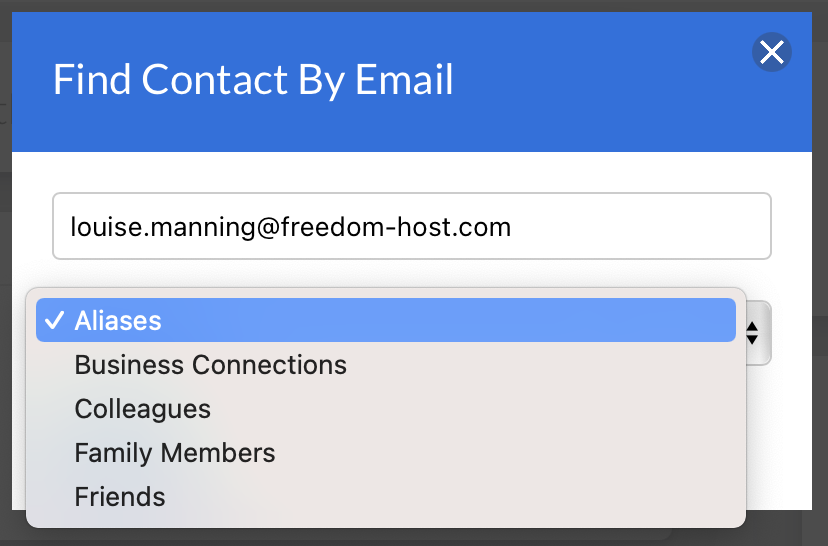
Select 'Connected Contacts' on the left hand menu to connect the primary contact with other contacts entered in the arkflux system. These could be aliases, family members, colleagues or other connections.

Choose if you want to connect a contact or a company (you can also connect multiple companies to one contact).

Enter the email address or company name that you want to connect to the profile as well as the type of connection that they are to the contact using the dropdown box.

Screenshot2021-11-12at13.06.00.png
You can also connect multiple companies to one contact. The connected contact will then be stored in the primary contacts profile under the Connected Contacts menu item, where it can be edited, clicked through to view the details and deleted if necessary. 

Define options in the dropdown when connecting both Contacts and Companies in Admin > CRM Settings > Connections. 

Learn more in CRM Settings
Subscribe Contact
Resubscribe the contact after an unsubscribe action has taken place. Any lists the contact was previously part of will be reinstated. The Subscribed banner will now show on the contacts profile in green.

Unsubscribe Contact

Remove the contact from any lists they were in to ensure the receive no further marketing. The Unsubscribed banner will now show on the contacts profile in red.

Learn more about Data Export
Note: The date and time of the Unsubscribe will be marked on the contacts profile Timeline for future reference.
Delete Contact
Completely remove the contact and all associated data from the platform including:

  • Form or Survey Submissions
  • Comments
  • Tasks
  • Opportunities
  • Activity Data

Delete Contact Retain Data
Remove and anonymise personalised data from the platform but retain remaining, non-personalised data so reporting is not affected.
Static Lists
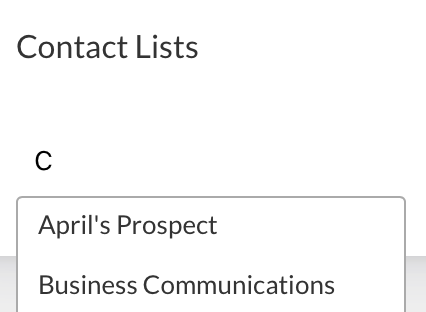
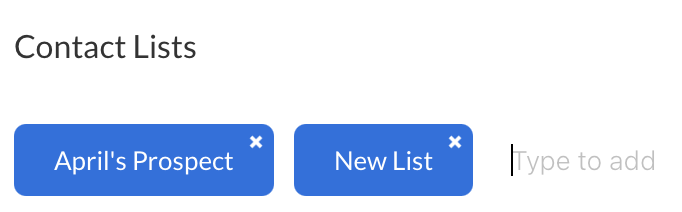
Manage lists for the contact under the Static Lists menu item.

Remove the contact by selecting the "x" next to the list.  Add the contact to an existing list by using the type ahead, or add the contact and create a brand new list by typing the name of the list in and pressing the return key. This list will now be available under Contact > Lists for future reference and use. 
Screenshot2021-11-12at12.46.16.png
Screenshot2021-11-12at12.49.36.png
By clicking into a list, the contacts contained will show. 
Note: Only Static Lists will show in this area. For access to Dynamic Lists go Contacts > Dynamic Lists.
Learn more about Dynamic Lists
Screenshot2021-08-30at13.48.01.png