a-text-logo0.png
CRM Settings
These are all the settings related to CRM in the platform. As you familiarise yourself with using the platform, you will identify areas where it would be good to have different/extra options. Setting your Email Integration address and Financial Year is a good place to start.


Admin> Settings > CRM Settings
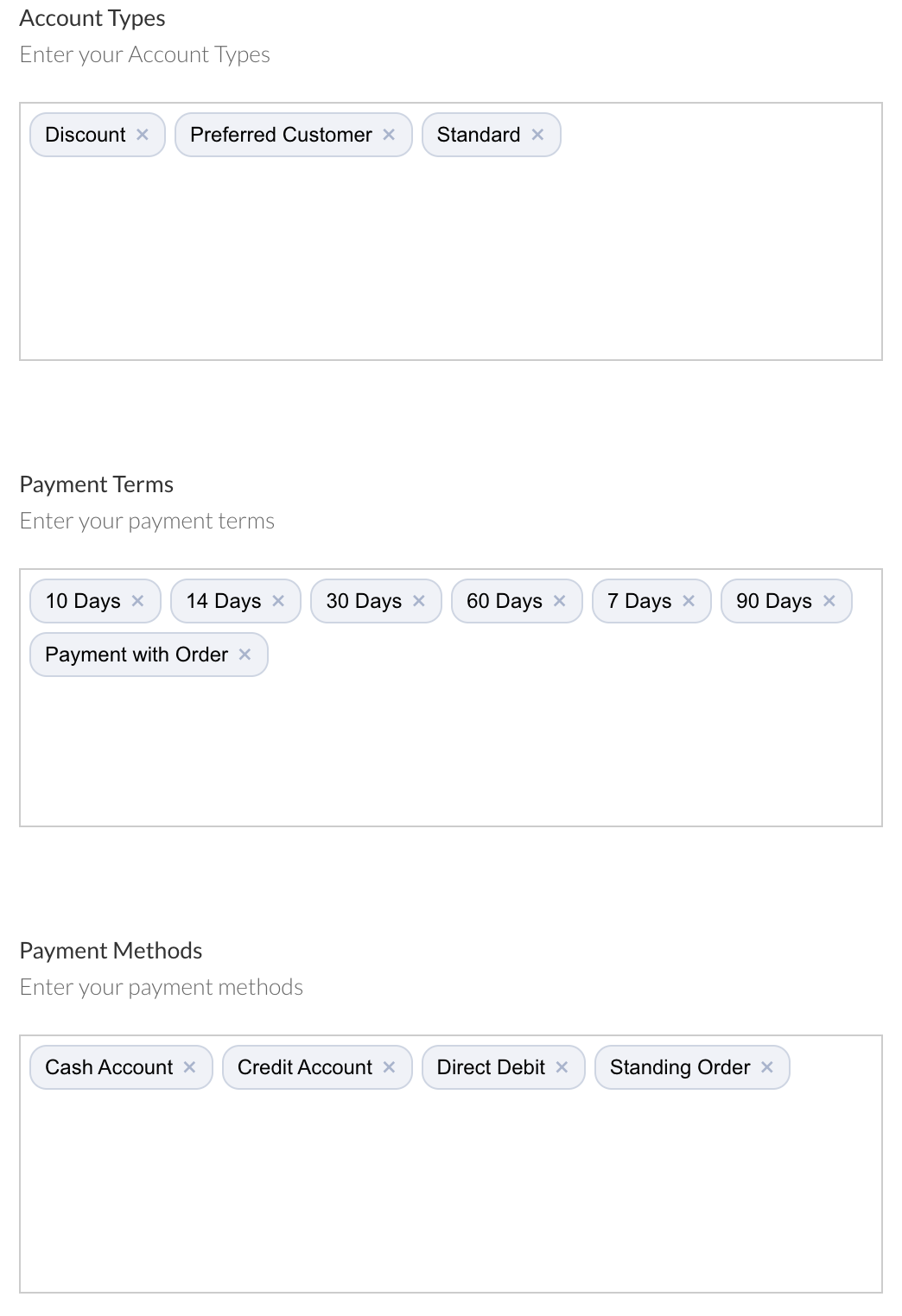
Accounts are created against a Site or Company and used to track opportunities and sales. 

Enter types, payment 
terms and methods.
Screenshot_2025-04-15_at_12.26.07.png
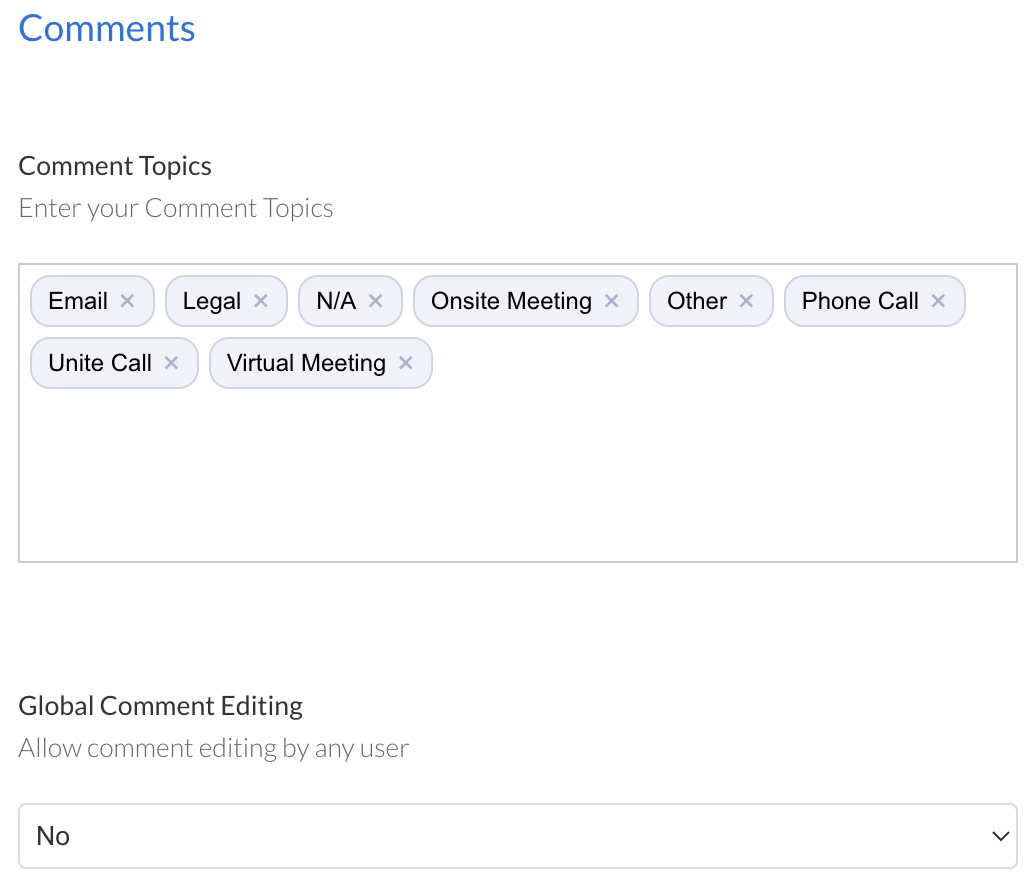
Enter the topics for the Comments against Contacts, Opportunities and Tasks:
Screenshot_2025-04-15_at_12.03.34.png
Toggle Yes/No Global Comment Editing. Toggled Yes will allow any users in the tenant to edit comments made by other users. Toggled to No, it will lock down comments so only the creator of the comment can edit it.
Connections

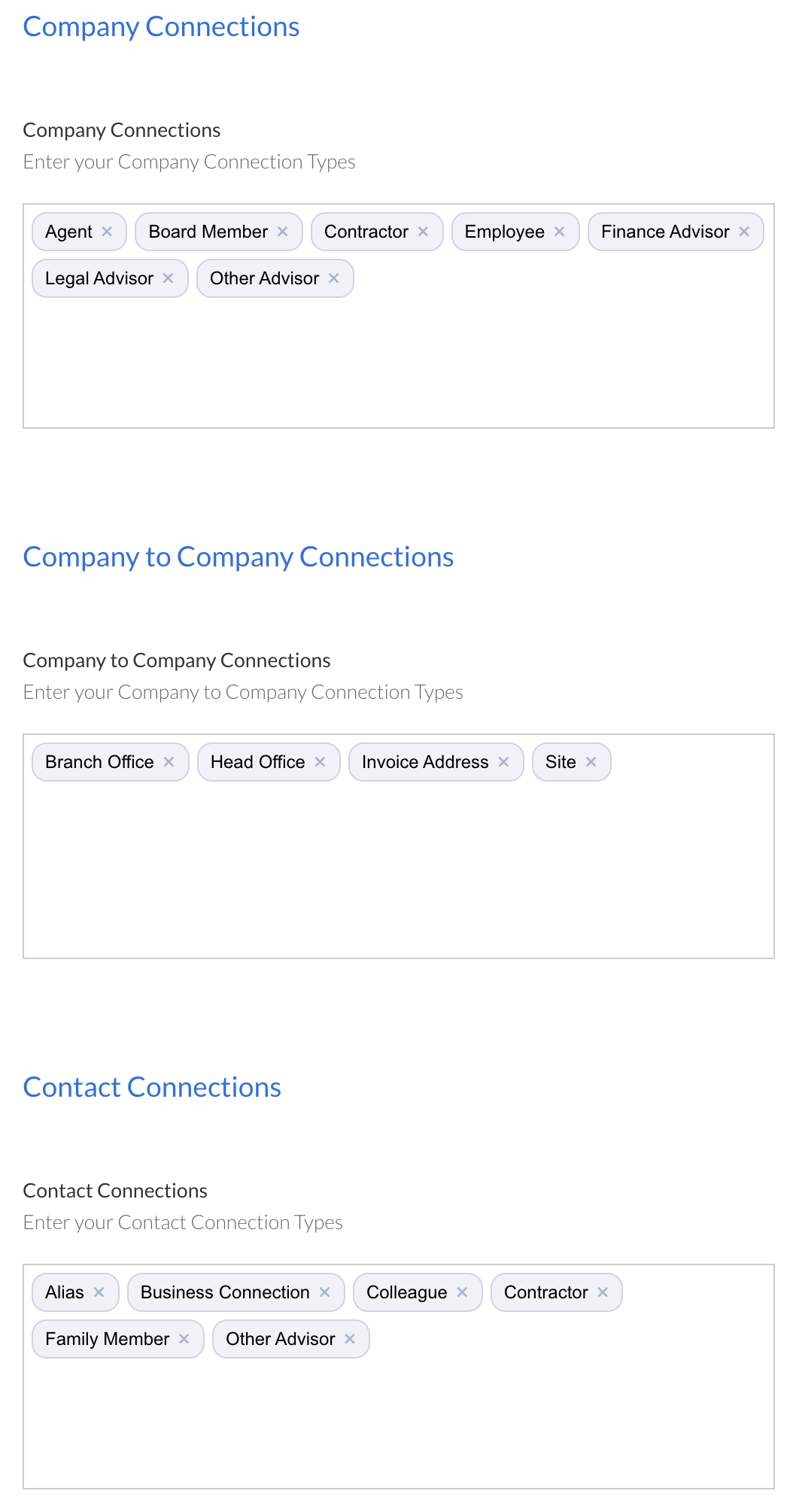
Define dropdown options when creating Contact and Company Connections on a Contact Profile.

Build out organisational structures to create a picture of the company and contact relationships. 
Screenshot_2025-04-15_at_12.34.27.png
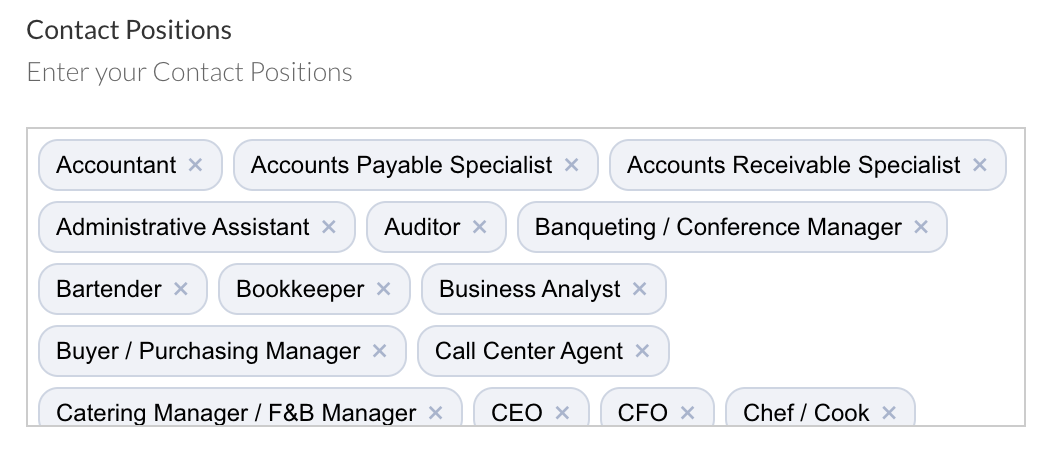
Contact Positions
Access a pre defined list of job titles for use in the CRM contact card. Add or delete options if required. 
Screenshot_2025-04-15_at_12.46.48.png
Integrate your mail client to capture email content against the contact in the arkflux platform.

Set your email address that will appear in the email to the contact.

Create or modify the email address that be used to copy your emails into arkflux.
Screenshot2023-01-30at13.31.52.png
Financial Year

The sales dashboard uses your financial year to calculate targets and products / services sold within the financial year.

Set your financial year:

Picture10123456789101112131415.png
Lead Sources and Contact Status

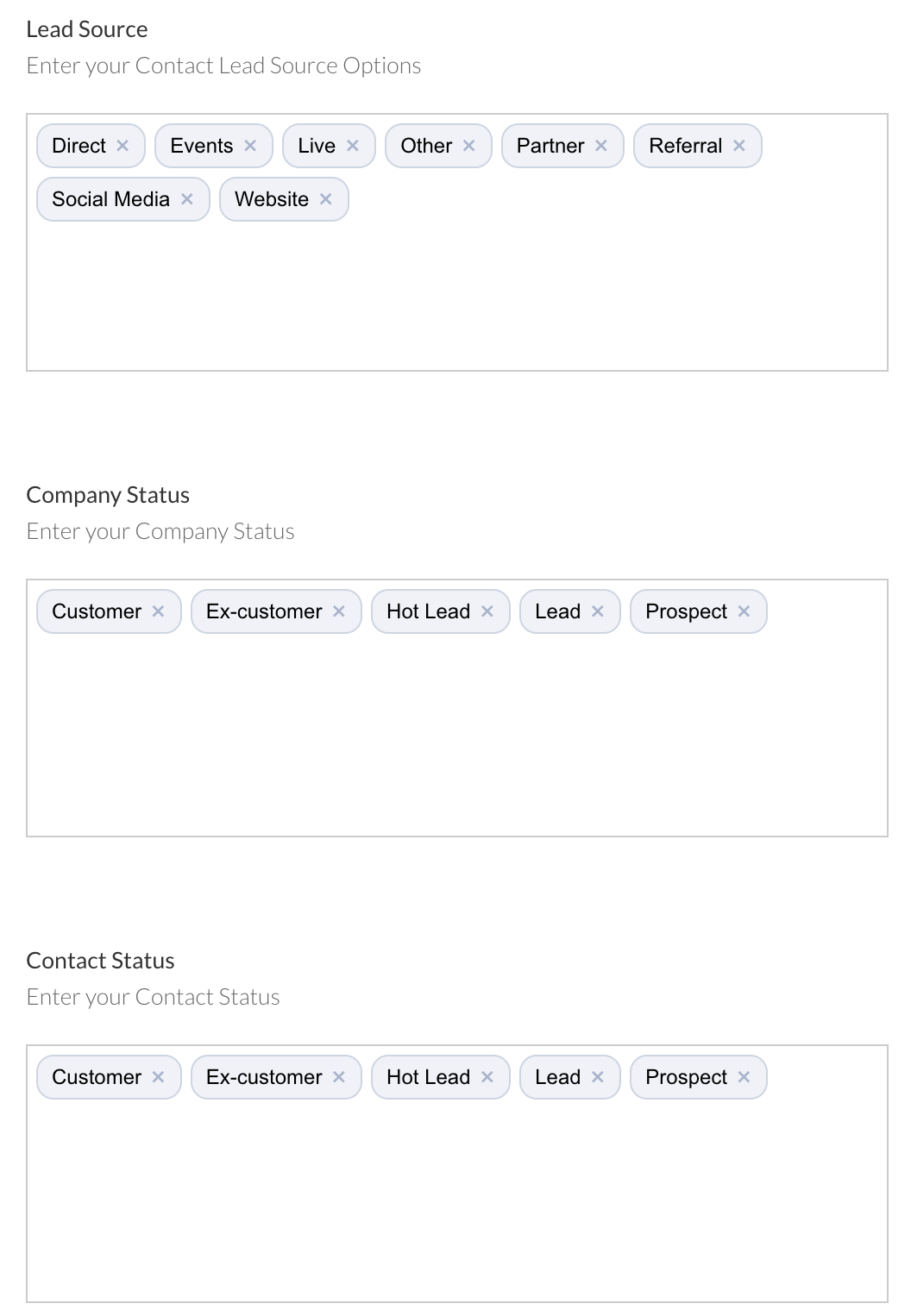
Enter lead source, company and contact status options for use when managing contacts in their individual profile and via the import process. 
Screenshot_2025-04-15_at_12.53.06.png
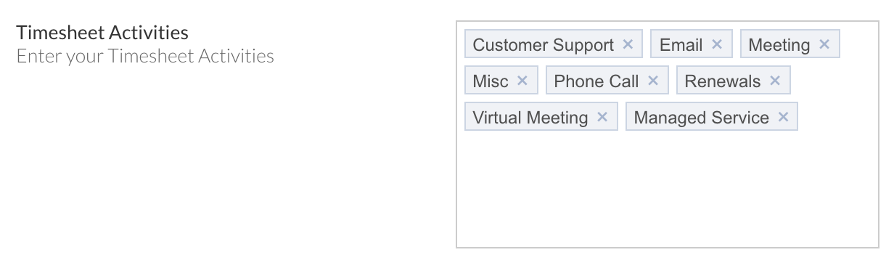
Define your Timesheet Activities for use when creating Timesheets:
Picture10123456789101112.png
Note: When adding options in CRM Settings, type the entry and hit the Return button to format it correctly in a box.
Snooze Task

Upon being alerted that a Task is due within the platform, snooze the Task until you are ready.

Set the status for Snoozing Tasks:

Picture1012345678910.png
Select your options to define the quote process. 
Screenshot_2023-07-18_at_11.46.43.png
When your quote is ready, choose whether to create a PDF of the quote or send it directly to the contact. 
Screenshot_2023-07-18_at_11.46.53.png
At the base of your quote you will have the options to include either a Place Order button or a Print Only.
Screenshot_2023-07-18_at_11.47.03.png
Define the terms of quotes created.
Screenshot_2023-07-18_at_11.47.15.png
Where your product links are web enabled and hyperlinked to your website, this text will appear next to the product on your email quote.
Screenshot_2023-07-18_at_11.47.33.png
Define the URL
Screenshot_2023-07-18_at_11.47.49.png
During line item creation, you include a product large description. Choose to include this or not in the quote.
Screenshot_2023-07-18_at_11.48.05.png
Define which user within the platform will receive an email alert when a quote is accepted by a contact. This can be either the opportunity owner or an individual email. 
Select your option/s to define the subscription process.
Screenshot_2023-07-18_at_11.56.38.png
Define an option to show as the default option during subscription process.
Enter your text content here
Screenshot_2023-07-18_at_12.07.03.png
Define an option to show as the default option during opportunity process.
Screenshot_2023-07-18_at_12.07.24.png
Define an option to show as the default option during opportunity process.
Screenshot_2023-07-18_at_12.11.24.png
Choose to include all opportunities in the expired stage of the pipeline or not.
Opportunity Lost Reasons

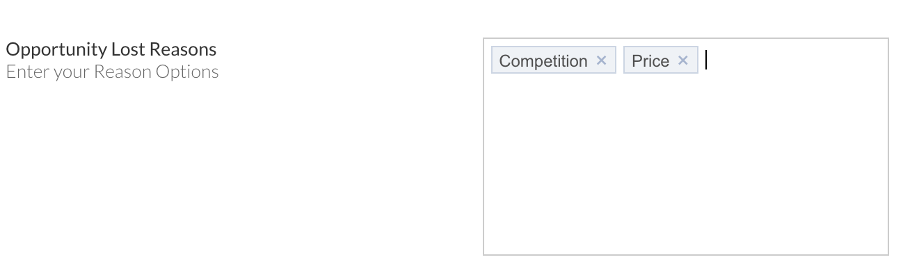
Enter the reasons an opportunity might be lost for use when managing opportunities in the platform. The sales dashboard will provide a breakdown of all opportunities logged and their end status, including Lost. A great place to evaluate who and why you are losing potential sales. 

Picture1012345678910111213141516.png
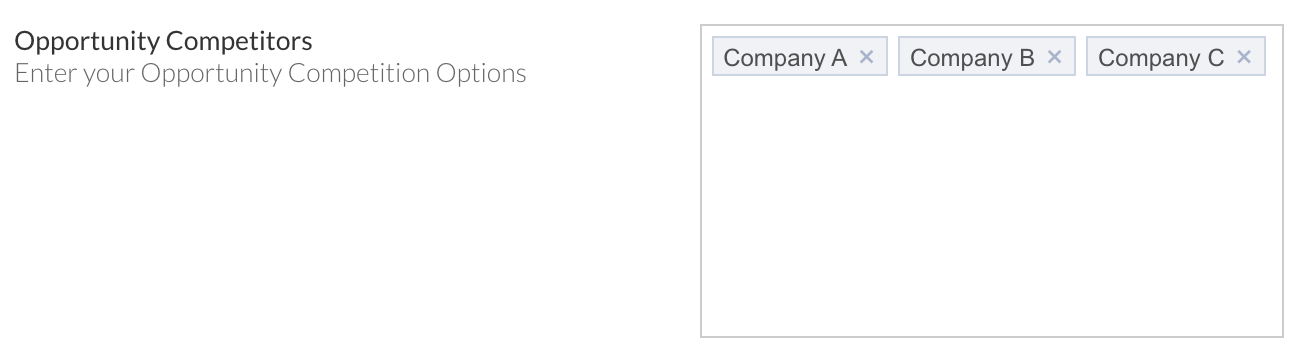
Opportunity Competitors

Enter your Opportunity Competitors for use when creating opportunities and tracking against:
Screenshot2021-09-03at14.38.06.png
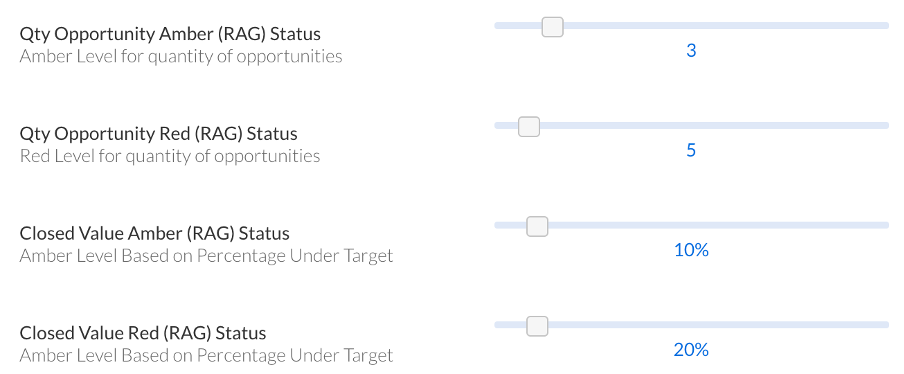
Opportunity RAG Status
The RAG status (Red, Amber and Green) is used on the sales dashboard to highlight when your opportunities are overdue or exceed each threshold. This provides an easy visual way to understand how many opportunities are overdue.
Picture10123456789101112131415161718.png
Search
When searching to create a company, you can choose to include charity listings.
Screenshot_2024-05-29_at_15.00.34.png
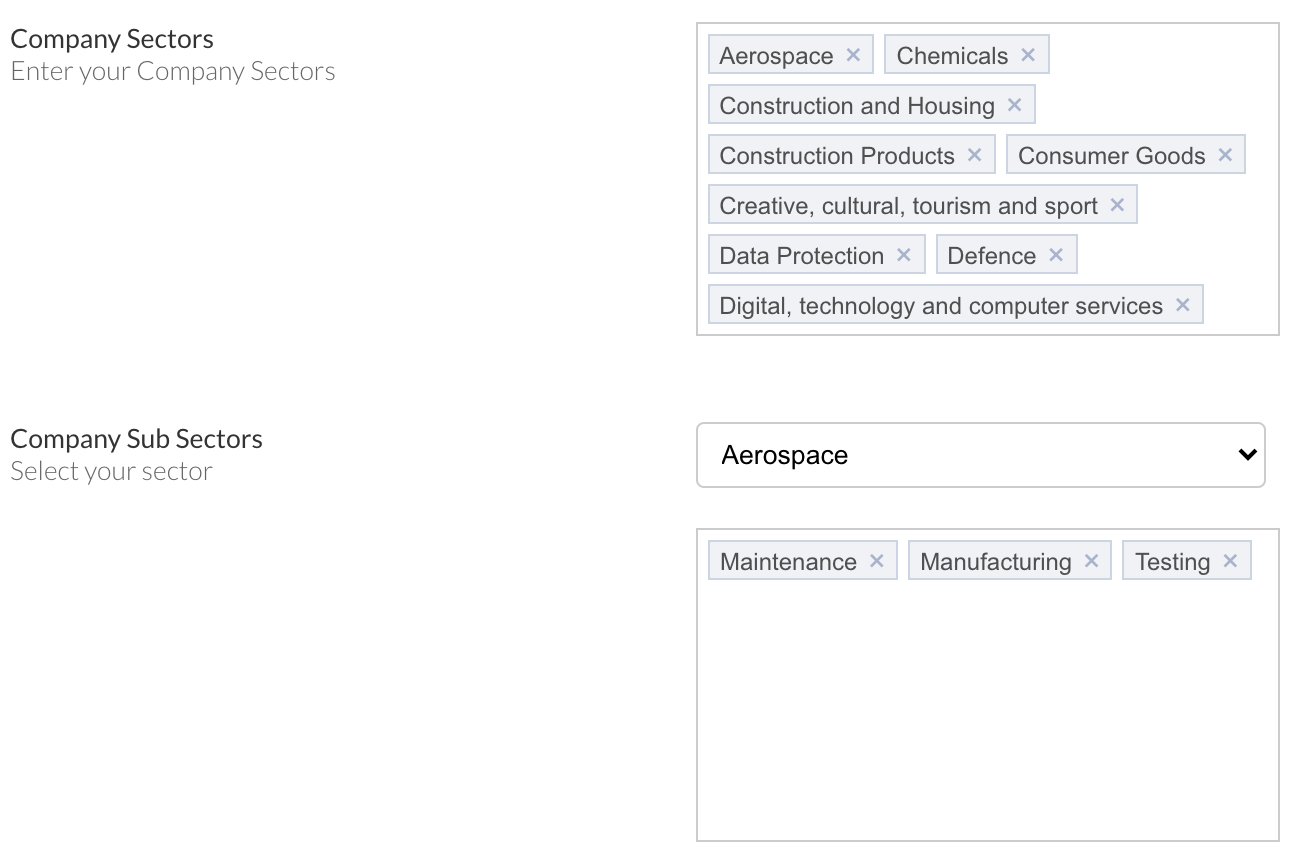
Sectors define the area of business the company operates within.

Enter options for sectors and subs sectors.
Screenshot2021-09-03at14.47.34.png
Select the Sector in the Sub Sector drop down and then enter the sub sectors one by one in the box below. These will then appear as options when when managing companies in their individual profile and can be referenced via the import process
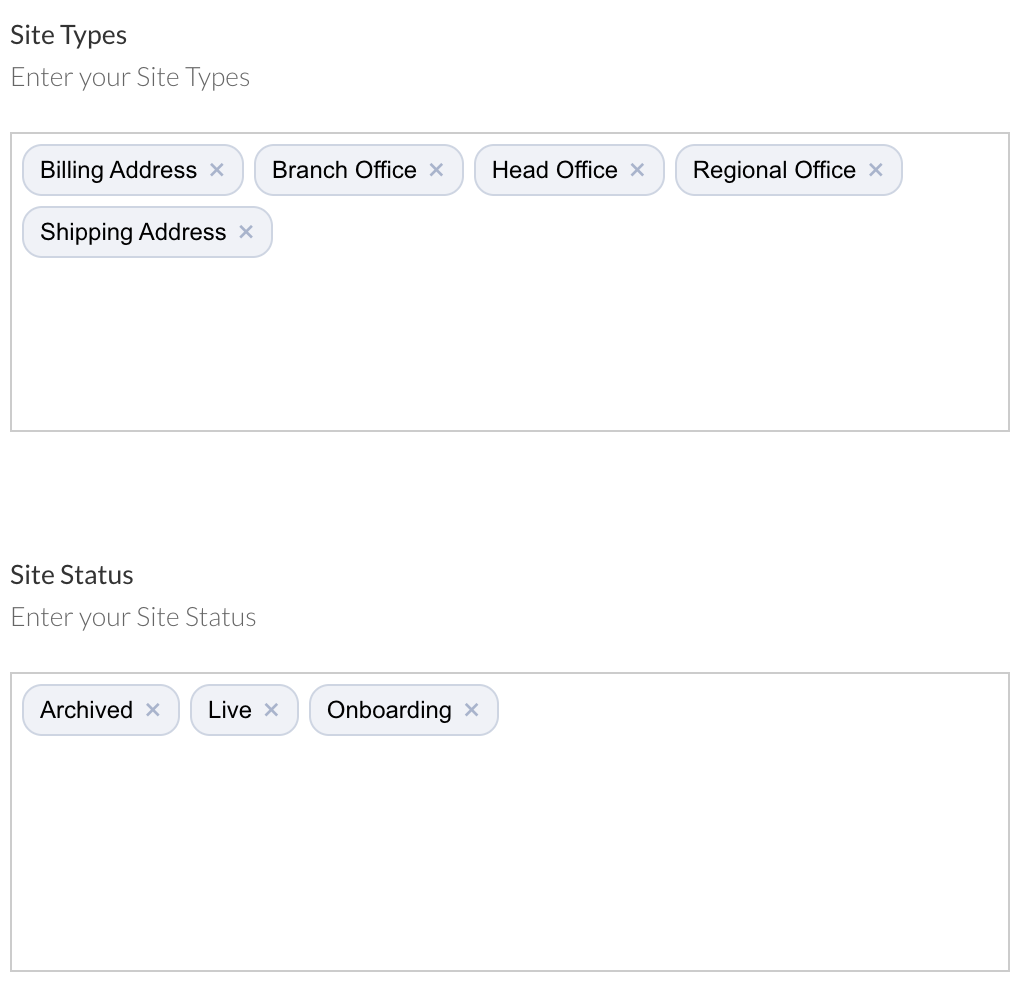
Sites are assigned to companies and can have different functions within the business e.g Head Office vs Branch Office.

Enter site types 
and status options.
Screenshot_2025-04-15_at_12.28.15.png
Learn more about Marketing Settings
Screenshot2021-08-30at13.48.01.png