a-text-logo0.png
Custom Fields
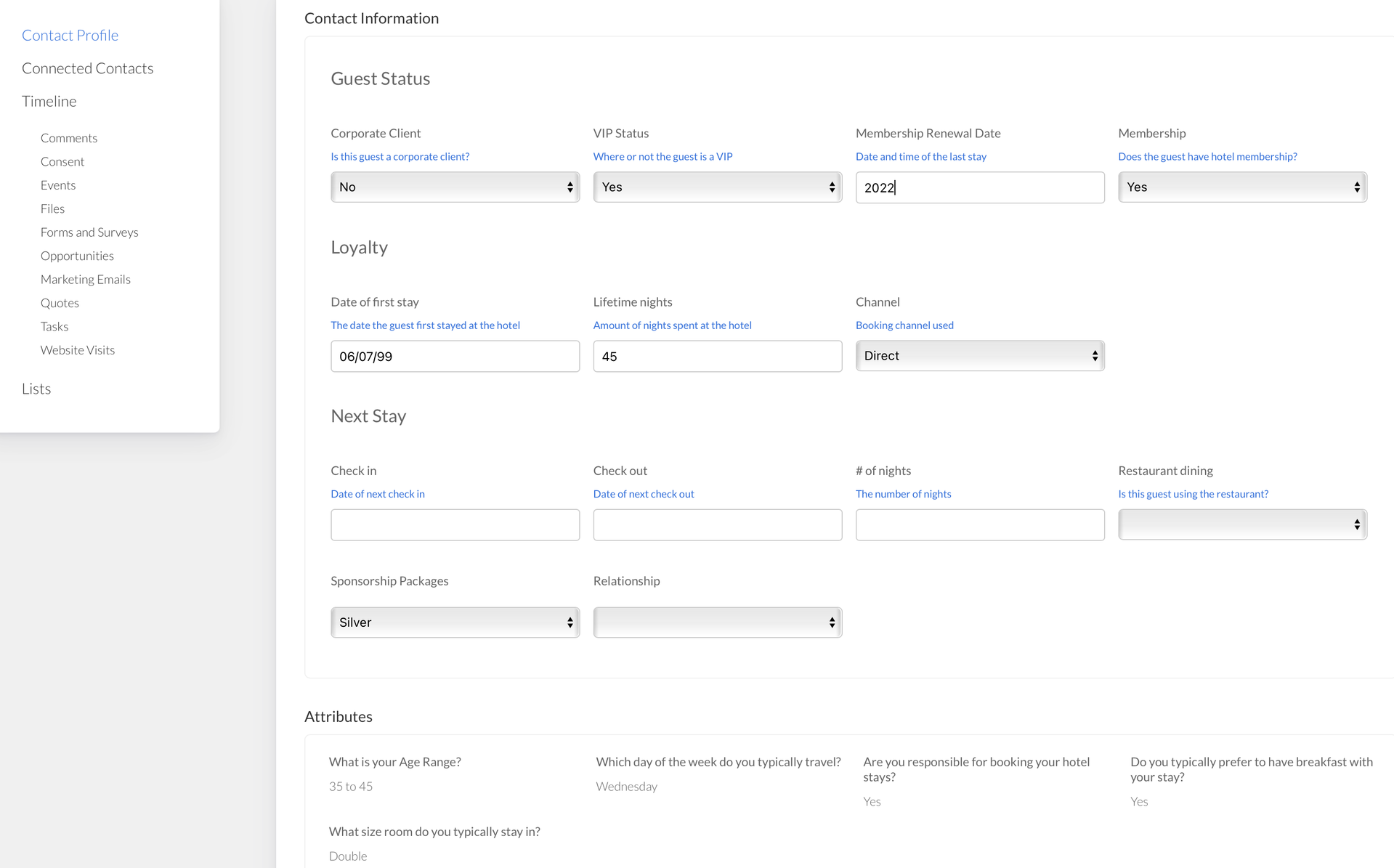
Custom Fields are questions of importance to the business created by a User, to show against various areas in the platform including contact profiles, opportunities and tasks.

Once created, the custom field will show against every contact, opportunity or task for consistency and can be updated by an arkflux User manually or via the import spreadsheet process. The field entries will be specific to the contact, opportunity or task. 
Contacts > Contacts / Companies > Click into a contact / company > Contact / Company Profile 
Screenshot2021-11-15at18.12.50.png
Click the green Customise icon top right of the page. You will be prompted to choose and add a field type by clicking on the grey + Add Field icon:
Screenshot2022-03-08at14.01.31.png
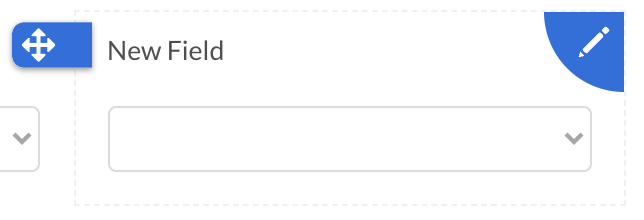
Upon selection the field can then be edited by clicking on field and then the blue pen:
Screenshot2021-08-31at09.51.45.png
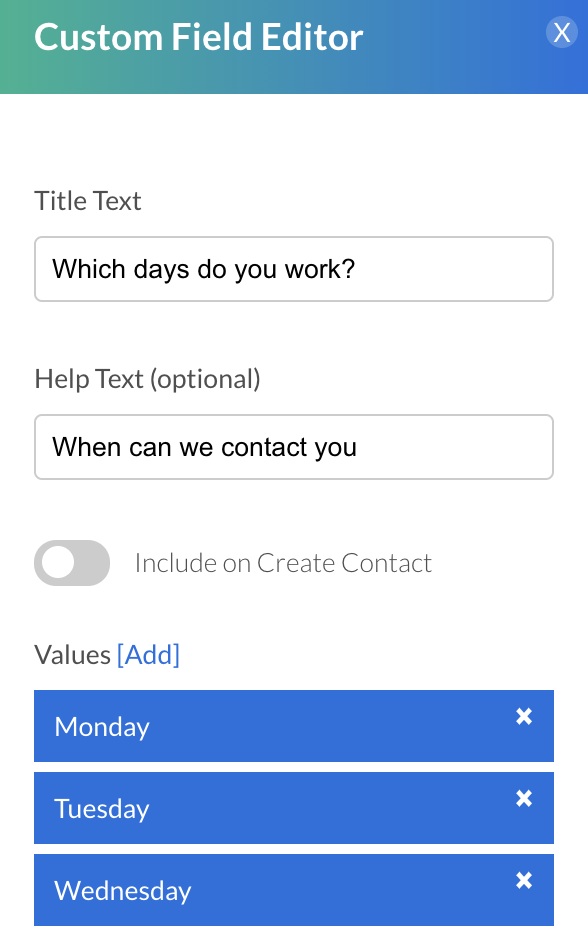
You will then be able to edit the field on the left hand blade, including adding and reordering options if required:
Screenshot2021-08-31at09.53.11.png
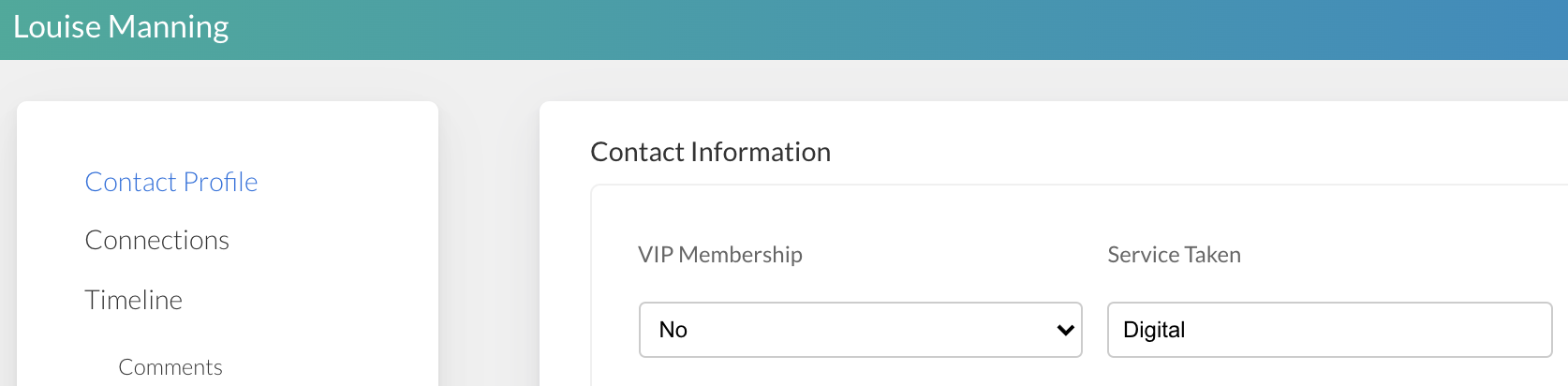
To reflect in the finished field:
Screenshot2021-08-31at09.54.54.png
Once you have finished creating custom fields, click the customise icon to lock your changes in, ensuring it goes from orange, back to green. 
Create custom fields in the opportunity blade.

Once in the opportunity > Opportunity tab > Customise
Screenshot2021-08-31at13.41.03.png
You will be prompted to choose and add a field type by clicking on the grey + Add Field icon:
Screenshot2022-03-08at14.01.31.png
Upon selection the field can then be edited by clicking on field and then the blue pen:
Screenshot2021-08-31at09.51.45.png
You will then be able to edit the field on the left hand blade, including adding and reordering options if required:
Screenshot2021-08-31at13.44.28.png
To reflect in the finished field:
Screenshot2021-08-31at13.44.49.png
Once you have finished creating custom fields, click the customise icon to lock your changes in, ensuring it goes from orange, back to green.
Replacement Text
If data in an Attribute and Custom Field isn't entered in the platform you can add replacement text against the fields when you are creating it.

Learn more here about Email Merge Tags 
Custom fields can be updating via the import spreadsheet by adding on columns and titles as highlighted in grey below:
Screenshot2022-02-16at14.28.03.png
During import when mapping the fields, against the custom fields, select the relevant custom field from the drop down:
Screenshot2022-02-16at14.55.50.png
Mapped custom fields will then show as below:
Screenshot2022-02-16at14.55.59.png
Upon import, the custom fields will be updated under Contacts > Contacts > Click into a Contact > Contact Profile:
Screenshot2022-02-16at14.56.57.png
Learn more about the Contact Import
Note: Custom fields are created and managed internally by arkflux users only. Attribute Fields are created and included in arkflux forms and surveys for end users to submit. Both can be used in Dynamic Lists.
Once you have finished creating custom fields, click the customise icon to lock your changes in, ensuring it goes from orange, back to green.

Learn more about Attribute Fields and
Dynamic Lists
Screenshot2021-08-30at13.48.01.png