a-text-logo0.png
Roles and Permissions
Utilise pre created roles or create bespoke roles and permissions to assign to Users in the platform, ensuring your team only view the areas they need to see:

Admin > Roles > Create Role
Screenshot2022-03-21at10.25.14.png
Give the Role a name > Create:
Screenshot2021-09-02at14.42.06.png
Permissions are grouped - select what you want to assign by clicking the toggle to blue and selecting the individual permission from the dropdown list:
Screenshot2021-09-02at14.46.41.png
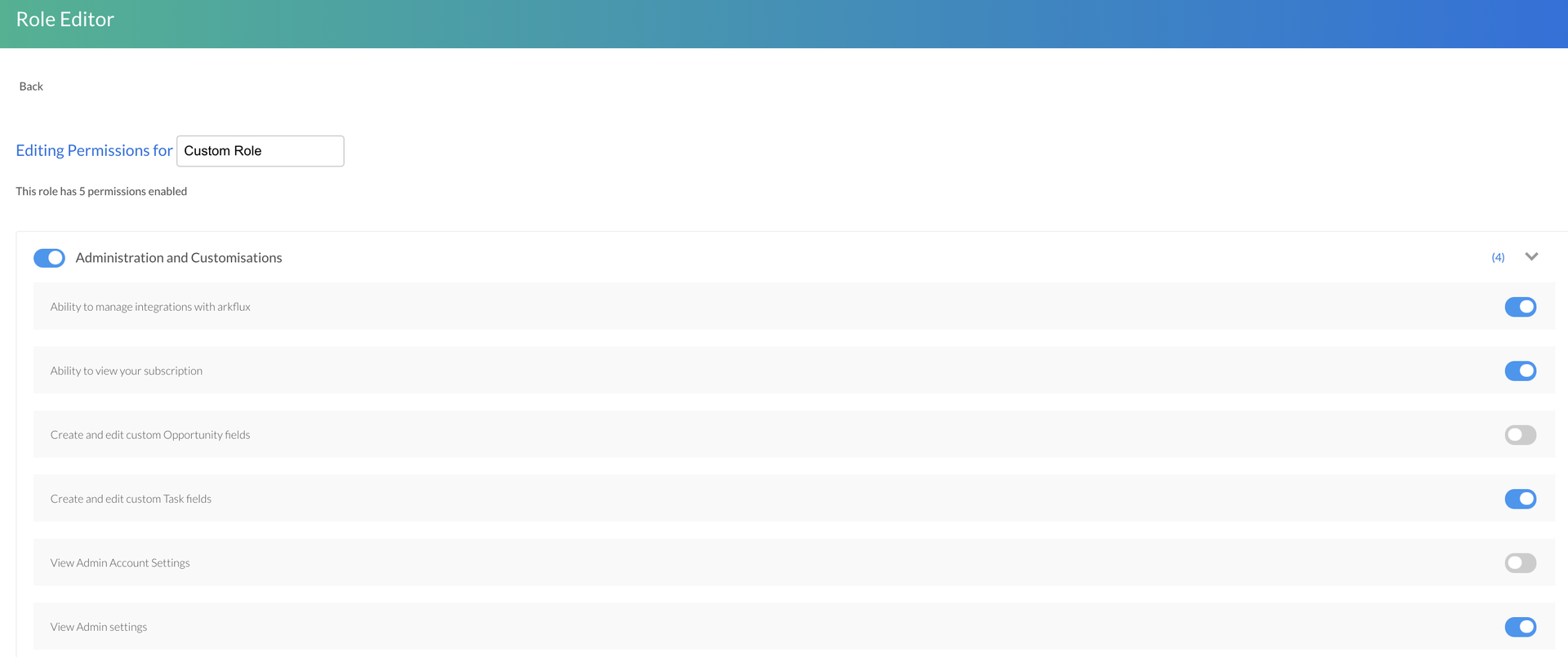
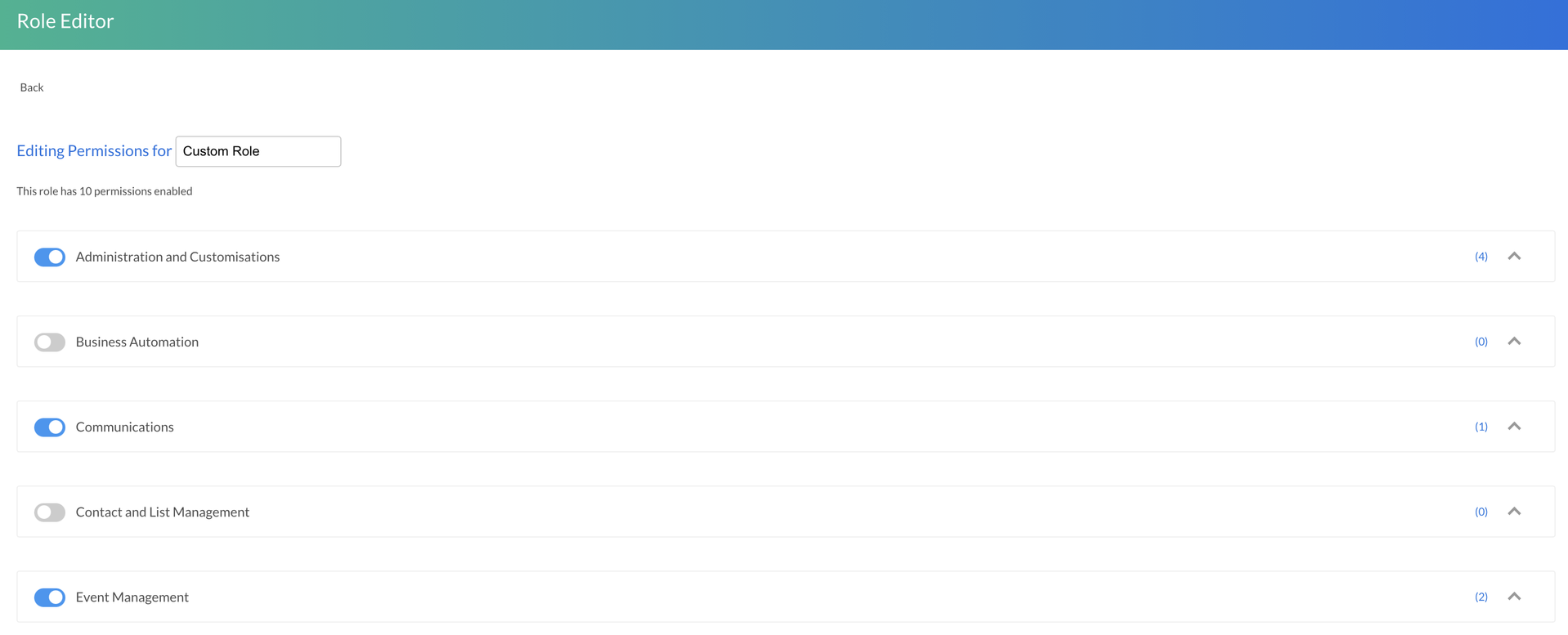
You can select as many permissions from as many groups as required:
Screenshot2021-09-02at14.47.20.png
Once you have built out your role with the required permissions, it will be available for further edit and assignment to Users. 
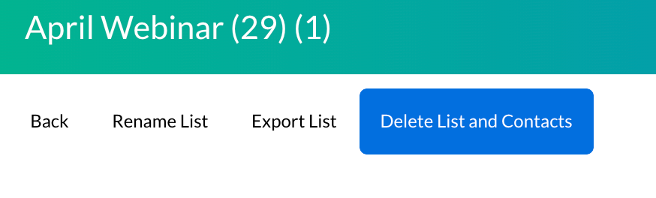
Note: There is a permission specifically created for Deleting Lists and Contacts that is currently only automatically included in Global Administrator role.
Once assigned the option of Delete List and Contacts will be available under Contacts > Static Lists:
Picture101234567891011121314151617181920212223242526272829303132333435363738394041424344454647484950515253.png
As well as creating bespoke roles, there are a number of pre created roles available for instant use in the platform. These will show as locked in the available role list:
Screenshot2022-03-21at10.28.23.png
The Global Administrator role is the top role that will enable the User to have access to every permission and therefore every part of the platform. For this reason it is locked and cannot be edited unlike the other pre created roles.
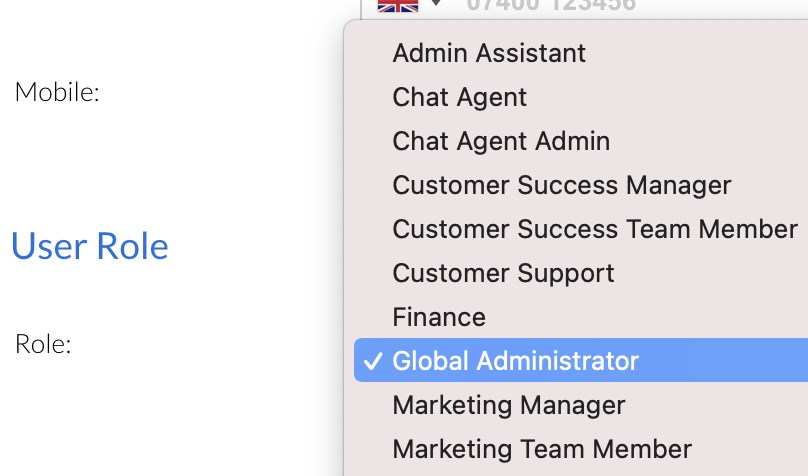
Once your Role has been created, you will be able to assign it to a User in the platform

Admin > Users > Click on User > Choose Role
Screenshot2022-03-21at10.32.06.png
Roles also play an integral part in Contact Owner management within the platform. Multiple contact owners can be added to a single contact, company and task. 

Contact > Contacts / Company > Click into contact / company. Or create a task > click into the blade to edit.

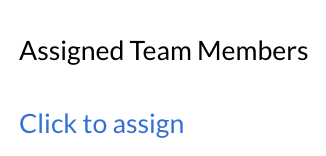
Click on wording to assign first team member:
Screenshot2022-03-15at11.41.11.png
Then click on that team member to assign more via a type ahead:
Screenshot2022-03-15at11.28.33.png
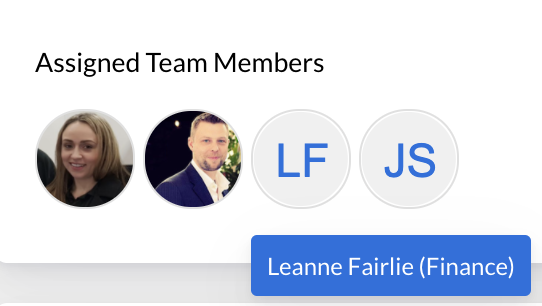
Hovering over the assigned team members will show you their name and assigned role.
Screenshot2022-03-15at11.28.50.png
Note: Multiple contact owners can also be assigned to tasks in Business Automation rules.
Learn more about Business Automation
Screenshot2021-08-30at13.48.01.png