a-text-logo0.png
Email Template Creation
Templates are a great place to start when thinking of sending out a marketing campaign.

When you create a campaign and select a form, survey or email template they are copies of the template you originally created. The original template will remain untouched if you make any edits to one you have selected in the campaign workflow.

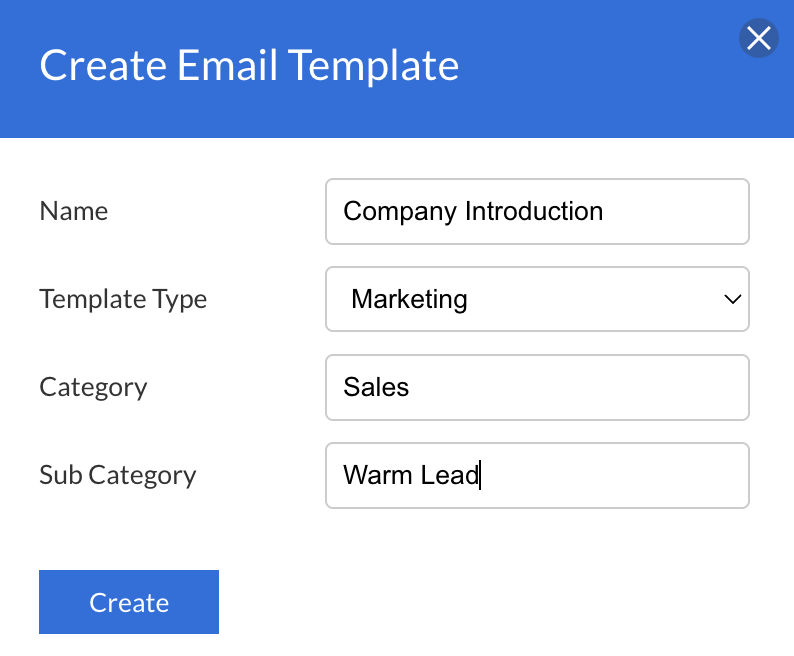
Create

Templates > Emails> Create > enter a Name/Category/Sub Category > Create
Screenshot_2023-07-20_at_15.44.27.png
Template Type
Select Marketing for email templates with marketing content to be used in marketing campaigns.

Select Personal emails for email templates used for personal inbox communication, sent directly from a contact, to that contact.
Learn more here about Send Email direct from a contact to a contact.
Layouts


Here, you can edit the look of the template that you have selected, hovering over the image gives you the name of the feature you are adding. These can all be edited after being added to the email. To understand what edits you can make to a chosen template layout, click on the layout and a blade will slide over from the left hand side with options such as below.

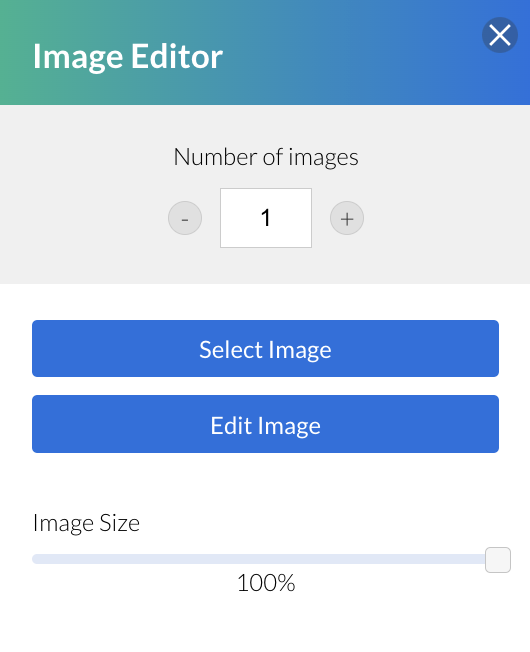
This is edit blade for the image layout:

Screenshot_2023-07-10_at_11.09.09.png
If it is a layout that includes text, a black bar will also show at the top. Hover over these options to understand what edits can be made to the text area:
Screenshot_2023-07-20_at_15.50.47.png
Creating Links

Link Text

All text links will turn blue to show the link has successfully been applied - this can be changed back to the normal text colour if required.

To Custom URL
Highlight the text you want to link and click the link button in the black edit bar. 

Copy and paste / type the link URL into the field ensuring the protocol is correct and click Create.

To Mailto
Highlight the text you want to link and click the link button in the black edit bar.

Copy and paste / type the mailto address into the field ensuring the protocol is correct and click Create. 


Screenshot_2023-08-23_at_15.29.16.png
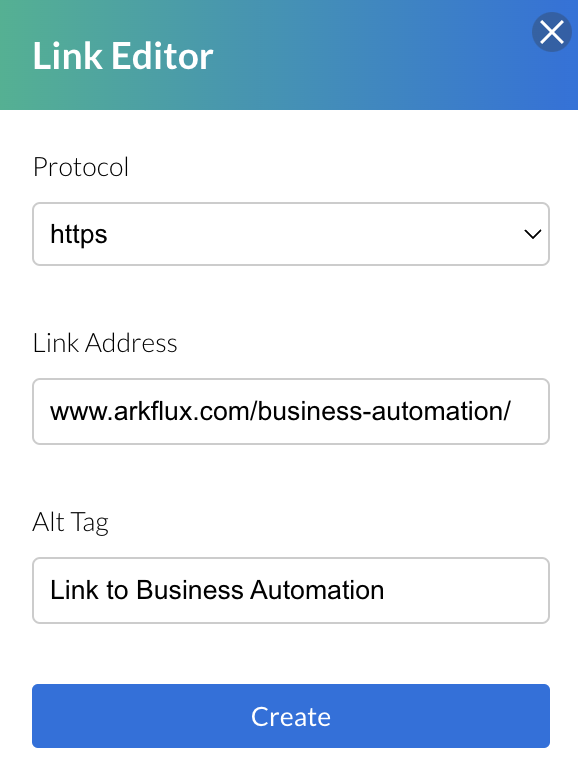
Link Images

Click the image you want to link, then click Create or Edit Link on the left hand side blade.
To Custom URL
Copy and paste / type the link URL into the field ensuring the protocol is correct and click Save.


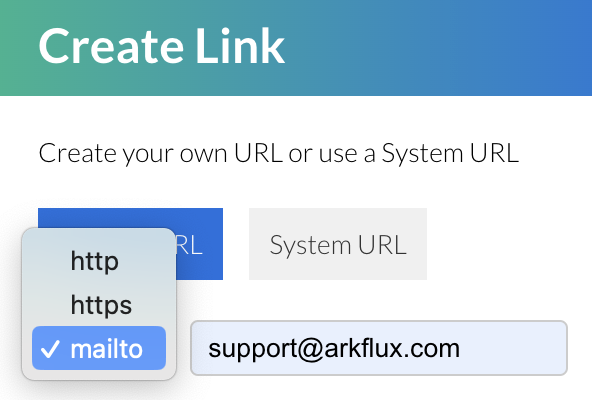
To Mailto
Copy and paste / type the mailto address into the field ensuring the protocol is correct and click Save.
Screenshot_2023-08-23_at_15.34.13.png
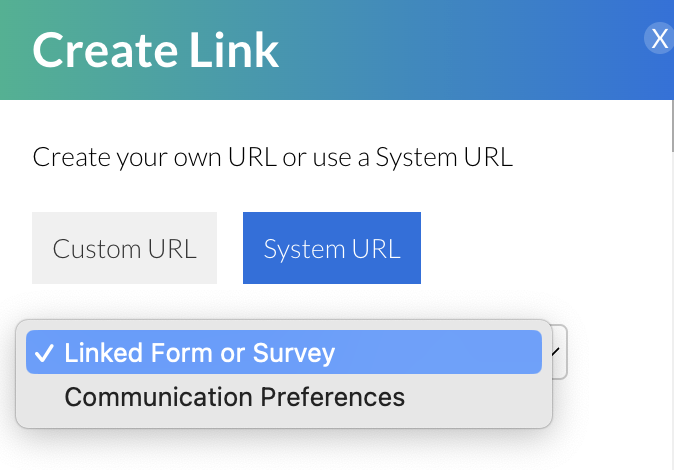
To System URL
You can link an image to act as a button and redirect to the form or survey included in your email campaign.
Selecting to link the image to Communication Preferences will redirect the contact to the options entered under Admin > Marketing Settings > Preferences. 
Screenshot_2023-08-23_at_15.49.17.png
Merge Tags
Merge tags enable you to add data specific to contacts to outbound emails to personalise them. Examples of merge tags could be First name, Company name as well as other data you choose, gathered via our Custom and Attribute Fields.

Learn more about Email Merge Tags
Text 
Drag this text box onto the page and use it to add a solid block of text and use the taskbar at the top of the screen to edit the text. Also, use the blade that slides out on the left to add margins to the text as well as spacing, alignment and changing the background colour of the text box.

TextBlock.png
AI Text Generator
Within the Text box, utilise the AI Content button located in the left hand menu to generate content instantly for marketing communications.

Type in the content you want to be generated and then click Generate. The content will be directly added to the email template for any edits. 

ai.png
Image
Add an image to your email and use the blade to increase the number of images within that section, edit the one you have currently selected, change the size of the image as well as the margin, spacing and background colour.

ImageBlock.png
Click here to find out more about Image Uploads in email campaigns
Pre-made layouts
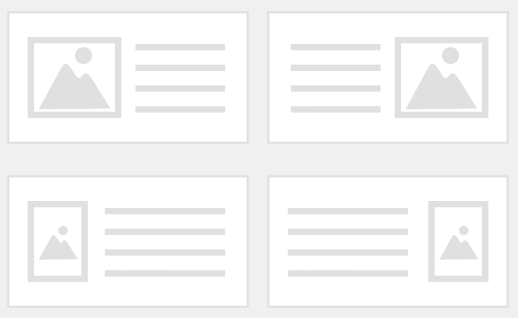
The pre-made layouts combine a text field with an image, the higher-level layouts are for larger images with the lower ones for smaller ones. The editing steps are the same as the individual fields.

Pre-MadeLayouts.png
Divider
This is a small divider to break up sections of your page, both the size and colour of it can be changed from the blade.

Divider.png
Social
Use these icons to direct contacts to your social media channels including:

  • Facebook
  • Twitter
  • LinkedIn
  • YouTube
  • Instagram
  • Website
  • Email

The URL's can be pre set in the platform via Admin > Account so they automatically populate when selected within an email template.

SocialButtons.png
Footer
When selecting this and adding it to your email, the details should be automatically filled out. If not, then select the menu icon > Admin > Account and add the details. After this, whenever you add a footer, it will automatically fill it with the information. This can also be edited like a regular text box in the email template.

Footer.png
Button 
Buttons can be used to link to multiple destinations.

After selecting the button, the blade will slide out of the left-hand side of the page and at the top there should be a dropdown box titled button type. From here, select the type of link that you want the button to contain:

Link to arkflux form, survey or event
Link to an arkflux form, survey or event that you have created in the platform. One per email template is allowed and there is no need to do anything else with this button to link it up as this will be done during the campaign creation. 

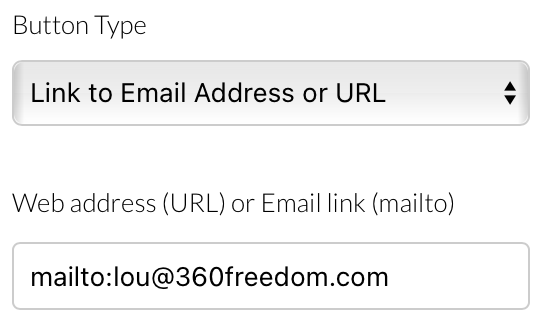
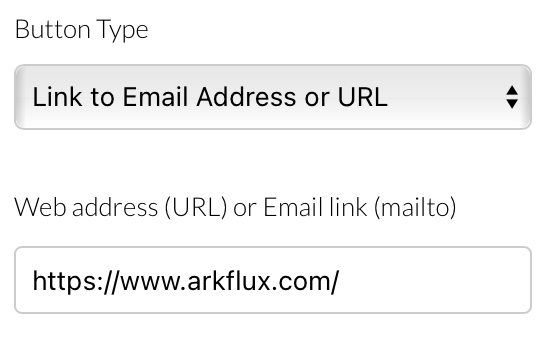
Link to email address or URL
Link to an email address by choosing the mailto option in the dropdown and then the contact email address in the box below. Linking to a URL, will require the full URL including prefix e.g. https://
Button.png
Screenshot2021-11-17at10.48.40.png
Screenshot2021-11-17at10.49.02.png
File download
Link to a file e.g. a PDF about your business. Upload the file from the blue button or choose from a previously uploaded file in the dropdown.
Copy a Layout
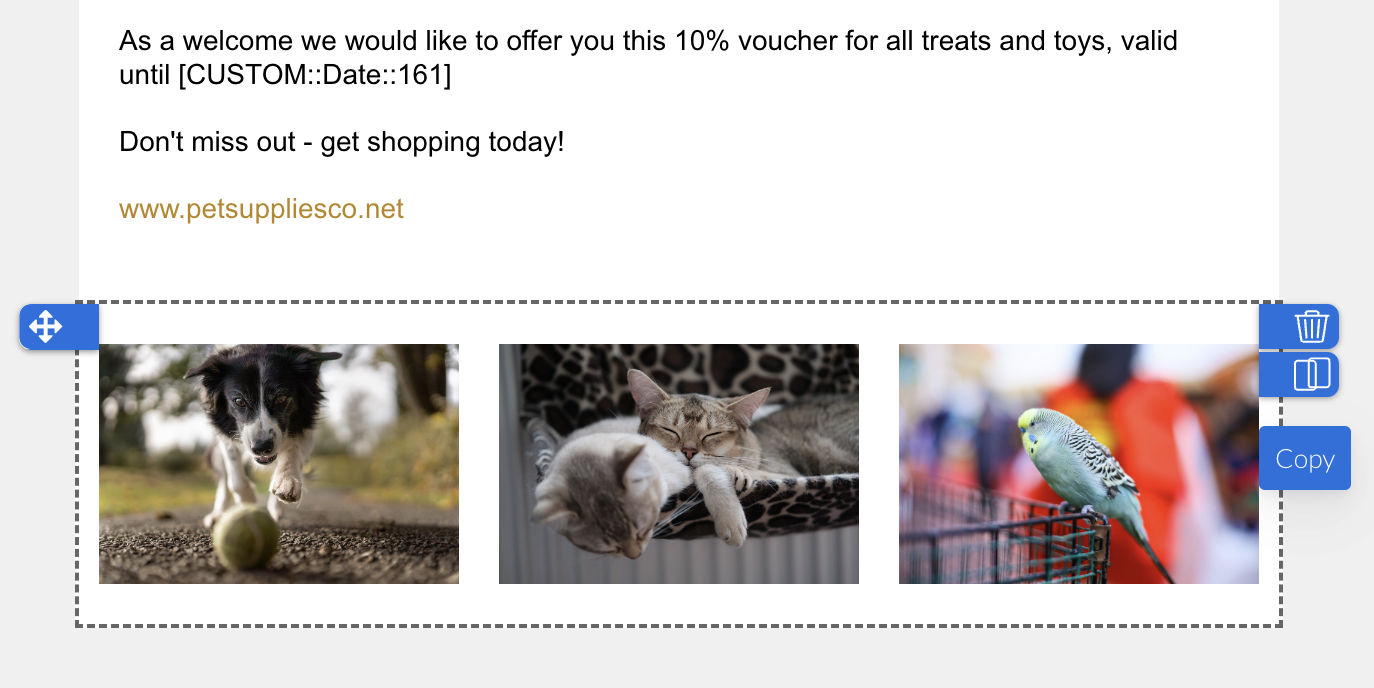
Copy an existing layout by clicking on the image, then clicking on the blue copy tab:
Screenshot_2023-08-23_at_16.04.06.png
Note: Are you using the "Link to arkflux form, survey or event" button option and wondering how to connect it up with the form, survey or event you need? Once you are populating the campaign workflow, you will be able to select the form or survey to use in the email from your template library.  Events are created with the email template added to the workflow and the button made live upon publishing. 
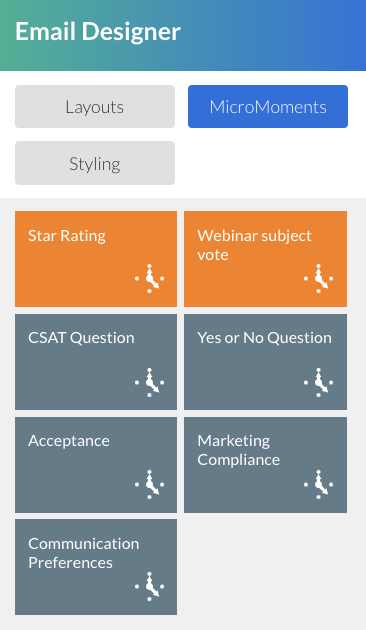
MicroMoments are images with values assigned to them, for use within an email template. Once clicked, the associated value will then be reported against the contact in the campaign so you can clearly see what answers have been given and by whom.

You can encourage engagement with creative MicroMoments for your customers to provide immediate feedback to a single question, but if required, it can continue on to a form or survey to collect further feedback. There are some default MicroMoments shown in grey and some custom built MicroMoments shown in orange.  
Screenshot2022-03-09at15.58.29.png
Note: Create custom MicroMoments under Templates > MicroMoments
Learn more about MicroMoments
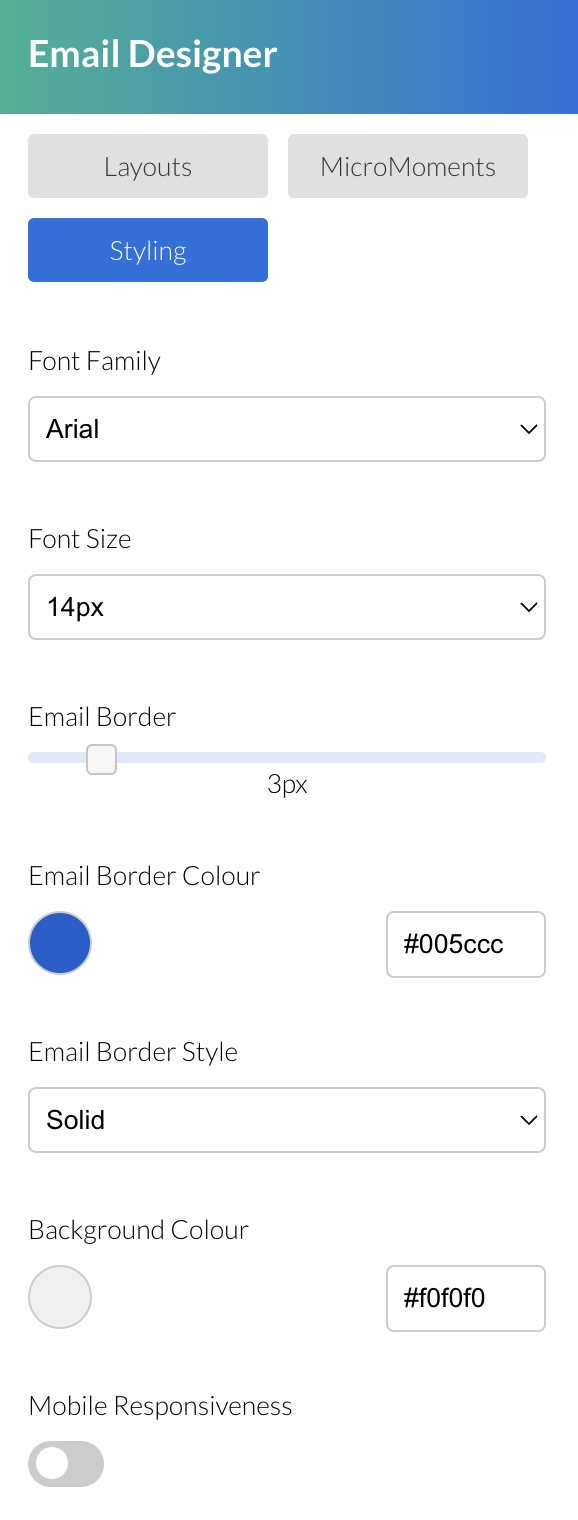
The styling section is in place to provide the ability to format your entire email in a singular style, through the font type and size.

As well as this, you can change the background colour for the editor, add a border to the email and make the email responsive on mobile devices.

Learn more here about Mobile Responsiveness
Screenshot_2023-08-11_at_09.41.31.png
Spam Score
This will send the email you have created through to many different inboxes to see how often the email ends up in the spam/junk folder and then report back to you with a score.

The score is mainly affected by the ratio of words to images and the words that are being used within the email. Trigger words that are usually associated with spam will have a large negative impact on the score where higher, the more likely the email is to land in your contacts inbox.
SpamScore.png
Preview
The preview button in the top will allow for the user to view the email in either desktop or mobile view and see how the email would look to the recipients on that device. This can help with formatting and just making sure that your email is exactly as you want it to be.
Preview.png
Send a test
Sending a test email by clicking on the mail icon in the top right will send the contact entered a test copy of the email template. Links to arkflux forms, surveys and events will not connect, due to them not being live until the template is in a campaign and published. 
Test.png
Save as Template
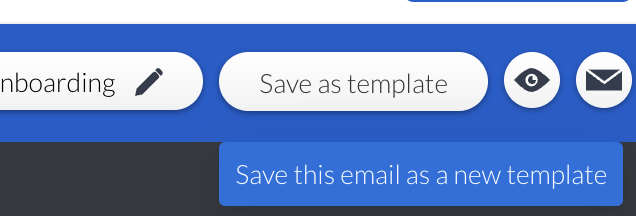
If you create an email template within a campaign, you have the option to 'Save as Template.' This will create a copy of the template under Templates > Email for future use.
Screenshot_2023-10-31_at_11.55.30.png
Learn more about Marketing Campaigns
Screenshot2021-08-30at13.48.01.png