a-text-logo0.png
Image Upload
Select and Edit image in Email Templates, Form and Survey Templates and Landing Pages. 

Drag and drop the Image Layout onto the template area, click on the image to view the image options 'Select Image' and 'Edit Image'.
Note: Email, Form, and Survey Templates share an image library. Landing Pages have their own separate library. 
Upload an Image 

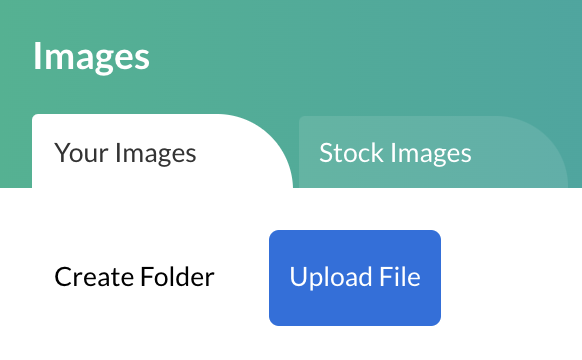
Click Select Image > Your Images > Upload File to upload a new file from your desktop.
Screenshot_2023-07-07_at_14.55.44.png
Once the file has been uploaded, it will appear at the bottom of the 'Your Images' tab, ready for selection. 
Create and Edit Folders
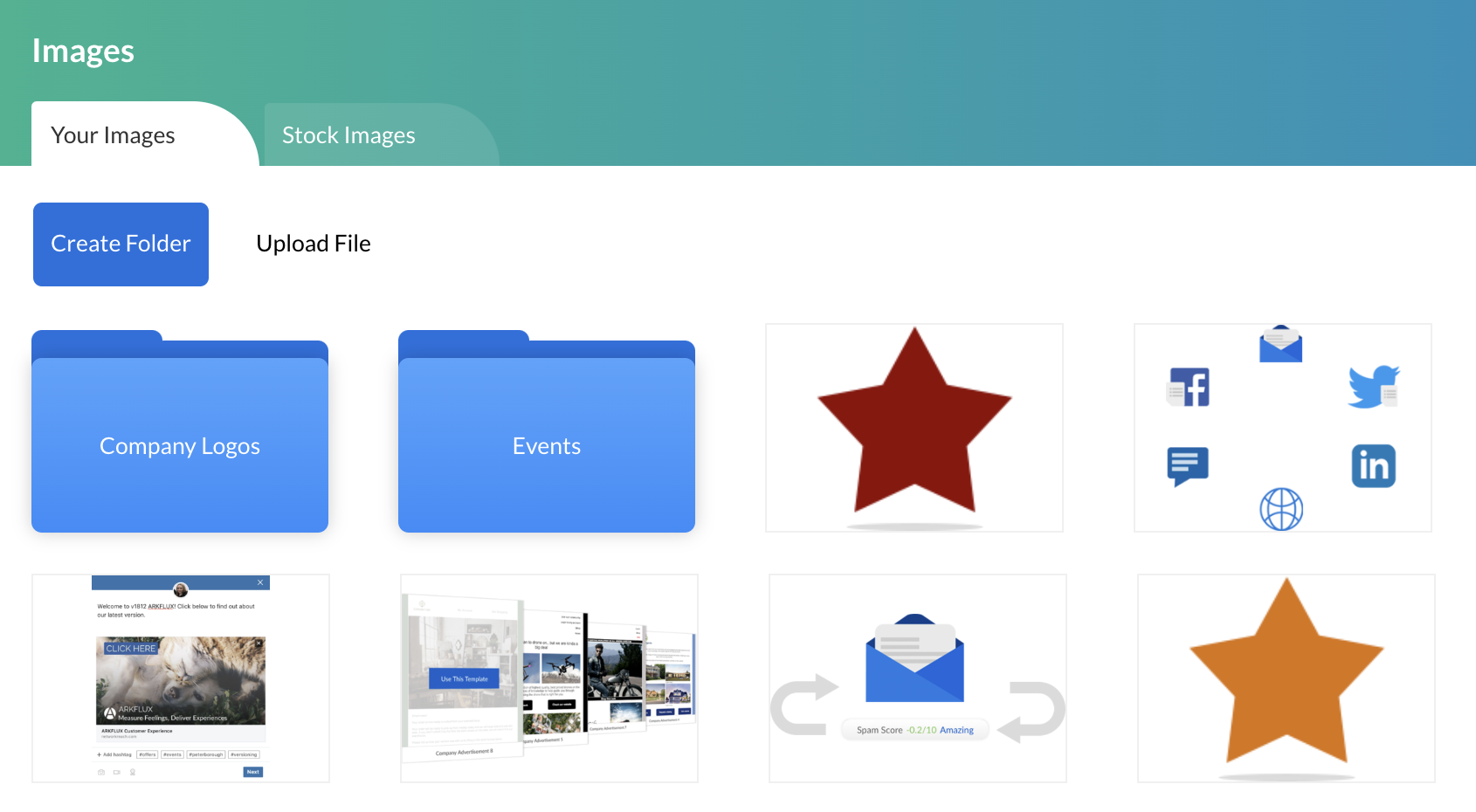
Build a centralised repository for images that can now be organised into folders.

Create Folder > Click into the folder to name. Folders will show in alphabetical order of their name.
Screenshot_2023-07-07_at_14.53.00.png
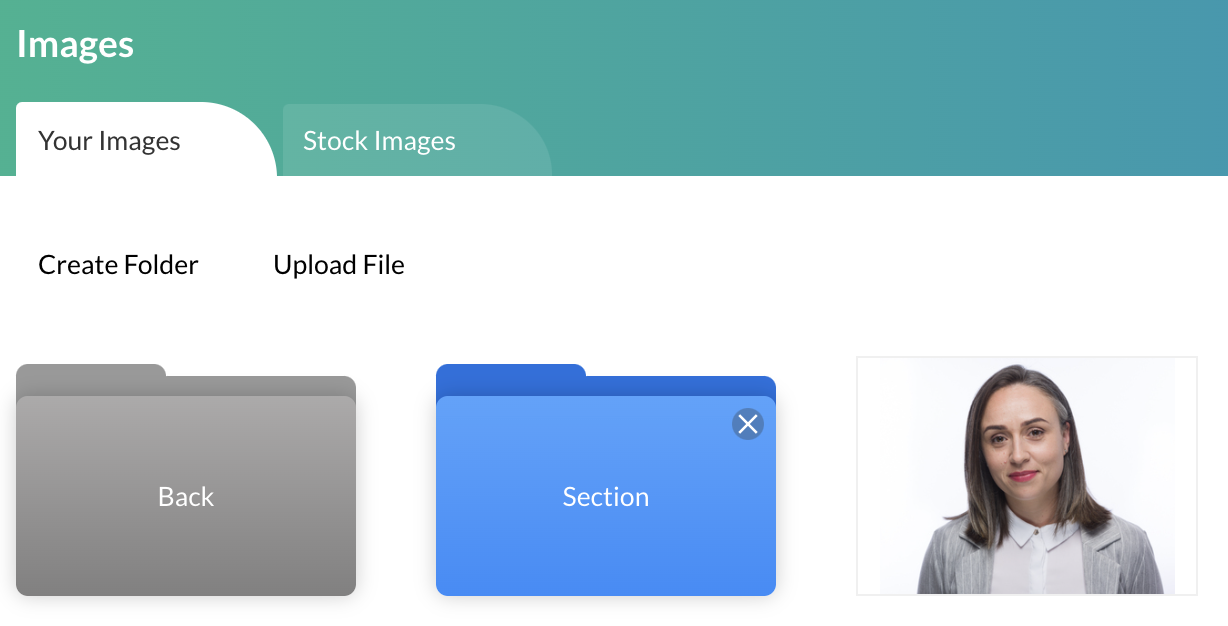
Folders can be created within folders:
Screenshot_2023-07-07_at_15.03.18.png
Screenshot_2023-07-07_at_14.59.12.png
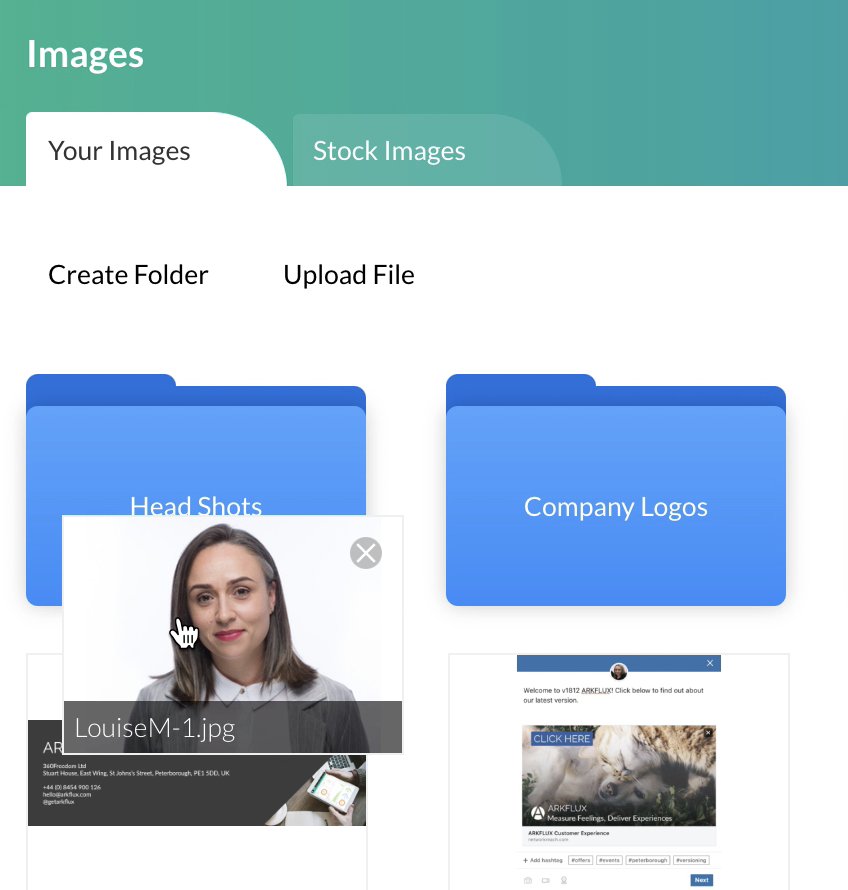
Drag and drop images into the folders to organise:
Screenshot_2023-07-10_at_11.25.43.png
Breadcrumbs
When creating folders, there is a breadcrumb trail offering navigational cues that help you to understand your current location.
Screenshot_2023-07-10_at_11.32.07.png
Rename
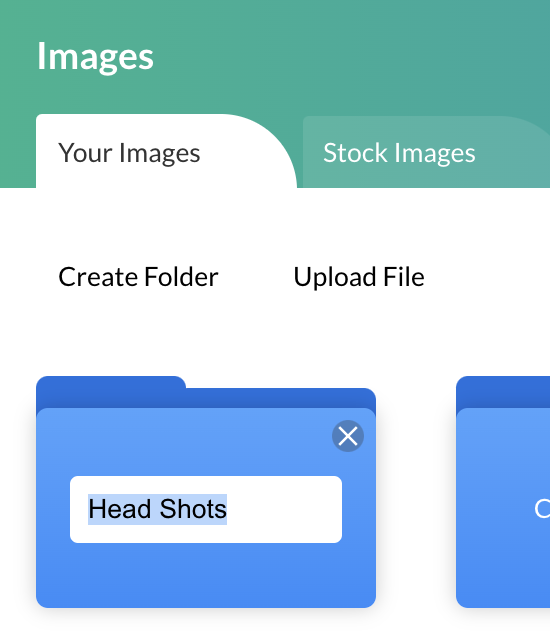
Rename the folder by double clicking on the folder, typing the folder name and pressing return. Folders will show in alphabetical order of their name. 
Screenshot_2023-07-07_at_14.57.02.png
Delete a folder and its contents by clicking the 'X' top right of the folder.
Stock Images
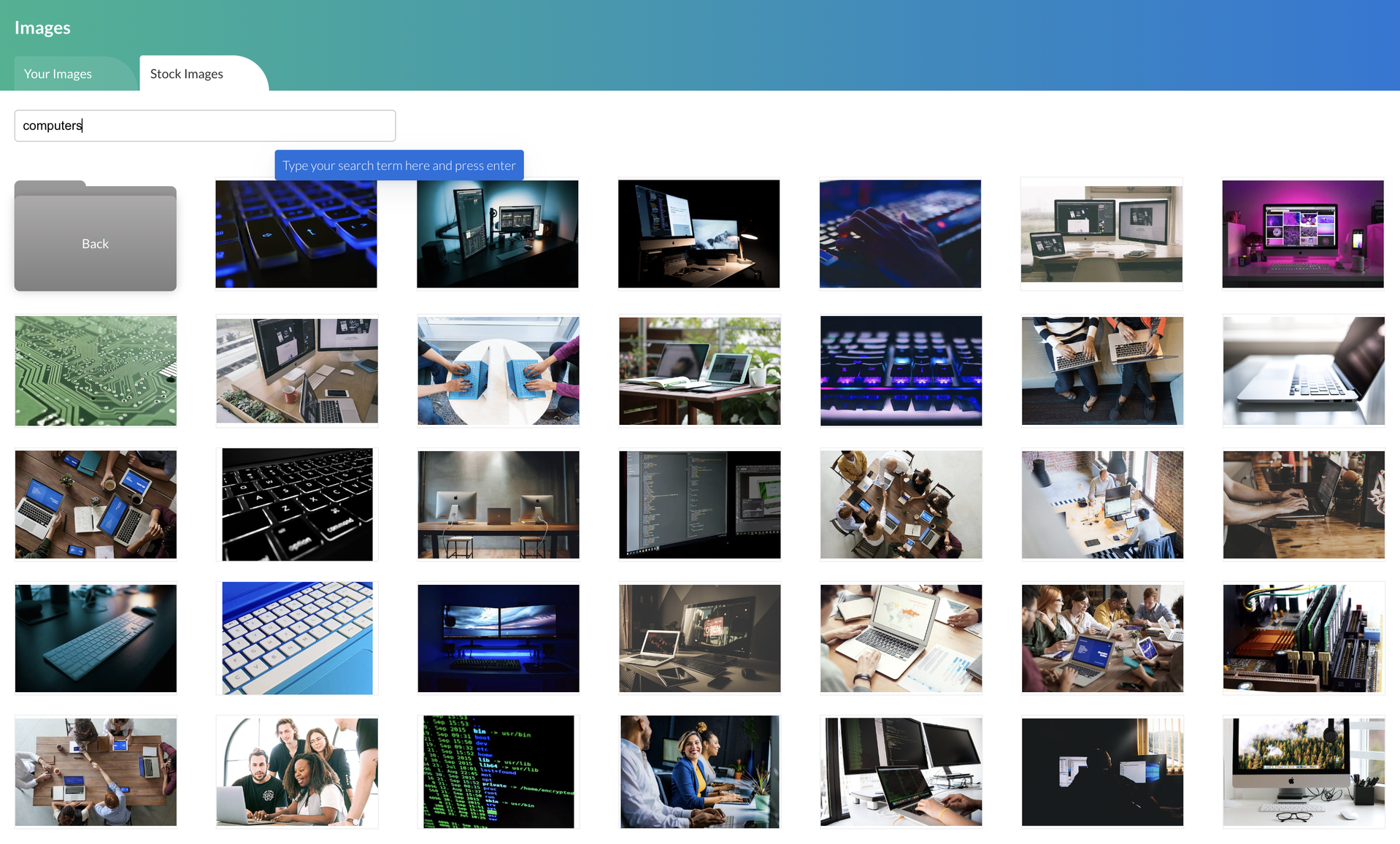
Access high-quality photos, illustrations, and other graphics in our Stock Image Library. Save time and money and quickly find the right image for your campaign without having to search through multiple sources using the search bar.

Click on the Stock Images tab and double click to select the image. 
Screenshot_2023-07-07_at_14.56.38.png
Screenshot2021-08-30at13.48.01.png