a-text-logo0.png
Email Merge Tags
Click to visit section

Overview
CRM
Attribute
Custom
Merge tags enable you to add data, specific to individual contacts in outbound emails to personalise them. Examples of merge tags could be First name, Company name as well as other data you choose, gathered via our Custom and Attribute Fields. 

Menu > Templates > Emails > Create > drag and drop a text block over > click into the text block to access the black edit bar:
Screenshot_2023-07-20_at_15.50.47.png
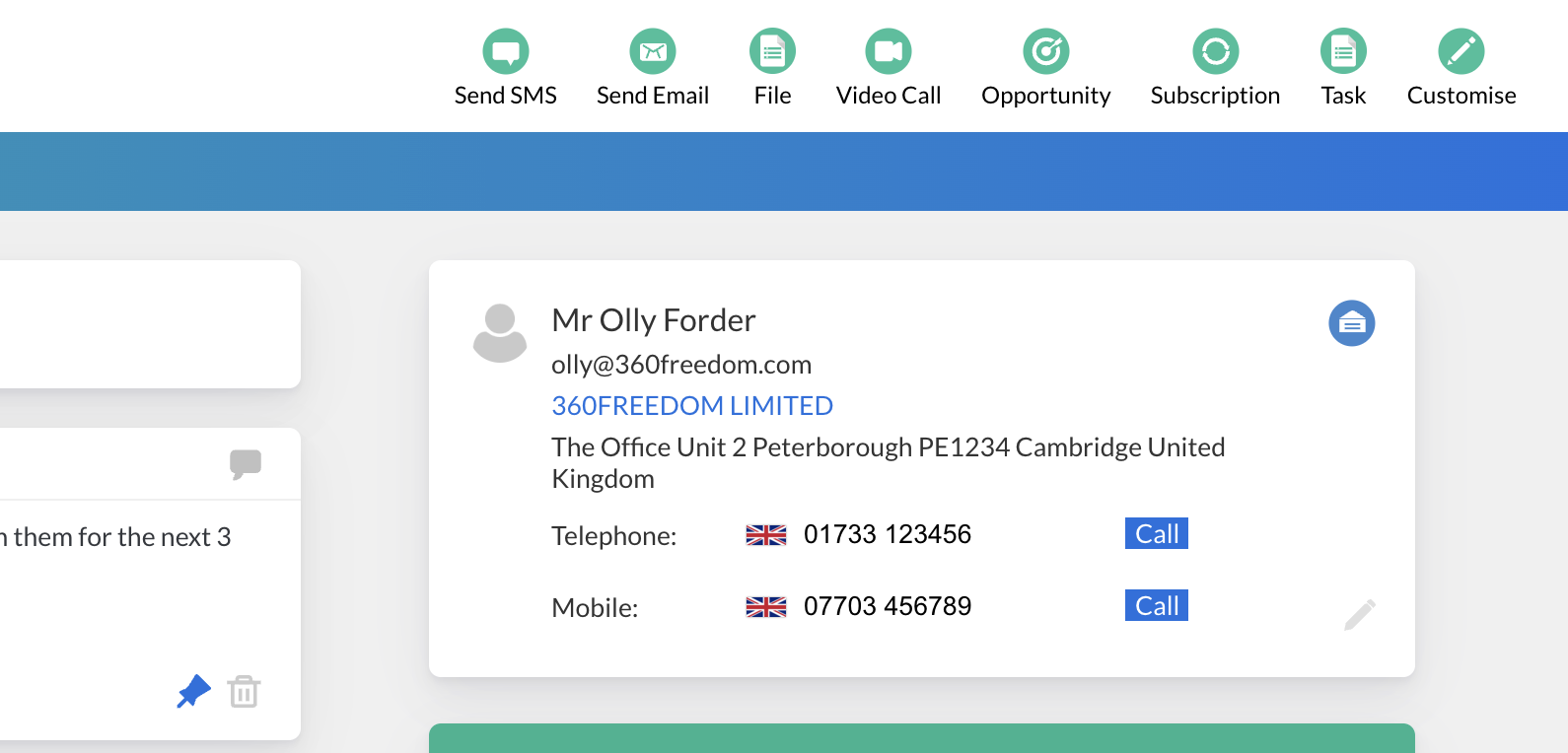
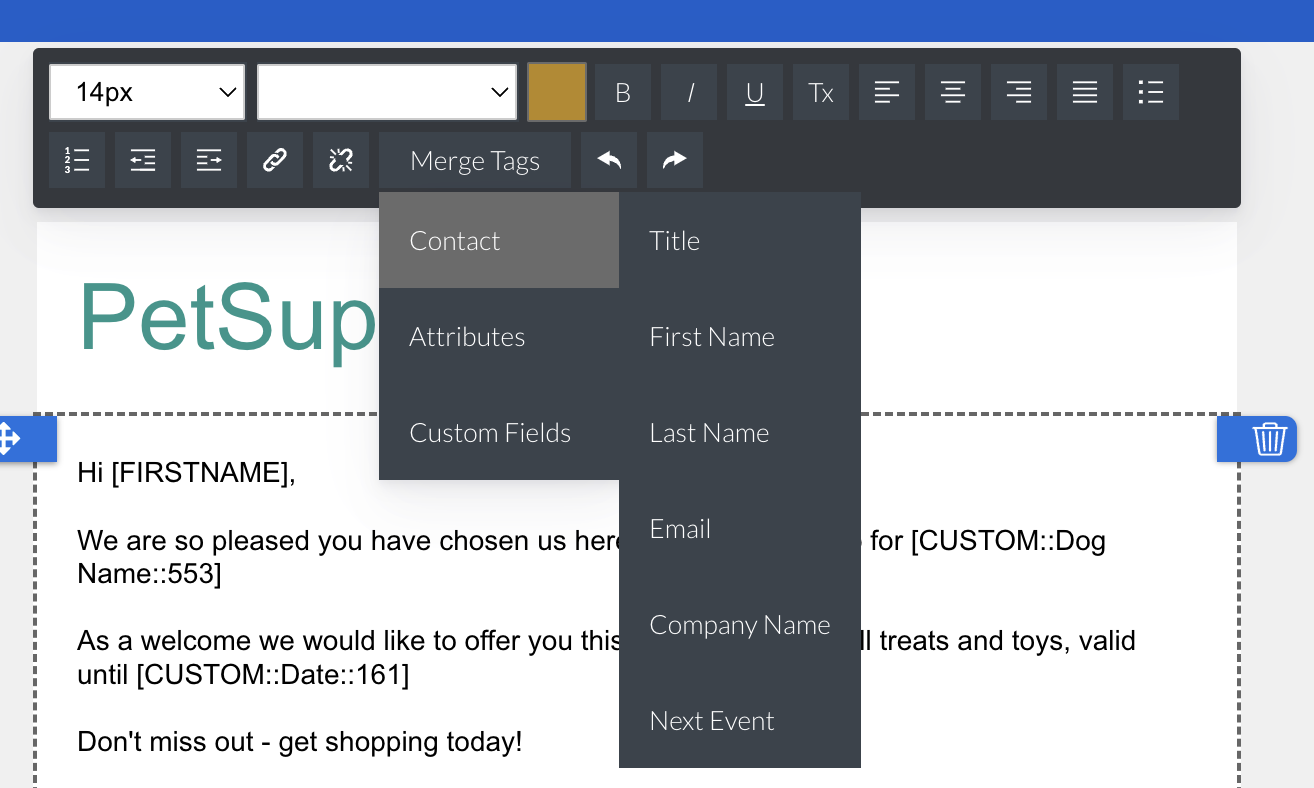
CRM Merge Tags First Name, Last Name, Email Address and Company Name are powered by data on the Contact Profile page.
Screenshot_2023-07-21_at_11.36.30.png
Screenshot_2023-07-17_at_16.17.41.png
Replacement Text
If data in a CRM First Name, Last Name isn't entered you can set replacement text under Admin > Marketing Settings:
Screenshot_2023-07-26_at_15.39.41.png
Email Address data will always be available, as it is required to create a contact.

Company replacement text is COMING SOON.
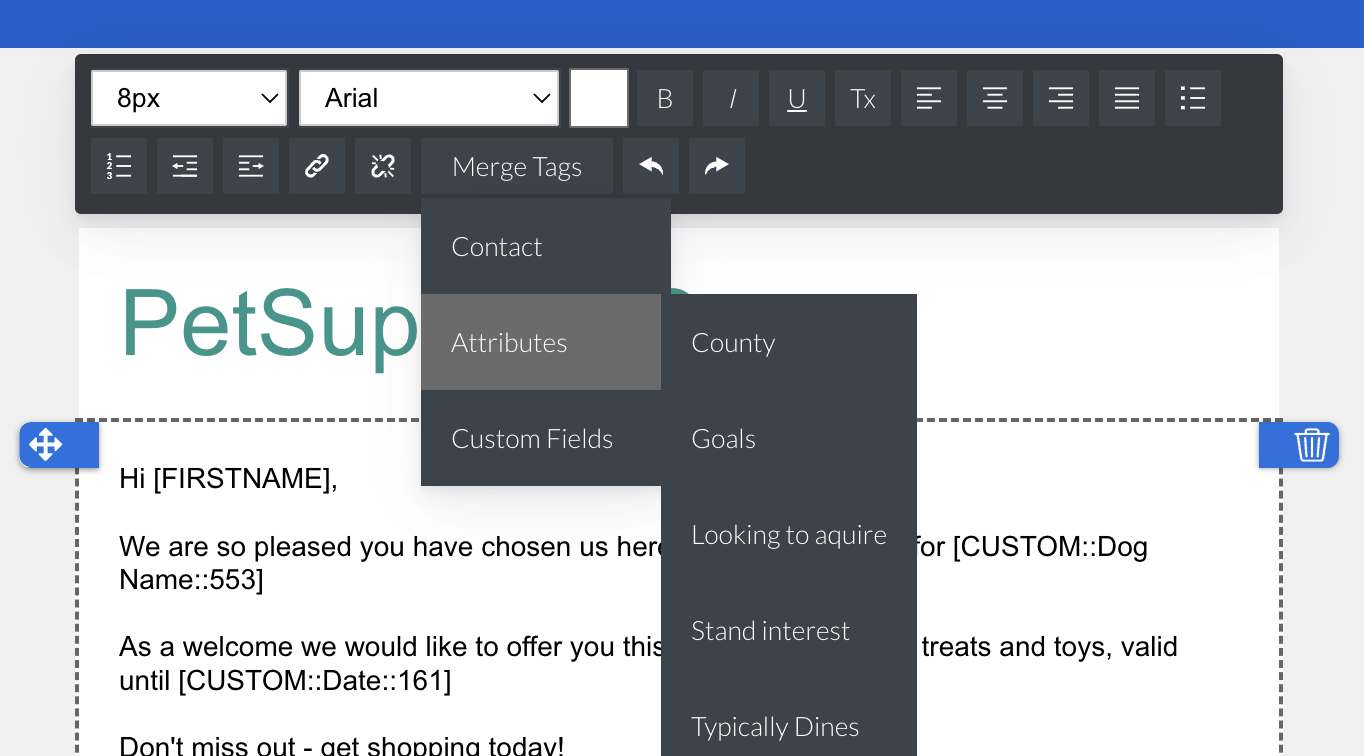
Attribute Field Merge Tags are fuelled with data from Attribute Fields.

Learn more about Attribute Fields
Screenshot_2023-07-17_at_16.20.23.png
Replacement Text
If data in an Attribute Field isn't entered in the platform you can add replacement text against the fields when you are creating it.

Menu > Templates > Attribute Fields > Create 

On the left hand blade there is a field option called 'Replacement Text' What you enter in this field will show in the email campaign if a value isn't available.
Note: It is important not to edit the merge tag in any way once it has been selected from the drop down. Doing so will cause the merge tag to fail to show the data correctly to the end contact.
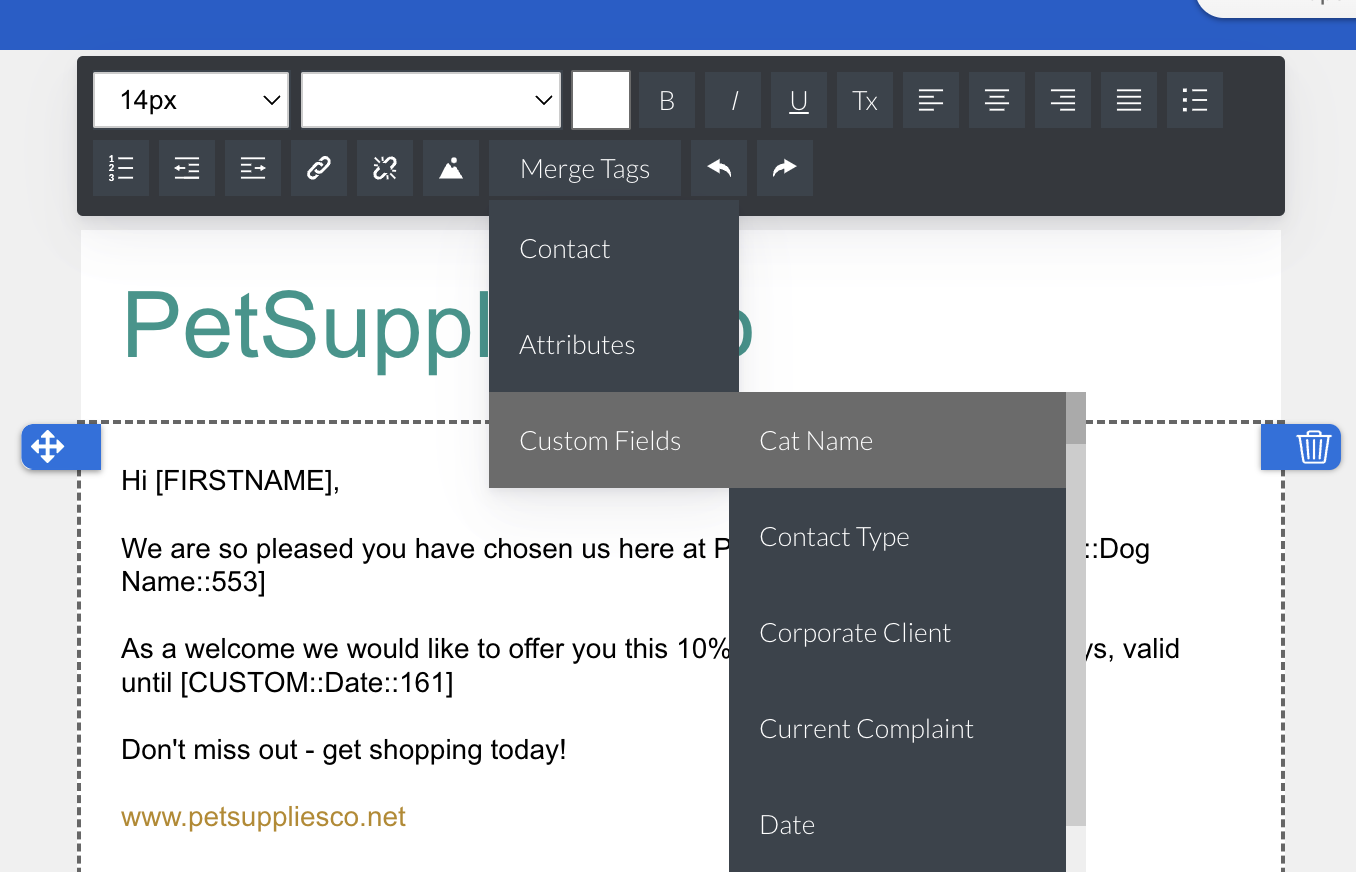
Custom Merge Tags are fuelled with data from Custom Fields.

Learn more about Custom Fields
Screenshot_2023-07-20_at_16.12.58.png
Replacement Text
If data in a Custom Field isn't entered in the platform you can add replacement text against the fields when you are creating it.

Contacts > Contacts > click into a Contact > Contact Profile > Customise > click into a Custom Field > click the grey edit pen

On the left hand blade there is a field option called 'Replacement Text' What you enter in this field will show in the email campaign if a value isn't available.
Note: Don't forget your grammar! Be sure to read your email content through and add commas etc where needed in and around merge tags. Also, be sure your Replacement Values read well.
Learn more about Attribute and Custom Fields
Screenshot2021-08-30at13.48.01.png