a-text-logo0.png
MicroMoments
Click to visit a section:

Pre Built  
Custom 
Use in a Campaign
Personalise Confirmation
Reporting
MicroMoments are images with values assigned to them, for use within an email template. Once clicked, the associated value will then be reported against the contact in the campaign so you can clearly see what answers have been given and by whom.

You can encourage engagement with creative MicroMoments for your customers to provide immediate feedback to a single question, but if required, it can continue on to a form or survey to collect further feedback.
Pre-built

There are a number of pre-built MicroMoments in the platform shown in grey, ready for use.

CSAT

Customer Satisfaction Score (CSAT) is a basic measurement of a customer's satisfaction with a brand's product and/or services.
A CSAT score above 80% is said to be desirable but it will vary by industry and the business location. CSAT scores are very helpful for pinpointing issues, especially if you use them to grade different parts of your business. CSAT scores are a great indicator of customer loyalty and brand advocacy, both of which affect your sales.

Screenshot2021-10-28at17.54.28.png
Yes or No

Use this option alongside a question.
Screenshot2021-10-28at17.54.39.png
Acceptance

Use this option alongside a statement.
Screenshot2021-10-28at17.54.48.png
Marketing Compliance

Use this option alongside a statement e.g. Please click below if you would like to Opt In to this service
Screenshot2021-10-28at17.55.00.png
Communication Preferences

Use this option to redirect the contacts to the communication preferences you have entered in Admin > Marketing Settings.
Screenshot2021-10-28at17.55.18.png
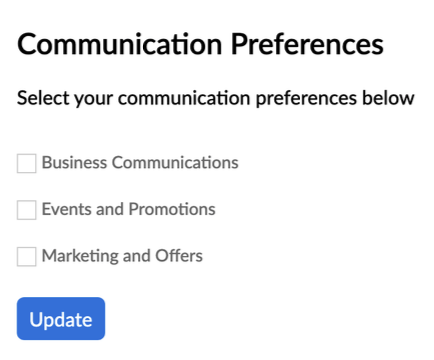
Upon clicking, the contact will be redirected to this page:
Screenshot2021-10-28at17.57.55.png
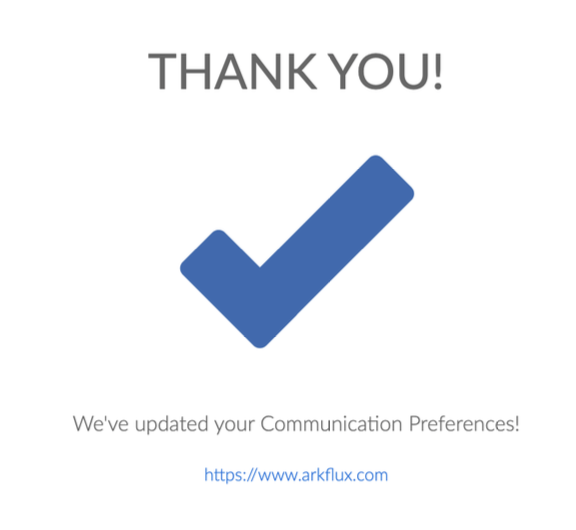
Upon clicking Update, the contact will be redirected to a standard thank you page. The interaction will also be marked on the contact profile timeline. 
To begin creating your own bespoke MicroMoments

Templates > MicroMoments > Create >Enter a Name > Create

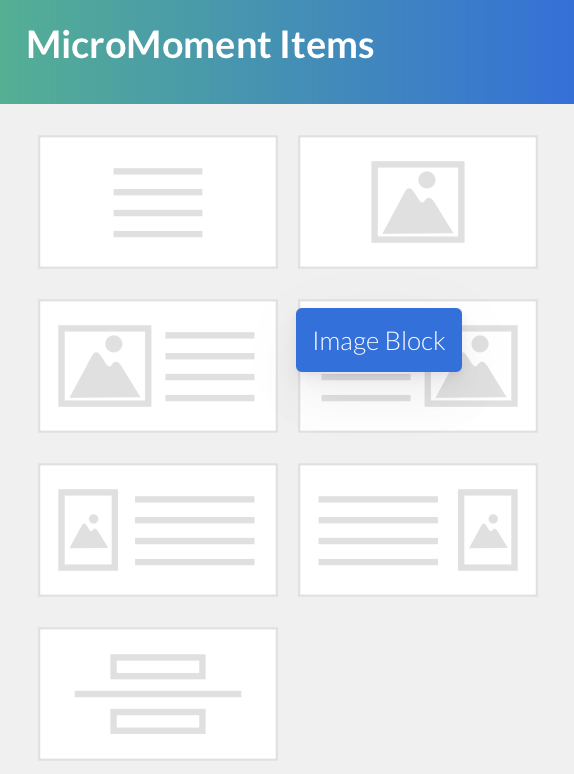
Drag and drop layout options from the left hand side. Hovering over the image will give you the name of the layout feature you are adding.
Screenshot2021-10-28at17.37.33.png
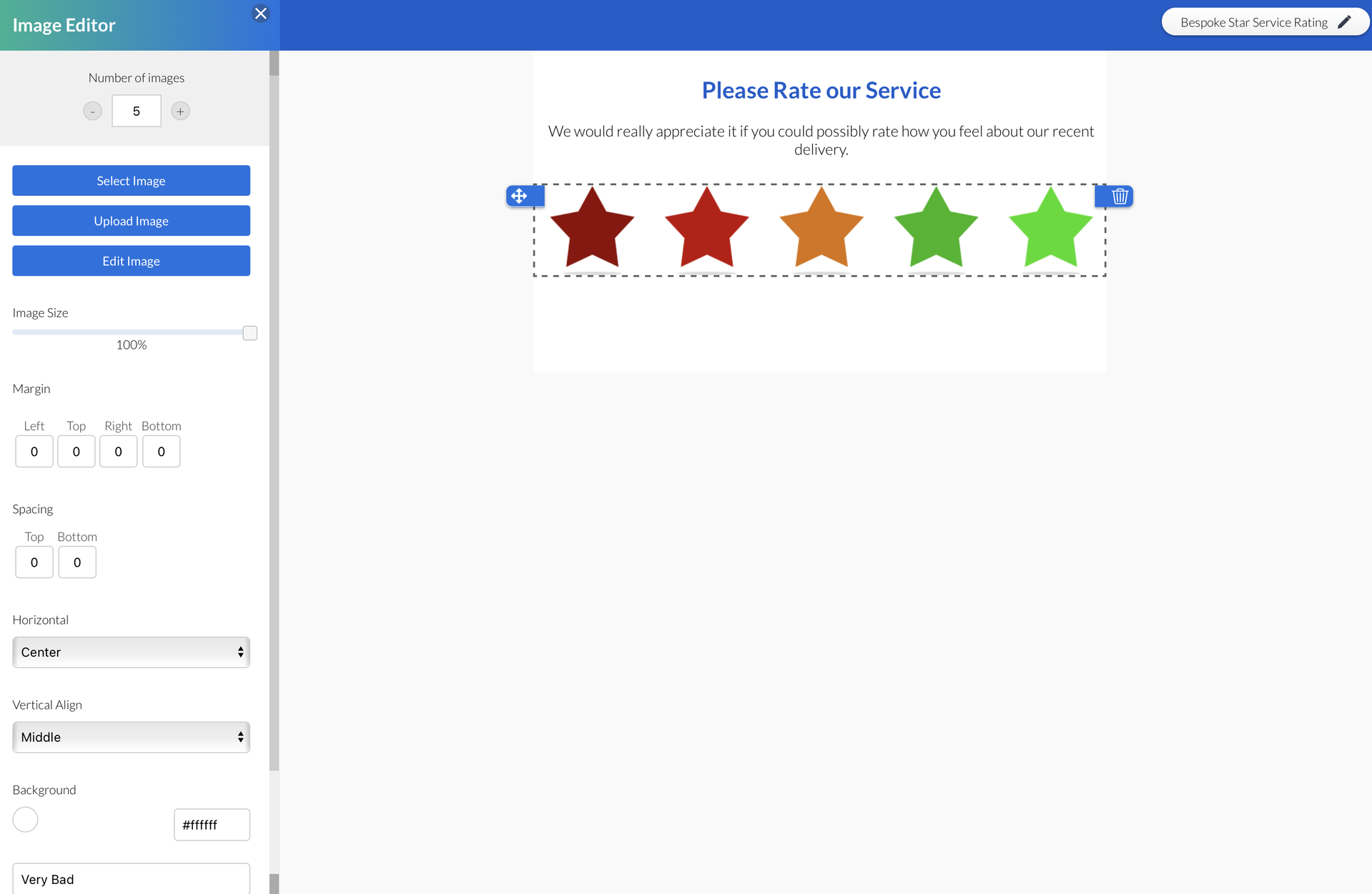
Clicking on the layout option you have selected will show the available edit options on the left blade.
Screenshot2021-10-28at17.35.29.png
Multiple columns

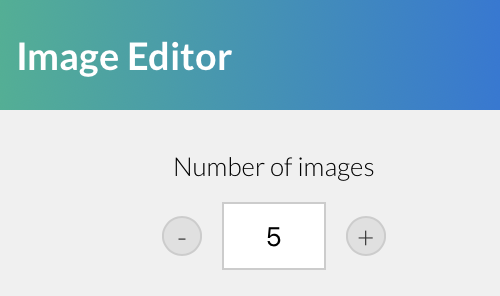
There is the ability to have up to 5 columns in a MicroMoment for the text and image layouts.
Screenshot2021-10-28at17.41.29.png
Click on the plus sign to add columns, click on the minus to delete a column.

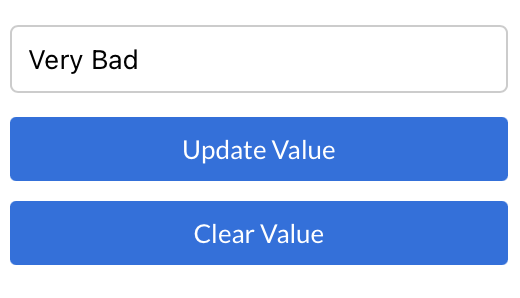
Once the content has been entered, click on any images you want to assign a value to > enter the value > Update Value > Save and Exit:
Screenshot2021-10-28at17.40.52.png
Note: A MicroMoment can collect a single value, it can also then redirect the contact to a form or survey to collect further data. If the contact doesn't fill in the follow up form or survey, the MicroMoment value will still be captured.
You can use one MicroMoment per email template.

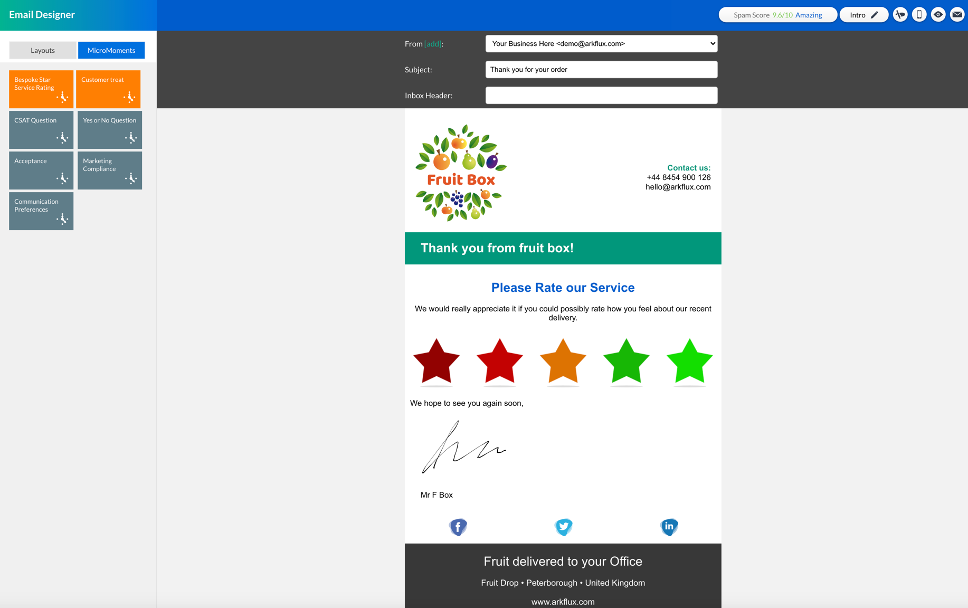
Once created, MicroMoments are available for selection in the email editor under the MicroMoments tab to drag and drop onto the email template.


EmailMicromoment.png
After an individual responds to a MicroMoment they will be redirected to one click confirm their response. This is to help combat spam bots. Once confirmed, they are redirected to a thank you page:
Screenshot2021-10-28at17.45.40.png
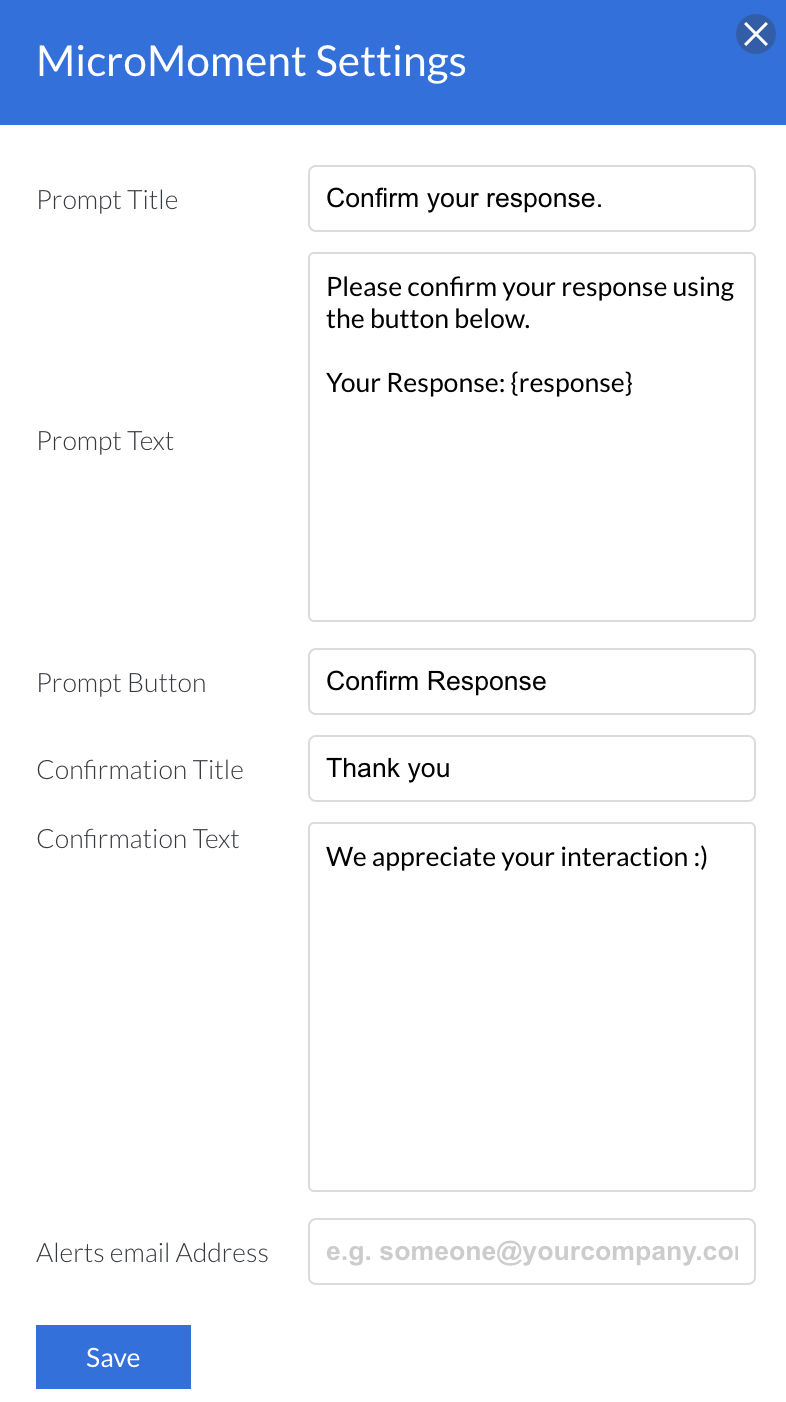
To personalise both the confirmation and thank you page go to Template > MicroMoment > click into the MicroMoment and then click the Settings option, top right. Enter the details you want to show for each message:
Screenshot_2025-07-29_at_17.31.23.png
The activity will be recorded on contacts Timeline - the example below is the CSAT MicroMoment:
Screenshot2021-10-28at17.47.44.png
All data collected by MicroMoments will be stored against the campaign on the dashboard alongside the contact profile page under Timeline.
Reporting.png
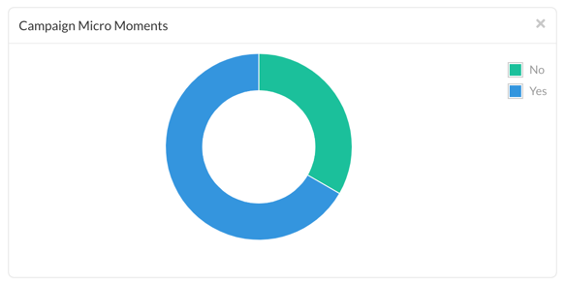
The Pie charts are clickable to give your visibility on the data received and the ability to Export:
Screenshot2021-10-28at17.50.46.png
Note: A MicroMoment will show a message "MicroMoment Expired" when clicked on a Test email. It will become Live once the email is put into a workflow and Published
Learn more about Email Template Creation
Screenshot2021-08-30at13.48.01.png