a-text-logo0.png
Company Profile and Timeline
Click to visit a section:

Create Activities
Timeline
Company Profile
Connected Contacts
Manage
Lists
For every company that is created in the platform, each will have their own Company Profile. This is where contact details are stored including company, position, address, contact numbers and social media channels. It is also the area where comments can be added, files can be adhered and opportunities created. 

Contact > Companies > Click into Company

Use the green icons to create new activities against the contact:

Screenshot_2023-07-20_at_12.43.41.png
Site
Create Sites


Account
Create Accounts


Contact
Create Contacts in the platform. 

Opportunity
Create an opportunity against the company. Opportunities can then be found in the contact timeline under Timeline > Opportunities or under Sales > Opportunities in the main menu.

Subscription
Create a subscription for the company. Subscriptions can be found in the contact timeline under Timeline > Subscriptions or under Sales > Subscriptions in the main menu

Task
Create a task associated to the contact the same way as any task is created within the platform. Tasks can then be found in the menu under Timeline > Tasks or under Tasks > Tasks.

Customise
Create and edit the Custom fields within the page. Custom fields will then be found in the menu under Contact Profile.

Comments
Add comments to the company timeline via the comment box at the top of the page:
Screenshot2022-03-18at12.15.11.png
Comments can then be found in the menu under Timeline > Comments.
Learn more about adding Mentions in Comments
Note: There is the ability to add comments to contacts and companies via the Sales Opportunity and Tasks pages with the associated Action Buttons.
Learn more about adding comments via the Activities Calendar.
Contact Owners
You can assign multiple contact owners to a contact, companies and tasks to create a team of owners around the contact, relatable by role.

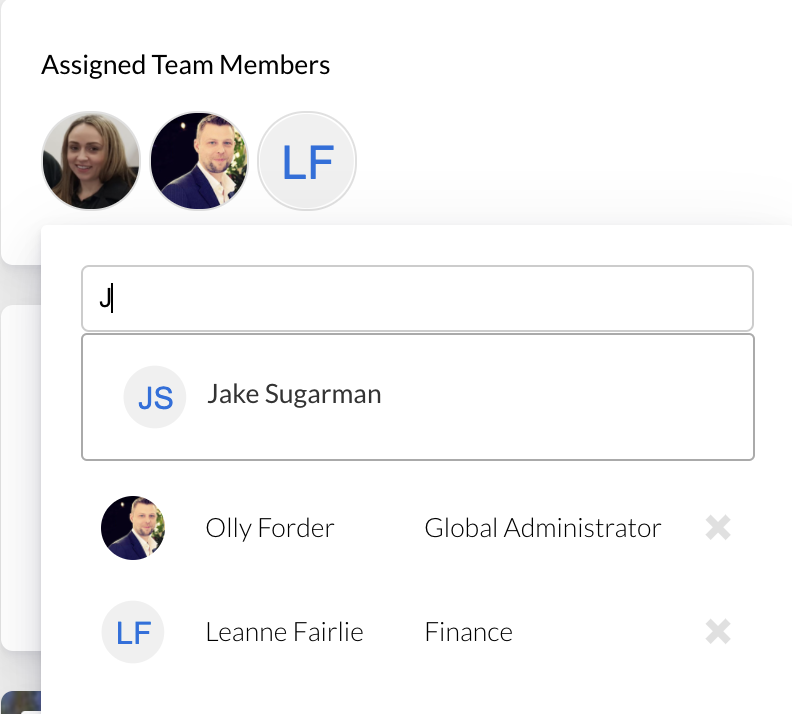
Click on assign in blue to add the first contact owner:
Screenshot2022-03-15at11.41.110.png
Add users as contact owners by using the type ahead:
Screenshot2022-03-15at11.28.330.png
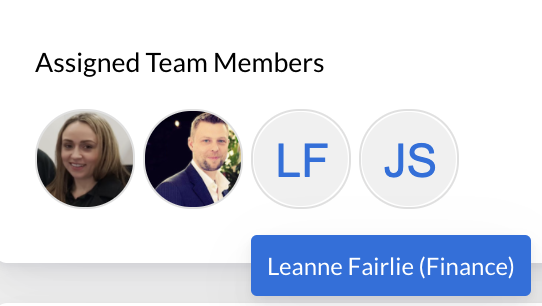
Hover over the contacts owners added to view their associated role:
Screenshot2022-03-15at11.28.500.png
Note: Ensure your teams User Roles are correctly titles and up to date so it is easy to see what role the contact owner plays e.g. Finance
Learn more about Roles and Permissions
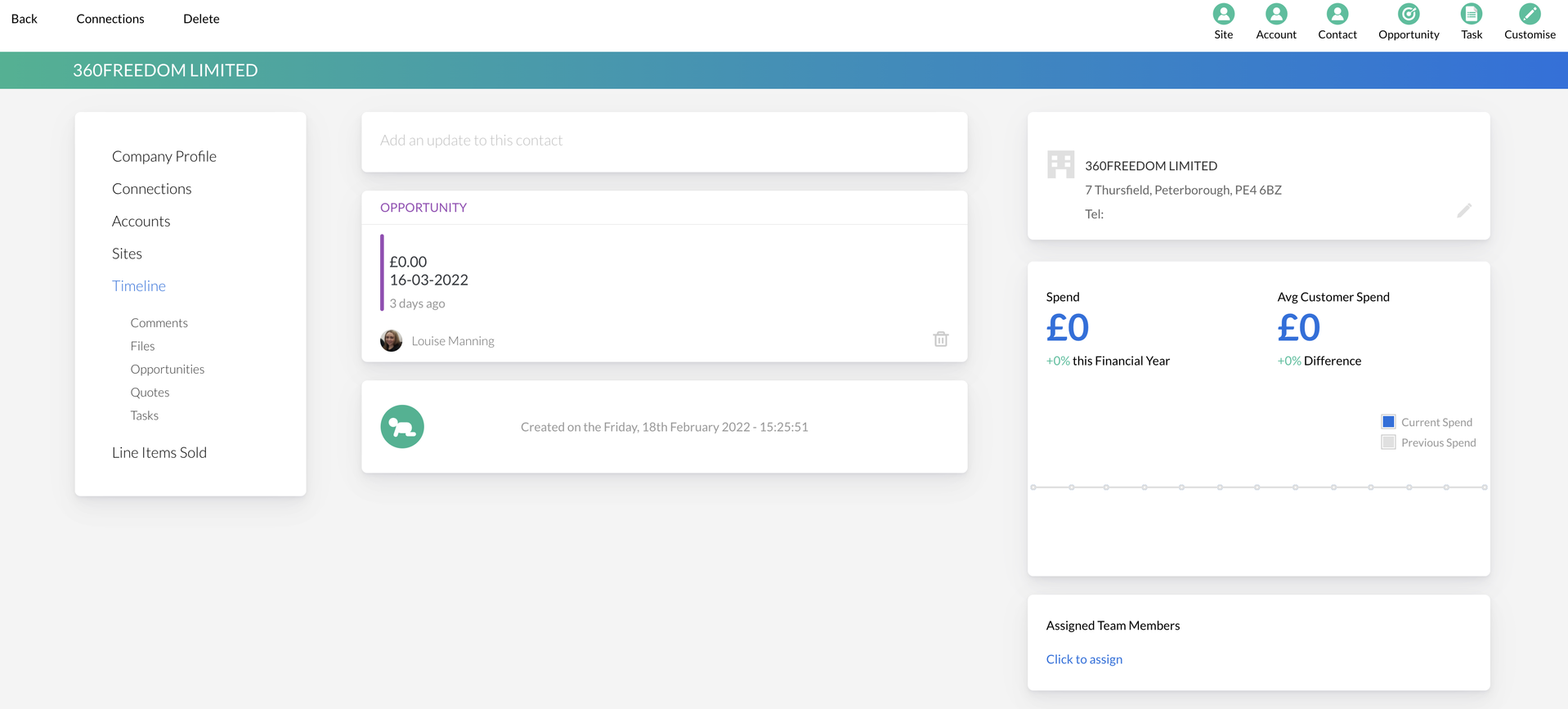
View all activities associated to the company, including any Connected Contacts in chronological order.  To filter the timeline to view a particular activity, select the activity under the timeline tab on the left-hand side  i.e. Comments and Files. The timeline will then filter as requested.

Clicking an activity within the timeline will show a further information blade from the side:

  • Comments made on the profile 
  • Files
  • Opportunities created
  • Quotes created
  • Tasks created
Note: The company timeline will show all company profile updates, as well as all connected contacts updates, to provide a single stream of activity related to that company. 
Custom Fields
Custom Fields are questions of importance to the business that can be created by arkflux Admins to show against various areas in the platform including company profiles, opportunities and tasks. Once created, the custom field will show against every company, opportunity or task for consistency and can be updated manually or via the import spreadsheet process.

Learn more about Custom Fields.
Primary Company Details

The main details for the company including name, addresses and ways of contact numbers. This area can be edited from the Timeline page by selecting the grey pen in the company contact card box in the top right.

Connected Contacts

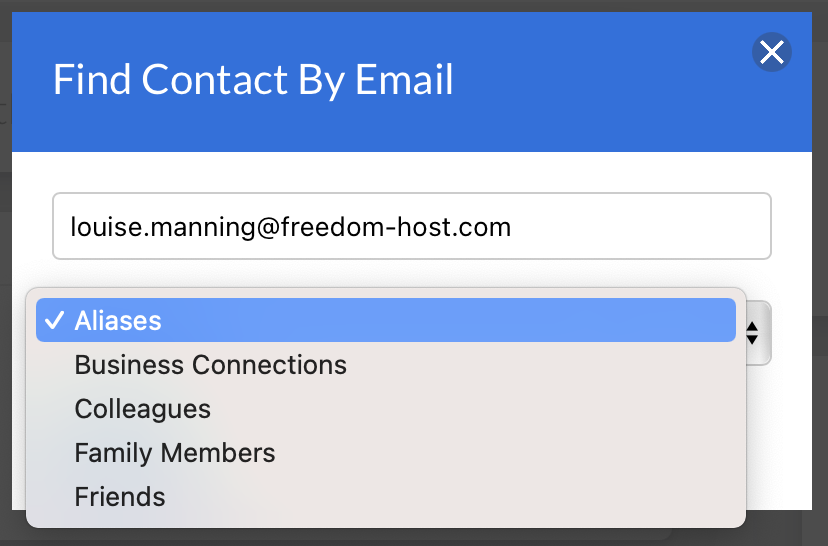
Select 'Connected Contacts' on the left hand menu to connect the primary contact with other contacts entered in the arkflux system. These could be aliases, family members, colleagues or other connections.

Choose if you want to connect a contact or a company (you can also connect multiple companies to one contact).

Enter the email address or company name that you want to connect to the profile as well as the type of connection that they are to the contact using the dropdown box.

Screenshot2021-11-12at13.06.00.png
You can also connect multiple companies to one contact. The connected contact will then be stored in the primary contacts profile under the Connected Contacts menu item, where it can be edited, clicked through to view the details and deleted if necessary. 

Define options in the dropdown when connecting both Contacts and Companies in Admin > CRM Settings > Connections.

Learn more in CRM Settings
Delete Company
Completely remove the company and all associated data from the platform including:

  • Form or Survey Submissions from associated contacts
  • Comments
  • Tasks
  • Opportunities
  • Activity Data
Line Items
View Line Items purchased by the company and Connected Contacts through the paid forms field in an arkflux form or survey, and via an opportunity updated in the platform. 
Screenshot2021-08-30at13.48.01.png