a-text-logo0.png
Social Media Marketing
Create, publish or schedule posts for Facebook, Instagram, LinkedIn and X in one place. Edit the text content for each channel if required.
Marketing > Social Media Campaigns

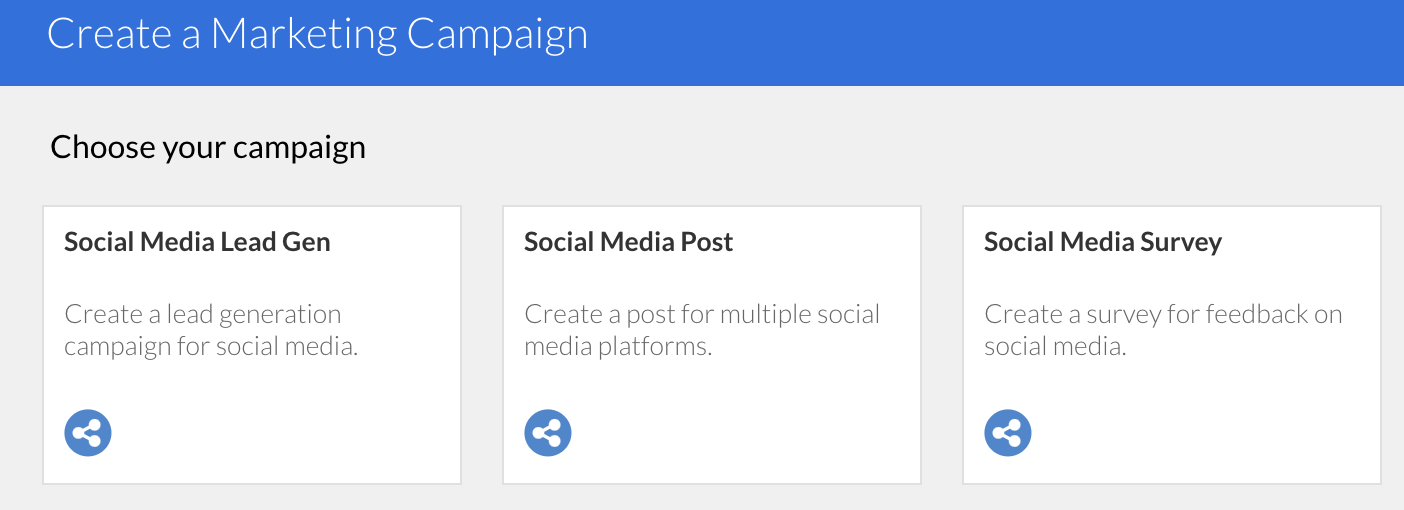
Choose the type of campaign workflow
These are designed to give you a head start and can be edited in the Advanced Workflow.


Learn more about the Advanced Workflow 
Screenshot_2024-09-26_at_12.59.00.png
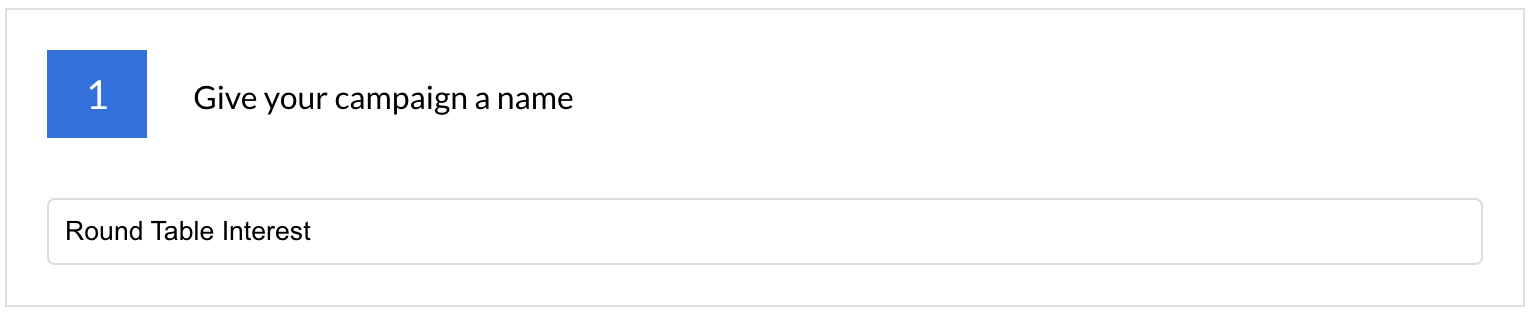
Give your campaign an internal name that is easily identifiable to the users to refer back to. 
Screenshot_2024-09-24_at_15.01.42.png
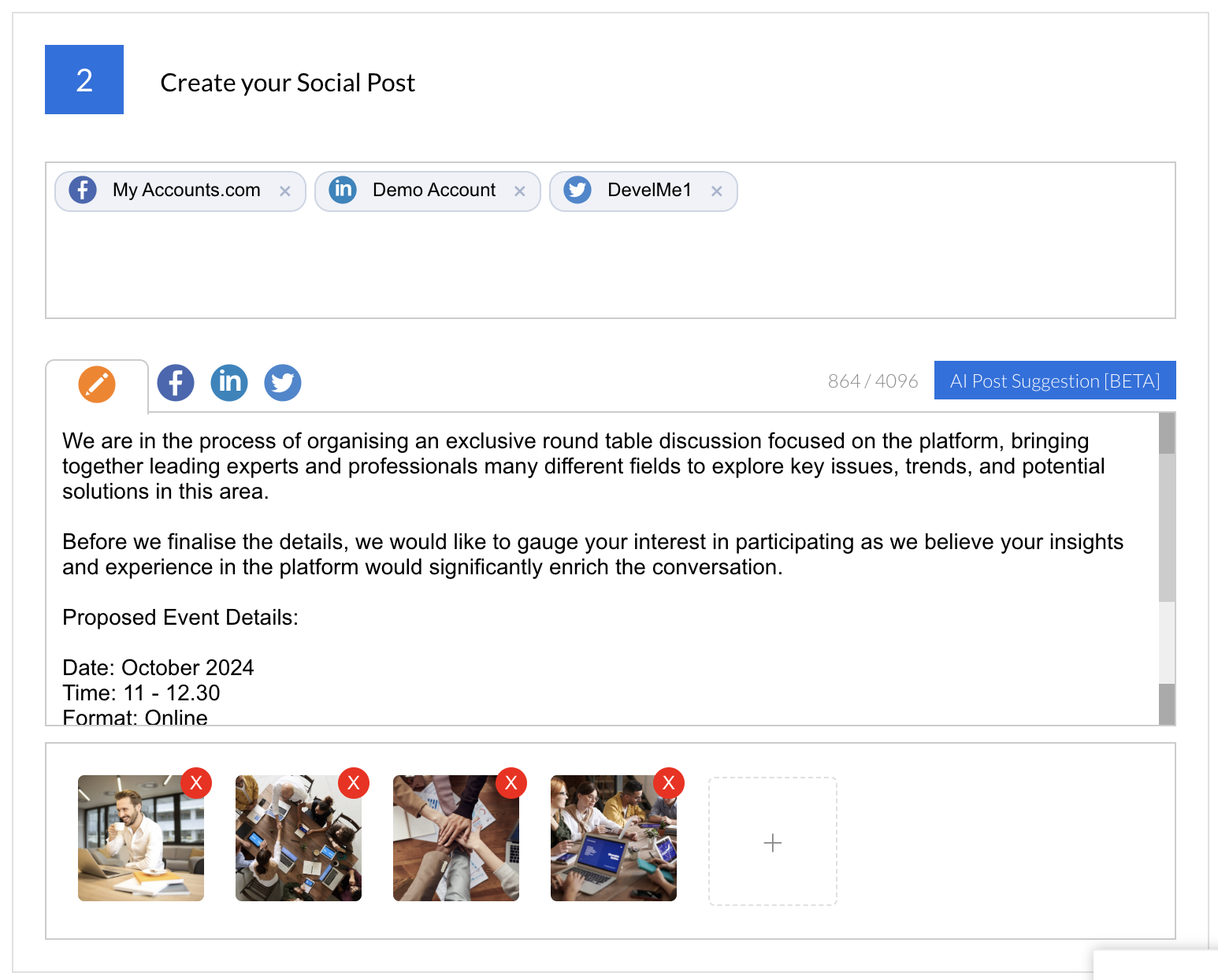
Enter the account/s that you would like to post out of by typing the page name and selecting them from the type ahead.

If the type ahead doesn't show any accounts, you need to integrate the channel.  

Click here to learn about Integration Management.

Enter the text content of your post and the image you would like to go alongside it beneath the text box.
Screenshot_2024-09-24_at_17.14.20.png
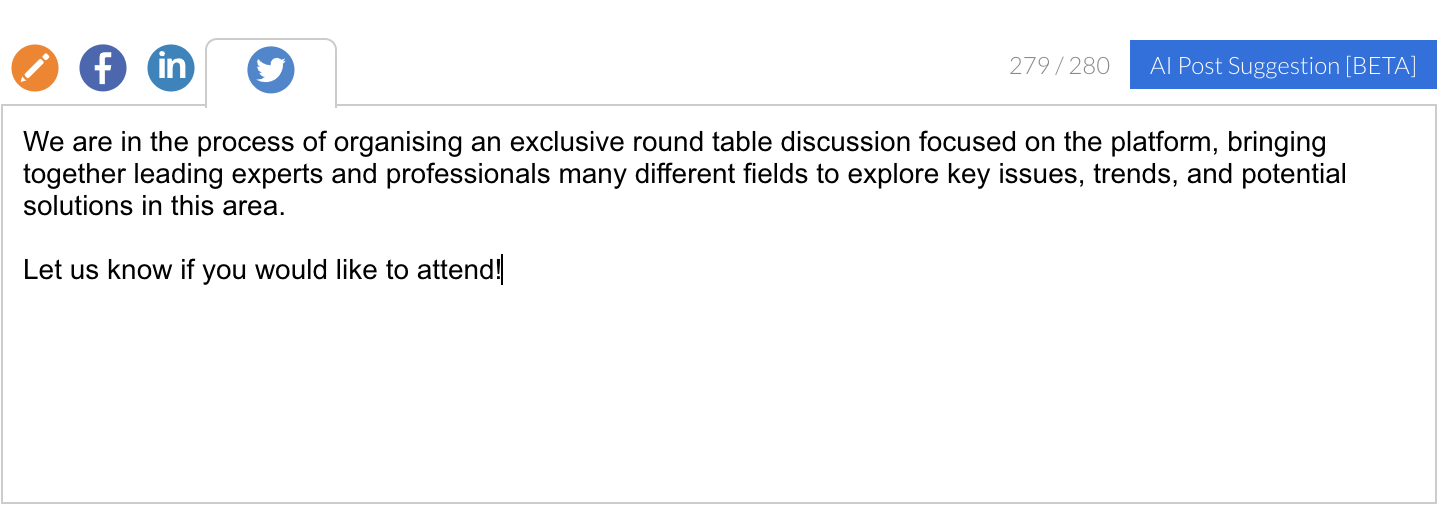
By entering the text under the orange pen tab, this will make a copy to the other social tabs.

Edit the text content for each channel if required by clicking on the relevant social media tab.
Screenshot_2024-09-24_at_17.09.04.png
Images and Text Count
There are some differences in text count and number of images that can be posted on the different channels:
(correct as of October 2024)

Facebook
63206 text count

Images
30 images max

Landscape: 1200 x 630 px
Portrait: 630 x 1200 px
Square: 1200 x 1200 px

Facebook automatically resizes and formats your photos when they are uploaded for the timeline to be 500 pixels wide and to fit the 1.91:1 aspect ratio.

LinkedIn
3000 text count

Images
9 images max
Landscape: 1200 x 627 px
Portrait: 627 x 1200 px
Square: 1080 x 1080 px


Instagram
2200 text count

Images
10 images max

Landscape: 1080 x 566 px
Portrait: 1080 x 1350 px
Square: 1080 x 1080

Supported aspect ratios: Anywhere between 1.91:1 and 4:5

X
280 text count

Images
4 Images max
Landscape: 1600 x 900 px
Portrait: 1080 x 1350 px
Square: 1080 x 1080 px

Recommended aspect ratio: any aspect between 2:1 and 1:1 on desktop; 2:1, 3:4 and 16:9 on mobile
Note: Images will be added to the post in order of upload within the campaign.
Choose to Publish the post immediately or schedule for a later date and time.
The process of adding a form or survey to a campaign workflow is identical apart of course from the automation object itself and subsequent survey selected.
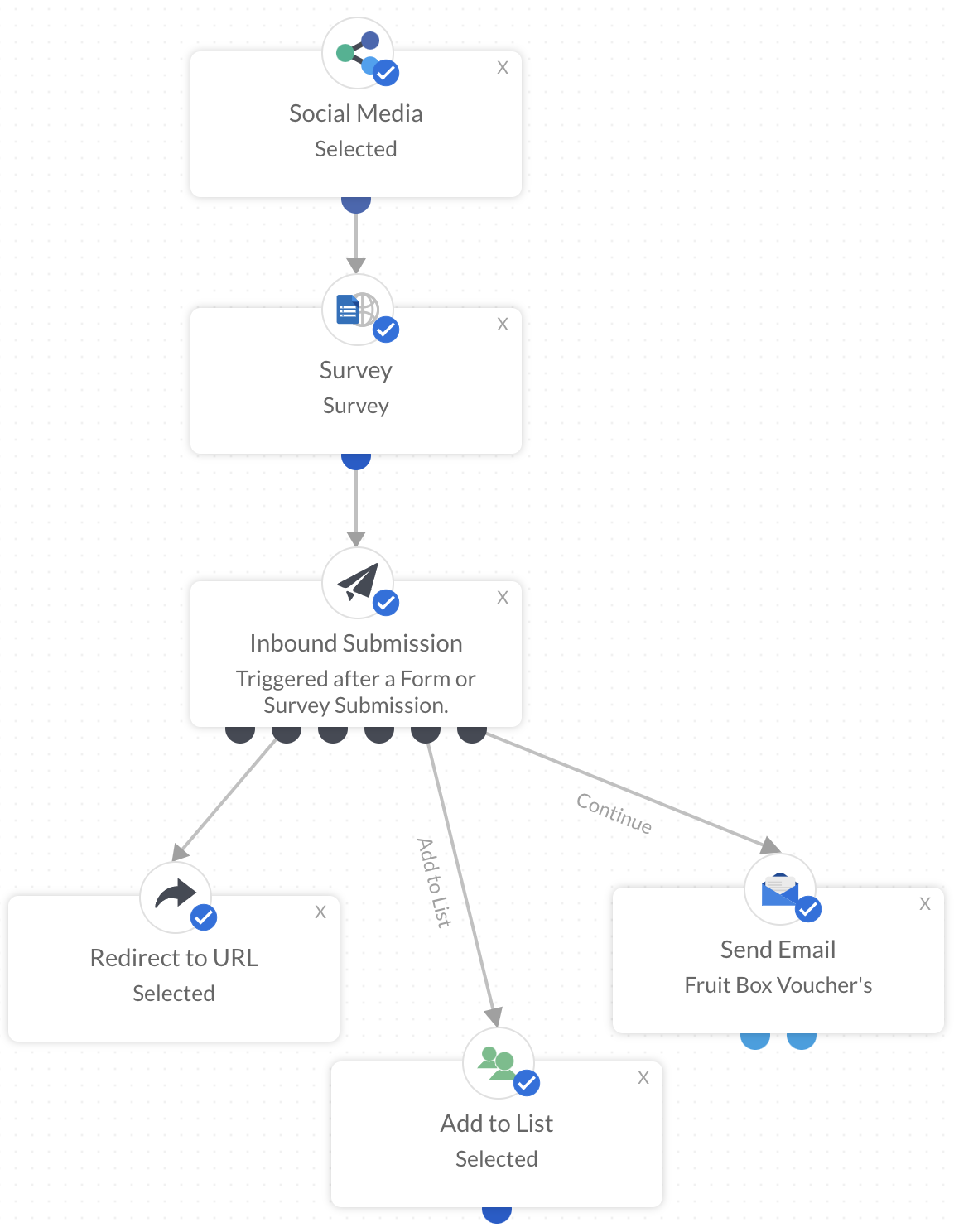
To add a form or survey to your current workflow, you will need to select the button at the top right of the page titled Advanced Workflow.

From here, to make a well rounded campaign, drag and drop the following automation options from the list on the left onto the main page:

      • Form or Survey (Make sure it isn't the option entitled Email Form/Survey as this is specifically for email campaigns)
      • Inbound Submission
      • Redirect to URL
      • Add to List
      • Send Email

After doing this, you will need to link the connecters to each other as demonstrated in the image. Hovering over the black connecter will show you what can and cannot be connected together - a single click on the connecter will secure the connection to the top of the desired automation object.

After linking the connecters, if you prefer, click the Standard Workflow button in the top right of the page and you will return to the workflow you started with, but this time with the steps to complete the form being on the page. 

Learn more about the Advanced Workflow.

Screenshot_2024-09-25_at_11.25.28.png
Note: Depending on the complexity of the workflow you choose/create, depends on what workflow view you see. If you make changes in the Advanced Workflow and add automation options like Add Delay, you will not be able to return to the Standard Workflow - the platform will know the workflow created will not be reflected effectively, so it will continue to show the Advanced Workflow view.
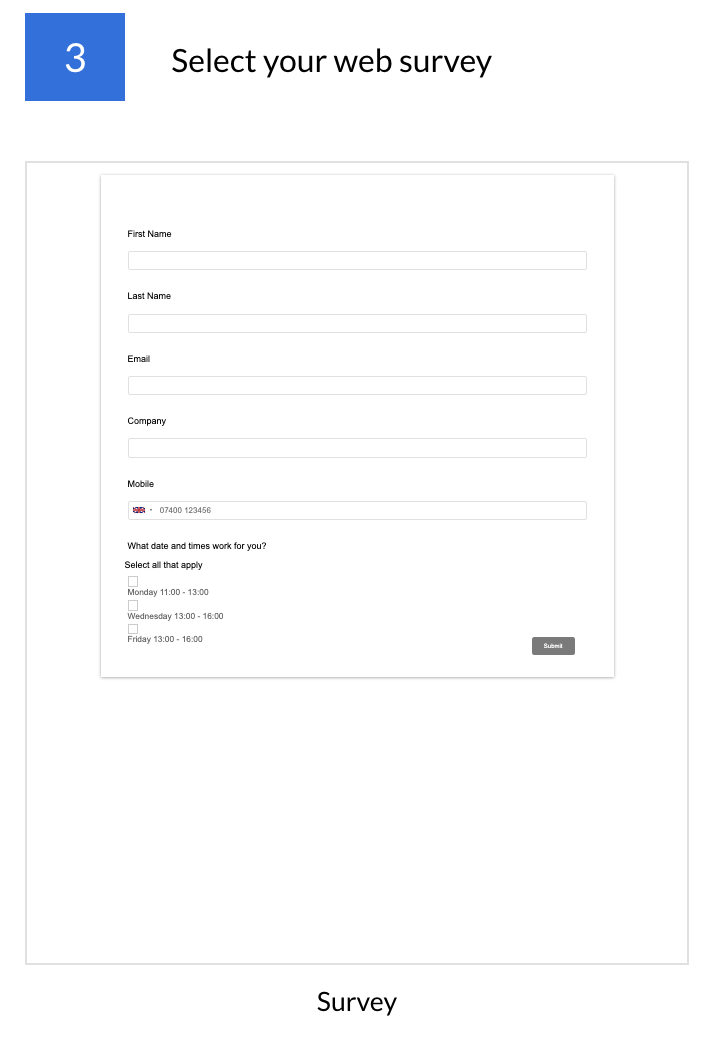
Select the form or survey that you would like to use alongside the post by clicking on the blue Edit button in the middle of the box in step 3 > Your Templates > select template. 

Screenshot_2024-09-24_at_17.28.18.png
Note: We recommend that you create all your baseline templates first, as this will allow you repeat access to these templates within all campaigns under the ‘Your Templates’ section.
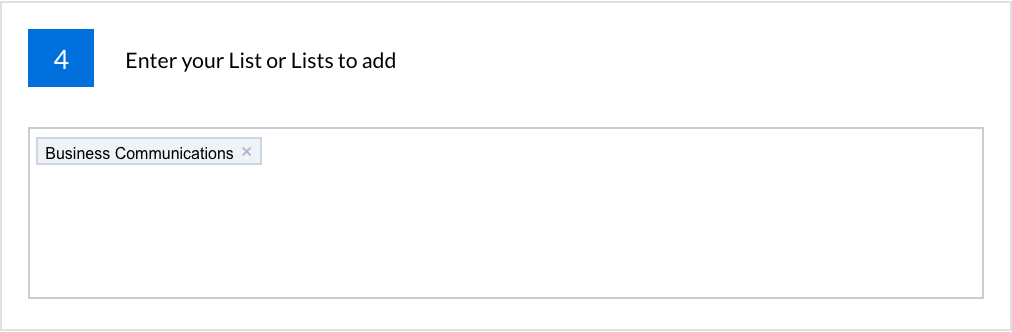
Select the list(s) that you would like the contacts who submitted a response to be added to after responding.

Those lists that have already been created in the platform will become visible for selection in a type ahead. New lists can be added by typing in the list name and pressing the Return key to format them correctly.
Step4Filled.png
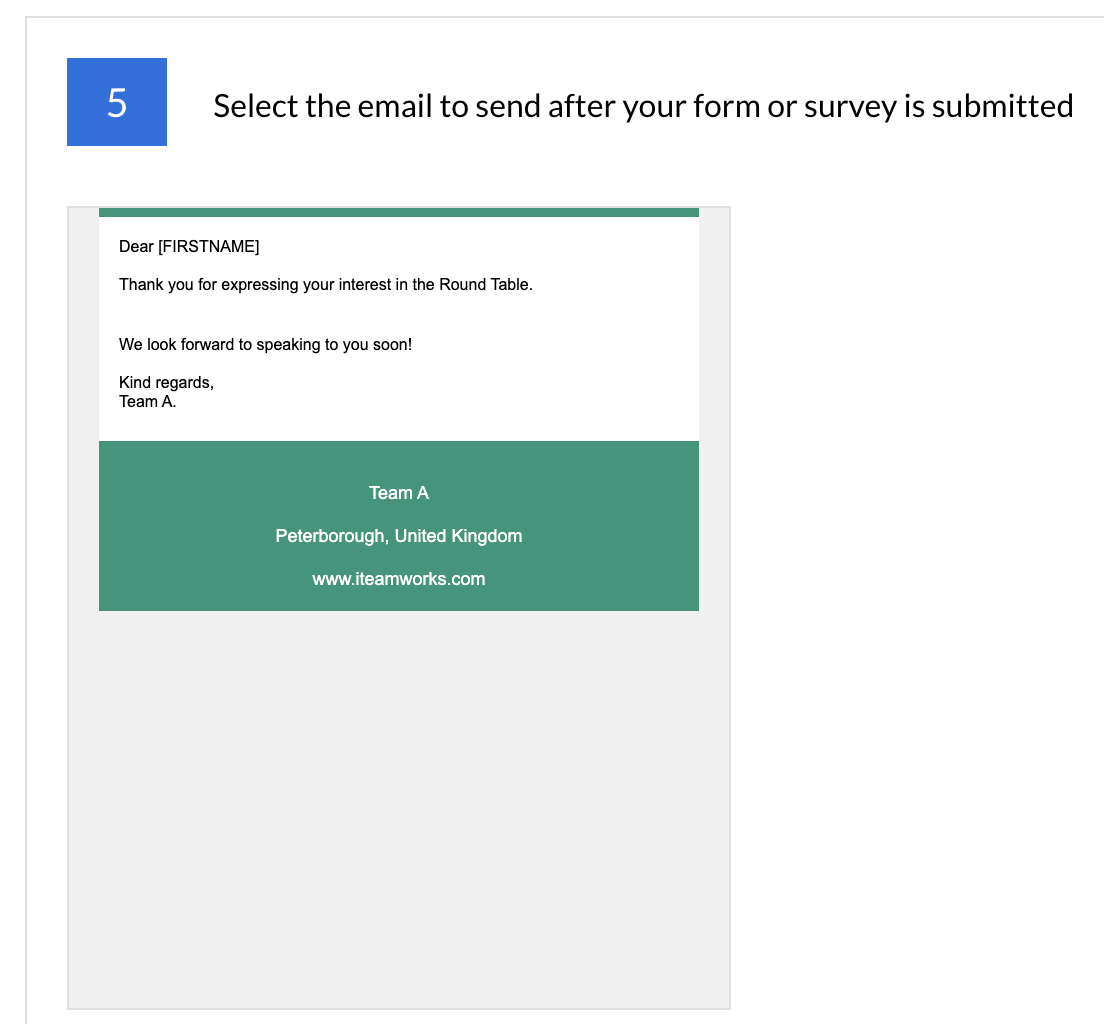
Select an email that will be sent to contacts after they submit their response to the form or survey. This can be a template that you have created previously or one that you have just edited within the section.


Click here to find out more about Image Uploads in form and survey templates.
Screenshot_2024-09-24_at_17.39.22.png
Note: When you select a template from the 'Your Template" section, you are making a copy of the original. This means that any changes you make to the template within the campaign will not be reflected in the original and vice versa.
If you need to make an update to the template do one of the following:

  1. Update the template directly in the campaign
  2. Update the template under the Template section in the platform and then re select the template in the campaign workflow to reflect the changes
Learn more about Form and Survey Creation
 Ensure the URL is added in its entirety e.g. https://
Step6Filled.png
Schedule or Publish

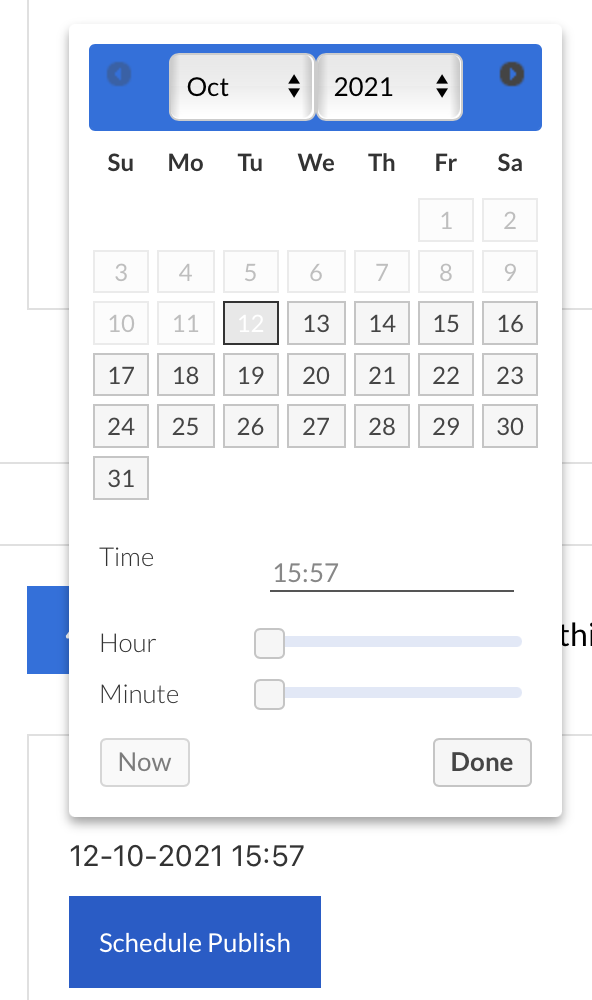
Choose when the post will be sent out by Publishing for immediate sending or Schedule Publish for a later date and time.

Click on the grey "Click Here" wording > choose date and time > Done > Schedule Publish
Screenshot2021-10-12at15.58.37.png
After publishing, the post/s will appear on the selected social media channels with the text and images that were attached in step 2 of the process.

Clicking on the link will take you through to the form/survey and then the email will be automatically sent after submission.

Learn more about Social Media Campaign Reporting
Screenshot_2024-09-24_at_17.46.46.png
Learn more about creating Facebook posts via the Activities Calendar.
Screenshot2021-08-30at13.48.01.png