a-text-logo0.png
Contact Import
Import or update multiple contacts into the platform via the import process. 

Contacts > Import > Contacts:
Screenshot2021-08-27at17.24.17.png
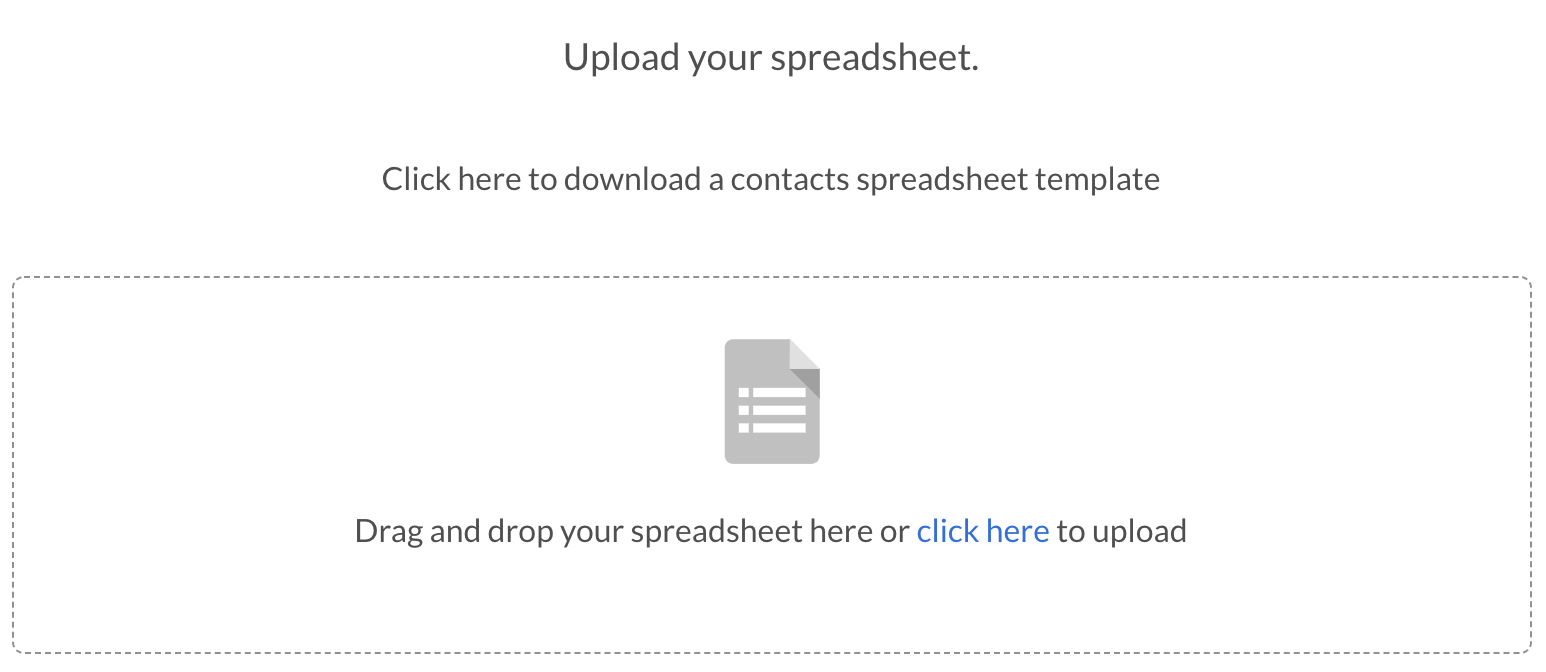
Download the arkflux excel spreadsheet to populate your data. 
Screenshot2022-03-12at19.08.47.png
Note: You can use your own excel spreadsheet to import into the platform, but you will not get the benefit of the telephone formatter (see further below).
Screenshot2021-08-30at13.01.57.png
Once you have populated the spreadsheet, click here in blue to upload.
Lead Source data entry
Update the options available to enter into the Lead Source column within the spreadsheet.

There are three ways the Lead Source field can be populated:

  • Via a marketing automation where the status will show the name of the campaign - e.g Website Live Demo request.
  • Manually where you will select the status from the pre defined dropdown under CRM Settings.
  • Via a contact import, supported by the pre defined dropdown under CRM Settings.

If there is an existing lead source in place generated from a marketing automation or manual entry, when a contact import is done, the lead source will not be updated to preserve the origin of the contact. 

Update the Lead Source via Import

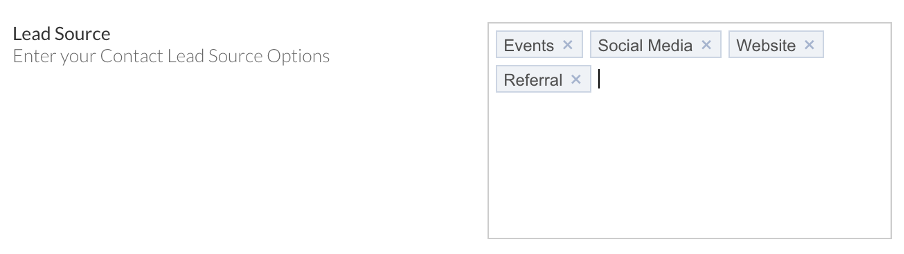
Admin > CRM Settings:
Picture101234567891011121314151617.png
Once defined, type these options in the relevant columns in the import spreadsheet exactly as they appear. If the entries in the spreadsheet are not identical to the entries in the import spreadsheet, they will not import. This is because if the Lead Source is 'Networking Cambridge' you don't want that cluttering up the options in the settings.
Add Custom Field entires at the end of the spreadsheet with a corresponding title to ensure clarity when mapping fields - shown here highlighted in grey:
Screenshot2022-03-12at19.07.30.png
Learn more about Custom Fields
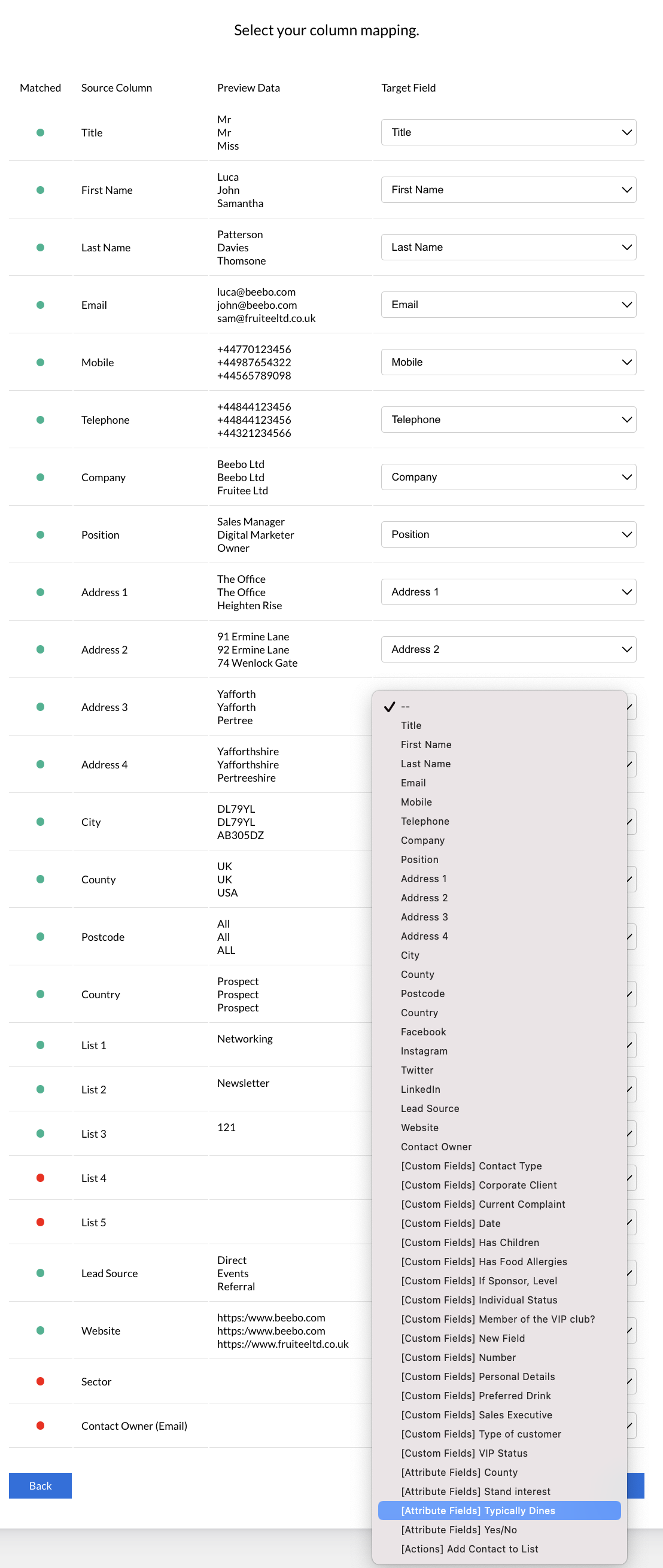
The fields on your spreadsheet are referenced as Source Columns and the fields that they need to map to in the platform are know as Target Fields. Upon importation, any of the Source Column fields that match the Target Fields will be automatically matched and accompanied by a green dot. It's always worth double checking these before moving on. 

Any other fields that show a red dot have not been mapped and can be mapped manually, by selecting the correct Target Field from the corresponding dropdown.

You do not have to map every field - the only mandatory field in a contact import is the email address of the contact. If you want to link a contact to a company, you will have to map the company field during this process.
Screenshot2022-03-08at11.47.53.png
Note: When mapping an Attribute field that is a Checkbox, if you need to import multiple values, separate the values with a semi colon in the same column on the excel import spreadsheet e.g. Field values equal Cat;Bird;Dog
[Custom Fields] Select these to map to custom fields you have created in the platform.
[Attribute Fields] Select these to map to attribute fields you have created in the platform.

Learn more about Attribute Fields
[Actions] Add Contact to List - Select this option to create a new Static list in the platform. 
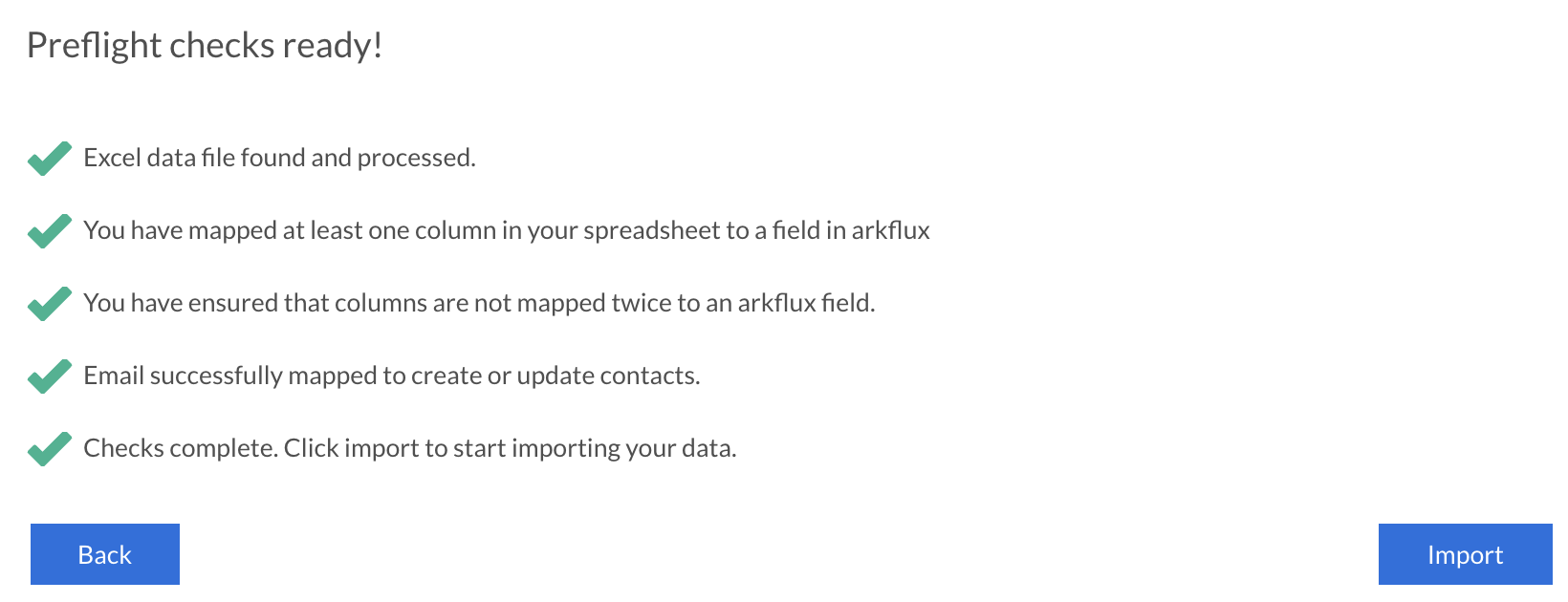
Once the fields have been populated as you need them, you are ready to Import the data into the platform.
Screenshot2021-08-27at17.34.38.png
If you need to update multiple companies, export all company details via Contacts > Companies > Export All button at the top of the page and make the necessary updates. Once the spreadsheet is updated, reimport the spreadsheet via Contacts > Import > Companies. Any changes will then be added to the relevant contacts without duplication. As the platform offers the option for SMS campaigns, all phone numbers - mobile and landline - will need to be entered in their international format (+44 / 44).

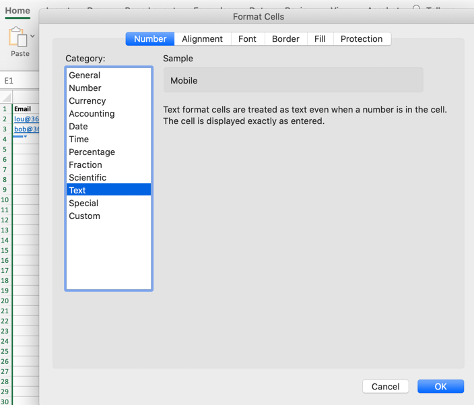
Ensure the Mobile and Telephone columns are set as Text by highlighting the column > right click > Format Cells > Text > OK:
Picture1.png
Identify if the number you need to format is UK, USA or Canadian > right click on the cell with the number in it > Telephone Formatter > select Country. You can do more than one number at a time if they are all the same Country. The phone number will turn blue if the format doesn’t appear to match the standard country format:
Telephone-formatter.png
All contact details can be updated apart from the email address because the platform is email centric and all actions and data is linked. If you need to update an email address, create it as new and put a note on the retired email address to redirect Users to the new one. If you know you are not going to use the email again, unsubscribe it for clarity.

Via the Import

If you need to update multiple contacts, export all contact details via Contacts > Contacts > Export All button at the top of the page and make the necessary updates. Once the spreadsheet is updated, reimport the spreadsheet via Contacts > Import > Contacts. Any changes will then be added to the relevant contacts without duplication.

Learn more about Data Export

Manually

Contacts > Contacts > Click on the contact you want to update via the edit pen icon next to the area you want to change.
Note: Lists are not currently included in the full Contact Export All process. There is the option to export via specified lists through Contacts > List.
Screenshot2021-08-30at13.48.01.png