a-text-logo0.png
SMS Campaign
Click to visit section:

Outbound SMS Name
Create
Advanced Workflow
Adding an Automation Object
Outbound SMS Name
Before you send an SMS campaign, assign your 11 character outbound SMS name. This is the name the SMS will come through from and can set under Admin > Accounts > Company name.
Create
Menu > Marketing > SMS> Create

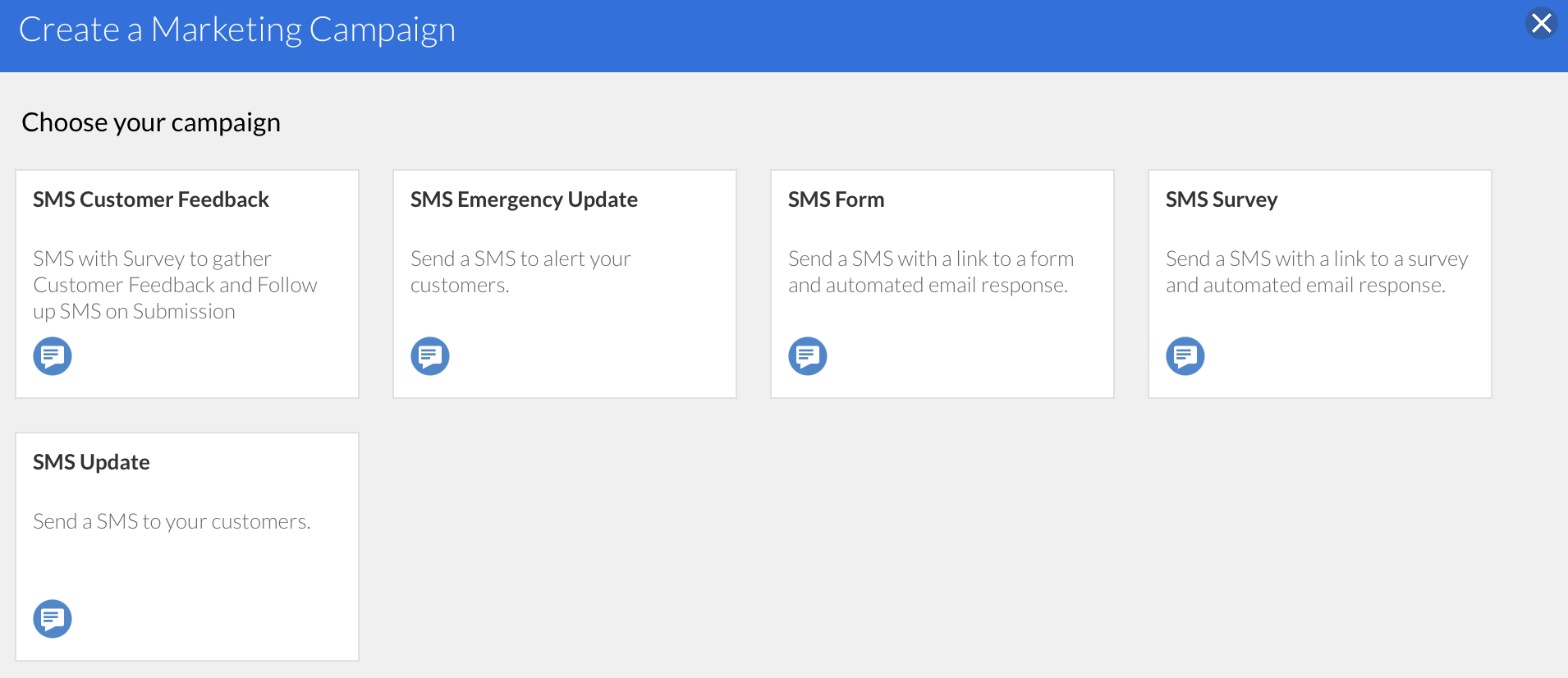
From here, you can choose the type of campaign workflow you want to create.

There are many different workflows to choose from - some with more steps than others. If you can choose a workflow that is closest to what you would like to achieve, it will get you majority of the way there, with edits being able to be made under the Advanced Workflow.


The simplest email campaign you can create can be achieved by selecting SMS Update workflow:

Screenshot2021-11-19at12.10.13.png
Note: Depending on the complexity of the workflow you choose/create, depends on what workflow view you see. The Standard Workflow (below) will show for simpler campaigns with fewer steps in a list style view. The Advanced Workflow will always show for more complex workflows in a more visual style and you will not be able to view the campaign in the Standard Workflow. 
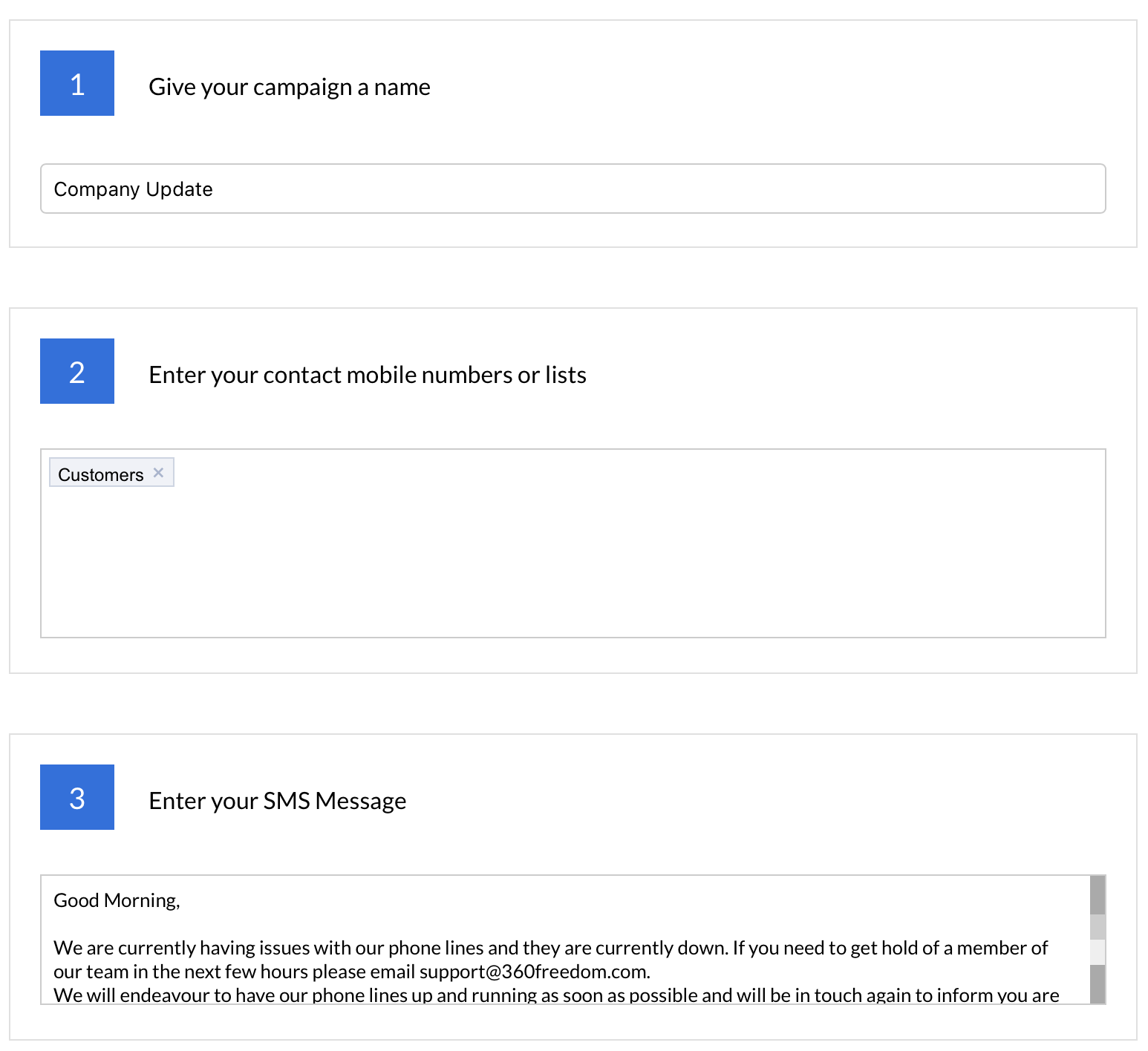
Give your campaign an internal name that is easily identifiable to the platform users to filter and refer back to.

Select the lists to send your campaign to. Lists need to have mobile numbers allocated to contact to ensure they receive the SMS. 

Learn more about List Creation and Management.

Enter the SMS message up to 459 characters.

Learn more about SMS credits and character counts.

Screenshot2021-11-19at12.22.02.png
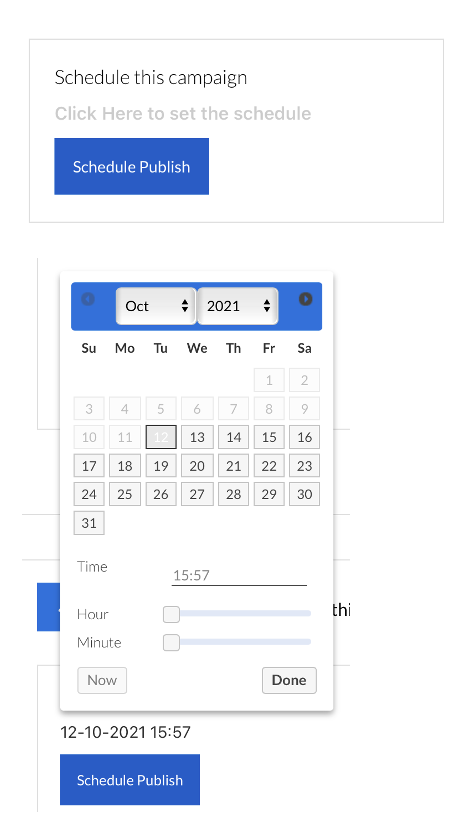
Choose when the SMS will be sent out by Publishing straight away for immediate sending or Schedule Publish for a later date and time.

Click on the grey "Click Here" wording > choose date and time > Done > Schedule Publish
Screenshot2021-10-12at16.03.00.png
Note: You can choose to work solely from the Advanced Workflow upon selecting you workflow and clicking the Advanced Workflow button top right of the screen.
Advanced Workflow
You can edit any workflows you have selected or create a workflow from scratch in the Advanced Workflow. There are numerous Automation Objects available to enhance workflows and they include:

  • Forms
  • Surveys
  • Funnel Markers
  • Delays between actions
  • Check Email Status
  • Retries
  • Create Opportunities
  • Email Alerts
And many more!
Adding an Automation Object

Start in the Advanced Workflow.

The process for adding an automation object is the same no matter what the object is. For this example we will create a well rounded campaign that includes the following automation objects:

  • Form or Survey
  • Inbound Submission
  • Redirect to URL
  • Add to List
  • Send Email

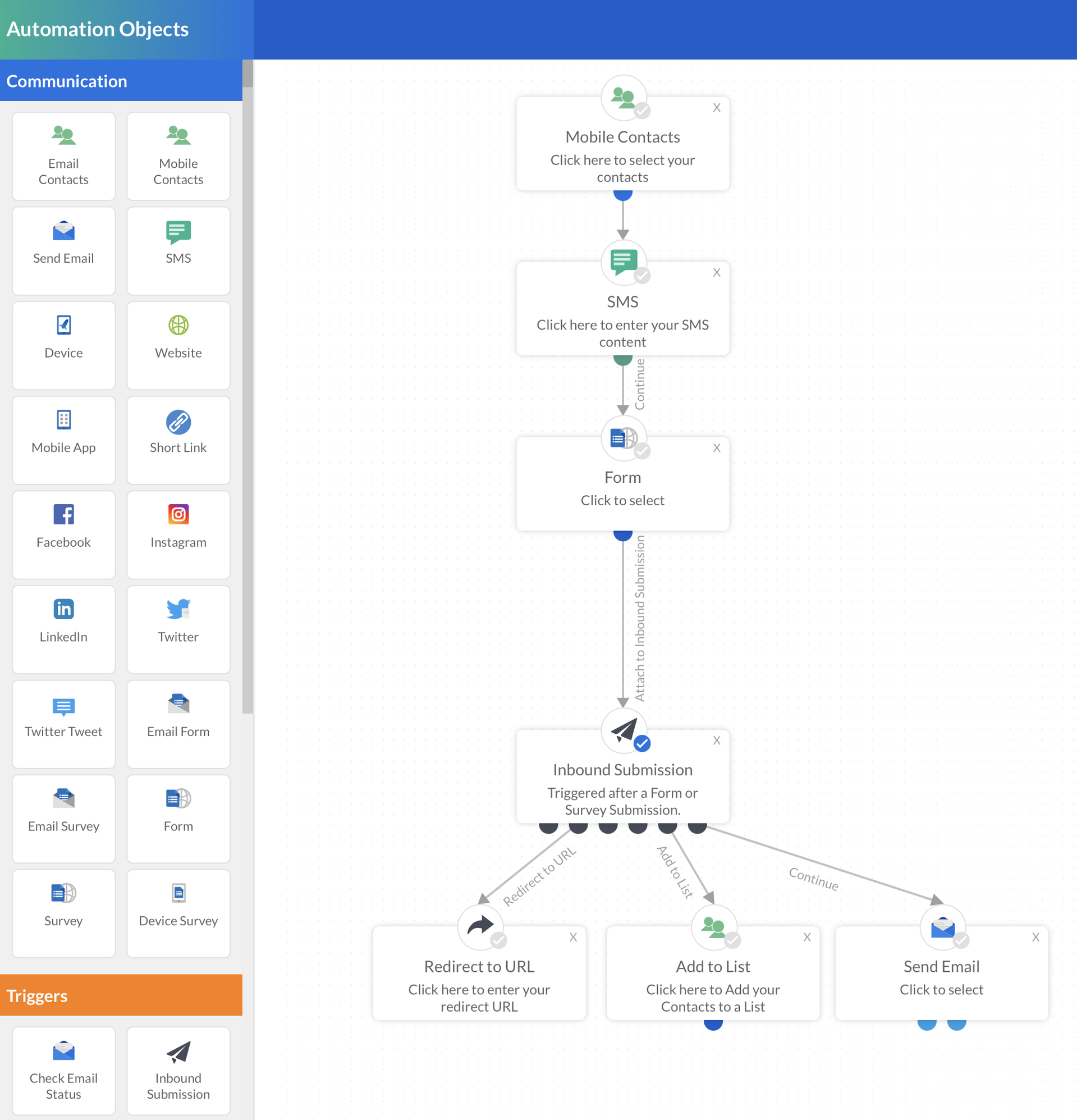
Drag and drop these automation options from the list on the left onto the main page.

Connect the nodes with a single click as demonstrated in the image.

Screenshot2021-11-19at12.30.48.png
Note: Hovering over the black nodes will show you what can and cannot be connected together - a single click on the node will secure the connection to the top of the desired automation object.
To populate the automation objects simply click on the option, enter the data and Save.

Learn more about the Automation Objects in the Advanced Workflow.

Learn more about creating SMS campaigns via the Activities Calendar.

Learn more about SMS Campaign Reporting.
Screenshot2021-08-30at13.48.01.png