a-text-logo0.png
List Creation and Management
Static List View

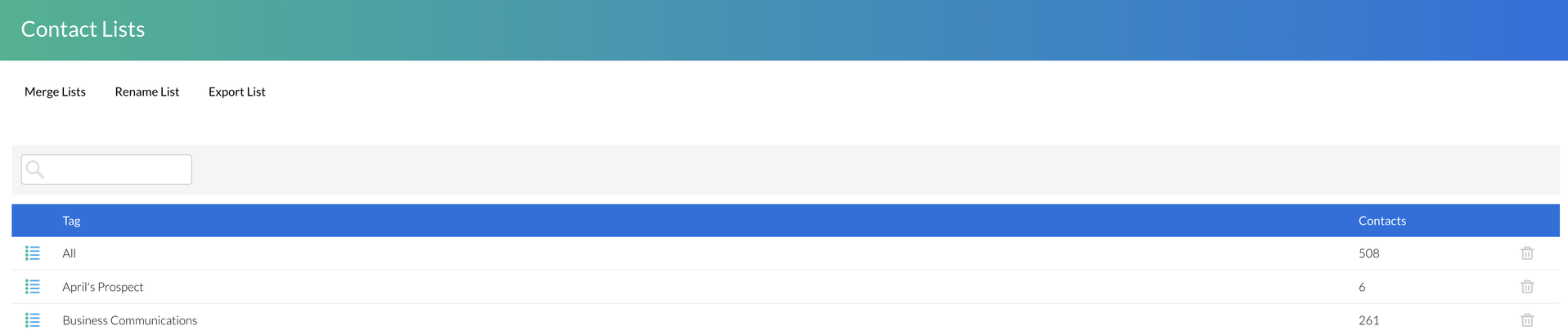
Static lists do not update unless a User manually makes a change. They apply when a contact meets a certain set of requirements at the time the list was created.

Assign, and organise your contacts into Static Lists for use in communications.


Contacts > Static List:
Screenshot2022-02-21at16.16.28.png
Via Communication Preferences

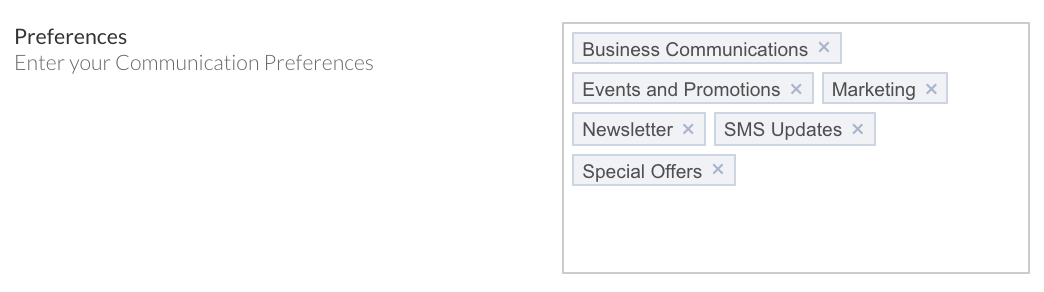
Admin > Marketing Settings
These are your public facing lists. Define the list options contacts will see if they click through via the automated links at the base of an email or Opt In button contained within a campaign to manage their communication preferences. These will start to support the segmentation of your contacts into initially, static lists. Delete existing options by clicking the cross or add by typing in the option and pressing return:
Screenshot2021-09-01at16.36.43.png
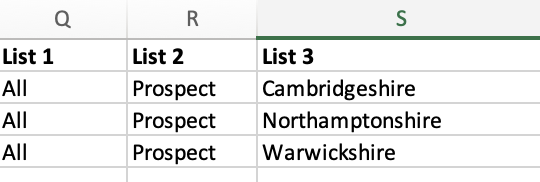
Via the arkflux Contact import spreadsheet

Import static lists against contacts on mass for use in communications. 

Contacts > Import > Contacts > Download spreadsheet
Screenshot2021-09-01at16.43.23.png
Learn more about Data Import 
Note: You can Export All of the contacts in the platform via Contacts > Export All button. Alongside list management, this is especially helpful if you want to carry out contact management on mass such as  updating CRM details.
Via grouping of contacts

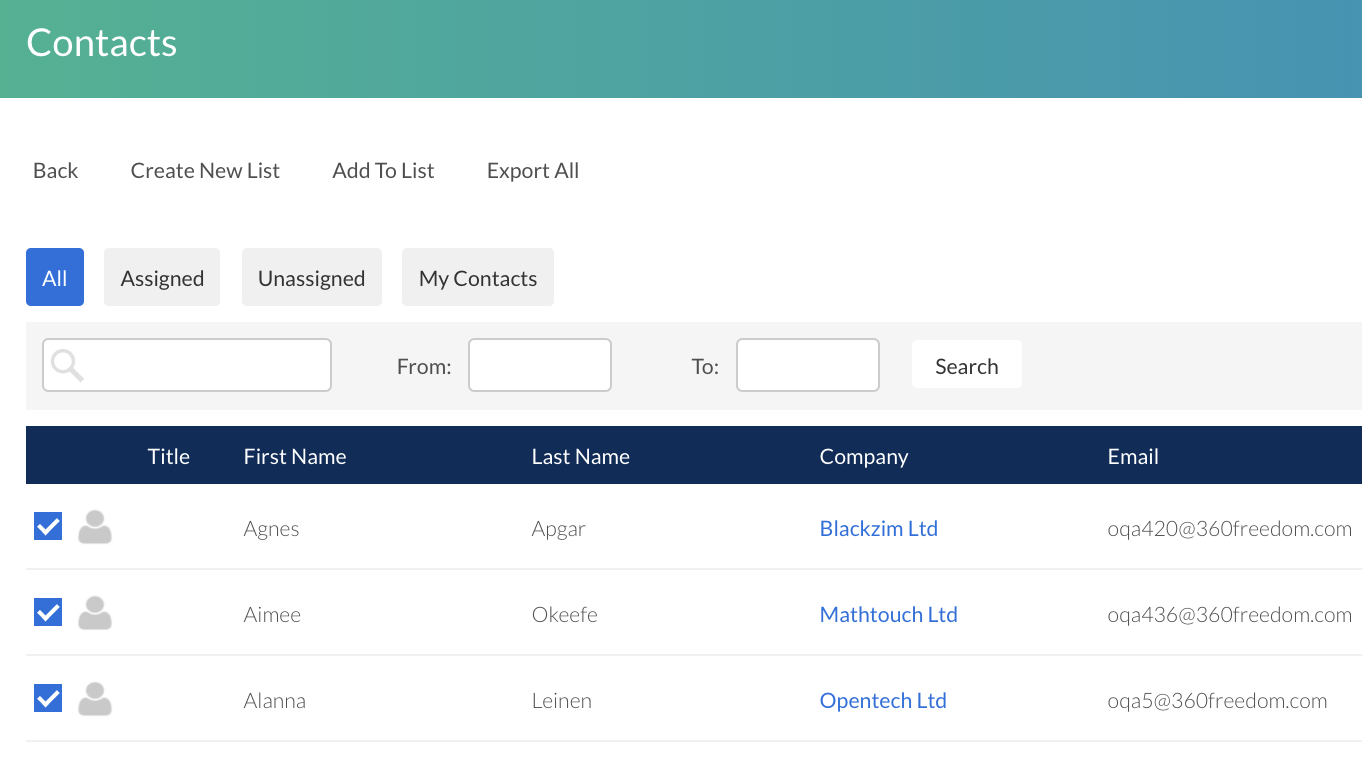
Contacts > Contacts
Create a small list of contacts by checking the boxes next to the contacts you wish to enter into the new list > Create New List:
Screenshot2021-09-01at16.32.26.png
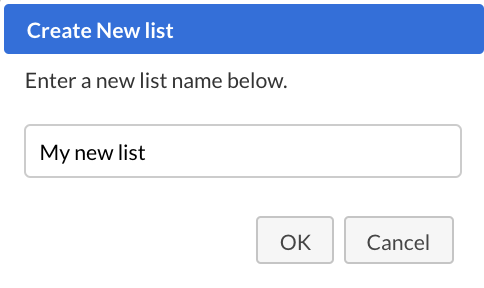
Give your list a name > Ok
Screenshot2021-09-01at16.46.16.png
Your list will now be available for you under Contacts > Static Lists for future use.
Manage static lists for the contact under the Lists menu item.

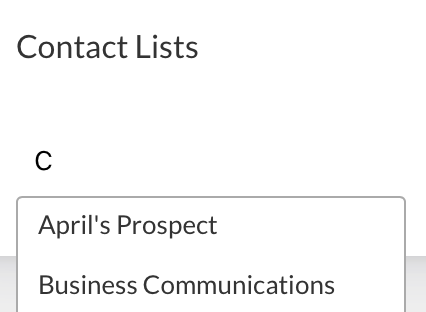
Remove the contact by selecting the "x" next to the list. Add the contact to an existing static list by using the type ahead, or add the contact and create a brand new static list by typing the name of the list in and pressing the return key. This list will now be available under Contact > Static Lists for future use.
Screenshot2021-11-12at12.46.16.png
Screenshot2021-11-12at12.49.36.png
Via Campaign Automation

Marketing > Choose your communication channel e.g. Email 
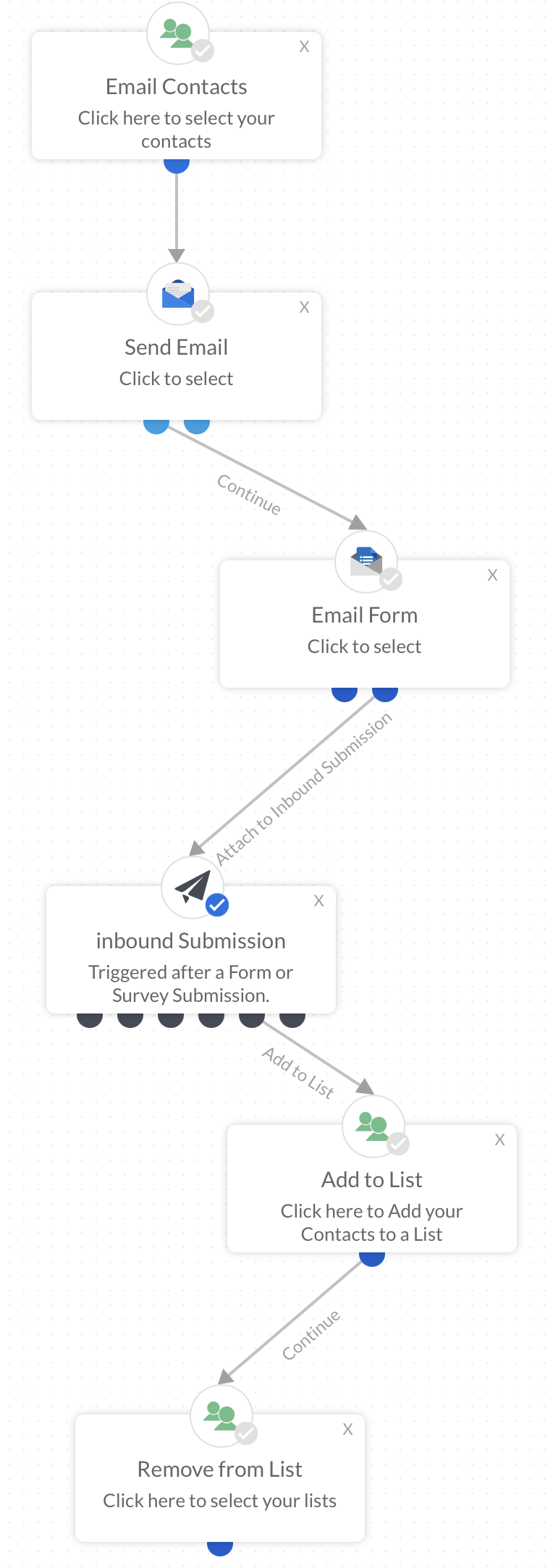
As you create marketing campaigns you have the option to add contacts to static lists and remove them.

Here is an example email campaign that includes a form, that after submission will add the contact to one static list e.g. “Prospect” and remove them from another “Cold Lead:”
Screenshot2021-09-01at16.11.43.png
Create hyper targeted lists of contacts via dynamic segmentation for use in marketing campaigns. Learn more about Dynamic Lists
Learn more about the Contact Profile and Timeline.
Screenshot2021-08-30at13.48.01.png