a-text-logo0.png
Mobile Form Template Creation
Click to visit section:

Create Templates
Edit Fields
Templates are a great place to start when thinking of sending out a campaign.

When you create a campaign and select a form or email template, it’s good to understand they are copies of the template you originally created. The original template will remain untouched if you make any edits to one you have in the campaign workflow.
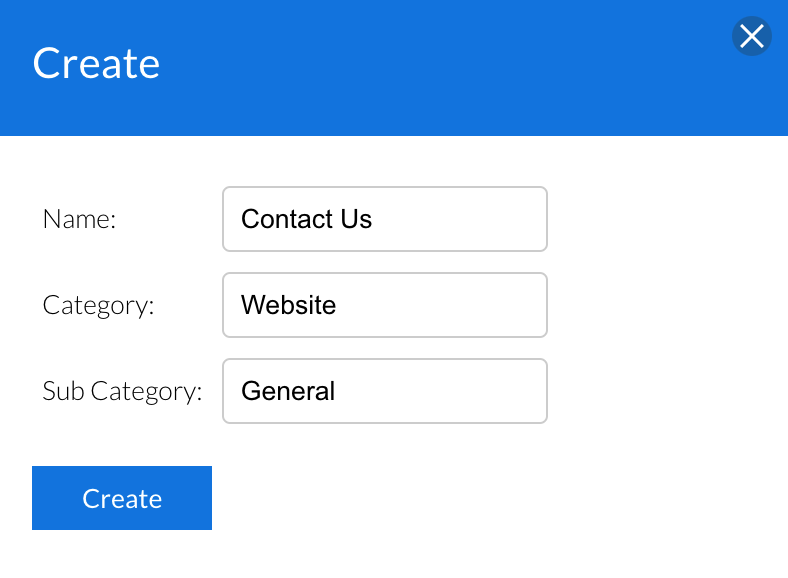
Marketing > Templates > Mobile Forms > Create Template > Give your form an internal Name, Category and Sub Category > Create:
signup.png
The Category and Sub Category fields are internal only and can be a way to help with the management and filtering of forms in the platform. They can be updated at any time. 

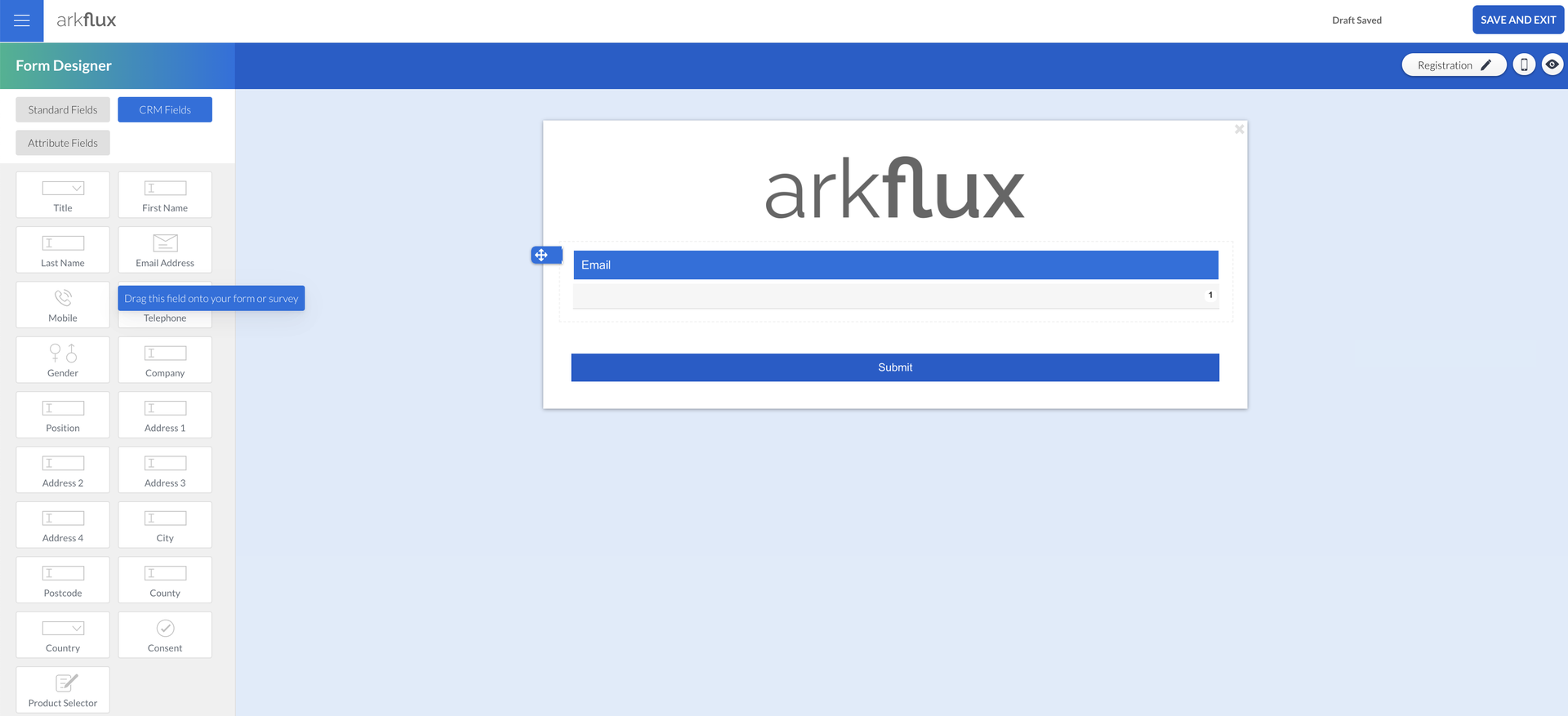
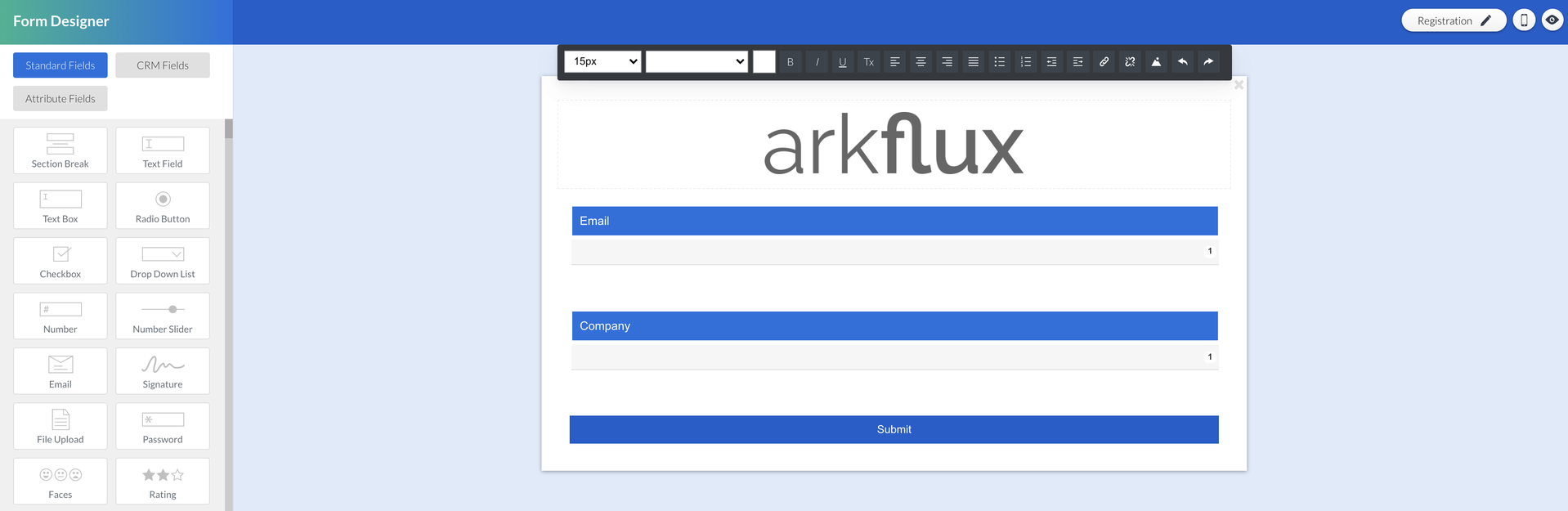
Your blank form is now ready for population with the field options which are available to be dragged and dropped onto the main field area:
Text and Image Area
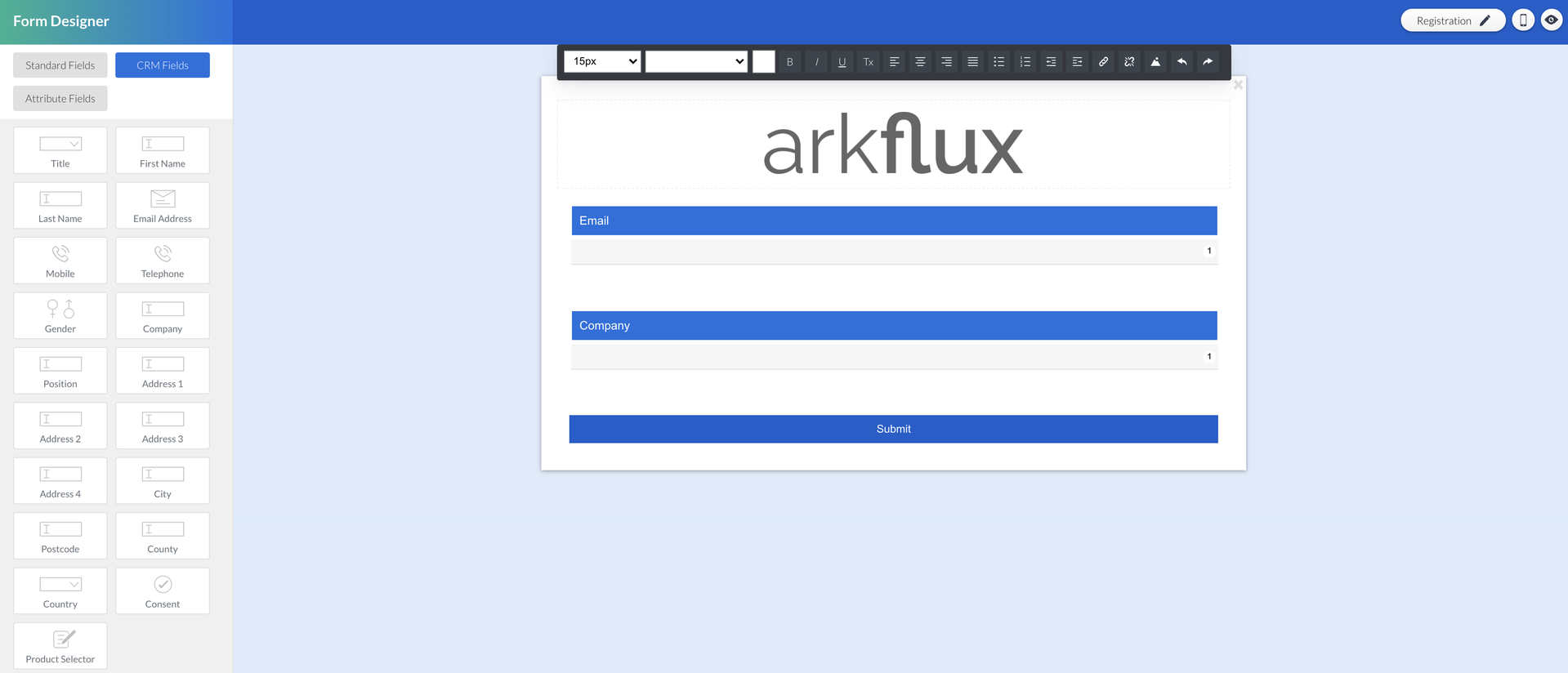
At the top of the form there is an area where text and images can be added. Text can be typed in and formatted using the black edit bar, and images can be inserted by clicking the 'Insert Image' button - third from left.

Click here to find out more about Image Uploads in form and survey templates.
Screenshot2022-02-15at17.17.59.png
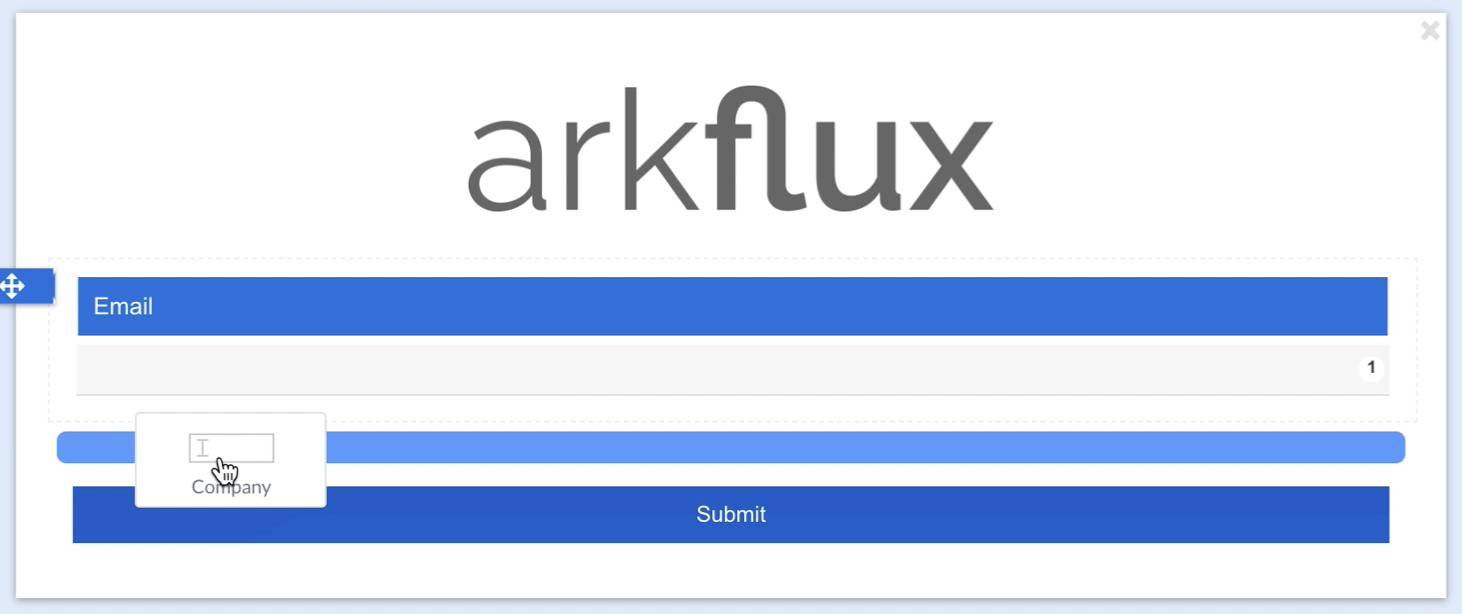
Drag and drop fields onto the form template and re order the fields by clicking into the field and dragging and dropping it into place by the arrow icon.
Note: When dragging and dropping a field option, ensure the field space turns blue before you drop the field onto it. 
Screenshot2022-02-15at17.22.53.png
CRM Fields

Using CRM fields in a form will create the contact automatically in the platform, upon submission. All future submissions using the CRM Fields will update the contact accordingly.

Learn more about the CRM Consent Field.
Screenshot2022-02-15at17.29.53.png
Note: You must use a CRM email address alongside other fields to create a new contact in the platform.
Standard Fields

If the field you require doesn’t exist in CRM Fields, you can select an appropriate field in Standard Fields and edit as required.

There are 36 Standard Fields to choose from and two main types; fields that are ready for use immediately upon selection e.g. Text Field, Date and Time, and the fields that need options entering upon selection e.g. Checkbox, Radio Button, Number Slider.
Screenshot2022-02-15at17.29.36.png
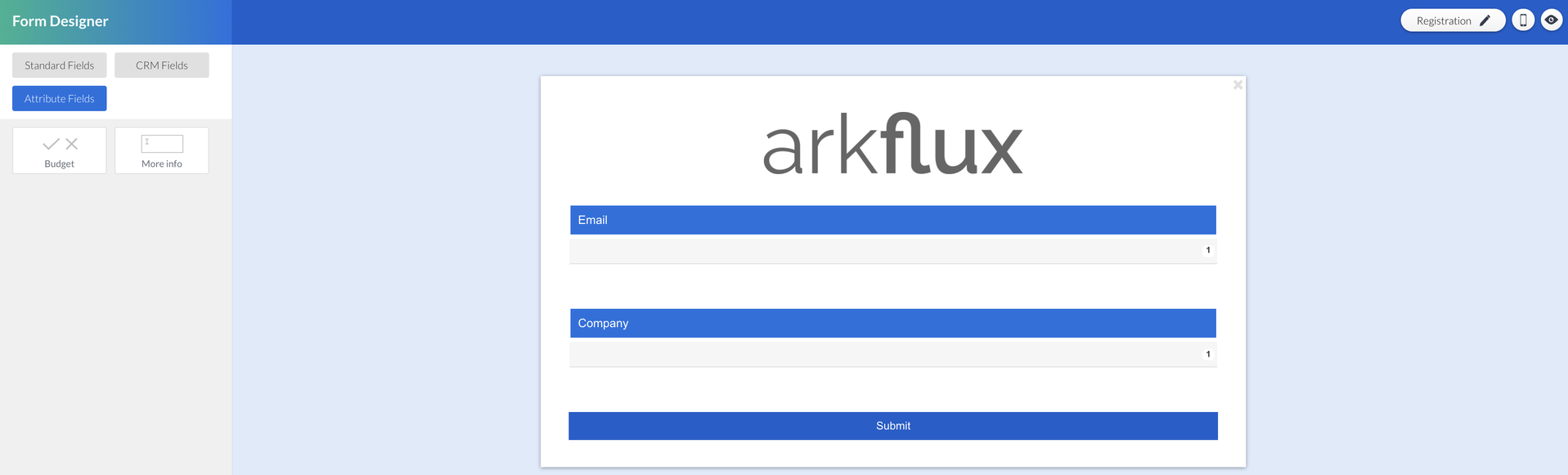
Attribute Fields

Attribute Fields are questions of importance to the business created in the platform to include in forms and surveys. Upon answering, these fields will show against the contact profile with all future submissions using the attribute fields will update the contact accordingly.

These fields are also used when creating hyper targeted marketing lists with dynamic segmentation in the Single Customer View.

Learn more about Attribute Fields.
Screenshot2022-02-15at17.31.53.png
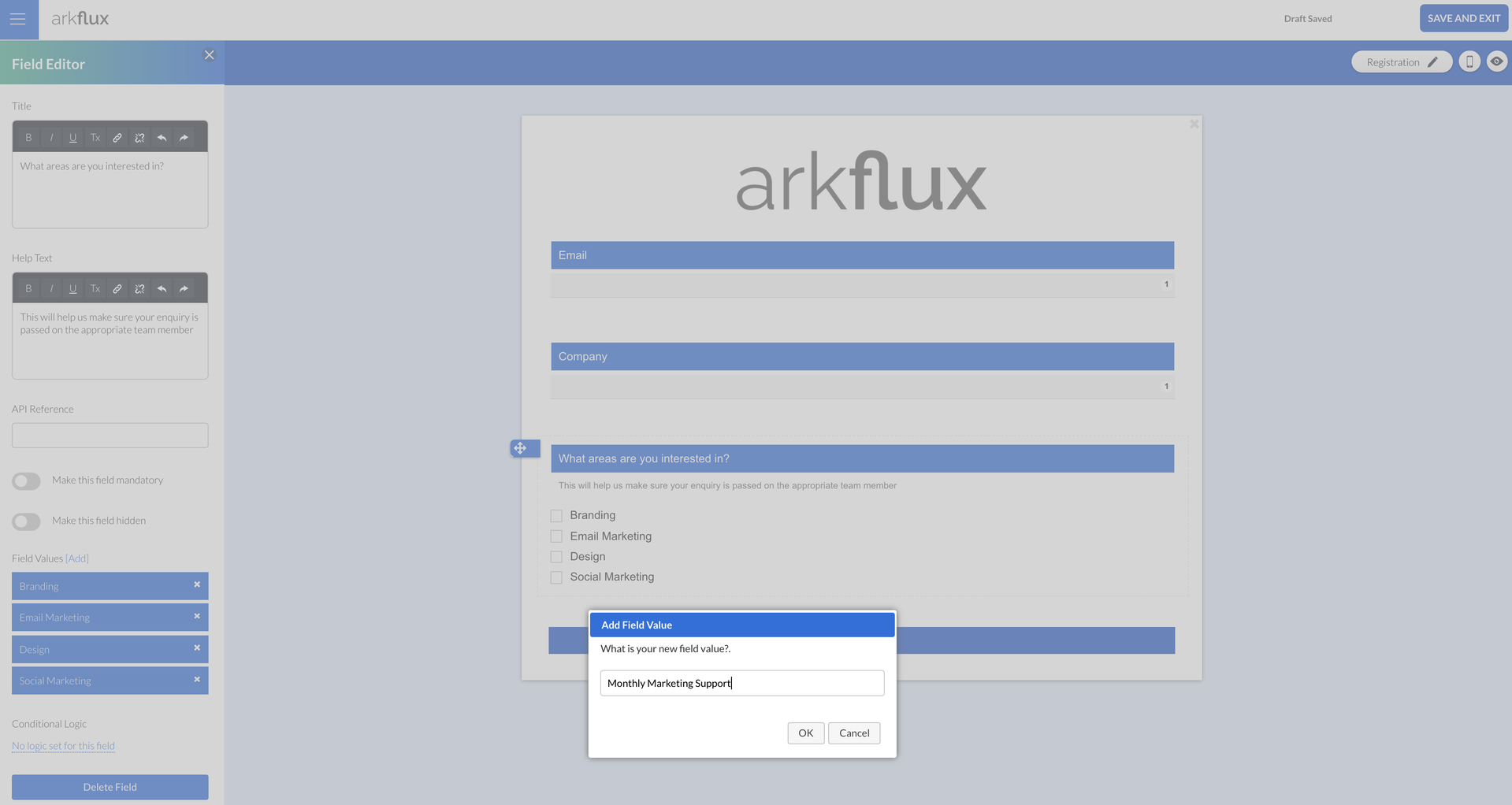
Adding Values to a Field
On fields that have multiple choice answers, manage these field options by clicking on the field to access the left hand blade. Click [Add] on the left hand blade and enter value one per line:
Screenshot2022-02-15at17.43.27.png
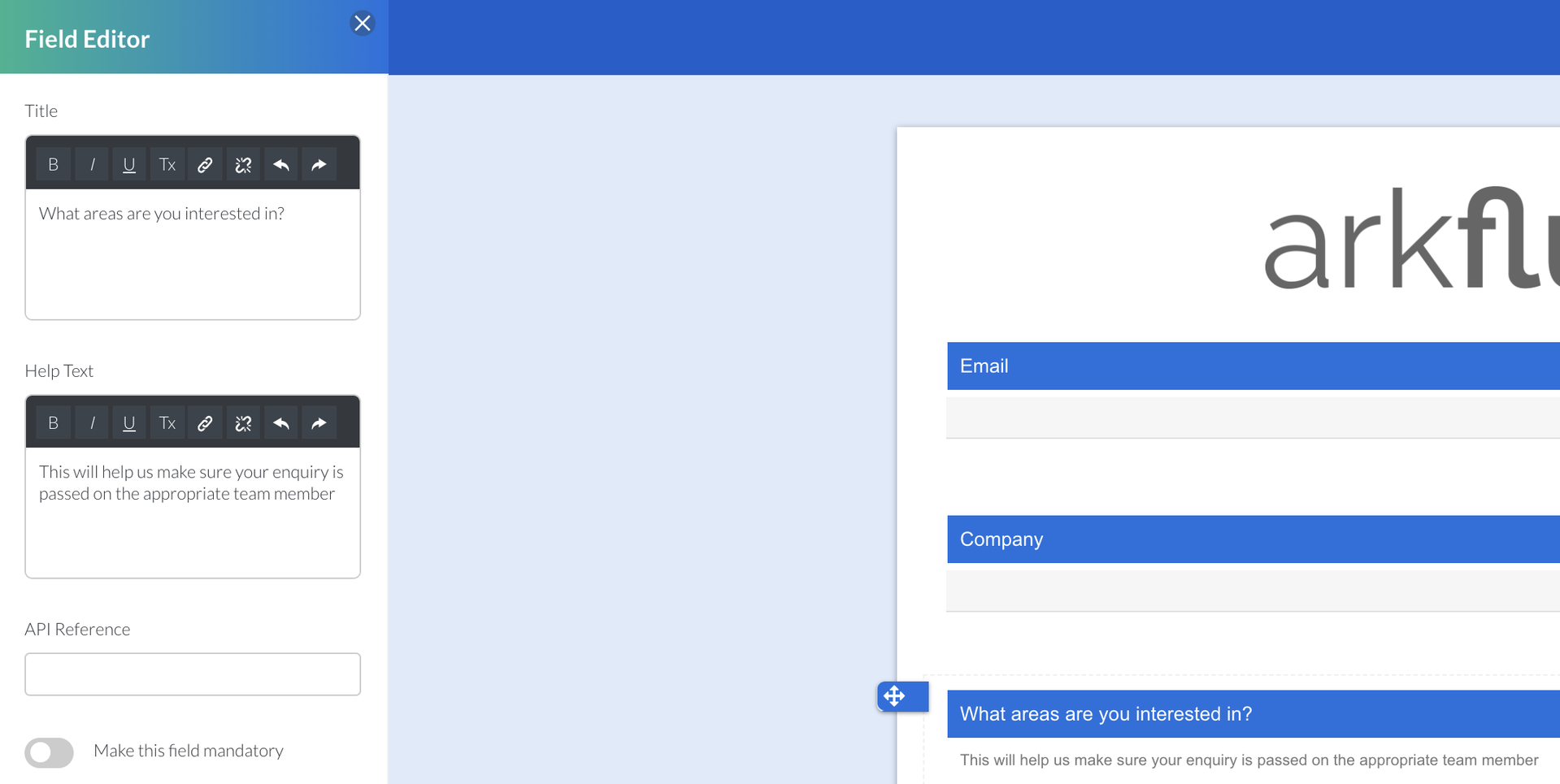
Field Title and Help Text
Edit these areas for each field by clicking on the field to access the left hand blade
Screenshot2022-02-15at17.44.34.png
API Reference
The API Reference is used for third party apps that will receive the form via a web hook.
Hidden Field
Fields that are used to pass values stored on the form.
Mandatory
Select if a field has to be completed before the form can be submitted. 
Conditional Logic
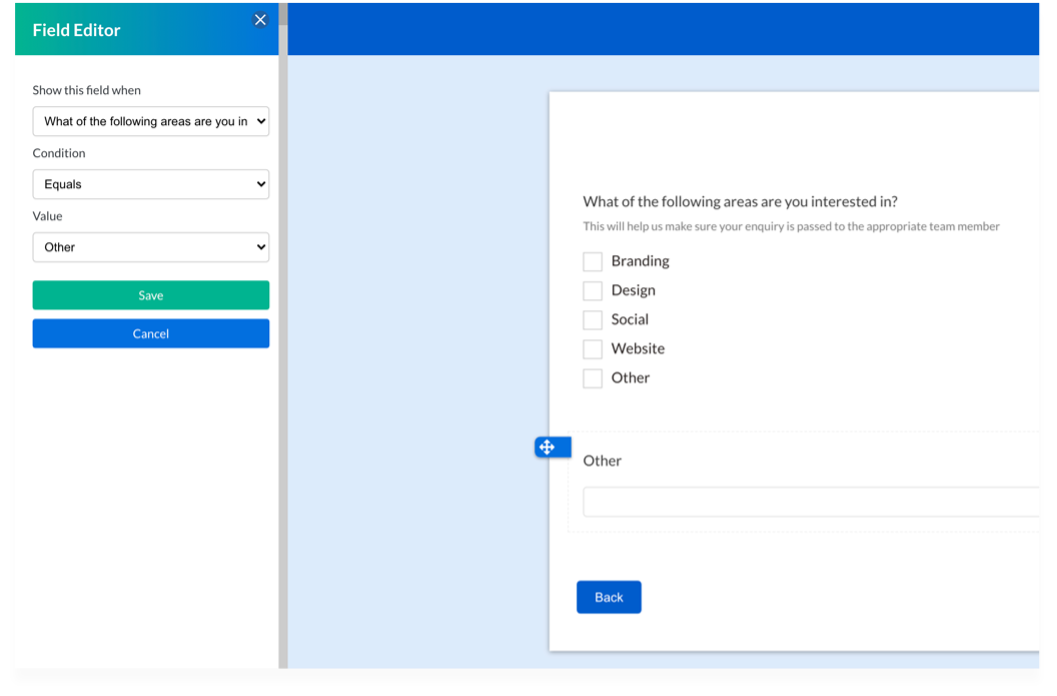
The idea that you can set rules, or conditions, that cause your process to change based on input. So in relation to form and survey fields, rules can be applied to fields to personalise the contacts experience.

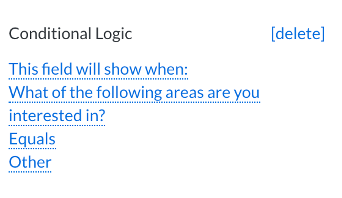
An example of a common conditional logic rule is "show field entitled "Other" if "Other is selected in a previous question.

Conditional Logic will be visible in the left hand blade when you click on the field:
Logic.png
ConditionalLogic.png
Screenshot2021-08-30at13.48.01.png