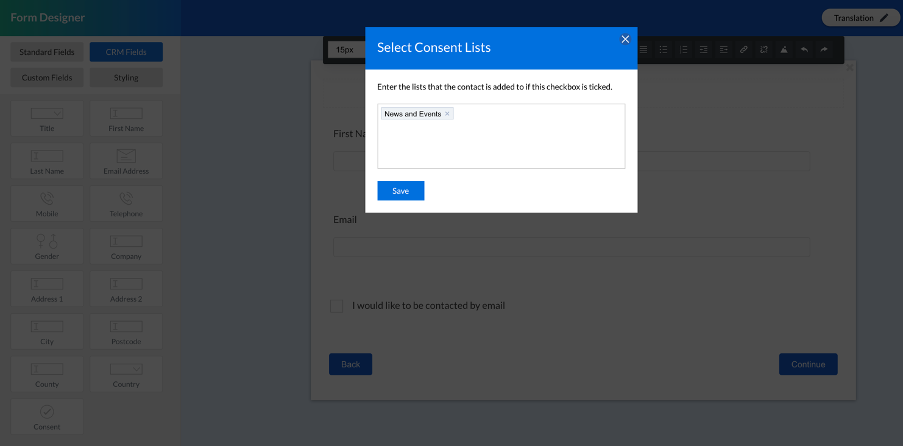
When creating form and survey templates, you have the option to use a Consent field which will give you the ability to capture contacts consenting into being part of particular lists for example a Marketing or Data Protection list.
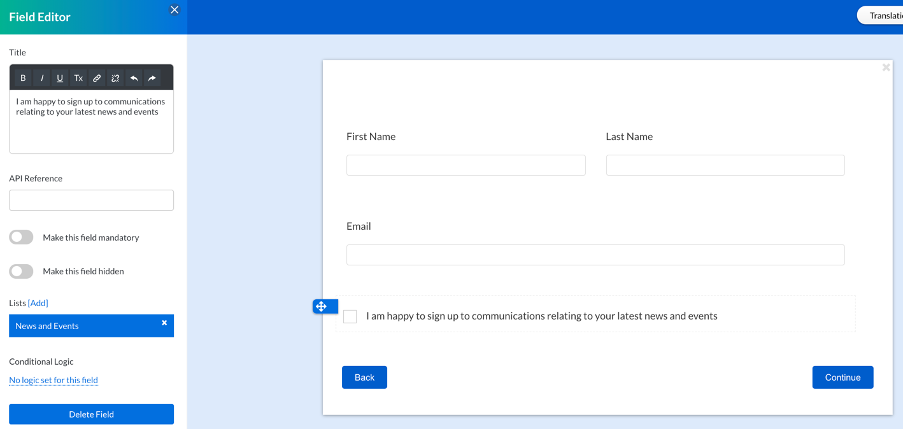
On the left hand side, you can edit the text field to make it clear what they are signing up to, along with other controls including whether or not to make the field mandatory or optional:
You can have multiple consent fields in one form or survey.
Note: You must use a CRM Email Address alongside a Consent Field in order to successfully add the contact to the correct list/s.
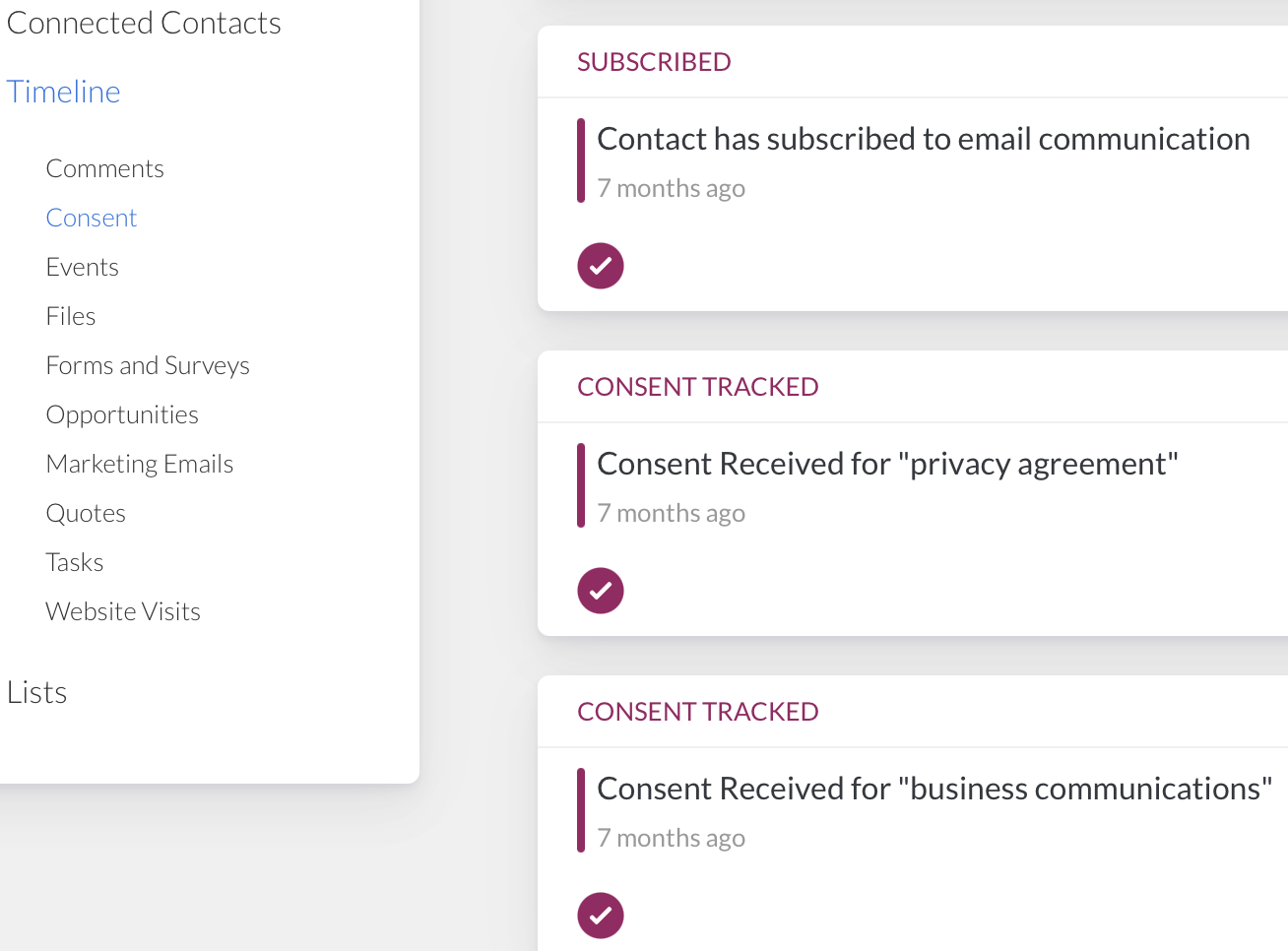
Once the field/s have been checked and the form or survey submitted, the activity will be recorded on the contacts timeline for future reference.
Contact > Contacts > Click into contact profile > under Timeline > Consent:
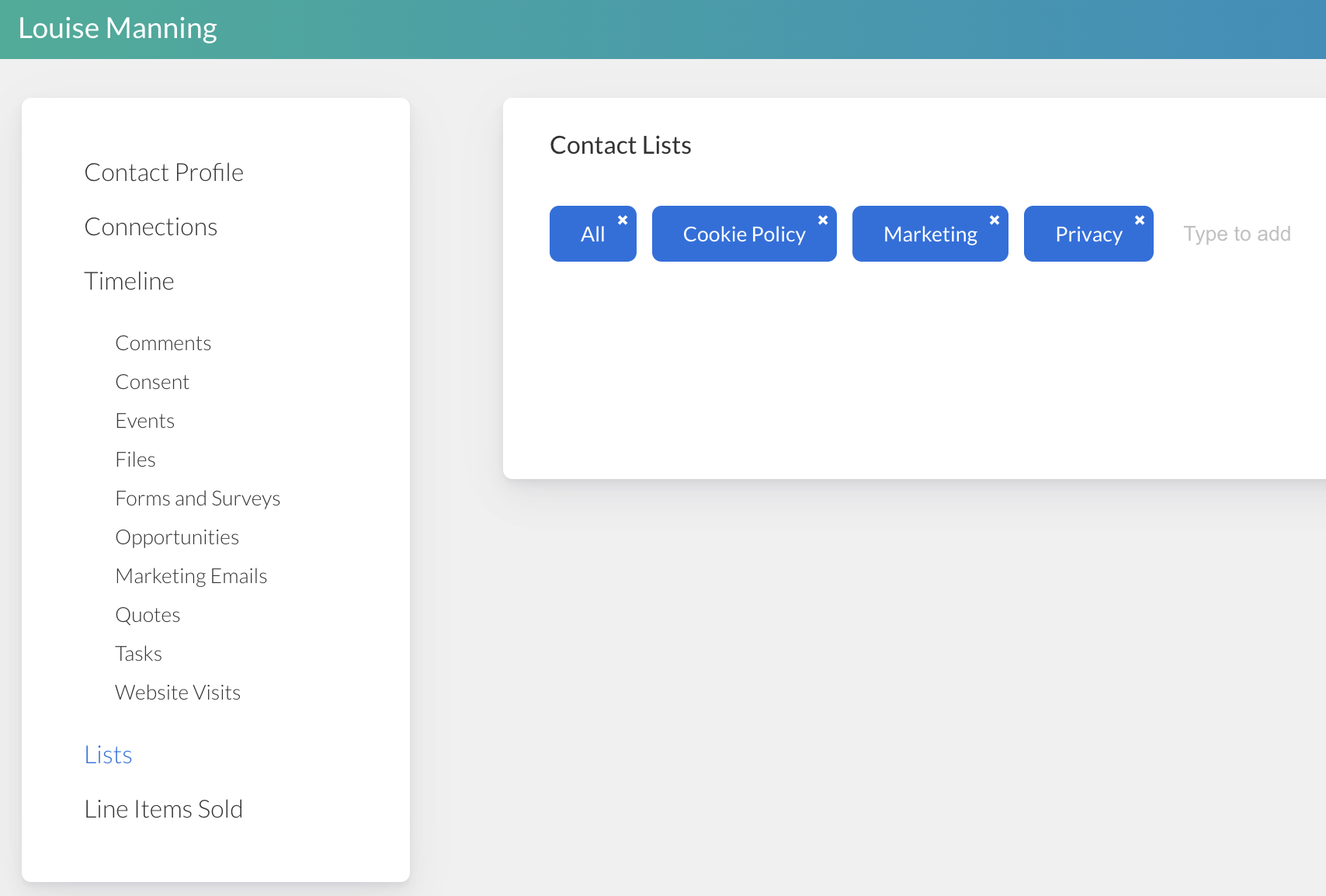
The contact will be added to the relevant list/s assigned to the consent field and can be viewed and further managed under the List option in the same menu.
Note: These consent fields are designed to create static lists, not dynamic lists. You can however use the static lists created via the consent field in dynamic lists.