a-text-logo0.png
Grouped Event Creation
Create and manage free and paid grouped events which include multiple sessions. 
Create Content

Before you start to create your event, you might want to think about what content you need to create. These are two optional steps of event creation process and do not necessarily need to be completed before an event is created.

  • Create a form/survey under Templates > Event Forms that can follow up a ticket registration. Learn more here about creating Event Forms.

  • Create an email template under Templates > Emails to promote the event out to lists of contacts. Learn more here about creating Email Templates.
Create Events / Sessions

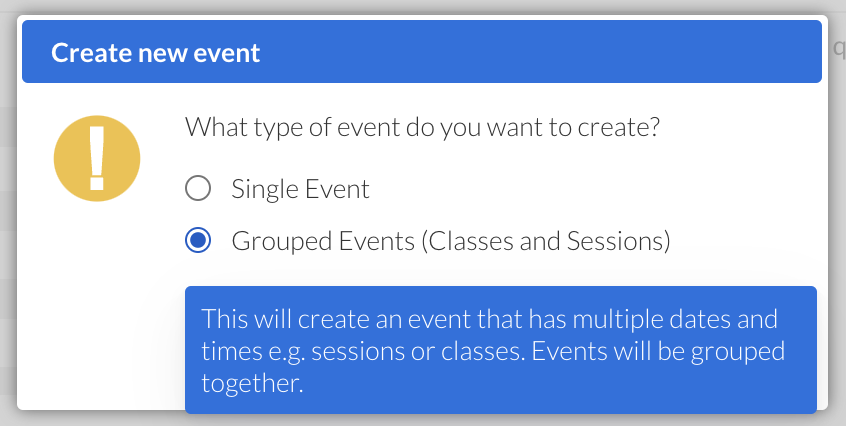
Events > Dashboard > Create > Grouped Event:

The Create button will take you through to the event creation page. You now have 9 possible steps to set up your event.

Screenshot_2024-06-24_at_13.11.021.png
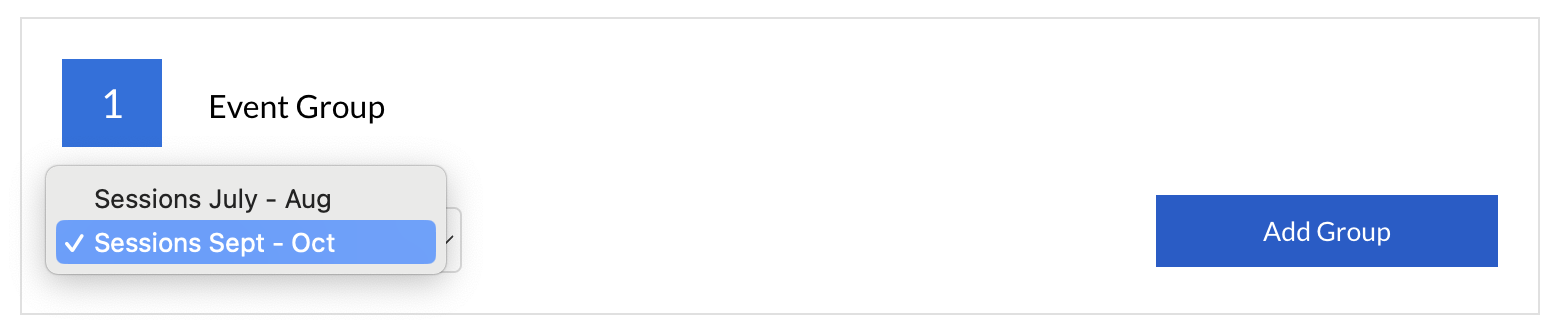
Select Event Group

You can create sessions to be part of a group. All sessions created under the same group will share the same Attendee Form and also the be shown collectively via the integration code on the website. 

Screenshot_2024-06-24_at_16.58.34.png
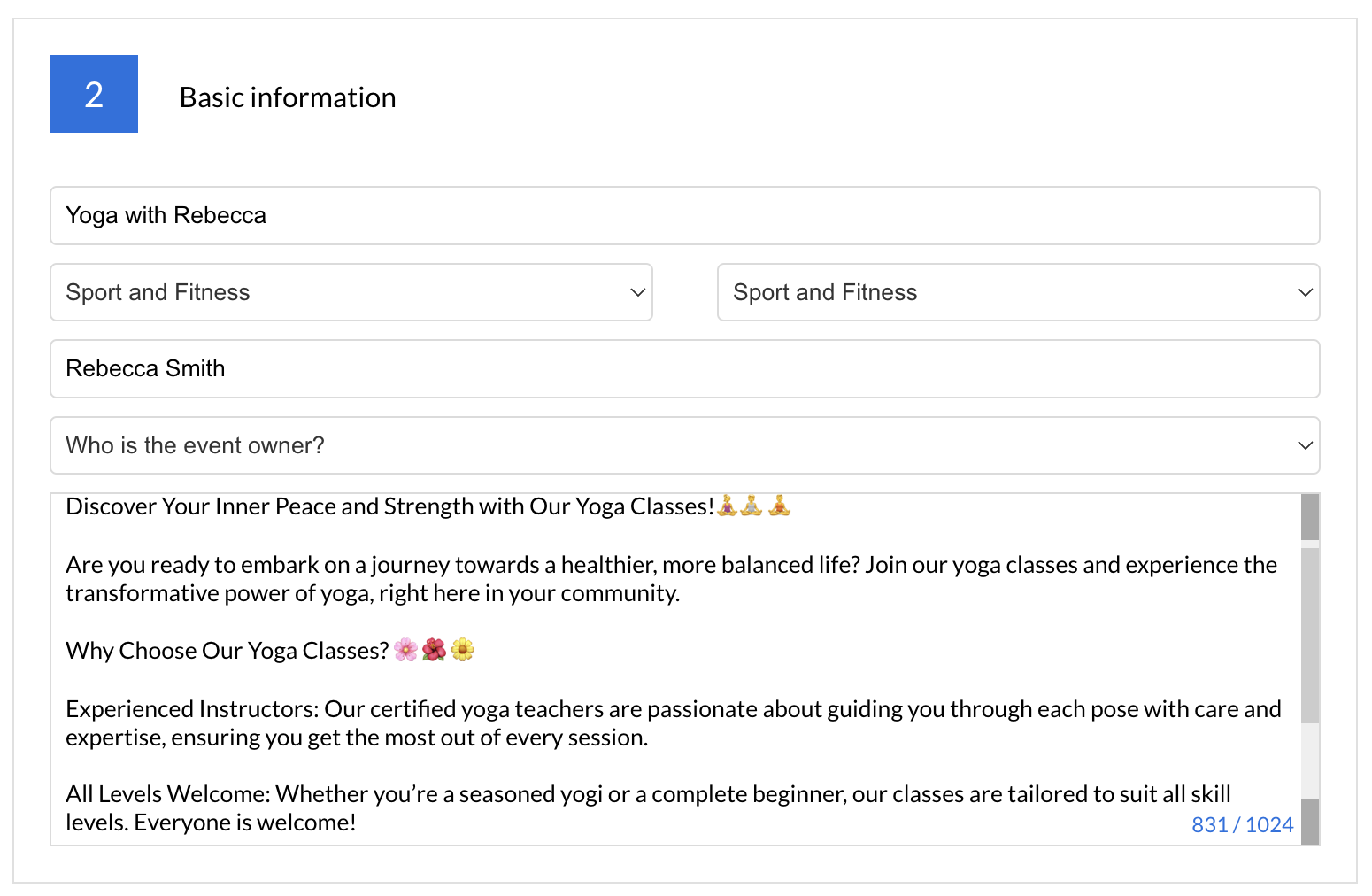
Basic information

Enter the information for your event including the Title, Category and Sub-Category, the organisers name (normally business name/individual) the event owner (a user in the platform who is running/overseeing the event) and a Description of the event.

You can use emojis in the description which will be counted in the character count. 
Screenshot_2024-06-25_at_12.56.51.png
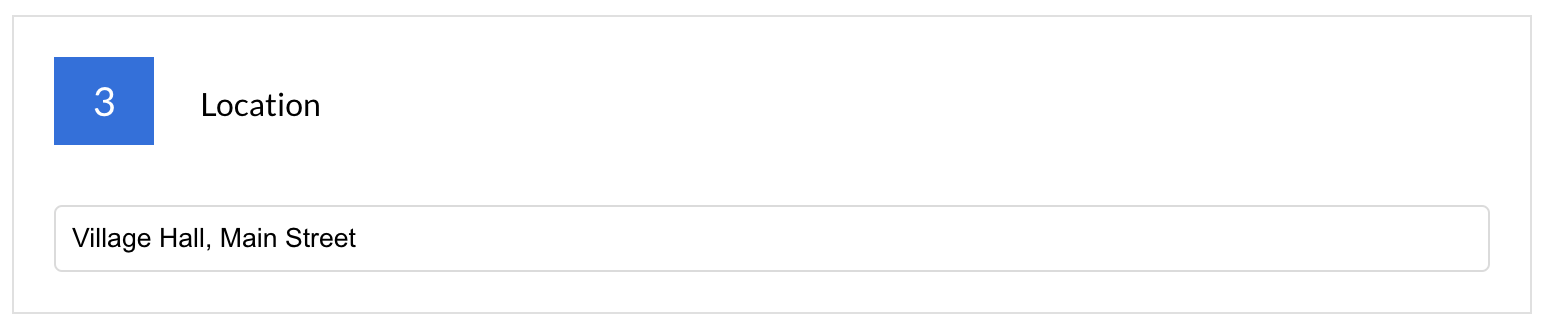
Location

Enter the location of where your event will be held. Either online i.e., Zoom or within an office space or event centre.

Screenshot_2024-06-24_at_17.11.41.png
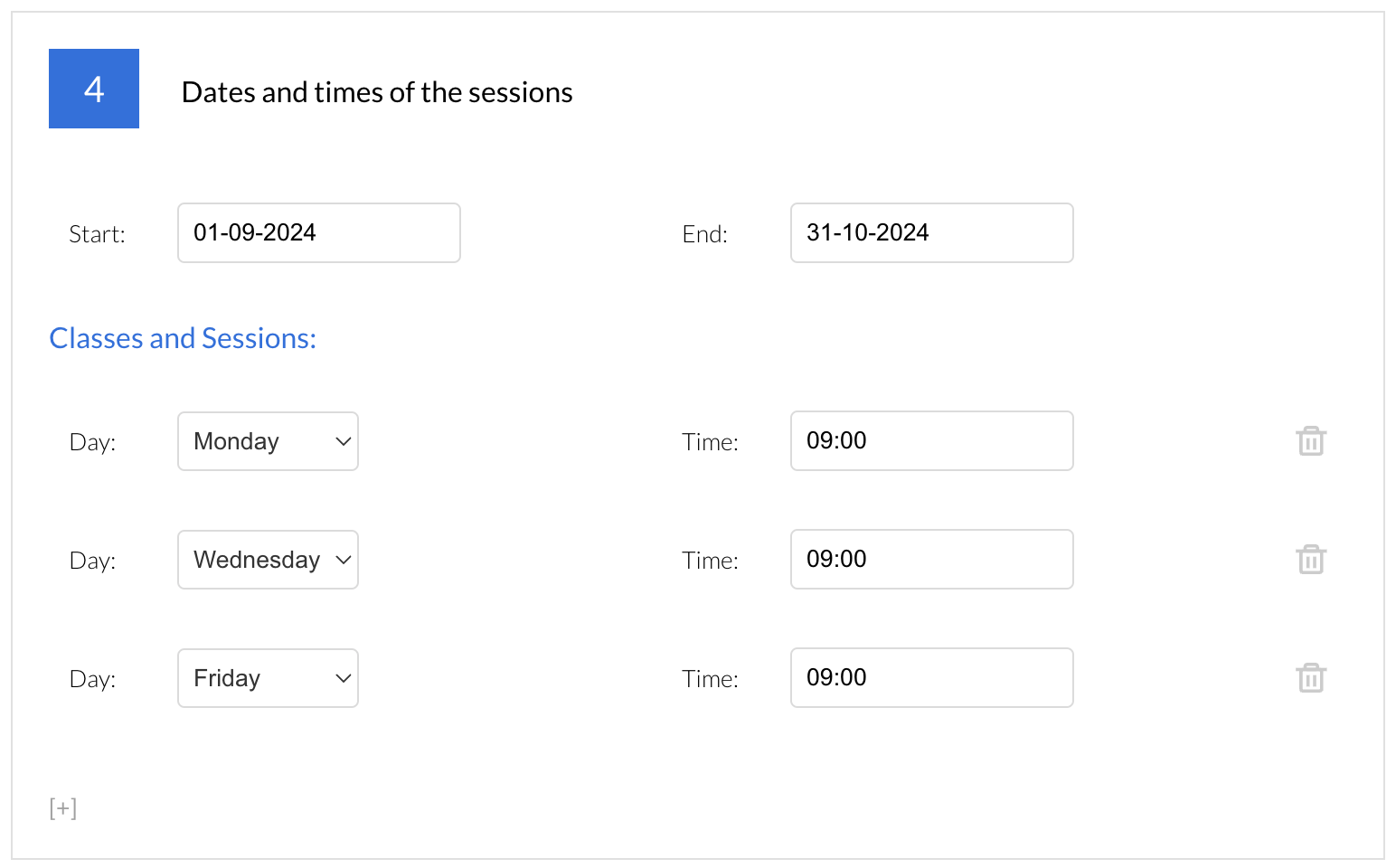
Dates and times of the session

Select the date and time your event starts and finishes. These dates will span over 

Add your sessions to appear as part of the event

Screenshot_2024-06-24_at_17.12.29.png
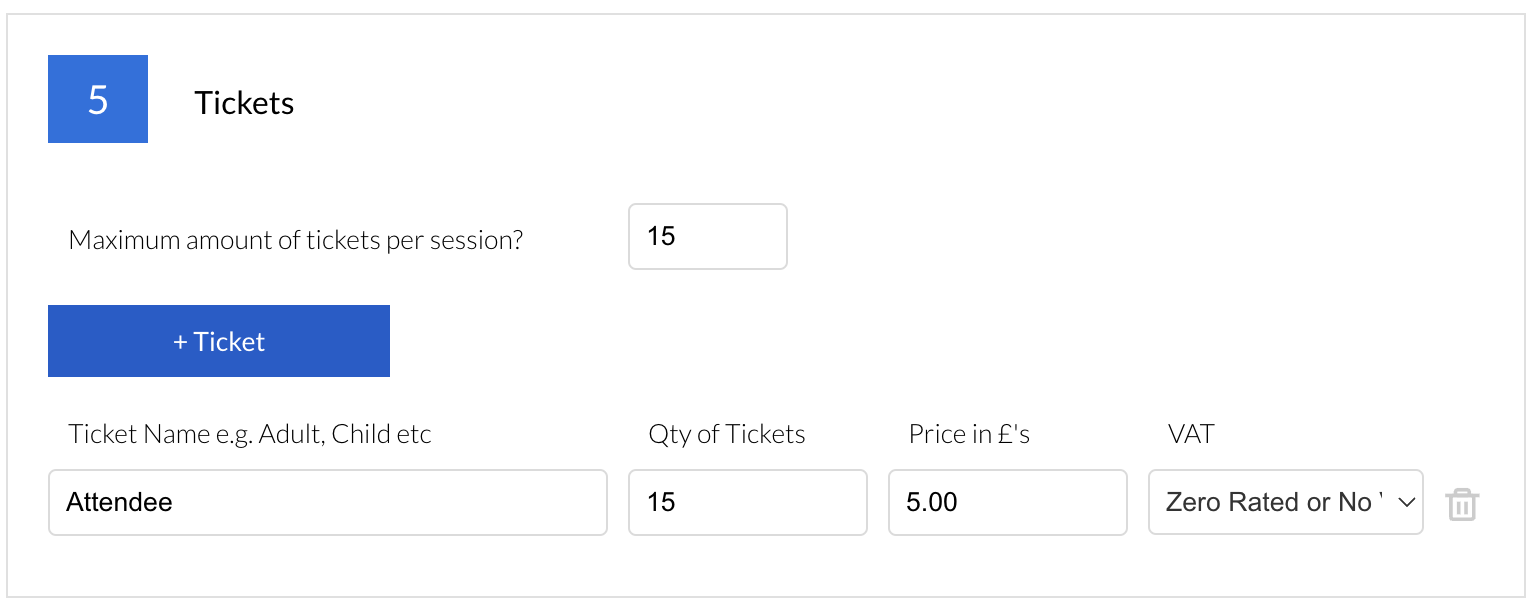
Tickets

Choose the maximum number of tickets you want to sell for your entire event by entering the amount within the first box.

Below this, you can add individual tickets, giving them a Name, Quantity and if appropriate, Price and VAT status.


Clicking the +Ticket button will create a new line for you to add the details of a new ticket.

Screenshot_2024-06-24_at_17.13.17.png
Integration with Stripe

We are fully integrated with Stripe for event ticket payments.

The first time you create an event and enter an amount against a ticket, you will see an option in the To do list prompting you to enter your Stripe Publishable and Secret Key.
You will now be able to publish a paid event, with contacts being redirected to Stripe to enter card details to purchase the paid ticket after they register for their tickets.
Discount Codes

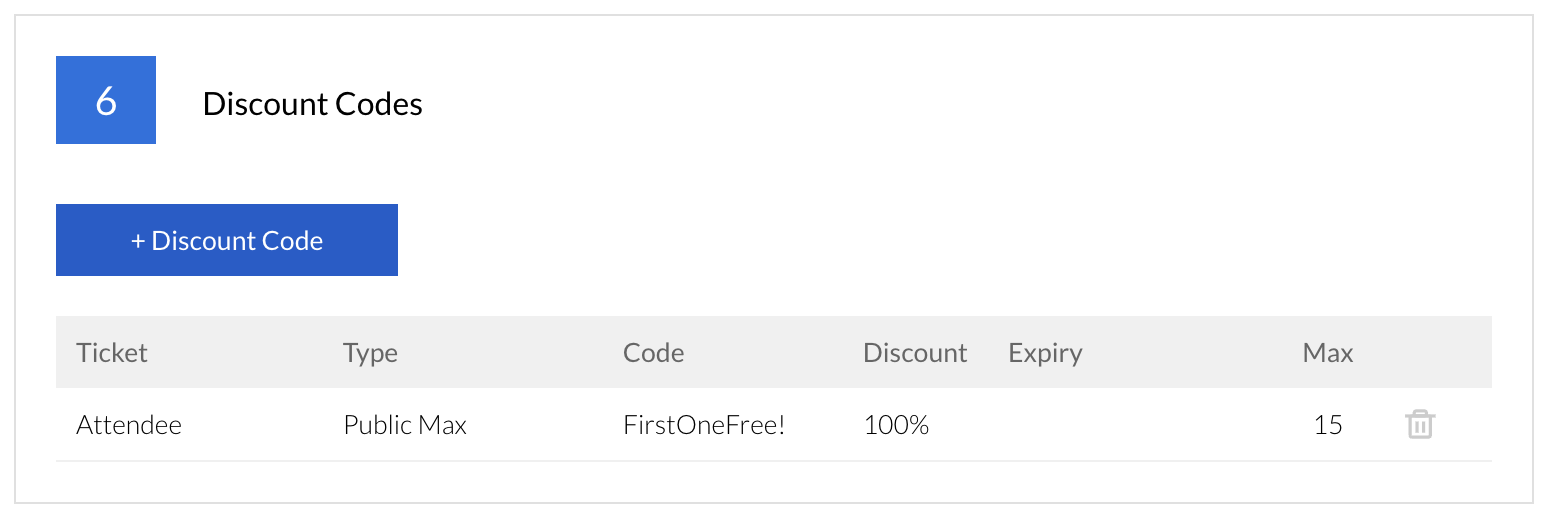
Discount codes can help speed up the conversion process by mitigating the perceived financial risk associated with engaging in transactions with your business. Additionally, they leverage buyer psychology by instilling a sense that the customer is receiving a valuable bargain. 

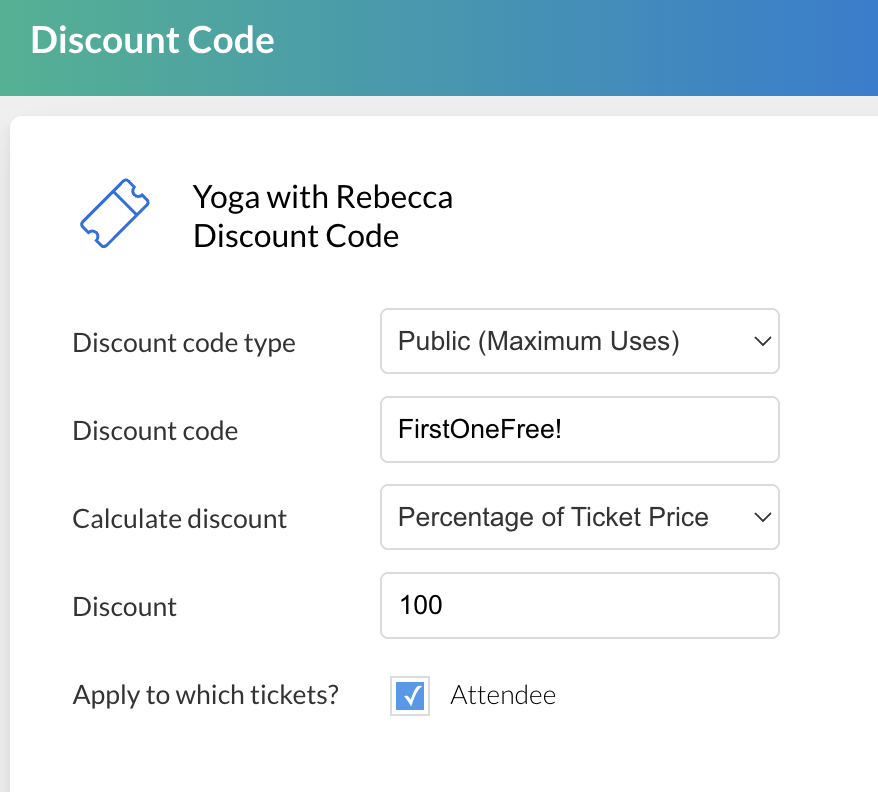
Choose from 4 different types of Discount Code to apply to your event:

Restrict to Invites
Only a contact who have been invited to the event via an email Touchpoint will be able to use the code.

Restrict to Dynamic Lists
Only a contact who is part of a specified dynamic list you define, will be able to use the code.

Public (Expiry Date)
This code will be available to all contacts to use, not matter how they register for a ticket. The code will expire on the date set.

Public (Maximum Users)
This code will be available to all contacts to use, not matter how they register for a ticket. The code will expire when the maximum amount of users has been hit.
Screenshot_2024-06-24_at_17.14.54.png
Screenshot_2024-06-24_at_17.14.11.png
Graphic

Click to upload button and choose the image you want to be shown alongside your campaign.

For it to be compatible on social media sites, the size of the graphic should be 1200(w) x 630(h).

This is an example of the type of graphic you could use.
Screenshot_2024-06-24_at_17.16.10.png
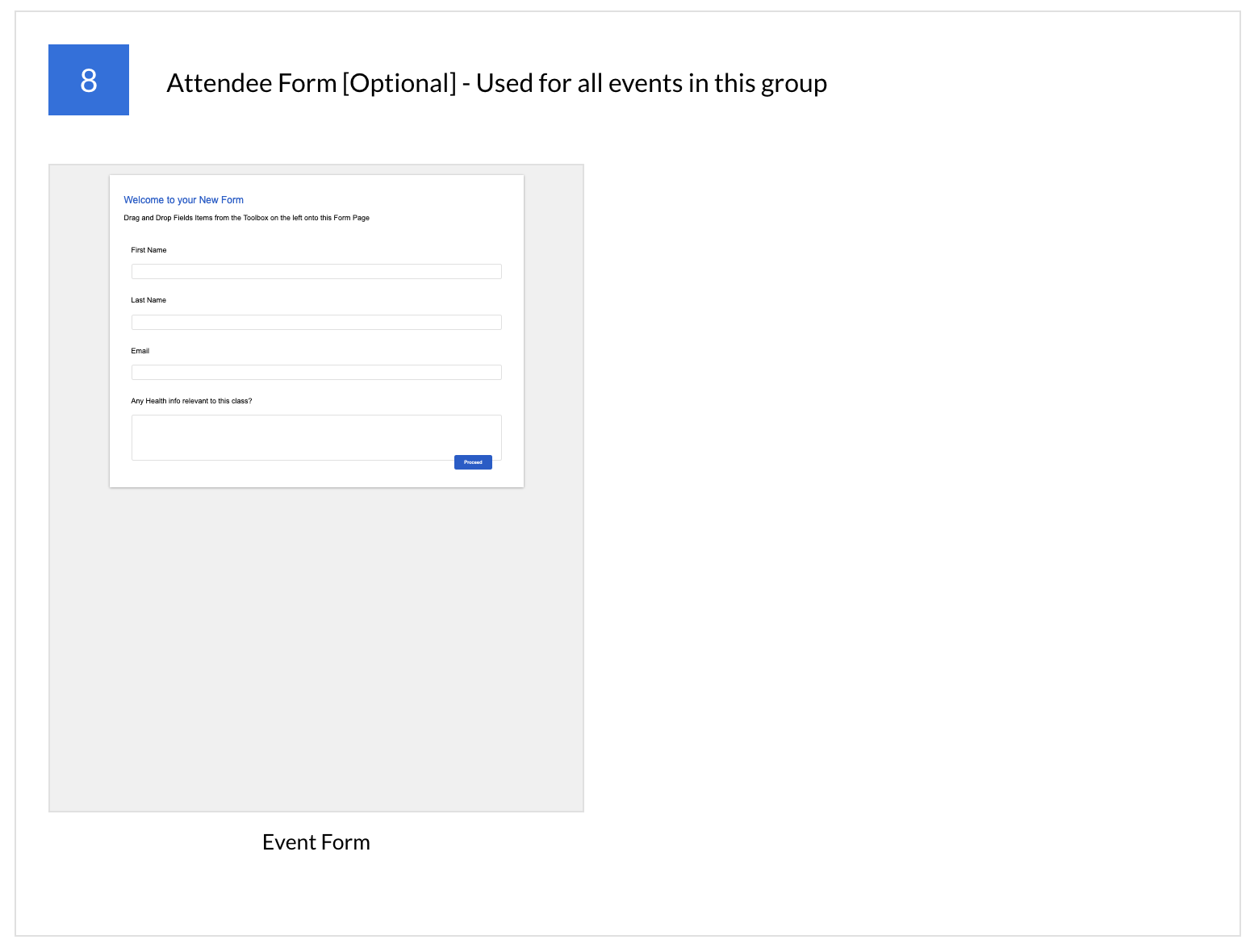
Attendee Form (Optional)

After the contact has registered for their event tickets, there is the option to redirect them immediately to a form to collect more data.

Examples of when using the attendee form might be useful include collecting dietary requirements, health information and personal requests. 

Learn more about creating Event Forms 
Screenshot_2024-06-24_at_17.16.45.png
Note: If you want to remove the attendee form, there is an option to [Remove Form] top right of the form in blue.
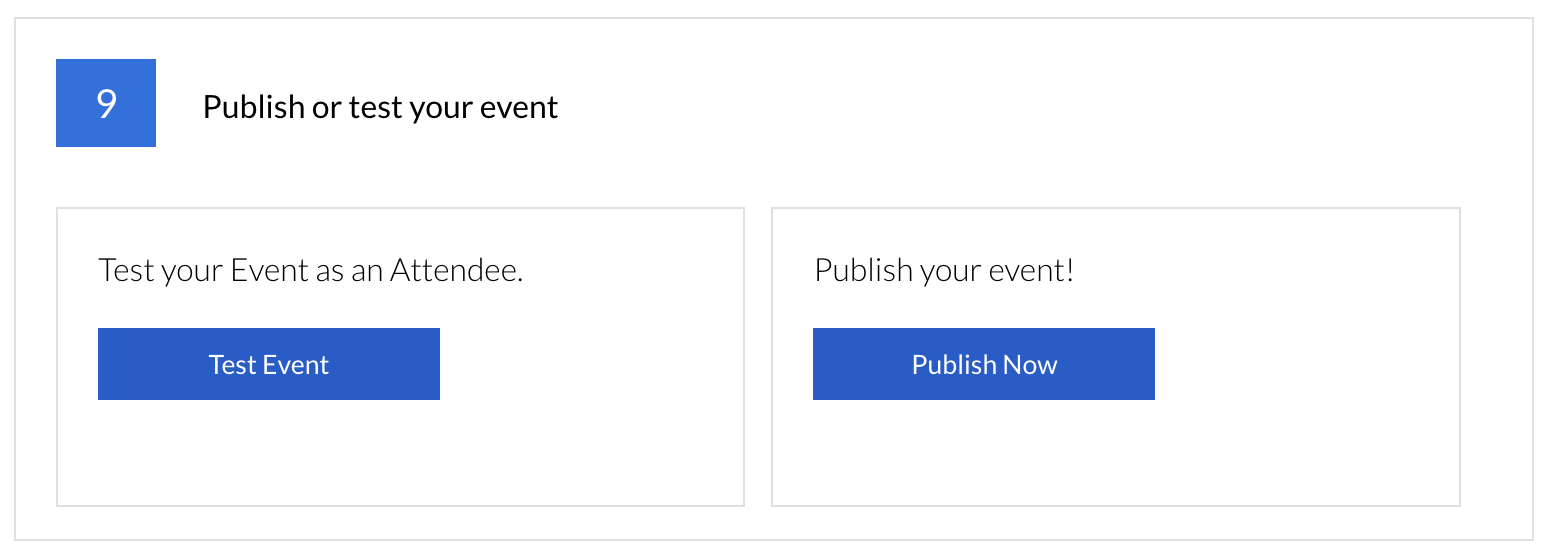
Publish or test your event

Upon completion of the above steps, the To Do list will be complete and therefore disappear to allow for two options:

1. Immediate publishing will make the event live.

2. Send a test which will redirect you to the registration form so you can walk through the registration process. If you have paid tickets on you event, use your test Stripe keys to 'pay' for the tickets or a 'freebie' discount code you have created.
Screenshot_2024-06-24_at_17.17.27.png
Confirmation Email 

The confirmation email will be immediately sent to the contact email address upon ticket registration. There are two options on when and where to customise the email.

Specific
The first is once the event is live, set up a confirmation email specific to that event:

Event Dashboard > Manage > Edit Confirmation Email

Generic
The second is to create a single confirmation email that will apply to all live events. Something to be very mindful if you have multiple events running at once:

Events > Confirmation Email

This email can be edited at any time, even before event creation. 

Content

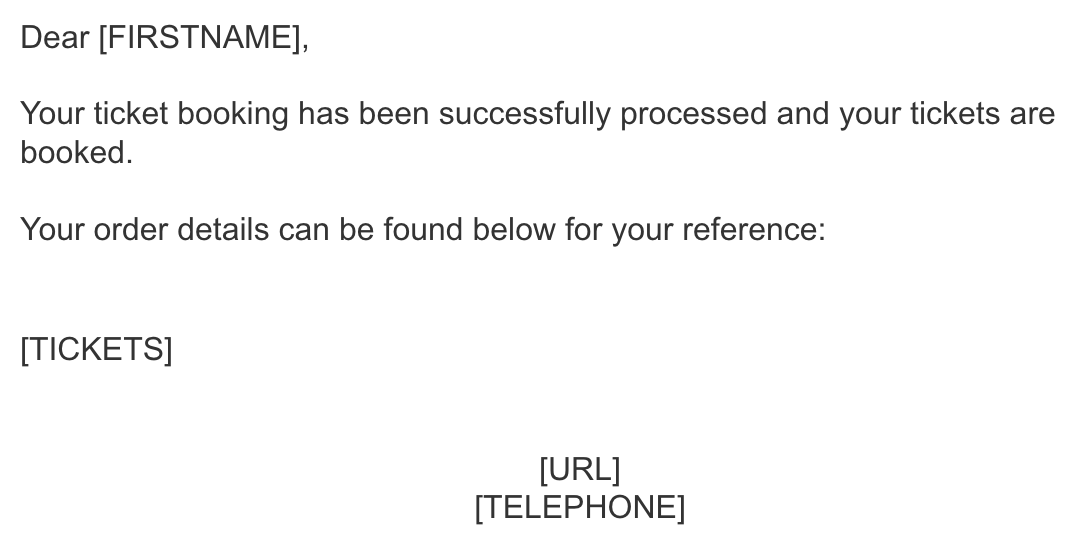
Brand out the confirmation email directly in either area whilst not deleting any text in square brackets e.g. [TICKETS]

Screenshot2022-03-12at17.39.13.png
When a contact registers for a ticket, the ticket details will show in place of [TICKETS], the first name of the contact will show in place of [FIRSTNAME] and the company URL and telephone number set under Admin > Account will show in place of [URL] AND [TELEPHONE].

If you choose to keep the confirmation email entirely generic with text similar to the above it, upon submission every contact that registers for a ticket against all live event will receive this in the mailbox.

If you need to create a specific email for each event e.g. you have live events that are both onsite and online and you want to include zoom meeting details in the online one, you can create a confirmation email for each event post publish. This will take you through to a copy of the email template located under Event > Confirmation Email and allow you to make any edits - all contacts that register for a ticket within that specific event will then receive the email upon submission.
Learn more about creating events via the Activities Calendar.
Screenshot2021-08-30at13.48.01.png