a-text-logo0.png
Companies Import
Import or update multiple companies into the platform via the import process.  The company import is ideal for importing data against areas in the CRM including Sector, Sub Sector, Registration Number, Lead Source, Employee Count and Turnover.

Contacts > Import > Companies
Download the arkflux excel spreadsheet to populate your data. 
Screenshot2021-08-30at17.01.35.png
Note: You can use your own excel spreadsheet to import into the platform, but you will not get the benefit of the Telephone Formatter (see below). 
Screenshot2021-08-30at13.01.57.png
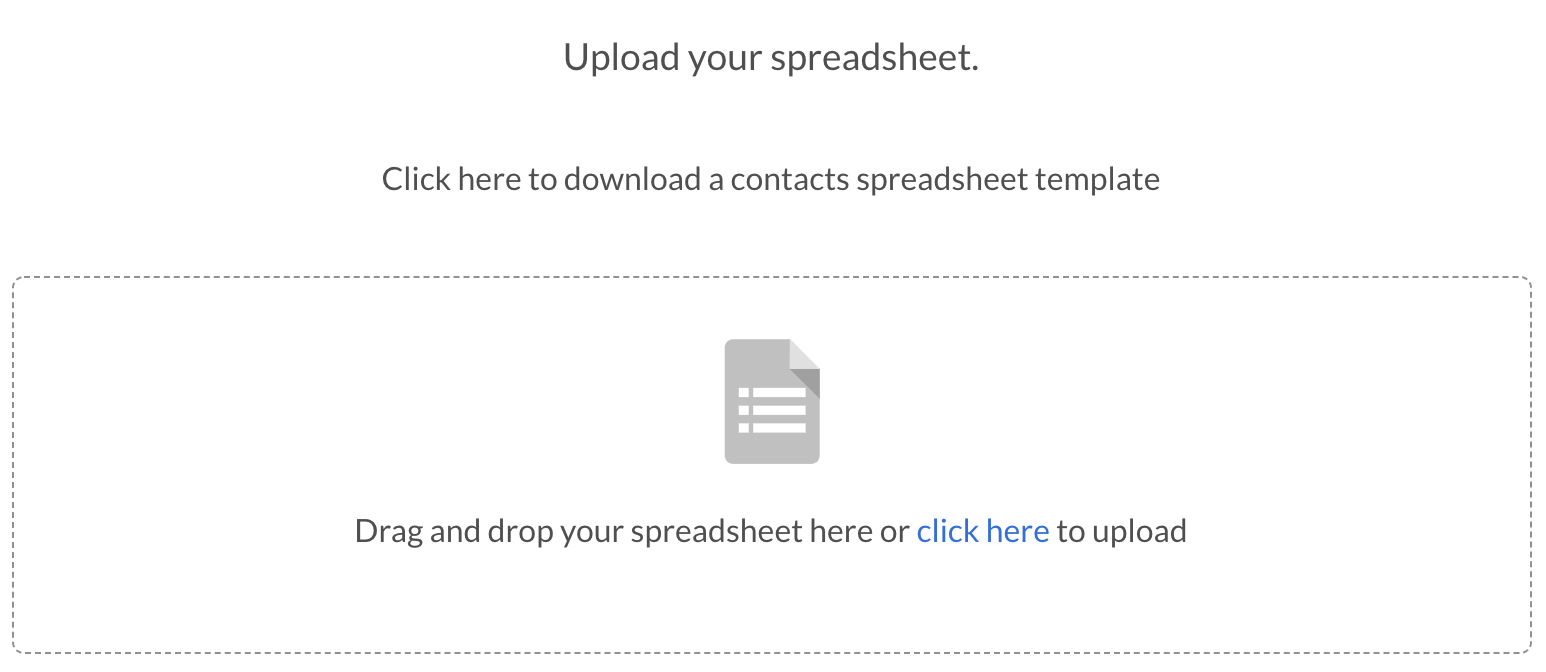
Once you have populated the spreadsheet, click here in blue to upload.
Note: You do not need an email address for the company import - if you are importing data against a company that already exists in the platform, ensure the company name is identical to avoid any duplication.
Lead Source, Sector and Sub Sector data entry
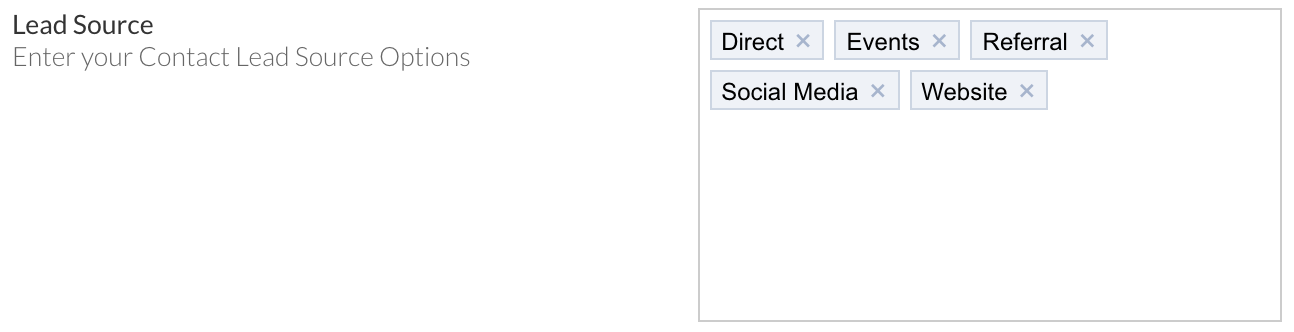
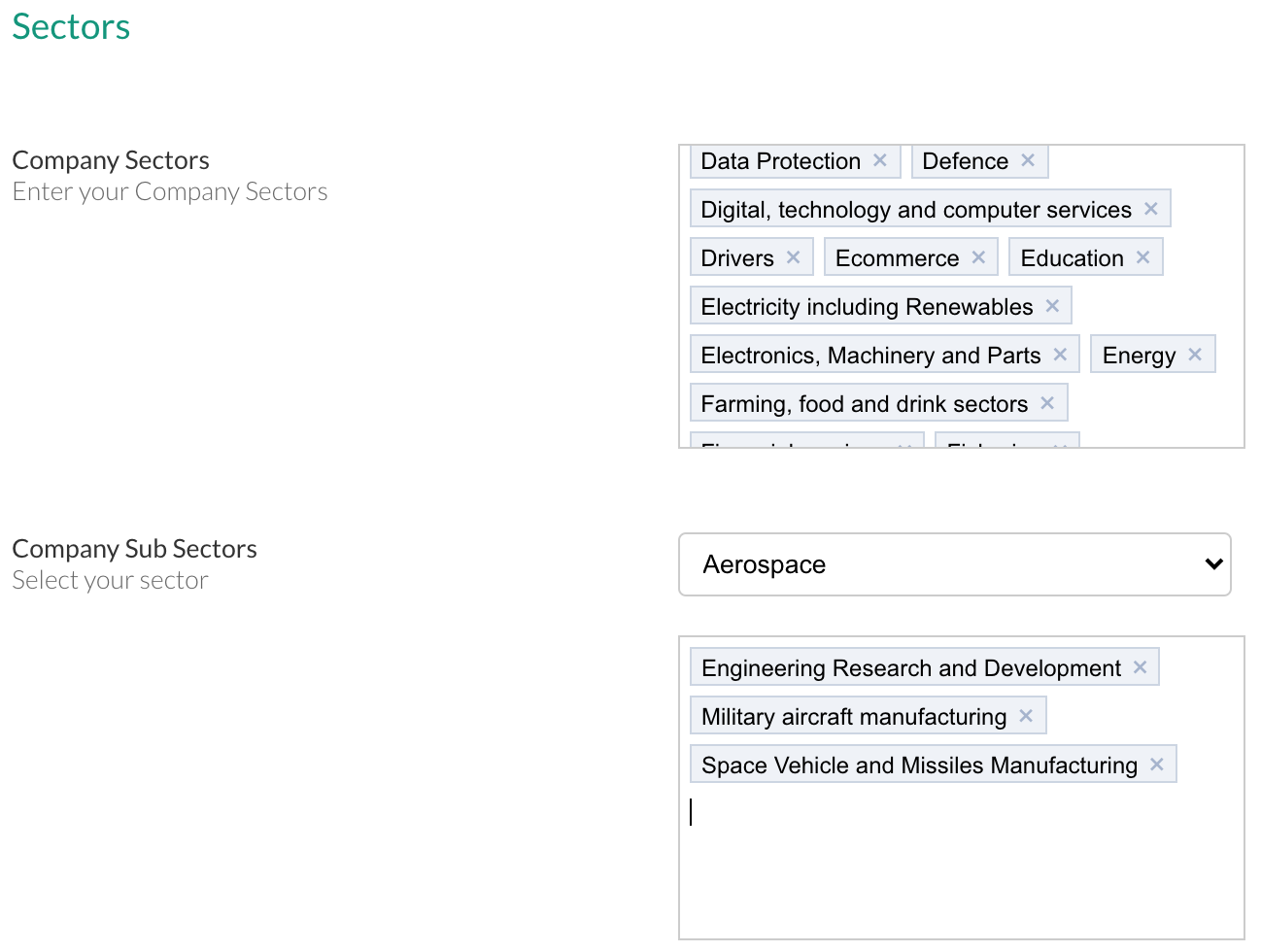
Update the options available to enter into the Lead Source, Sector and Sub Sector columns within the spreadsheet.

Admin > CRM Settings:
Screenshot2022-02-18at15.18.40.png
Screenshot2022-02-18at15.21.36.png
Once defined, type these options in the relevant columns in the import spreadsheet exactly as they appear. If the entries in the spreadsheet are not identical to the entries in the import spreadsheet, they will not import.

Add Custom Field entires at the end of the spreadsheet with a corresponding title to ensure clarity when mapping fields - shown here highlighted in grey:
Screenshot2022-03-18at12.05.55.png
Company Type (Head Office, Group, Finance, Site)
Entering one of the below options will mark the company as either:
Head Office
Group
Finance
Site
Screenshot_2025-02-26_at_14.05.01.png
Screenshot_2025-02-26_at_14.07.08.png
Screenshot_2025-02-26_at_14.05.41.png
Screenshot_2025-02-26_at_14.08.39.png
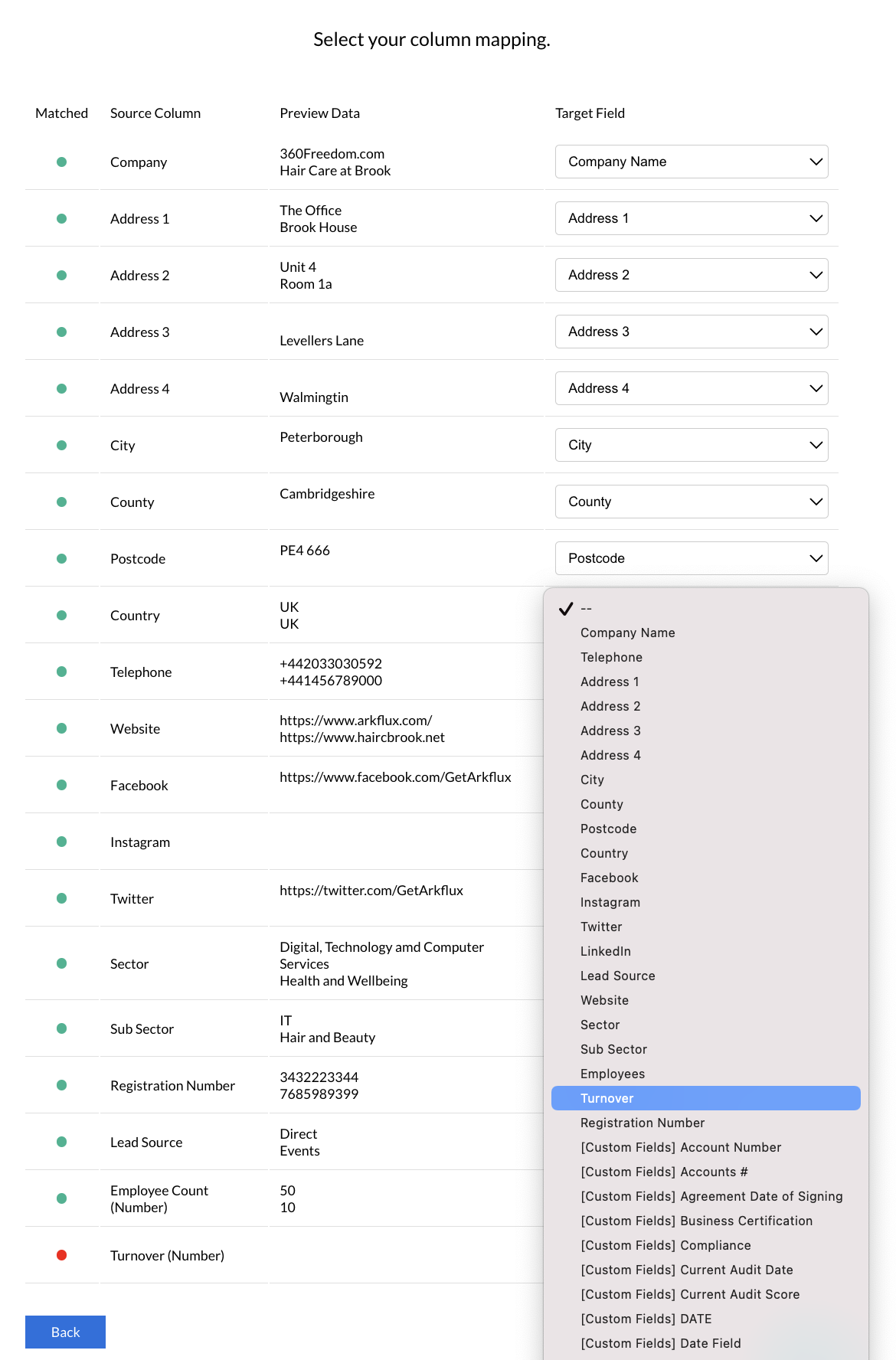
The fields on your spreadsheet are referenced as Source Columns and the fields that they need to map to in the platform are know as Target Fields. Upon importation, any of the Source Column fields that match the Target Fields will be automatically matched and accompanied by a green dot. It's always worth double checking these before moving on.

Any other fields that show a red dot have not been mapped and will need to be mapped manually by selecting the correct Target Field from the corresponding dropdown.

You do not have to map every field.
Screenshot2022-03-08at12.26.31.png
[Custom Fields] Select these to map to custom fields you have created in the platform.

Learn more about Custom Fields
[Attribute Fields] Select these to map to attribute fields you have created in the platform.

Learn more about Attribute Fields
[Actions] Add to New List - Select this option to create a new Static list in the platform.
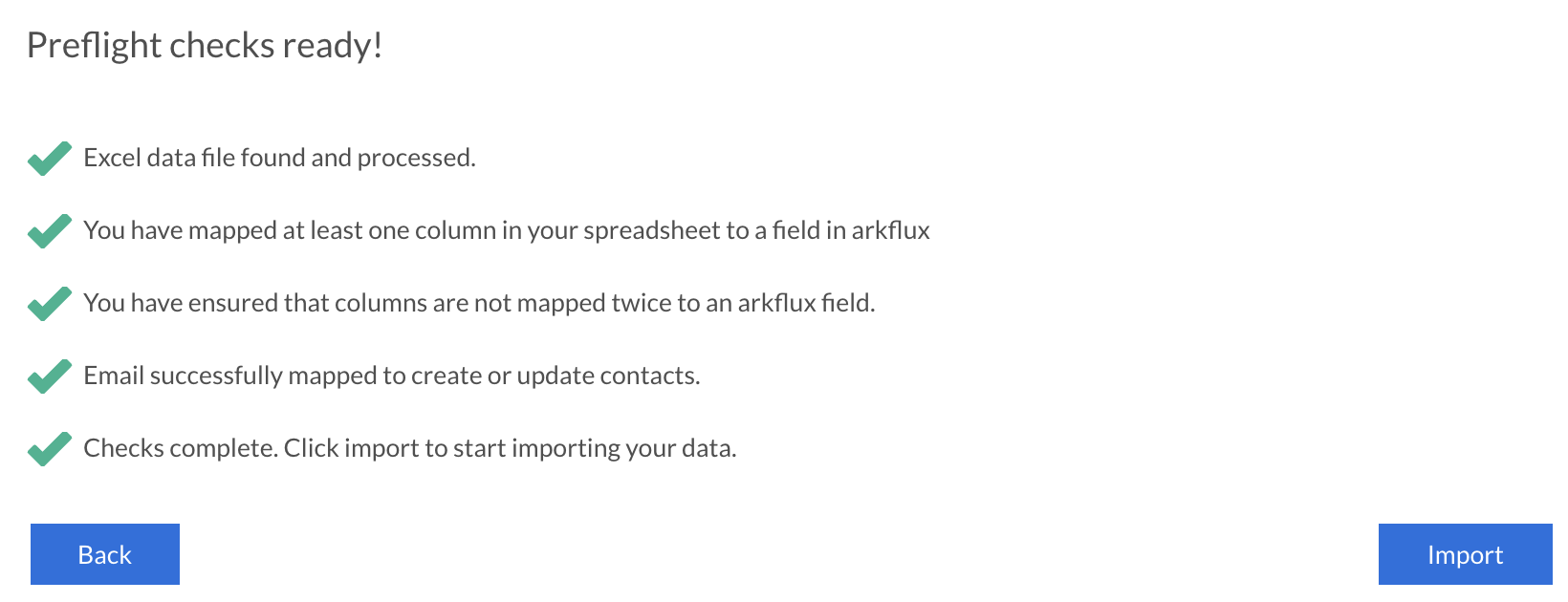
Once the fields have been populated as you need them, you are ready to Import the data into the platform.
Screenshot2021-08-27at17.34.38.png
As the platform offers the option for SMS campaigns, all phone numbers - mobile and landline - will need to be entered in their international format (+44 / 44)

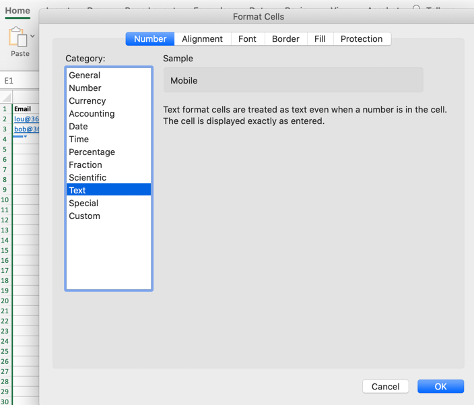
Ensure the Mobile and Telephone columns are set as Text by highlighting the column > right click > Format Cells > Text > OK:
Picture1.png
Identify if the number you need to format is UK, USA or Canadian > right click on the cell with the number in it > Telephone Formatter > select Country. You can do more than one number at a time if they are all the same Country. The phone number will turn blue if the format doesn’t appear to match the standard country format:
Telephone-formatter.png
All company details can be updated.

Via the Import

If you need to update multiple companies, export all company details via Contacts > Companies > Export All button at the top of the page and make the necessary updates. Once the spreadsheet is updated, reimport the spreadsheet via Contacts > Import > Companies. Any changes will then be added to the relevant contacts without duplication.

Learn more about Data Export

Manually

Contacts > Companies > Click on the company you want to update via the edit pen icon next to the area you want to change.
Screenshot2021-08-30at13.48.01.png