Upon implementation, you will see this image bottom right of your website - your contact will click on this to start the chat:
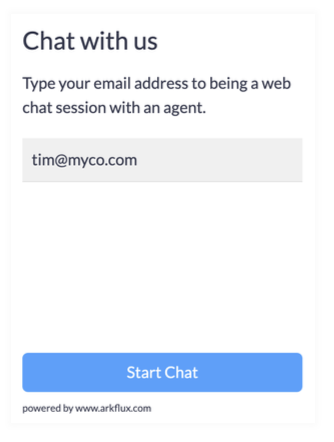
The contact will be prompted to enter their email address:
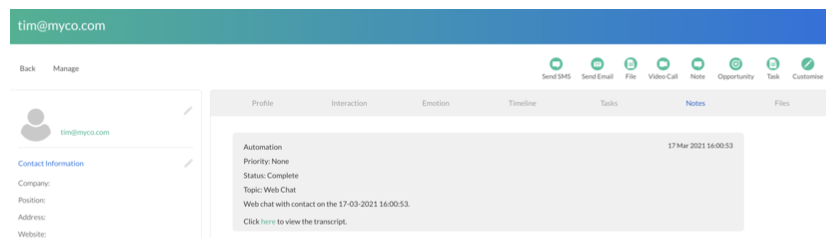
If they are a known contact in the arkflux instance it will pull up some of their details at the Agent end. If the contact is unknown - not already in the arkflux instance - it will create a new contact.
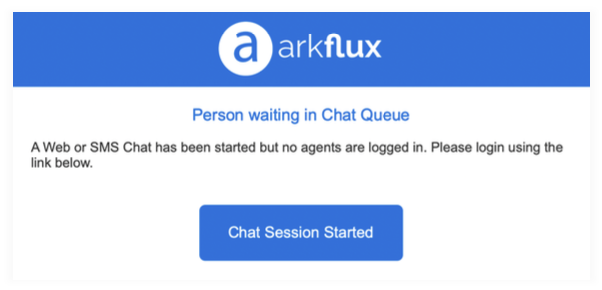
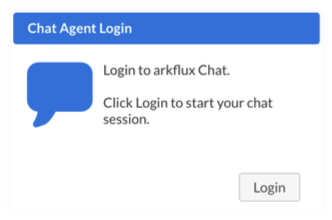
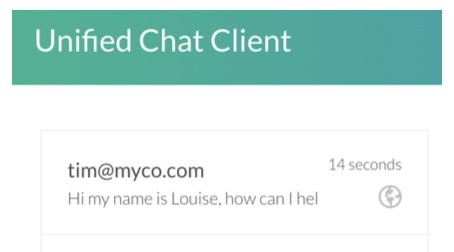
Agent Journey If you are not logged in, as a User of the instance with chat permissions, you will get an email alert to tell you to log into Chat when a contact submits their email via the website:
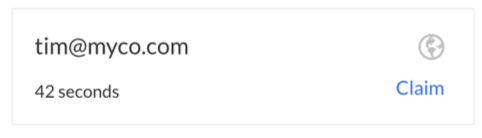
Click the alert bell at the top of the page and then the session you want to claim:
This will move the session into your chat queue on the left hand side:
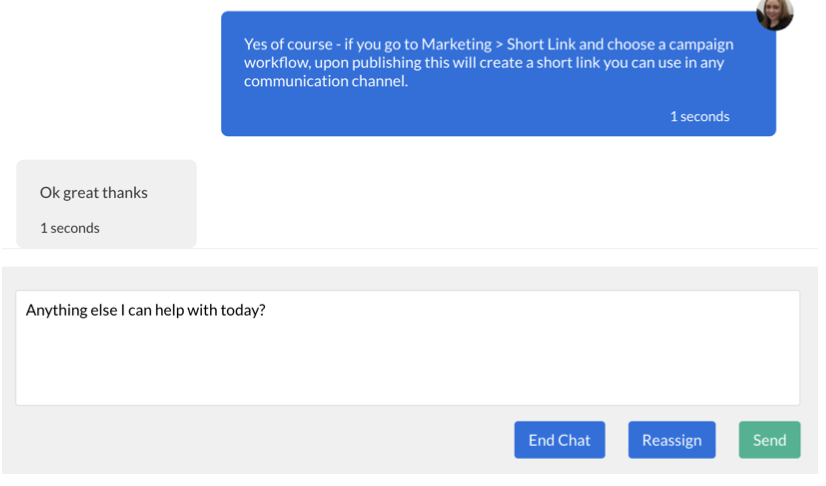
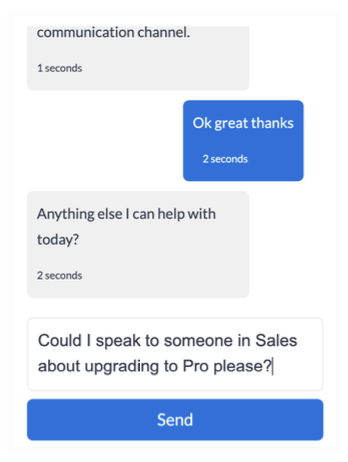
As an Agent you can then converse with the customer:
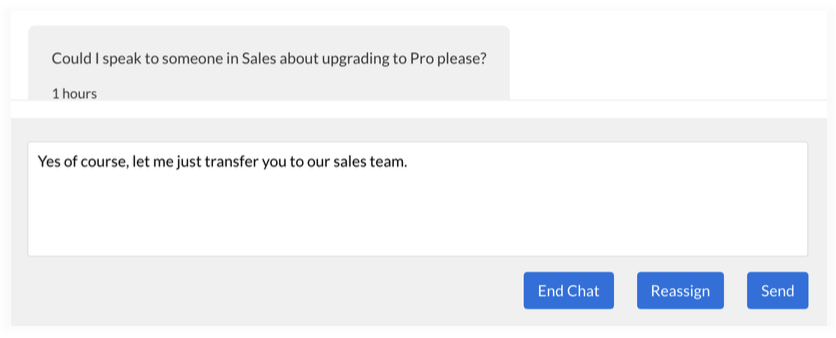
You have the ability to End Chat upon finishing the conversation. You also have the ability to Reassign the chat to another Agent from another Group.
Customer View
Agent view
Reassigning a session will give the Agent the ability to choose another Agent to take over the session.
Create and manage Chat Groups
Groups are a collection of Users with the chat permission, allocated to a particular area e.g. Sales, Support. When you reassign a session, grouping will help you find the appropriate contact.
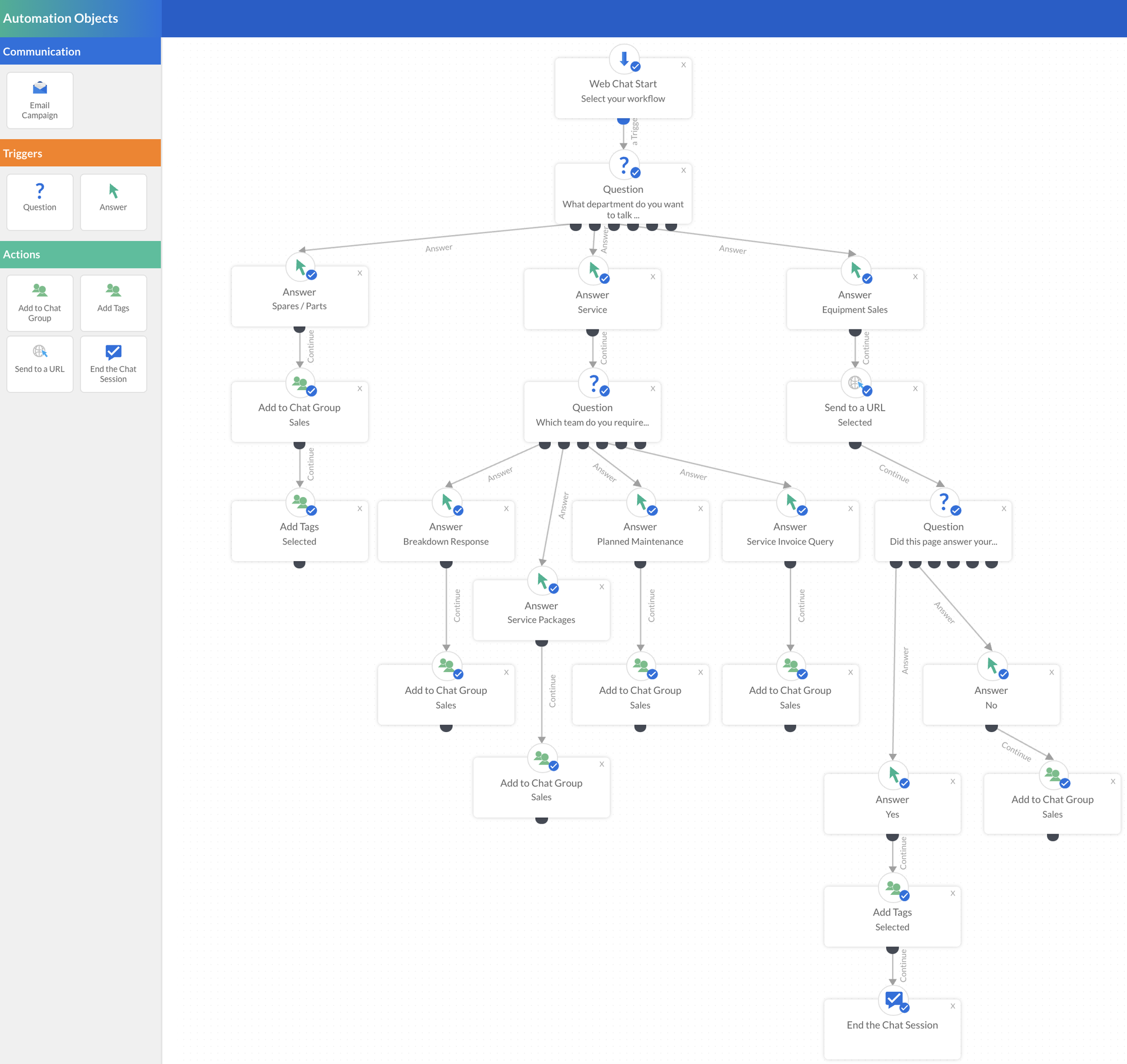
Create automated workflows for your contacts to follow upon starting a web chat. Ask questions like What department do you want to talk to and Which team do you require. Dependant on what they choose Redirect to a Chat Group, Send a URL, Add Tags or End the Session.