a-text-logo0.png
Unified Marketing Campaigns
Unified campaigns allow multiple communications to be created and sent via the different marketing channels within arkflux. A Unified Campaign can contain social media posts, marketing emails, website forms, events and even SMS or Smart Mobile Forms. They track targets, opportunities generated, contacts and leads generated all from within a single dashboard.

Unified campaigns measure in real time the amount of opportunities and/or sales generated against your marketing spend without having to collate complicated spreadsheets. 
Menu > Marketing > Unified Marketing > Launch next campaign


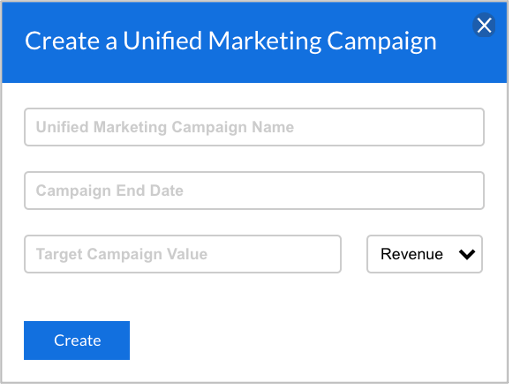
Enter the details of your campaign:

Unified Marketing Campaign Name
Internal name of the overall Unified Marketing Campaign.

Campaign End Date
The date the unified campaign will be closed and no more touchpoint communications will be sent.

Target Campaign Value
Choose between:

Revenue will report through the inclusion of the opportunity automation option within the Unified Campaign workflow/s, and subsequent value of these created and closed opportunities against the contact or company in the CRM. 

Leads will report on the number of new contacts created via form or survey submissions within the Unified Campaign.

Opportunities will report through the inclusion of the opportunity automation option within the Unified Campaign workflow/s, and subsequent creation of an opportunity against the contact or company in the CRM. 
Step101.png
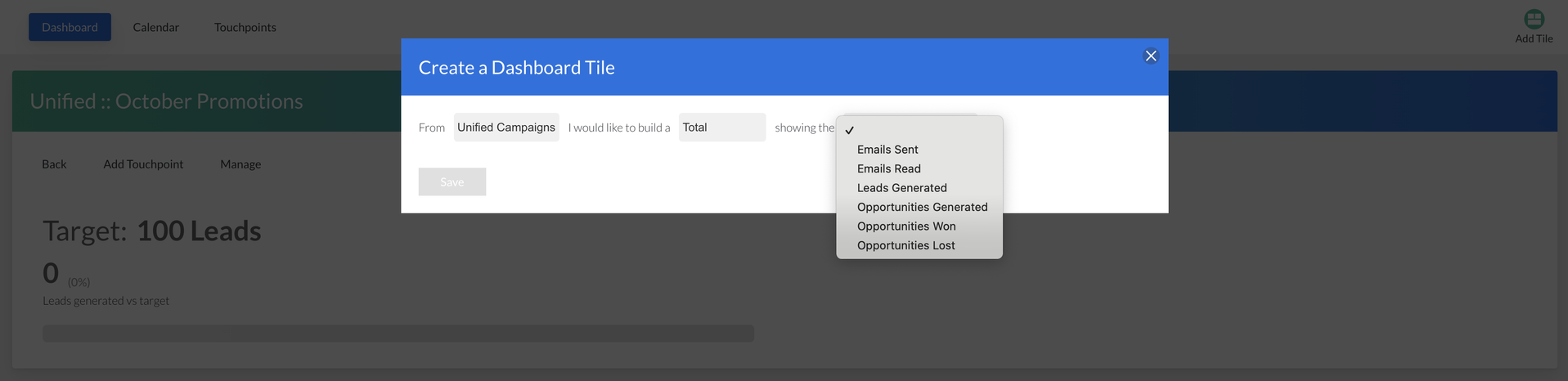
After selecting Create you will be placed onto the blank Dashboard tab. Here you can add tiles by click the Add Tile button top right of the screen. Choose from a number of helpful tiles to summarise the campaigns overall performance, including Graphs and Totals:
Screenshot_2025-10-15_at_10.28.12.png
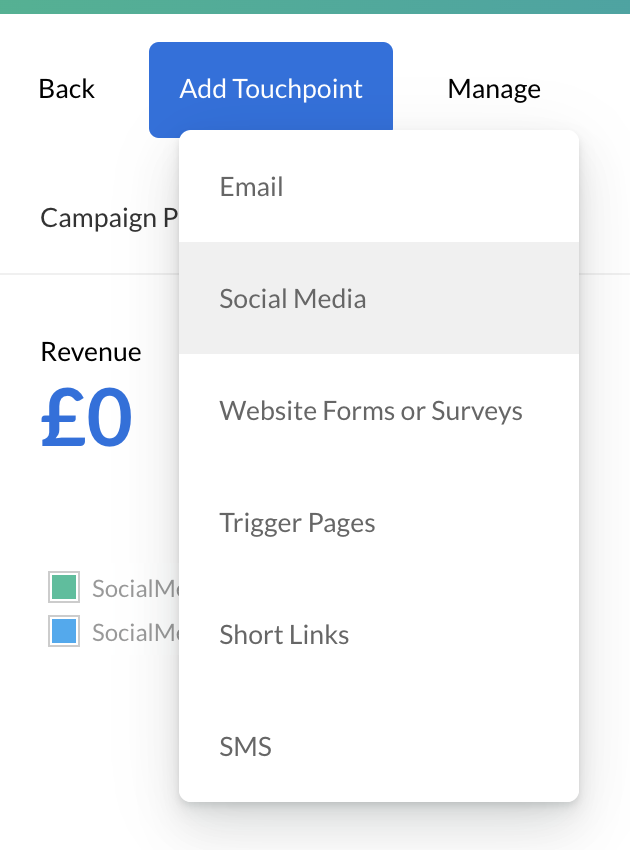
To begin creating, hover over the Add Touchpoint text at the top of the page - from here you will be given a list of channels you can use to begin marketing:

Email
Create an email campaign.

Learn more about these campaigns under the Email Marketing Overview.

Social Media
Post an update to a Facebook. Instagram, X and LinkedIn page or group.

Learn more about these campaigns under the Social Media Overview.

Website Forms or Surveys
Create a form or survey and display on a web page.

Learn more about creating these campaigns under the Website Overview.

Trigger Pages
Create a trigger campaign to send automated campaigns e.g. drip emails after contacts visit a specific URL triggered by the web monitor.

Learn more about creating these campaigns under the Website Overview.

Short Links
Create a short link campaign with a form or survey.

Learn more about these campaigns under the Website Overview.

SMS
Create an SMS campaign (optional form/survey) to send contacts information over text.

Learn more about these campaigns under the SMS Campaign Overview.

Screenshot_2024-09-24_at_14.28.03.png
All touchpoints whether in draft, published and scheduled are listed within on dashboard for future reference and can be clicked into to see individual campaign reporting and stats.
Note: The touchpoint creation process is identical to the creation of  single touch, Marketing Campaigns under Marketing > Email/Facebook/Website etc.
Learn more about Marketing Campaigns
Calendar
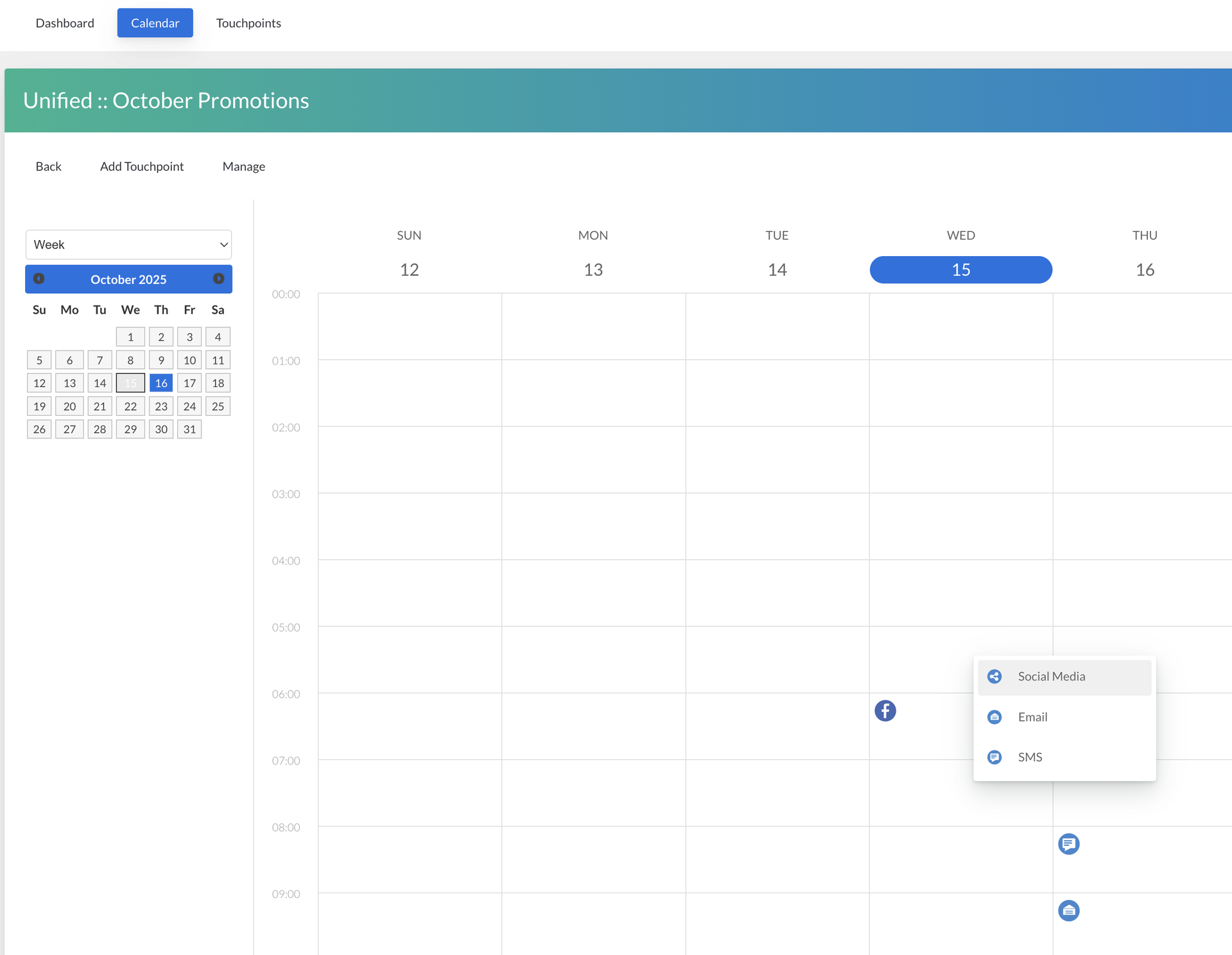
You can create and manage Social Media posts, Emails and SMS campaigns directly via the Activities Calendar.

Right click on the date and time you need to create a campaign and populate the workflow. The calendar also gives you a great visual view of upcoming campaigns so you can plan your week:
Screenshot_2025-10-15_at_12.10.32.png
Manage

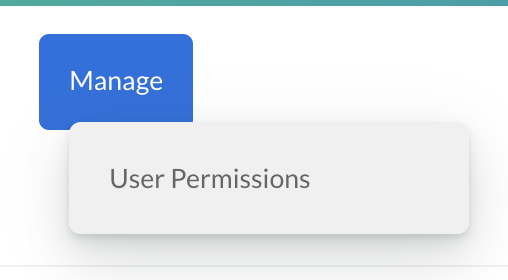
Edit which arkflux users within your organisation are authorised to view the Unified Campaign. Clicking on the users name will move them from Users (left) to Authorised Users (right). Then, click Update and Notify:
Screenshot_2024-09-24_at_14.32.19.png
Once you have authorised the user to see the Unified Campaign, they will automatically be able to view all Touchpoints within the campaign. 
Screenshot2021-08-30at13.48.01.png