Single Event Promotion
HOME
>
EVENT OVERVIEW
Click to visit section:
Email
Social Media
Short Link
Quick Share
Create, publish and schedule follow up touchpoint communication to marketing channels including email, social media channels and short link campaigns.
Note:
These follow up touchpoint communications have been designed to simple and quick to set up, hence the absence of the Advanced Workflow,
Email Touch Points
After initial publish, create email touch points to work against the pool of contacts that were originally sent the campaign.
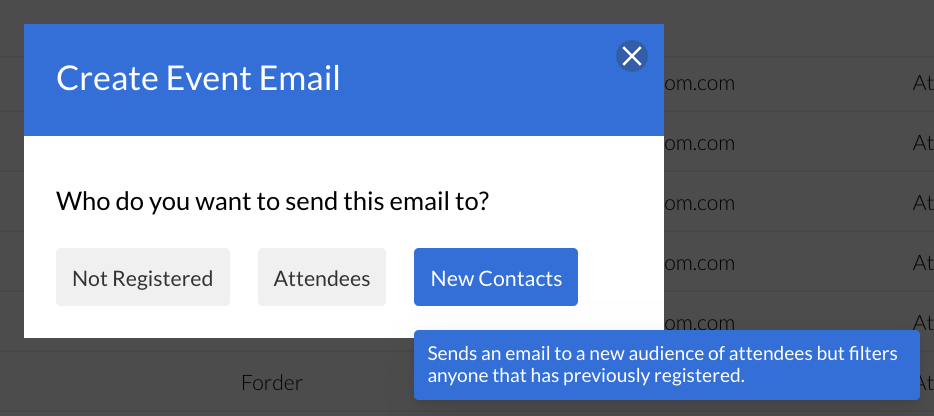
Promote > Email > choose who you are
sending
the email to.
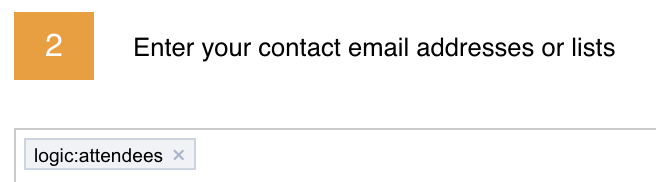
An email to Attendees will show this logic like this (no need to add anything else):
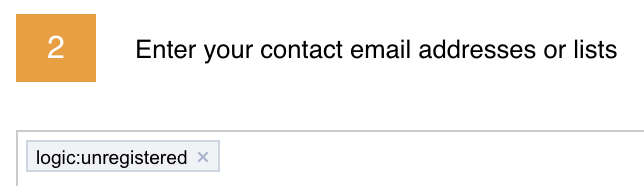
An email to Non Registered will show the logic like this (no need to add anything else):
When you send a touchpoint to New Contacts, you need to make sure you leave that logic in and then add your new lists alongside eg:
Populate the workflow with a campaign name, the account and the post content. Learn more about how to create these simple
Email Campaigns
.
Social Media Touch Points
Share your event on Facebook, LinkedIn, and Twitter.
Promote > Choose your Social Media channel e.g. Facebook
Learn more about how to create these simple
Social Media Campaign
.
Short Link Touch Points
Share your event via Short Link.
Promote > Short Link
Learn more about how to create versatile
Short Link Campaigns
.
Note:
All touch points are stored at the bottom of the dashboard page and can be clicked into for individual campaign reporting.
Quick Share Options
Use the Quick Share short links to share on the appropriate channel to track where your contacts are registering for the event tickets:
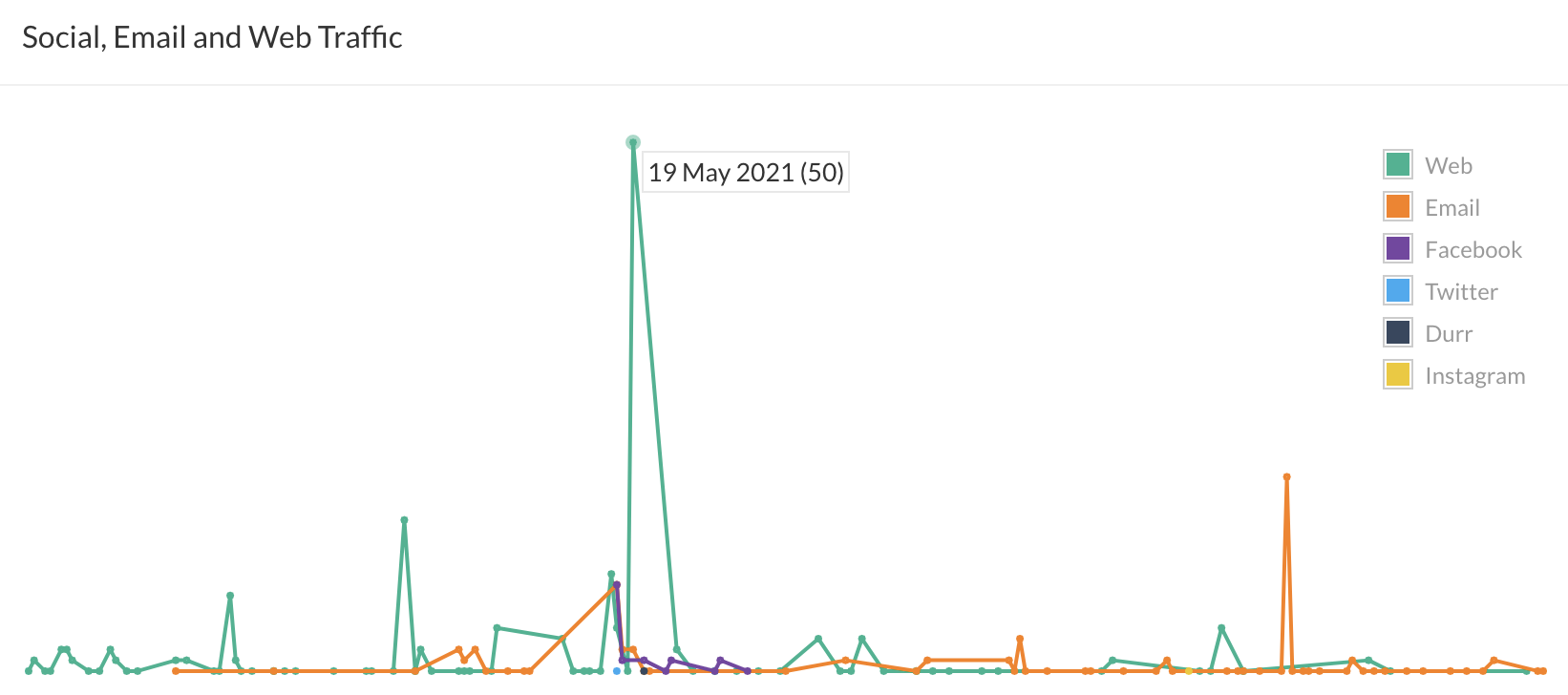
Quick Share options will report on the campaign dashboard as below: