a-text-logo0.png
Microsoft 365 feature set
Click to view section:

Create Teams meetings
Send Emails
Integrate with Microsoft 365 and connect to your personal Microsoft 365 mailbox. View your Outlook calendar events alongside arkflux activities, send emails through your Microsoft 365 account, create Teams meetings with join links, sync calendar events in real-time. 

Learn more about Microsoft 365 Integration

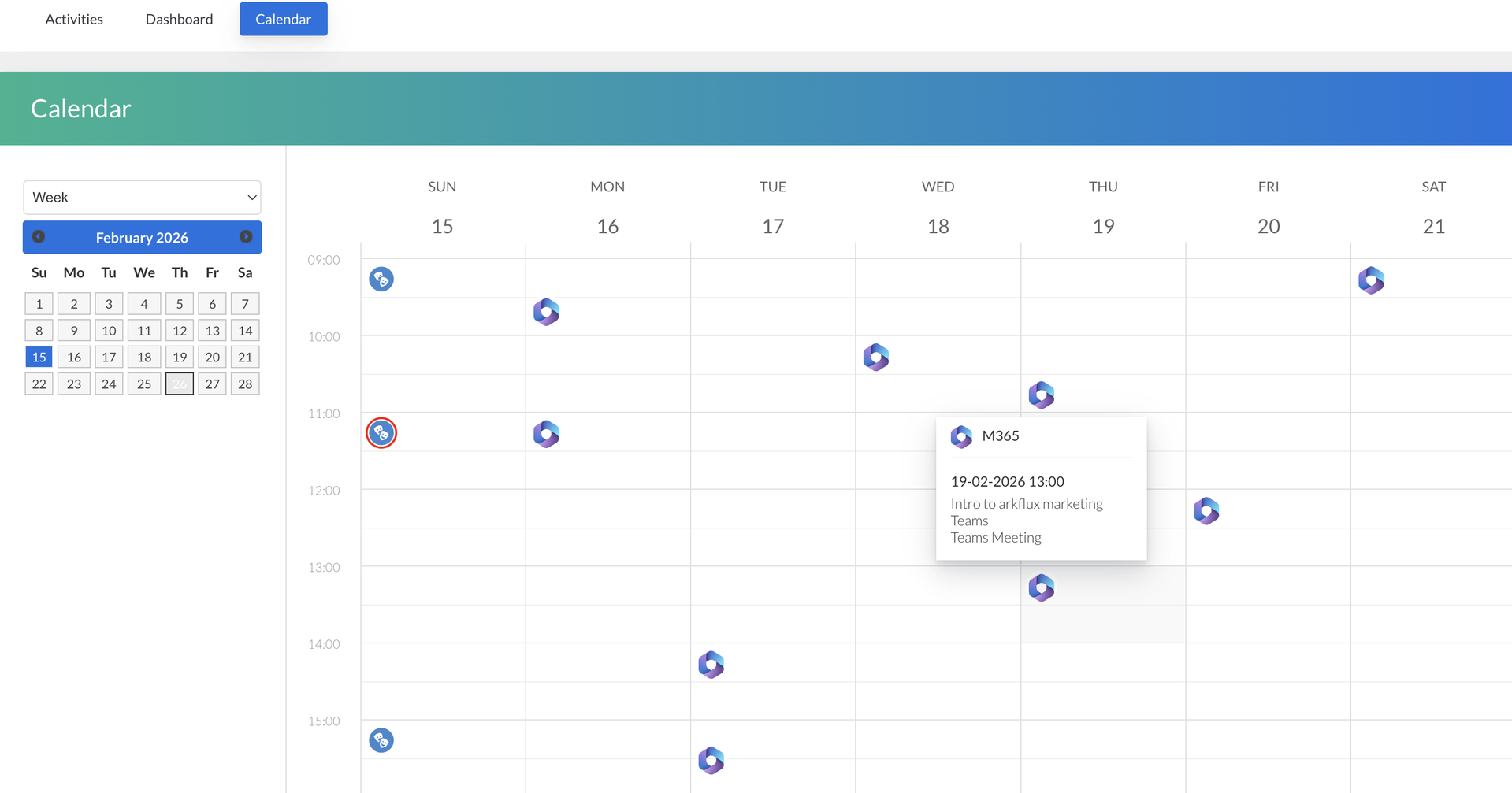
Activities > Calendar:
Screenshot_2026-02-26_at_12.57.09.png

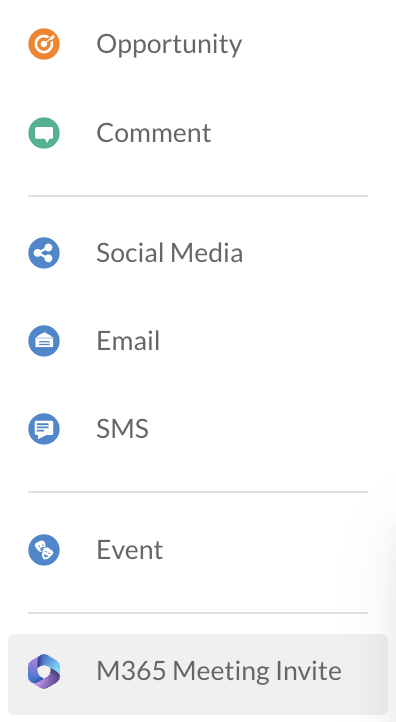
Right click on the calendar at the approximate date and time you require the meeting > M365 Meeting Invite:
Screenshot_2026-03-02_at_12.58.11.png
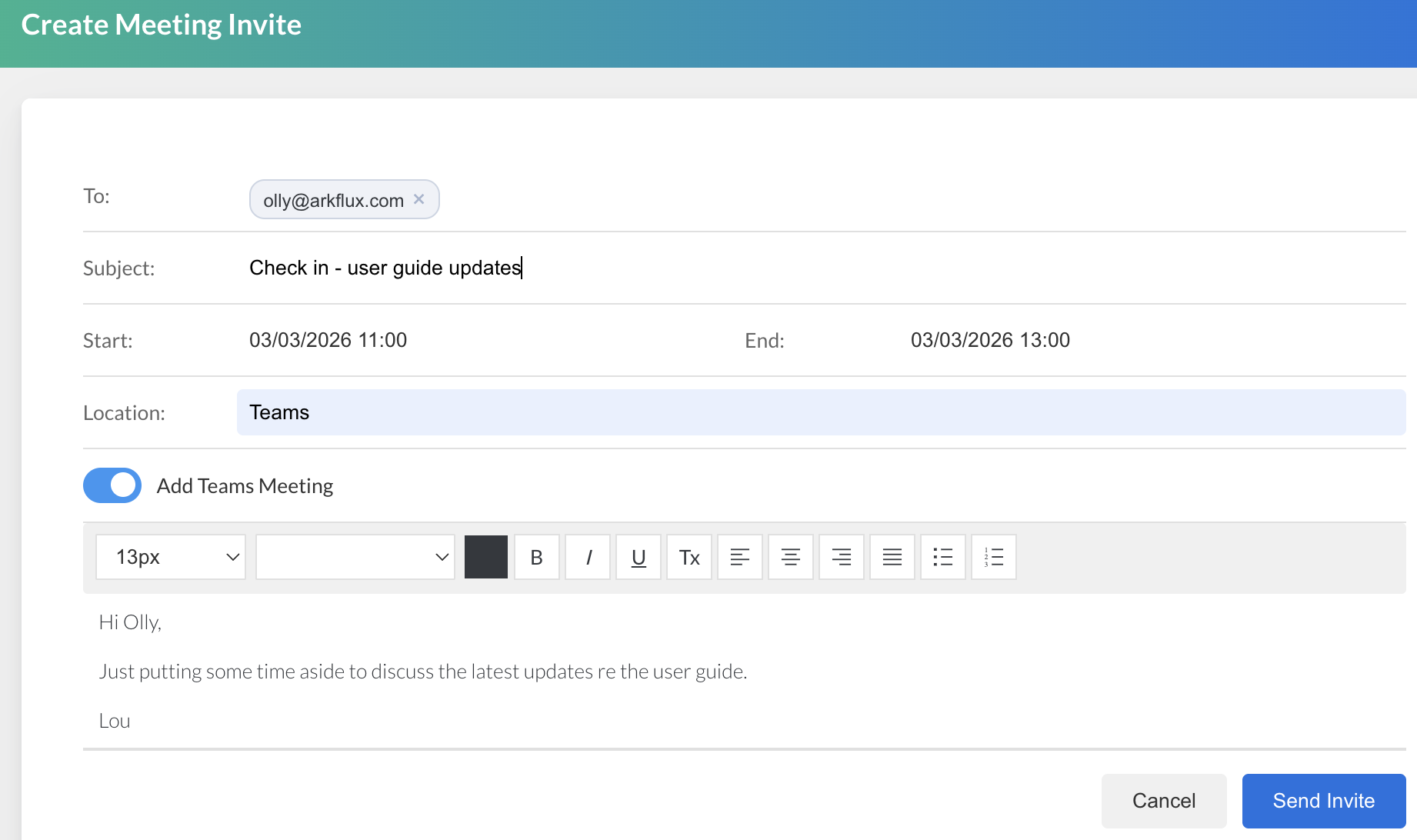
Type to select your contact and then populate the meeting blade:
Screenshot_2026-03-02_at_13.01.14.png
Click Send Invite to send to meeting details to the contact you are setting the meeting up with. They will receive the invite as normal via their mailbox. They will be able to accept and decline as expected with the meeting being added to their calendar if accepted.

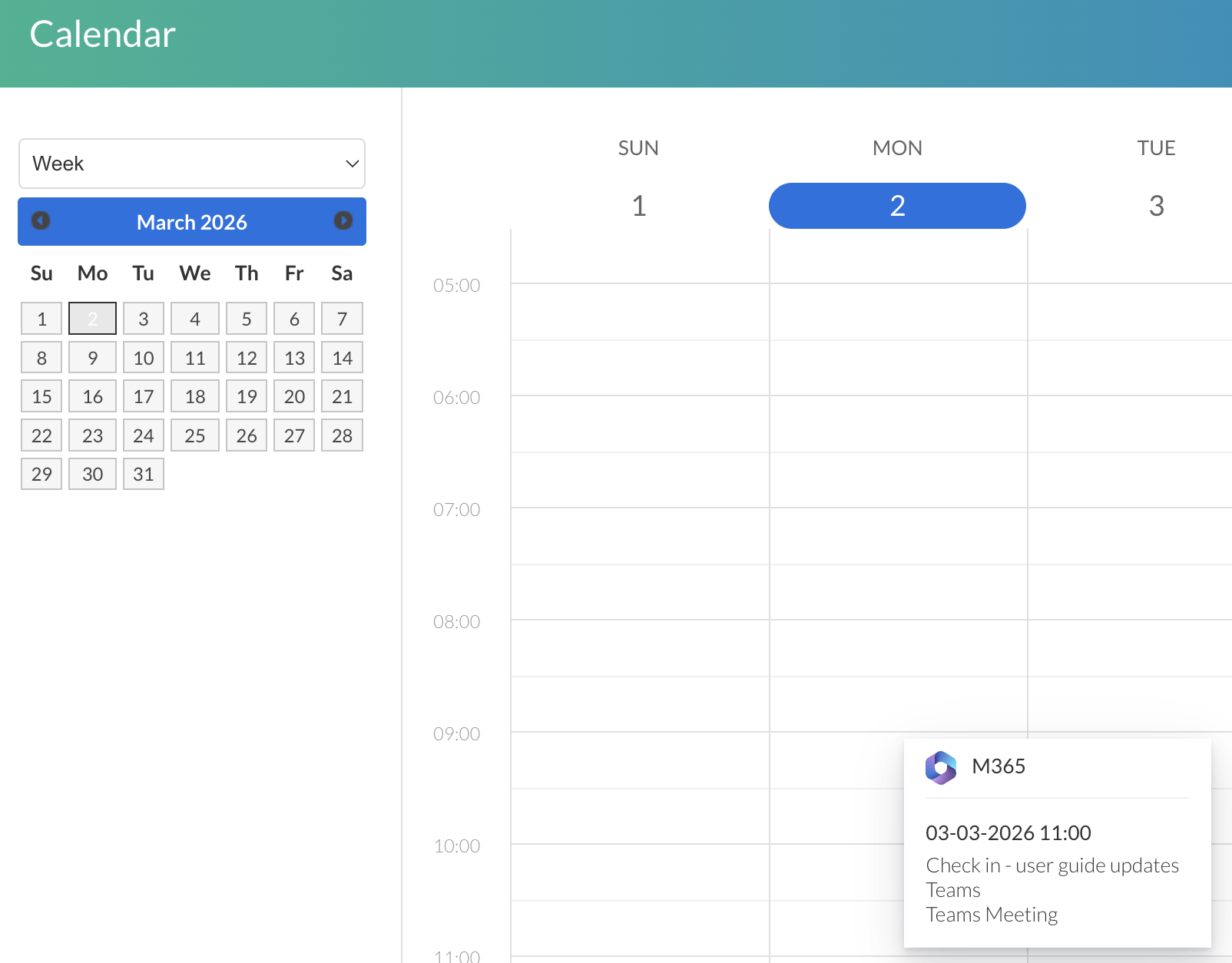
In the arkflux platform under Activities > Calendar, the invite will now show at the specified date and time:
Screenshot_2026-03-02_at_13.02.00.png
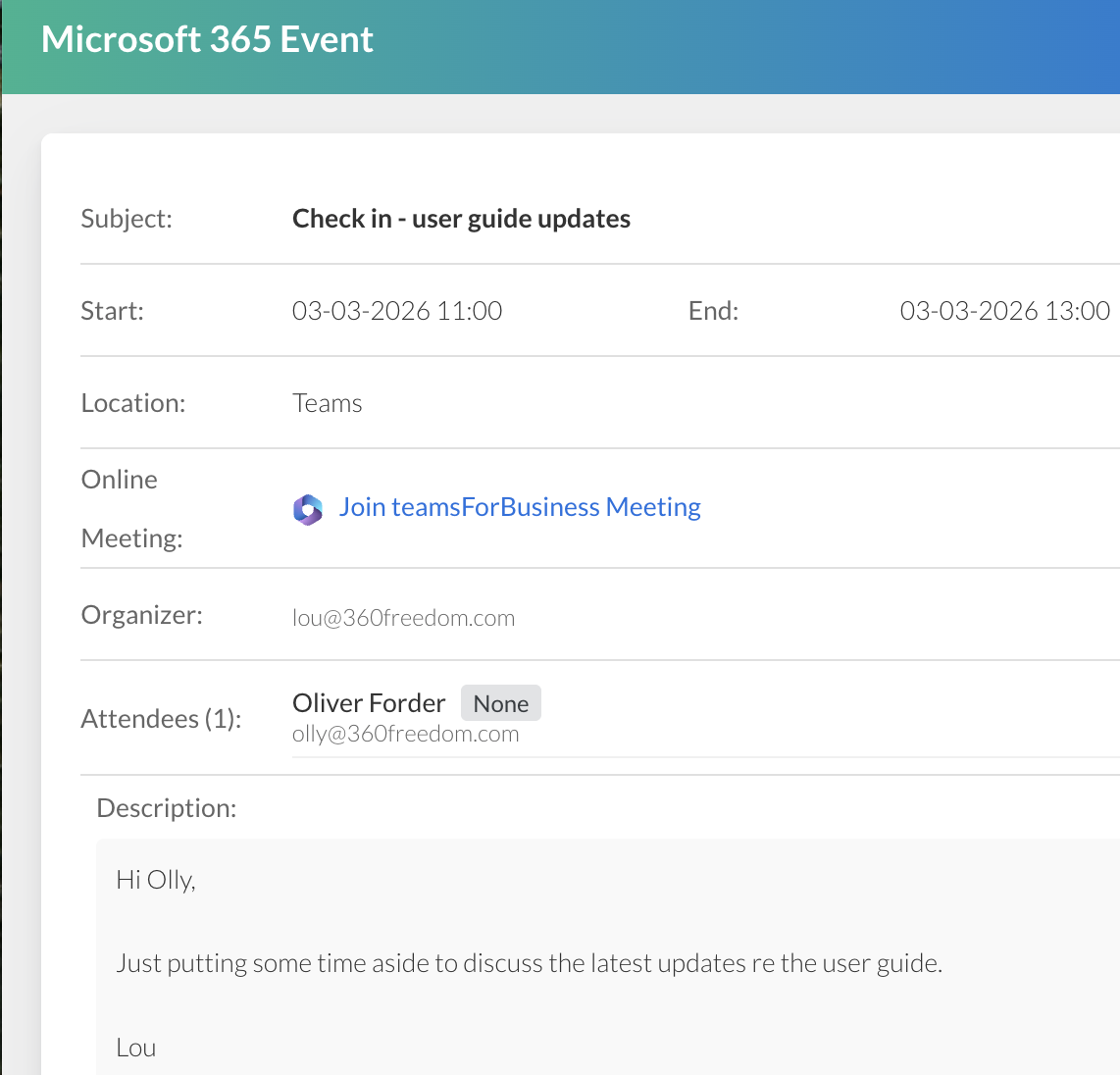
Clicking on the meeting entry to view the meeting details, including the teams meeting link if included:
Screenshot_2026-03-02_at_13.02.26.png
The invite will also show against the contact profile of the recipient.
Note:  The event (meeting) is synced from your Microsoft 365 calendar. To edit or delete the event, you will need to use your Microsoft 365 calendar or Outlook.
Visibility of Microsoft 365 meetings
When you sync your calendar with arkflux, only you will be able to view your meetings on the Activities Calendar.

ADD INFO NEEDED

Activity Dash
On the activity dashboard, 

Company & Contact timeline
A meeting invite will show on the contact profile timeline who has been invited/accepted..
If they are connected with other contacts, it will not show on their timeline. If they are connected with a company, it will show on the timeline. 

Shared Meeting invites
On an email invite where there are multiple email addresses included, 


Making a meeting private
If you do not want the details of your meeting to show on the calendar you must change the meeting to 'Mark as Private' after creation, via your Microsoft 365 calendar or Outlook. You cannot currently create a private meeting directly through the arkflux Microsoft 365 Integration. 
Send emails direct to your contact, from their contact profile page. Due to the Microsoft 365 Integration, these 'New Emails' will not only adhere to the contact profile, but also be visible in your Outlook.
Learn more about Sending Emails from the Contact Profile with Microsoft 365 Integration.
Screenshot2021-08-30at13.48.01.png