a-text-logo0.png
Landing Page Creation
Landing pages are standalone pages, customised to a specific marketing campaign or offer and guide visitors towards a single call to action. They are often designed for conversion e.g. collecting a visitors contact information in exchange for resource. 
First time using landing pages you need to create a unique sub domain. This is the URL people will type or navigate to and view the landing page. This is a one time activity and cannot be changed once set. 

Menu > Marketing > Landing Pages > Create

Enter the URL that you would like into the available text box and click ‘create’
URLImage.png
Contact us today to learn more about fully customising the landing page URL to support the company branding - seen here highlighted in red.
Screenshot2022-03-16at12.49.05.png
The next page is the landing page dashboard. Click Create and enter a name for your first landing page. 

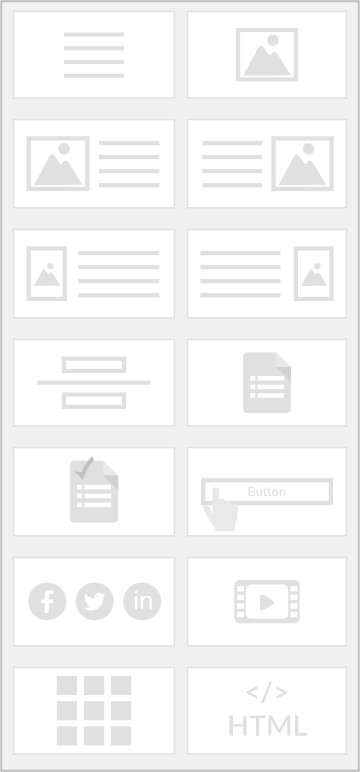
The build page has multiple layout options to drag and drop onto the page. Detail of the layout options are as follows (from left to right):

Text Block
A solid block featuring only text, it can be edited using the black text edit function at the top of the page and formatting can be edited using the blade on the left hand side. If it is a layout that includes text, a black bar will also show at the top.

Hover over these options to understand what edits can be made to the text area:
Screenshot2021-10-26at14.42.58.png
Anchoring text
Highlight the text to create the anchor and click the anchor button in the black edit bar.

On the left hand blade enter the name of the anchor (normally the text itself or a shortened version). Click Create - the text will turn blue to show the anchor has successfully been applied - this can be changed back to the normal text colour if required.

Then highlight the text to link to the anchor. Click the link button in the black edit bar, select the anchor option from the dropdown. Enter the name of the anchor exactly as you typed it and click Create. This will create the anchor between the two pieces of text. 
Image block
Add an image to your email and use the blade to increase the number of images within that section, edit the one you have currently selected, change the size of the image as well as the margin, spacing and background colour.

Large image and text (left and right)
Add a large image alongside text either on the left or the right, with both being editable like they are in their individual blocks.

Small image and text (left and right)
Add a small image alongside text either on the left or the right, with both being editable like they are in their individual blocks.

Divider
A solid colour block to help break up the page. Both height and colour can be customised.

Form
Add a pre-existing, arkflux form or create a new one directly via the blade. The form will be embedded in the landing page. 

Survey
Add a pre-existing, arkflux survey or create a new one directly via the blade. The survey will be embedded in the landing page. 

Button
Add a button to the page that can link off to and arkflux event, Email address, URL, or a File download. The button is customisable from the blade on the left-hand side of the page.

Social Media
Add social media icons for Facebook, Twitter, LinkedIn, Instagram, YouTube, your website, or your Email and then change the design of them using the drop down at the top of the blade.

Video
Enter a video URL into the box at the top of the blade and imbed the video into the landing page alongside changing the background.

Menu
After publishing a page, selecting the menu bar will allow for you to add links to the other published pages within the same landing page instance through the drop-down box that appears after selecting ‘Add Menu Pages’.

Embed Code
Embed custom HTML code into the landing page.
LayoutBlocks.png
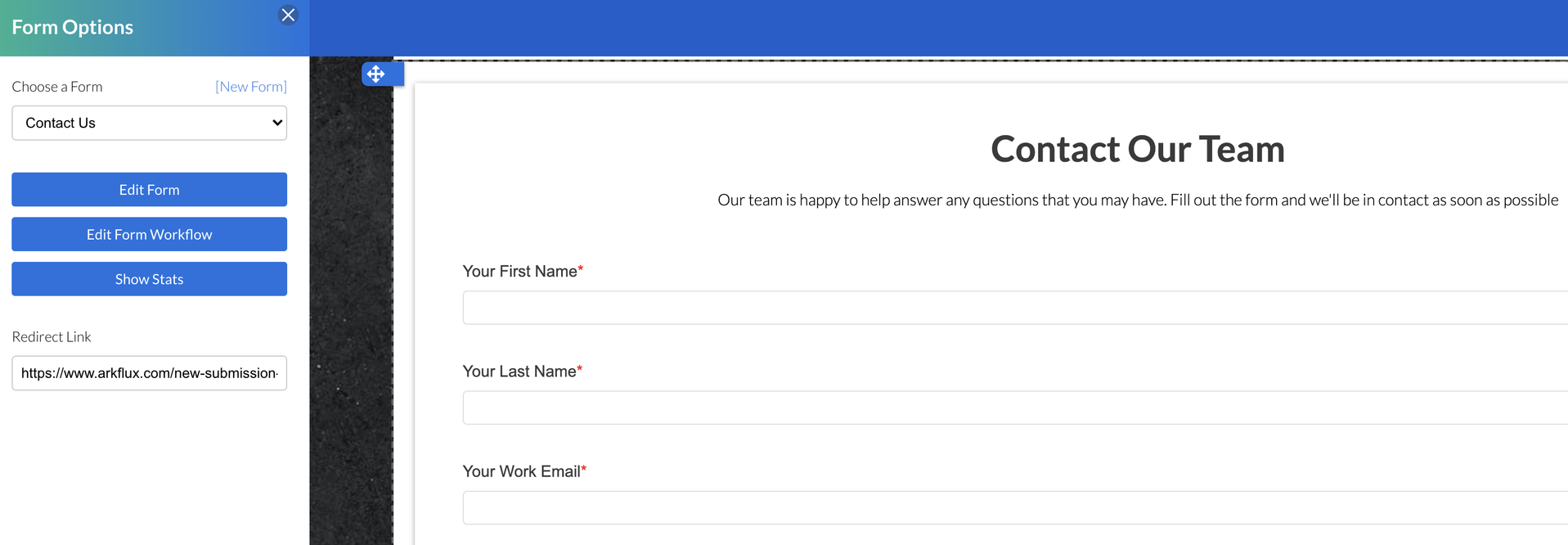
Add a form/survey to the landing page by dragging and dropping the "Add a Form/Survey' block into position on your page and then click on the block. A blade will slide out from the left hand side of the page with two options - select a pre created template from the dropdown or create a new template from [New Form]:
Screenshot2021-11-19at11.40.32.png
Screenshot2021-11-19at11.41.07.png
Edit the form template and workflow directly from this blade.
Learn more about Form and Survey Creation
Edit Form
From within the landing page, click on the form/survey and make changes in the edit blade on the left hand side. All changes will be immediate.

Edit Form in Advanced Workflow

Create a customer journey post submission of the form/survey. Learn more about the Advanced Workflow.
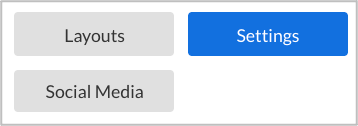
The settings tab in the top left of a page allows for you to change the feel of the page as a whole with things such as background colours or font families. The full list of changes you can make is as follows:

Name of the page
This is mostly an internal name within the platform, but will also be used in the Menu layout option.

URL
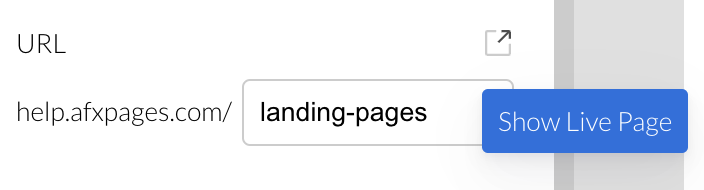
This is the reference for the web page that appears next to the main title of the page. Clicking on the small box with the arrow above where you enter the URL will take you through to the live page so you can see what your landing page looks like within a browser.
Default landing page
This means that it is the page that people will automatically go to if it isn't the correct URL.

Title of the page
The name of the page as it will appear in the browser tab. 

Meta description 
The summary of the page that appears under the title of the page on a search result.

Additional head script 
Web developers can use this area to add additional script for additional customisations e.g. font.

Favicon
This is the small image that appears to show what page you are on in the browser tab.

Font Size and Family
Change the font of the whole page as well as the size to a specific number to quickly uniform your text.

Background of the page
You can place an image on the background of the page or a solid colour to help the rest of the page stand out.

Enable arkflux Chat 
Add the arkflux chat function to the page, enabling  and get in contact with your business directly through this page.
Settings0.png
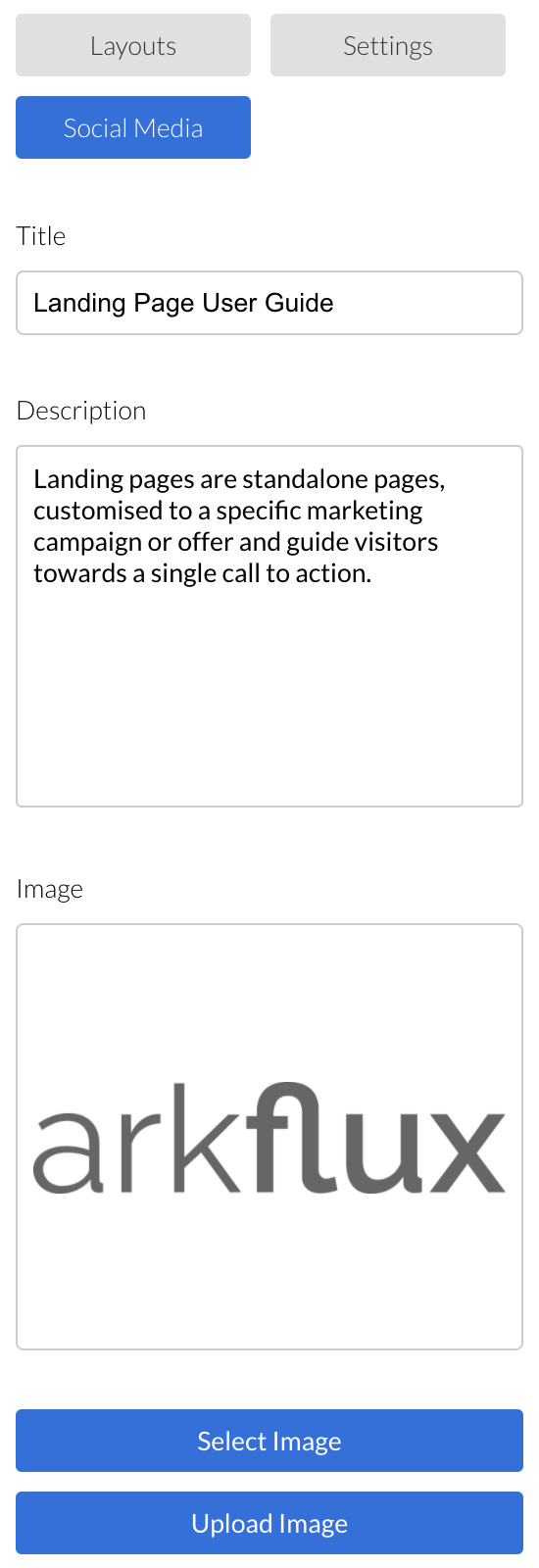
Control how the landing page URLs are displayed when shared on social media by using the open graph tags for each page.

Add a title for the post.

Add a descriptive, short sentence to appear underneath the title.

Add an image that appears under to the title and description.
Screenshot2021-11-08at14.04.02.png
The Preview eye icon will preview the page in both mobile and desktop view. Once the page is created as required, click the Publish button and your landing page will be live.
Note: To access the URL for the landing page go Settings in the create menu > click the box with the arrow at the end of the URL
Screenshot2022-03-16at13.52.58.png
After you have published the page it will be live for contacts to click on and view if you have provided them with the URL.

You can make edits to the landing page when it is unpublished in draft and when it is live in Published. If the page live, select the ‘Edit page’ button top left of the dashboard and it will take you through to the landing page designer to make any changes required, with changes automatically saved.

You can create new pages from scratch via the Create button, or use the copy functionality located next to the trash can on an existing landing page.
Learn more about Landing Page Reporting
Screenshot2021-08-30at13.48.01.png