a-text-logo0.png
Business Automation
Click to visit section:

Create
Triggering the rule
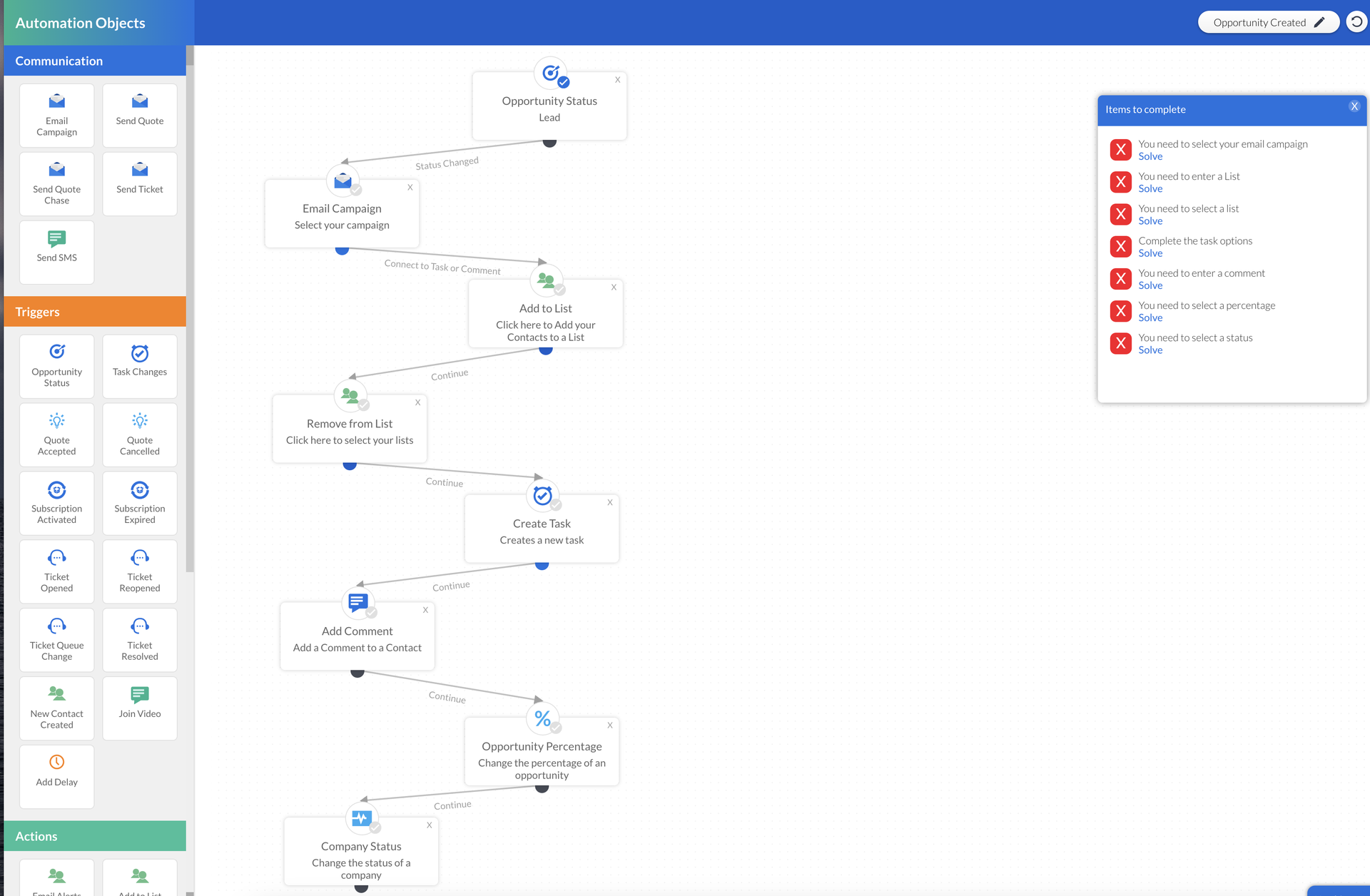
Create automated rules to spawn internal team and external customer and prospect activities, triggered by the a change of a stage within an arkflux pipeline. 

Business Automation > Dashboard > Create > Give the Business Automation rule a name.

To start a rule, drag and drop one of the Triggers from the left hand menu. This is an example of the type of rule you can create with the Opportunity Status as the trigger:
Screenshot_2025-03-04_at_13.29.06.png
Note: Every time you click into a rule, it will unlock and therefore un-publish the rule. To make the rule live again, it must be published. 
Opportunity Status
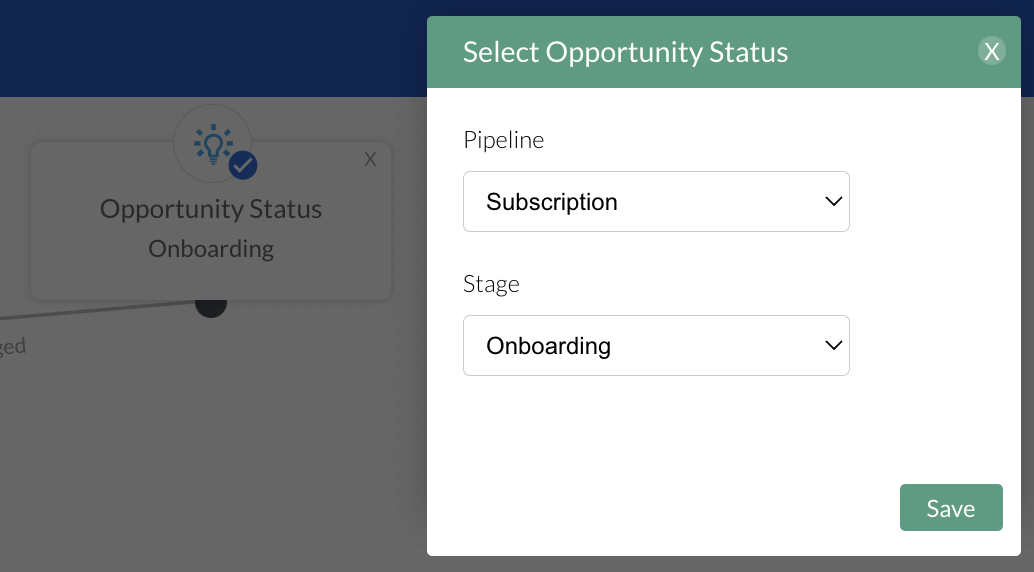
Reflecting under Sales > Opportunities in the platform, this automation option can be the start of a business automation workflow, signalling which stage of the sales pipeline will trigger the rule. 

In this example, the change is triggered by the opportunity stage being changed to "Onboarding"
Screenshot2022-03-21at15.53.05.png
Email Campaign
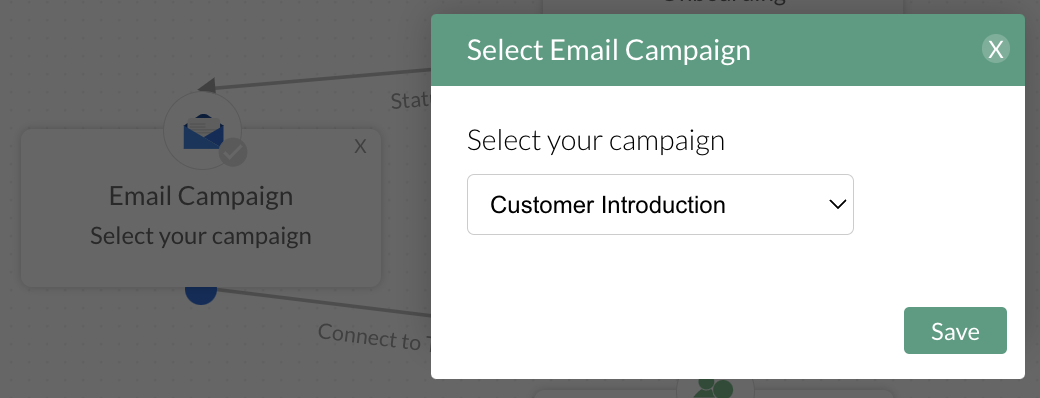
Send a pre created email campaign to the lead contact associated to the opportunity.

In this example, the email campaign "Customer Introduction" will immediately be sent to the contact. This could be a single email containing a data collection form, or even a drip email campaign that sends several emails over the period of a few weeks.
Screenshot2022-03-21at15.53.38.png
Add to List
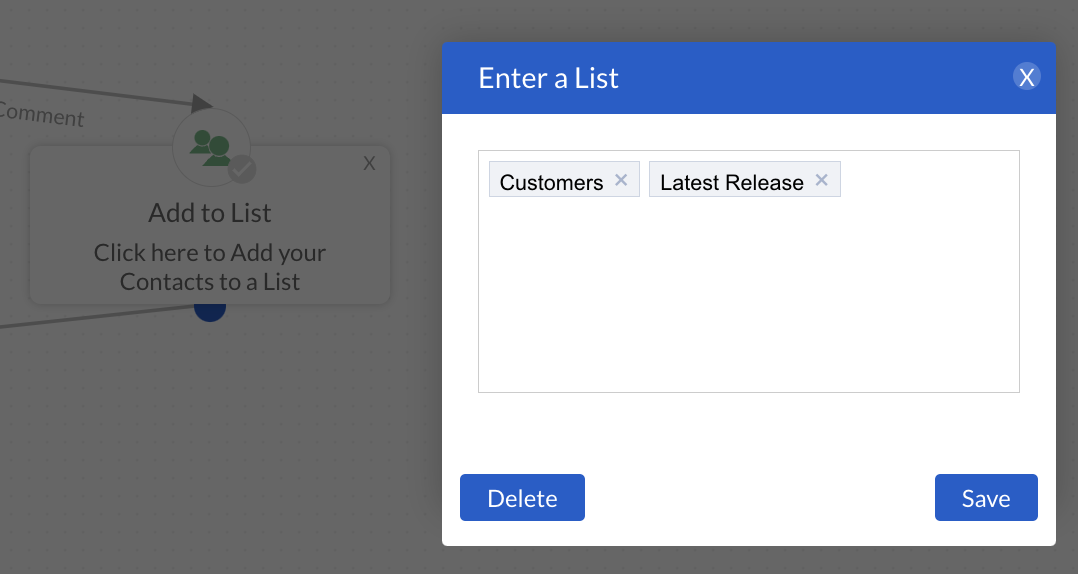
Add the lead contact associated to the opportunity to a list.

In this example, the contact will be added to two lists called Customer and Latest Release. 
Screenshot2022-03-21at15.52.34.png
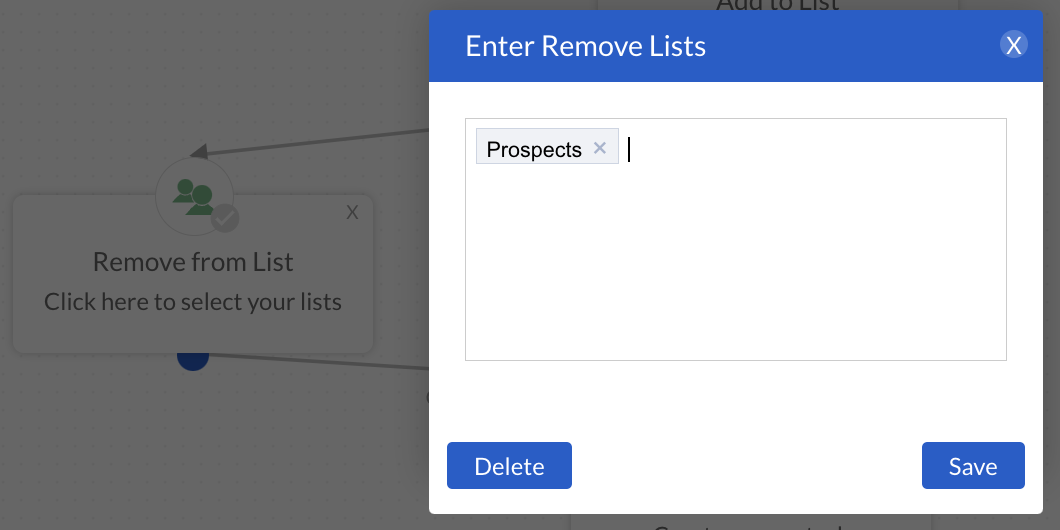
Remove from List
Remove the lead contact associated with the opportunity from a list.

In this example, the contact will be removed from the list called Prospect.
Screenshot2022-03-21at15.54.02.png
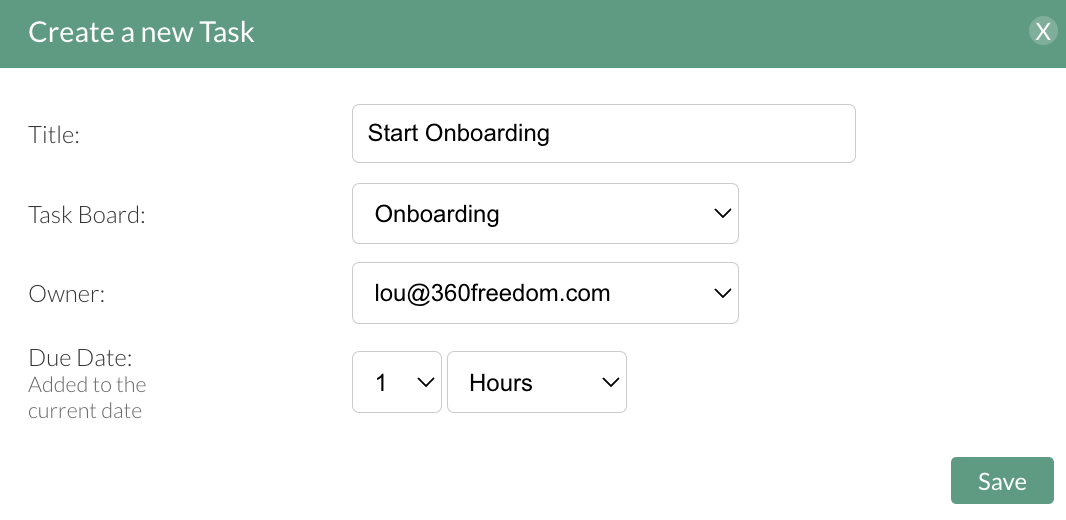
Create Task
Create a Task for the internal team - Users in the arkflux platform - to track and complete. These tasks entries will be created and managed under Task > Boards.

In this example, a high priority task called Set up Customer will be created for lou@360freedom.com, due 1 hour after it is generated. 
Screenshot2023-04-03at14.04.500.png
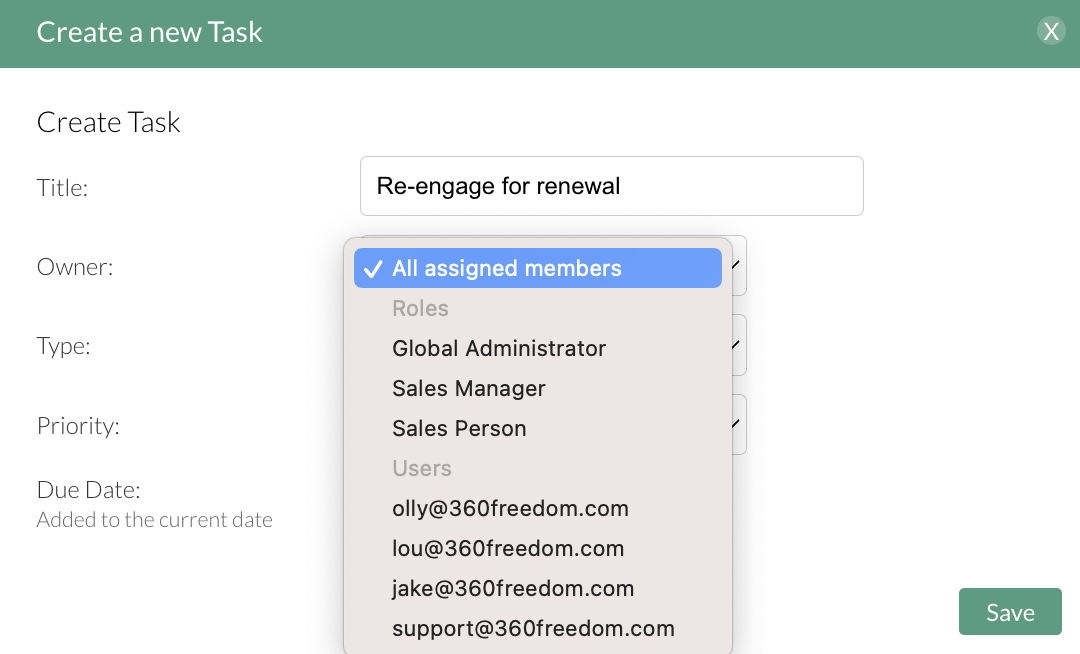
Multiple Team Members
You can assign multiple team members to a task. They are group by the following:

All assigned members - this includes all users associated to the contact e.g. Sales/Finance/Customer Success.

Roles - assign by roles given to the user. This could include multiple team members. 

Users - assign by individual user in the platform.
Screenshot2022-03-23at14.24.30.png
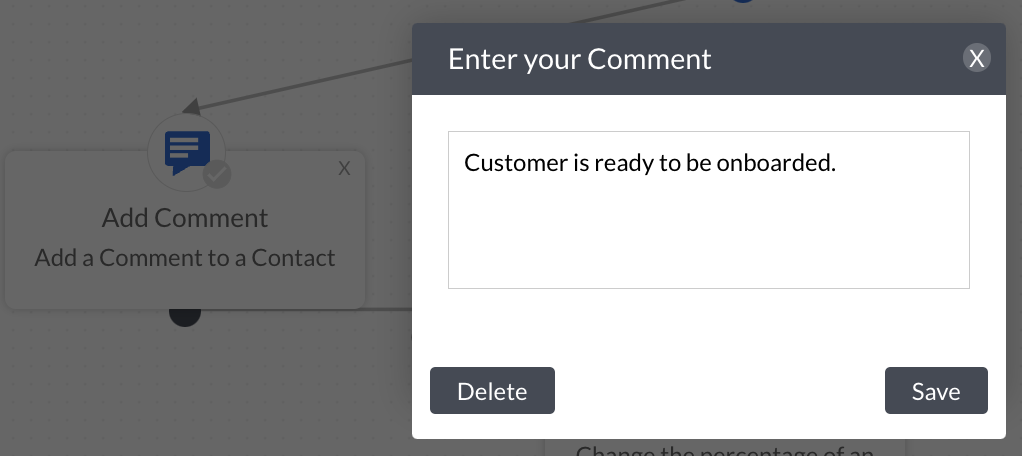
Add Comment
Add a comment to the timeline of the lead contact associated to the opportunity.
These comments will be created on the timeline of the contact under Contact > Contacts.

In this example, a comment of "Customer is ready to be onboarded" will be added to the Timeline of the lead contact associated with the opportunity.
Screenshot2022-03-21at15.56.42.png
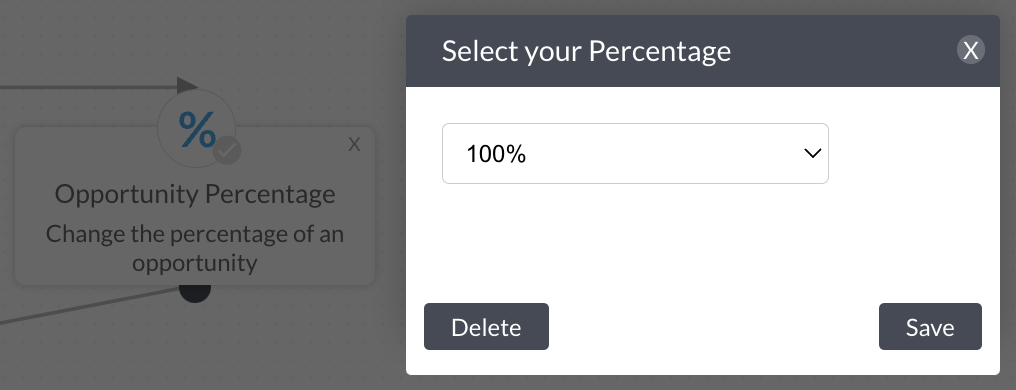
Opportunity Percentage
Assign the percentage of likelihood that the opportunity will be won which will be shown on the Opportunity blade.

In this example, the stage of the pipeline is that of a sale that confirms a sale has been won, so it is set to show as 100%. 
Screenshot2022-03-21at15.56.56.png
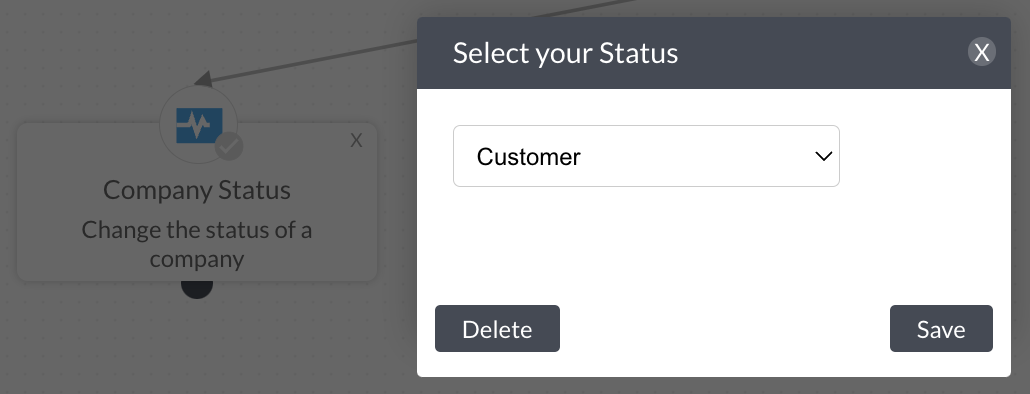
Company Status
Update the status of the company inline with the current relationship which will be shown on the Company Profile card under Contacts > Companies.

In this example, the contact's status will be updated to "Customer". 
Screenshot2022-03-21at15.57.54.png
Other Automation Objects
Enter your text content here
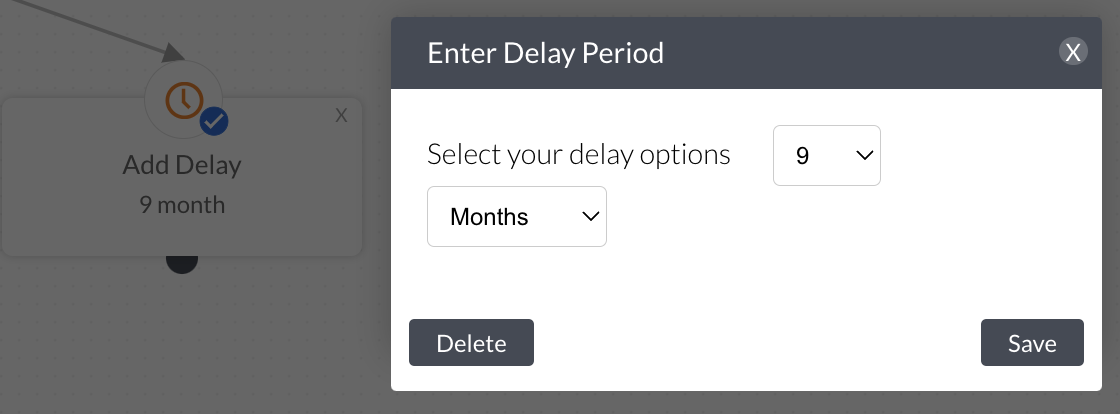
Add Delay
Include a time delay that can be a day, week or month, before the next activity triggers.

In this example, the delay is set for 9 months to then trigger tasks for renewal.
Screenshot2022-03-21at16.00.49.png
Click here for some more examples of Opportunity triggered Business Automation rules.
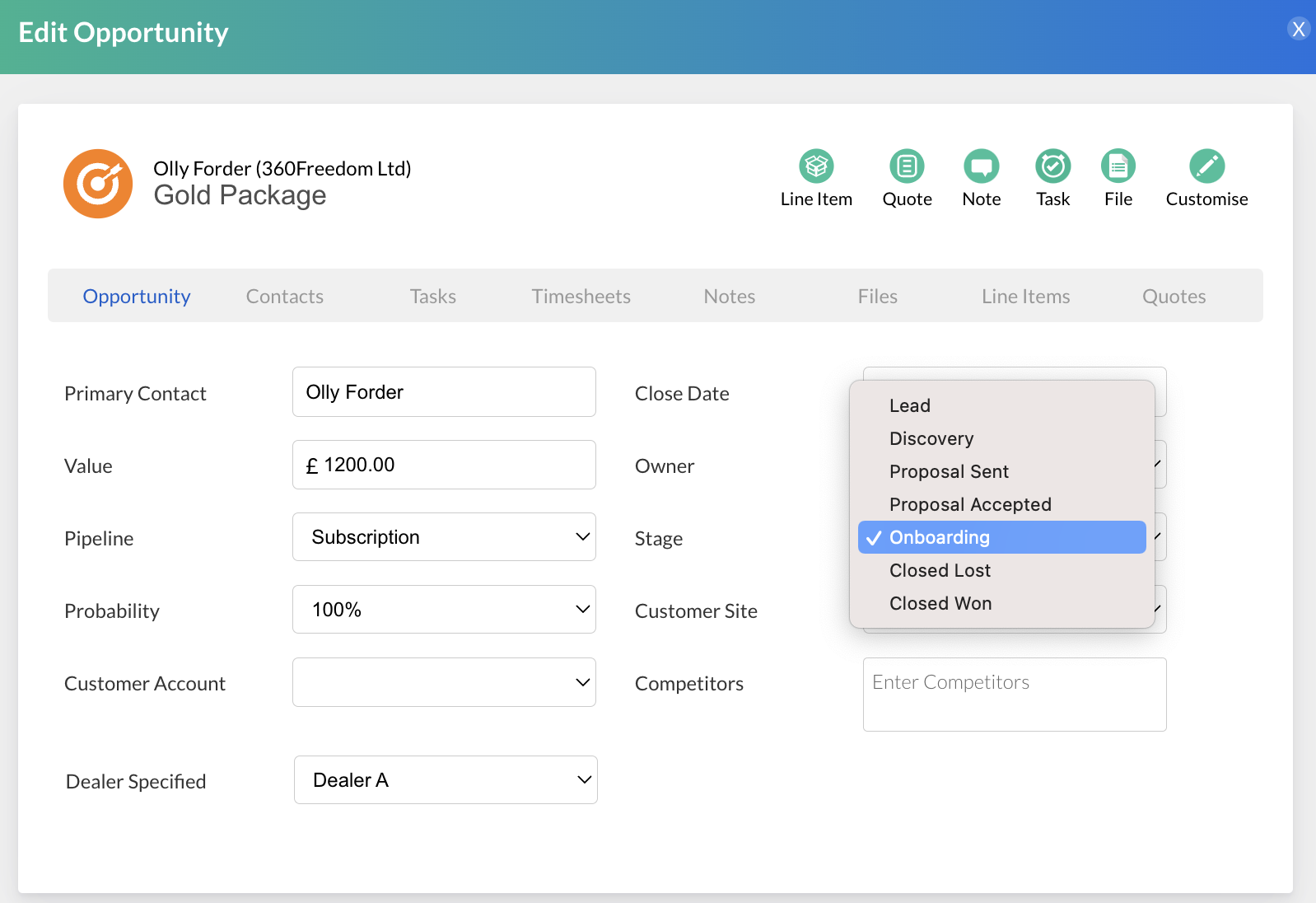
Once this Opportunity triggered rule has been created it can be triggered automatically by changing the opportunity stage within the opportunity blade:
Screenshot2022-03-21at16.06.40.png
Note: If you create multiple rules per stage, when the stage is changed it will prompt the user to choose which rule to trigger. 
Task Board Automations
Create Business Automation rules that trigger from changes made to Task Boards.

Learn more about Task Boards 

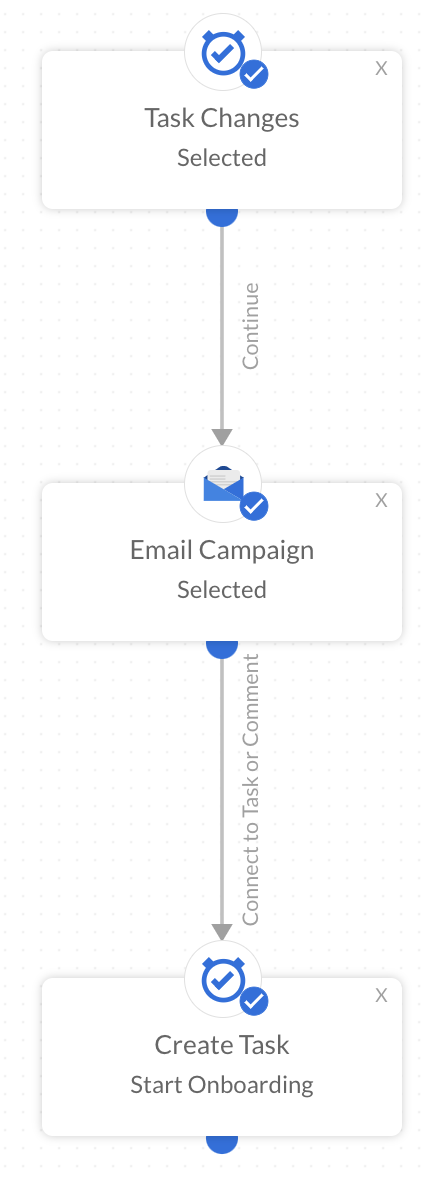
An example of a Business Automation rule workflow:
Screenshot2023-04-03at14.37.37.png
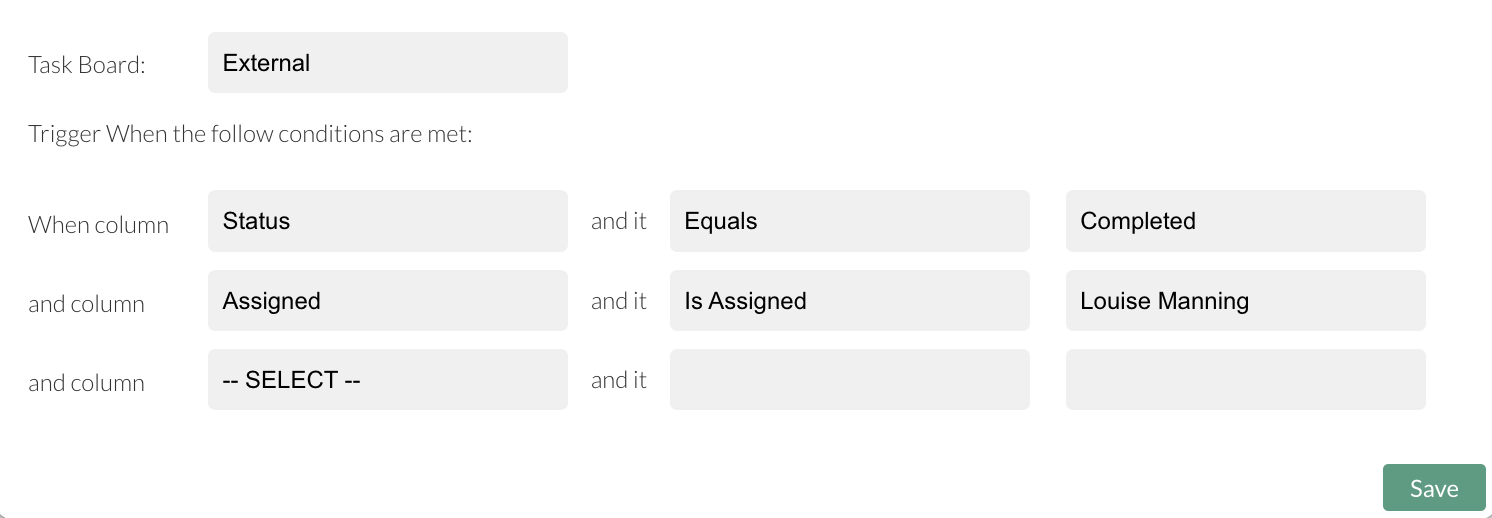
Define options in the Task Changes automation option.

Set which Task board you want to trigger the rule from and then up to three conditions.
Screenshot2023-04-03at15.05.11.png
In this example, once a contact on the Task Board "External" Status is changed to Complete and is Assigned to Louise Manning, the Email Campaign will send instantly to the contact.

Lastly, another Task is created which could be on the same or a different Task Board.
Note: All other Business Automation options can be used in this workflow as normal to build it out to your requirements
Screenshot2021-08-30at13.48.01.png