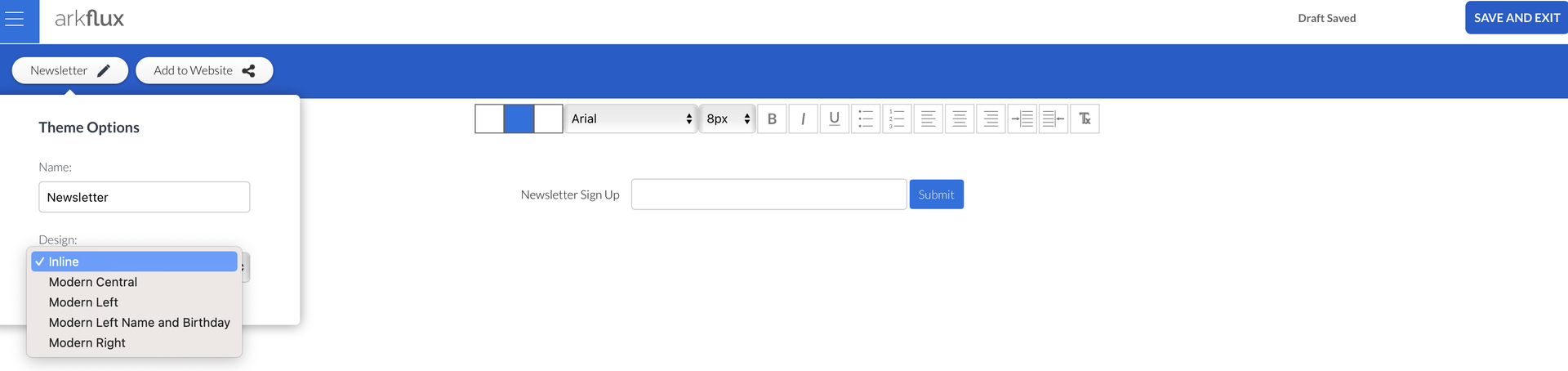
The Newsletter widget is published on the website and will automatically populate new contacts in the CRM and prompt them to be added to a Newsletter list via Communication Preferences.
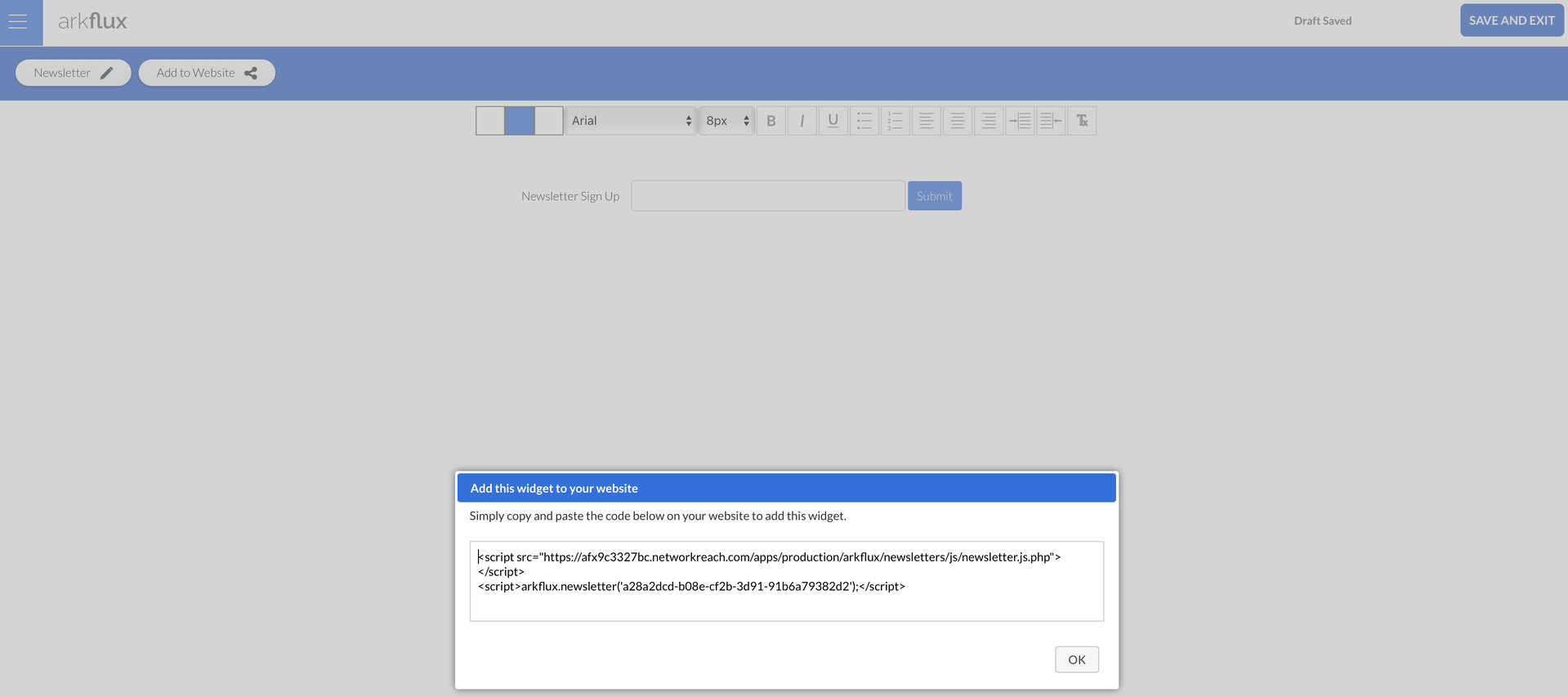
Newsletter > Dashboard > Click into the chosen Newsletter > ‘Add to Website’ Button
Copy and paste this code onto the website page where you want the widget to appear. It will appear on the webpage and will be automatically linked so that all sign-ups are sent through to you.
Note: Your website provider will be able to find the correct element in the website solution to drop the code into e.g. HTML block in WordPress