a-text-logo0.png
Newsletter Confirmation Email
Click to visit section:

Create
Communication Preferences
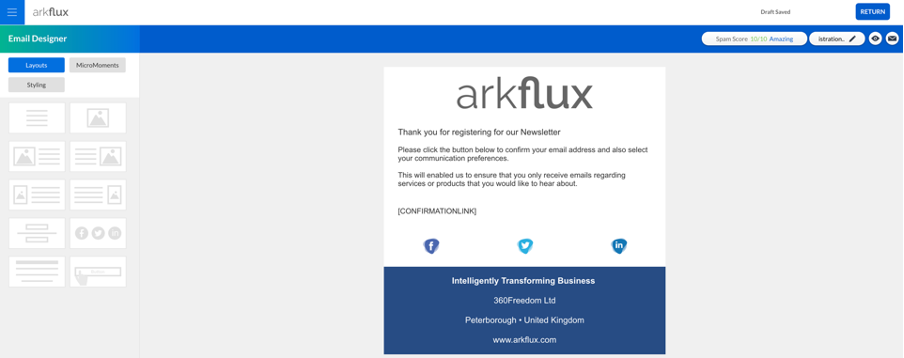
The automatic confirmation email a contact will receive once they sign up via the Newsletter Widget.
Note: This email template will only be available as the Newsletter Confirmation Email and will not be available in Templates > Email.
Newsletter > Confirmation Email

The [CONFIRMATIONLINK] part of the email is code - do not delete it - this is part of the two-factor authentication. After a contact has signed up via the Newsletter widget, they will receive this email and be prompted to authenticate their email by clicking on this link.

Learn more about Email Template Creation

Picture1012345678910111213141516171819202122232425262728293031323334353637383940414243444546474849.png
Once the contact has clicked on the link, they will automatically be added to a list in the same name as what the widget was called. This list will be available under Contacts > Static Lists for future reference. 

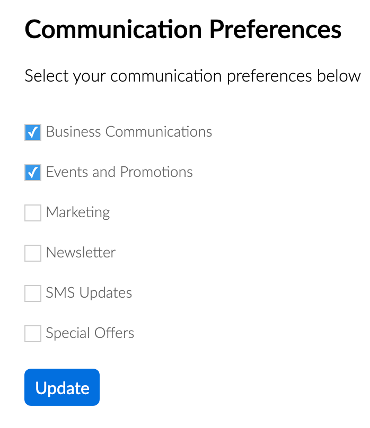
The contact will then be redirected to a page which lists out your business communication preferences. It will look something like this, but with your own company preferences added:
Picture101234567891011121314151617181920212223242526272829303132333435363738394041424344454647484950.png
Contacts then have the opportunity to select other areas they want to receive information about.
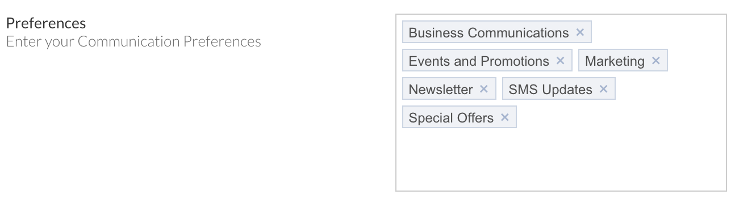
Admin > Marketing Settings > Preferences.

To delete a preference, click the cross. To add a preference, type it in and press the Return key to format it correctly.

Once contacts have signed up and chosen their communication preferences, they will be added to these lists and will be available for reference under Contacts > Lists.
Picture10123456789101112131415161718192021222324252627282930313233343536373839404142434445464748495051.png
Screenshot2021-08-30at13.48.01.png