a-text-logo0.png
Marketing Settings
Click to visit section:

Branding
Unsubscribe
General
Update your Marketing Settings to reflect in the front end of the platform in the relevant sections.
Admin > Settings > Marketing Settings
Brand Colour Palette
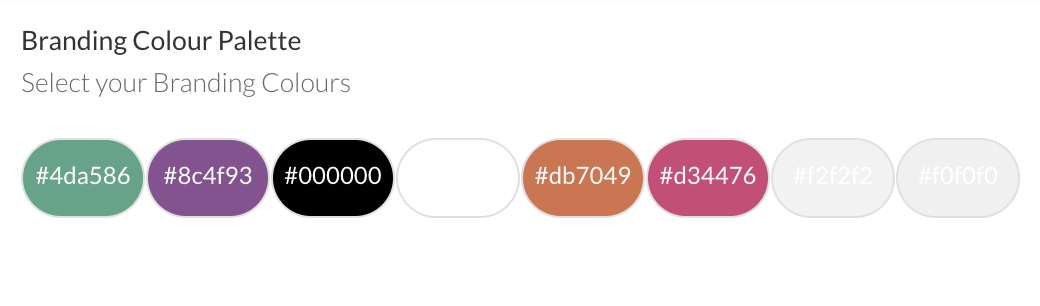
Add your company colours to the Brand Colour Palette. These will then be available for use when creating form, survey and email templates alongside a full colour wheel:

Screenshot_2025-10-14_at_12.48.55.png
Default Branding Options
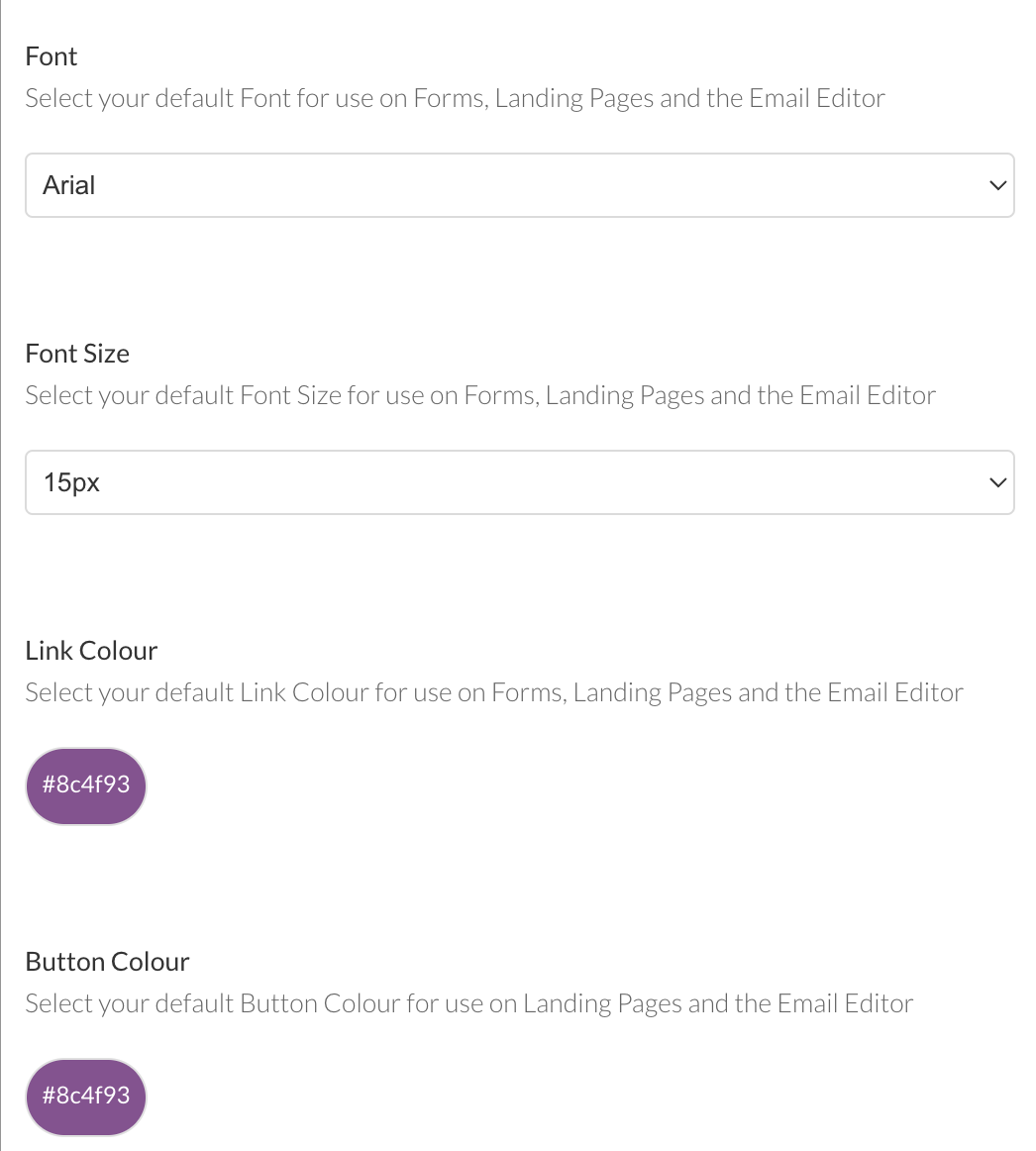
Select your default font, font size, link and button colour for use on email, form and landing page templates:
Screenshot_2025-10-14_at_12.49.48.png
Communication Settings
Personalisation
Replace the Title, First Name and/or Last Name of a contact when sending an email with this Personalisation if the associated data is NOT available:

Picture1012345.png
Unsubscribe Preferences
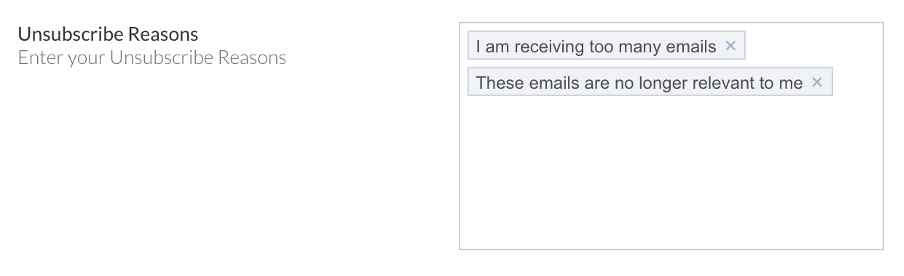
Define the options contacts will see if they click through to unsubscribe from mailing via an email. Delete existing options by clicking the cross or add by typing in the option and pressing return:

Picture101234567.png
Note: When updating any options in Marketing Settings, type the entry and hit the Return button to format it correctly in a box
Unsubscribe Prompt
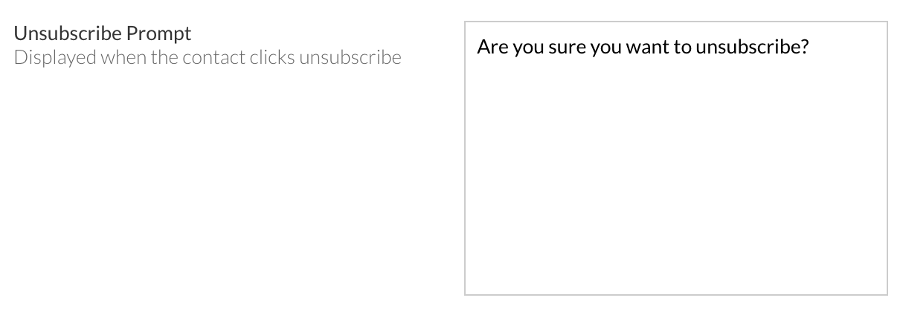
This prompt will be displayed over the unsubscribe screen at the point that the contact clicks unsubscribe e.g. Are you sure?

It’s important to point out that if you unsubscribe you will no longer receive key information such as product or service updates.

Define the prompt contacts will see if they click through to unsubscribe via an email:

Picture101234.png
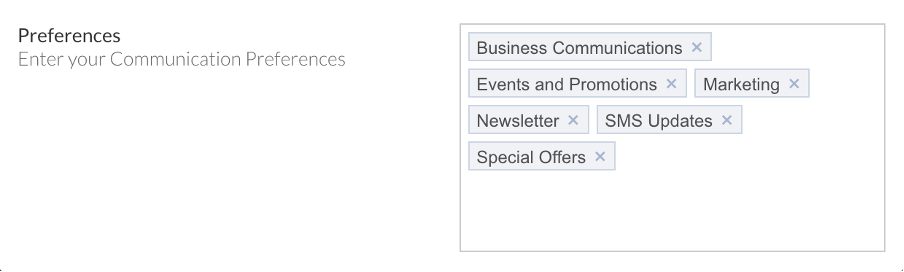
Communication Preferences
Define the list options contacts will see if they click through via the automated links at the base of an email or Opt In button contained within an email campaign to manage communication preferences. These will start to support the segmentation of your contact into lists.
Picture10123456.png
Note: These Communication Preferences are public facing so ensure the entires are suitable to be viewed by your contacts. 
You can choose to hide the Communication Preference options at the base of the email by selecting from the dropdown
Screenshot2022-03-08at17.37.56.png
Restrict to List
When creating a campaign, you can restrict if you want to send to only lists of contacts, or both lists and individual email addresses:

Picture10123.png
Campaign Alerts
Choose if all users who have the Marketing Role will receive email alerts when a form or survey submission from a campaign is submitted:

Picture1012.png
Choose whether to include the data of the submitted form or survey in the email alert:
Picture101.png
Permission All Users
arkflux has many levels of security and controls over data. Marketing campaigns by default will only show to permissioned users. This ensures granular data privacy for large teams. This requires that you provide access each time you create a marketing campaign to your colleagues. An alternate option is to provide everyone access to all campaigns automatically. This is predominantly used when the entire marketing team needs access to all campaigns.


Choose campaign Permission Preferences:
Picture18.png
Note: The Permission All Users setting only applies to Marketing Campaigns created under the Marketing > Email / Website etc route. It does not include Unified Marketing Campaigns and if this is included in the platform subscription, campaigns will need to be permissioned upon creation. 
Emotional Analysis
arkflux measures human sentiment using AI and machine learning. All plain text contained on inbound forms and surveys are automatically scanned for emotion using our sentiment analysis engine. This can then be used to trigger alerts and follow up communications based on the emotional content of the form or survey e.g. you could have a customer service form that detects negative emotion and subsequently sends the customer a “Sorry” email and alerts your customer service team to reach out and address the situation.


Set the sensitivity tolerance when analysing raw text on submitted data:

Picture31.png
Spam Detection
Anti-Spam Email Detection is used to detect email gateways that click every link in an email to discover viruses, phishing attacks and other malware. With arkflux you can set a threshold to determine if the links clicked were human or not depending on the time between each link click. For instance, if 6 links are clicked in an email under 3 seconds, we consider this to be an automated appliance action and therefore remove the interactions from the charts and data set.


Set the sensitivity tolerance when detecting the likelihood email addresses that are interacting with campaigns are spam or not:

Picture41.png
Google Analytics
Add your Google Analytics code to help identify trends and patterns in how visitors engage with your website.
Facebook Pixel
Add your Facebook Pixel to further track visitors to arkflux forms, surveys, events and landing pages.
Custom CSS
Use CSS Styling on forms and surveys to further customise your template to match the styling of your web page.  Entries to this area will apply to all forms created and deployed in the platform.
Site Map
Decide if you want to display the site map that is used by search engines to index landing pages. 
Smart Reminders
This is the time to send Smart Reminders that rely on date only, like birthdays.
Learn more about Pipeline Settings
Screenshot2021-08-30at13.48.01.png