a-text-logo0.png
Email Campaign Reporting
After a campaign is published, you will be redirected to the individual dashboard for that campaign. The dashboard will show you a number of tiles that report on various aspects. Clicking on some of these tiles will show you the associated data.
Campaign Tiles

Campaign Sent

Contacts the campaign has been sent to.

Campaign Email Read
Unique contacts who have read the campaign email.

Campaign Unread
Contacts who haven't read the campaign email.

Campaign Hard Bounce
A Hard Bounce is when an email cannot be delivered for permanent reasons e.g. email address doesn’t exist, email recipient’s server not accepting emails.
We remove these automatically from lists, so your sender reputation remains intact.

Campaign Soft Bounce
A Soft Bounce is when an email cannot be delivered due to something temporary e.g. the recipient inbox might be full. Most of the email clients will try to redeliver these emails over the following few days.

Campaign Links Clicked
Contacts who have clicked on what URL links included in the email/s.

Campaign Survey Viewed / Campaign Part Responded / Campaign Survey Completed
If the email campaign included a form or survey, these tiles will apply. Who has viewed the form or survey, who has part responded to the form or survey and who has fully completed the form or survey.

Find out more about creating forms and surveys that will record Part Responded.

Active Campaign Participant
Contacts that are still moving through a live campaign and are yet to hit a Trigger or Action.

Campaign Participants
All the contacts in the campaign.

Campaign MicroMoments
If your email campaign has included a MicroMoment, the single click results will be shown in this pie chart.
At the top of the dashboard, there are menu items that enable you to make changes to the campaign and easily present your findings.
Screenshot2021-11-25at16.09.48.png
Back
This will take you back to the list of other campaigns that you have created.

Add Contacts
Add single or lists of contacts to the campaign workflow after publishing. 

Alerts
If your campaign includes an arkflux form or survey,  you can switch off notifications specifically for the campaign. If you choose to toggle the notification to receive alerts, upon submission of the form or survey, you will receive an email to inform you of the action. 

Manage Tab

User Permissions 
Choose which users within the platform are authorised to view the campaign. 

Design Report
If your campaign includes an arkflux form or survey, you can design your own report to reflect the answers in Pie or Graph charts.

Learn more about Design Report.

View Workflow
View the standard and/or the advanced workflow of the campaign in Publish mode. 

Edit Workflow
Edit the campaign to allow for small alterations to the workflow such as changes to the form or email template. 

Learn more about Editing Workflows

Switch Off Campaign
If your campaign includes an arkflux form or survey, this will stop any future submissions being submitted. 

Reset Workflow to Republish
 
Reset the Workflow to Republish the campaign again. This will remove the existing data within the tiles and resend the email to the contacts entered. 

Share Results 
Share the tiles reports with email addresses of contacts that  - these can be users in the platform or contacts.

Download
Download the data from the campaign into an Excel, CSV or HTML report automatically.

Print 
Print the dashboard tiles and reporting. 

Note:  You can view the read rate/links clicked/unsubscribes and hard bounces of multiple emails in one campaign via the table below - especially useful for email drip campaigns
Screenshot2021-11-01at17.25.30.png
Personalising the Dashboard

The pen allows for you move around the tiles on the page to suit your liking and the plus symbol allows for you to add new tiles to the page from a list, all you need to do is click on the ones that you would like to add. The plus icon allows you to add and remove appropriate tiles relevant to the campaign. 
Editing.png
If your campaign includes a form and survey, the submissions will be shown below the dashboard widgets and reporting. Click into each form submission to see contact answers and from there, view their profiles.
Screenshot2021-11-01at17.23.11.png
Contact / Company Timeline
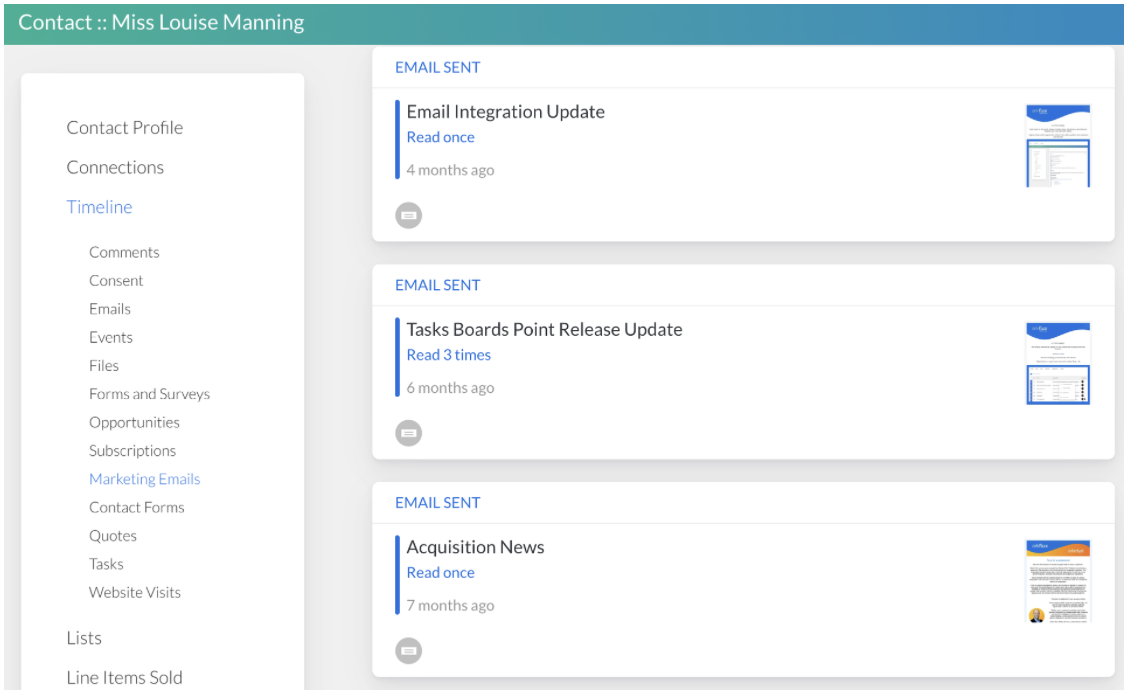
Email reporting on the contact timeline has now been grouped to enable a more streamline look.

If a contact reads the same email multiple times, it will detail the number or reads on a single 'Email Sent' timeline entry.
Screenshot_2023-07-13_at_13.20.00.png
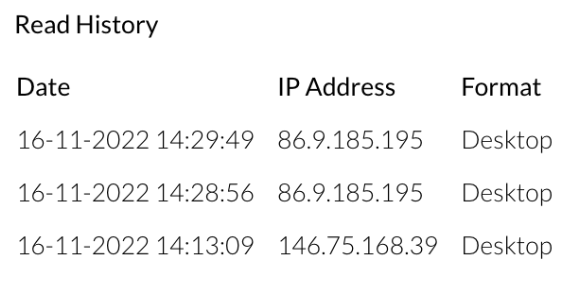
Clicking on the timeline entry will show the email on a blade with the read details listed at the bottom:
Screenshot_2023-07-13_at_13.20.06.png
Screenshot2021-08-30at13.48.01.png