a-text-logo0.png
Custom CRM Forms
Overview

Create Custom CRM Forms to capture information against Contacts and Companies in a many to one relationship e.g. number of hotel stays against a company or type of pet associated to a contact. Using Custom CRM Forms can reduce the amount of Custom Fields needed, and can be easier to view.  

Menu > Templates > Custom Forms > Create

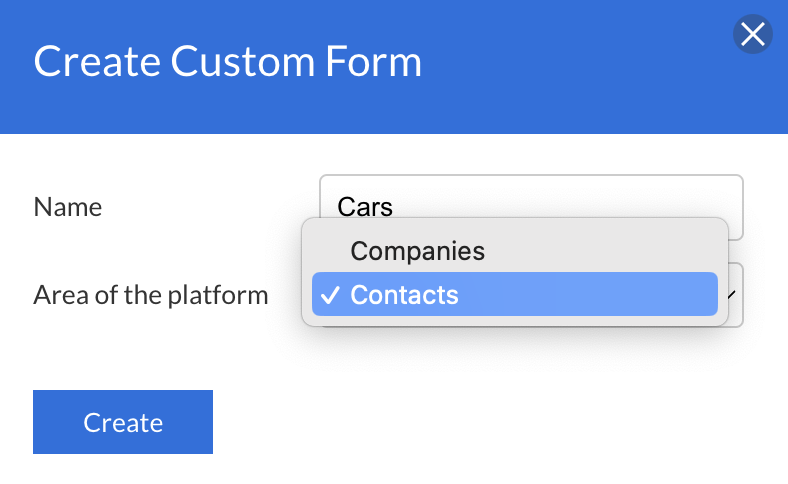
Give the form a name and choose whether it will appear against the Contact or a Company Profile:
Screenshot_2023-07-28_at_14.27.37.png
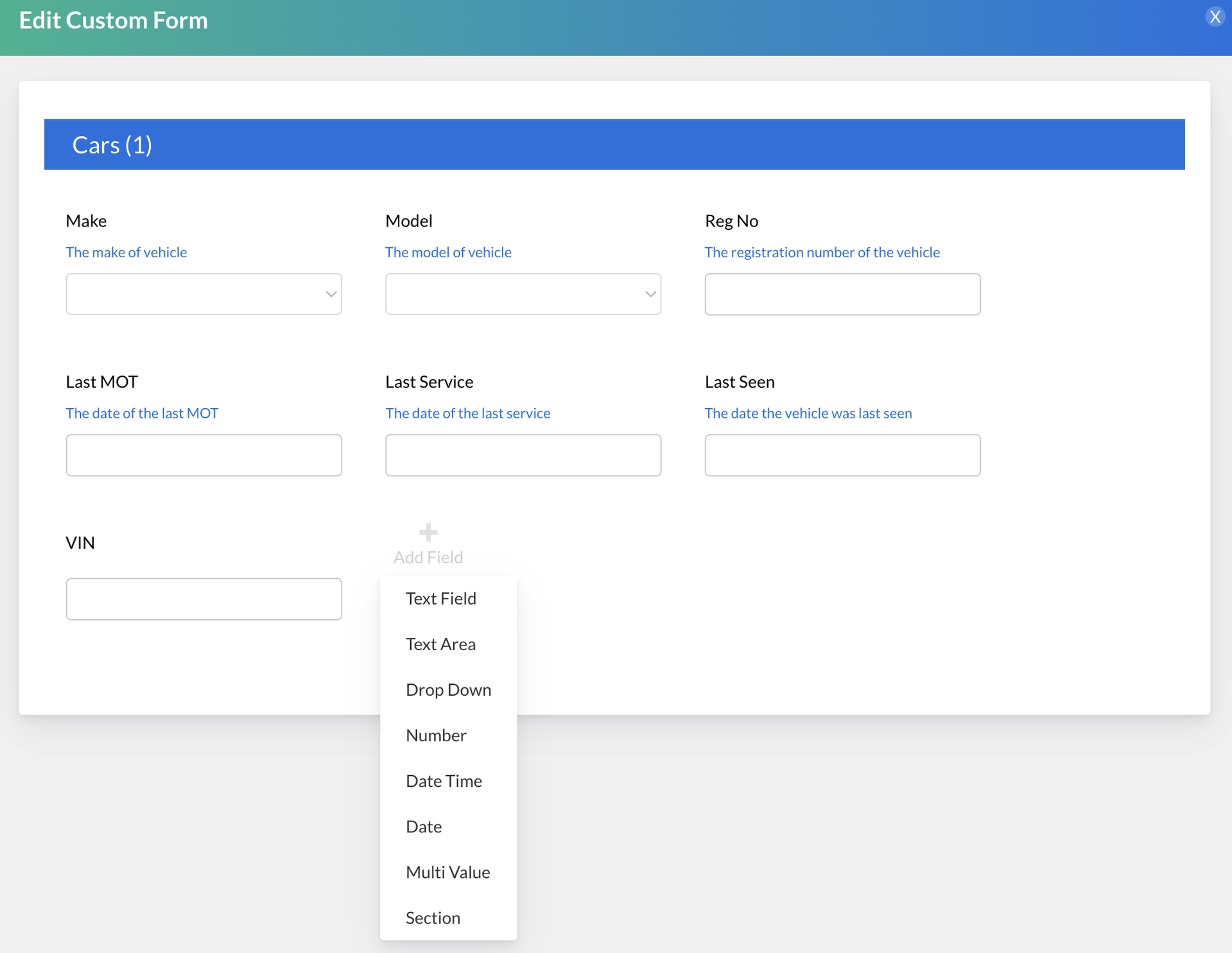
Once the form has been created you can Add Fields as required:
Screenshot_2023-07-28_at_14.28.34.png
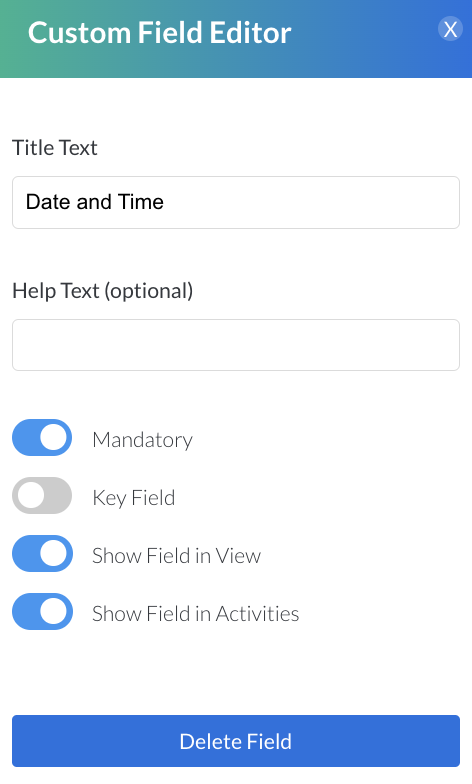
Field Options
Title Text
The main title of the field.

Help Text
Text that will show in blue underneath the title text.

Mandatory
If the field requires to be filled in the Save the form entry.

Key Field
This field can be used during the import process to map an existing entry for a contact or company. This typically defines a field that is unique for the entry for the contact or customer. 

Show Field in View
Whether or not the field show should in the view when you click into the form on a contact. profile.

Show Field in Activities
Whether or not the field should show in the contact Activity Timeline. 
Screenshot_2025-07-24_at_12.26.49.png
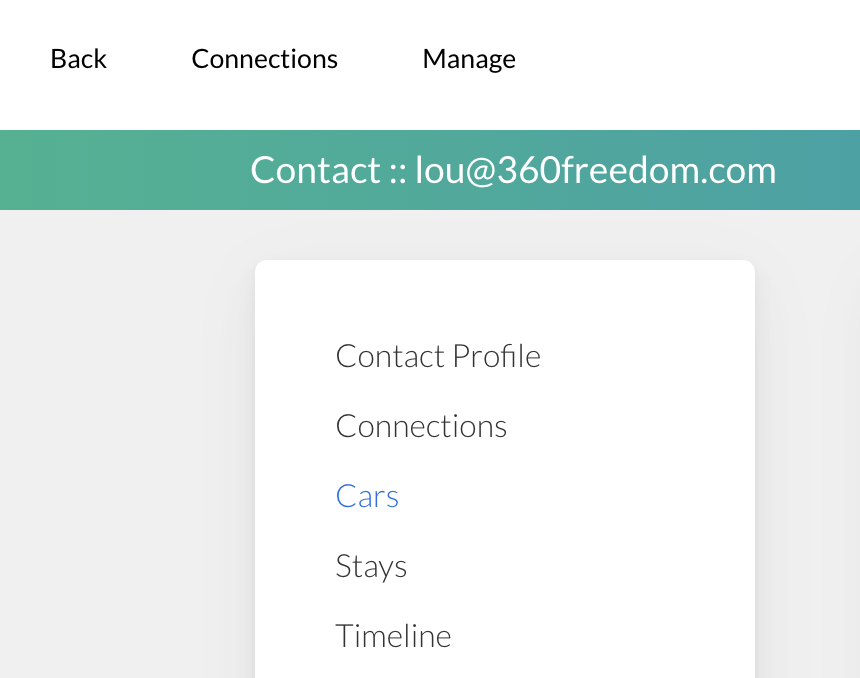
Once all fields have been added, click Save. You can view the form where you have created it; under either a Contact or Company:
Screenshot_2023-07-28_at_14.30.36.png
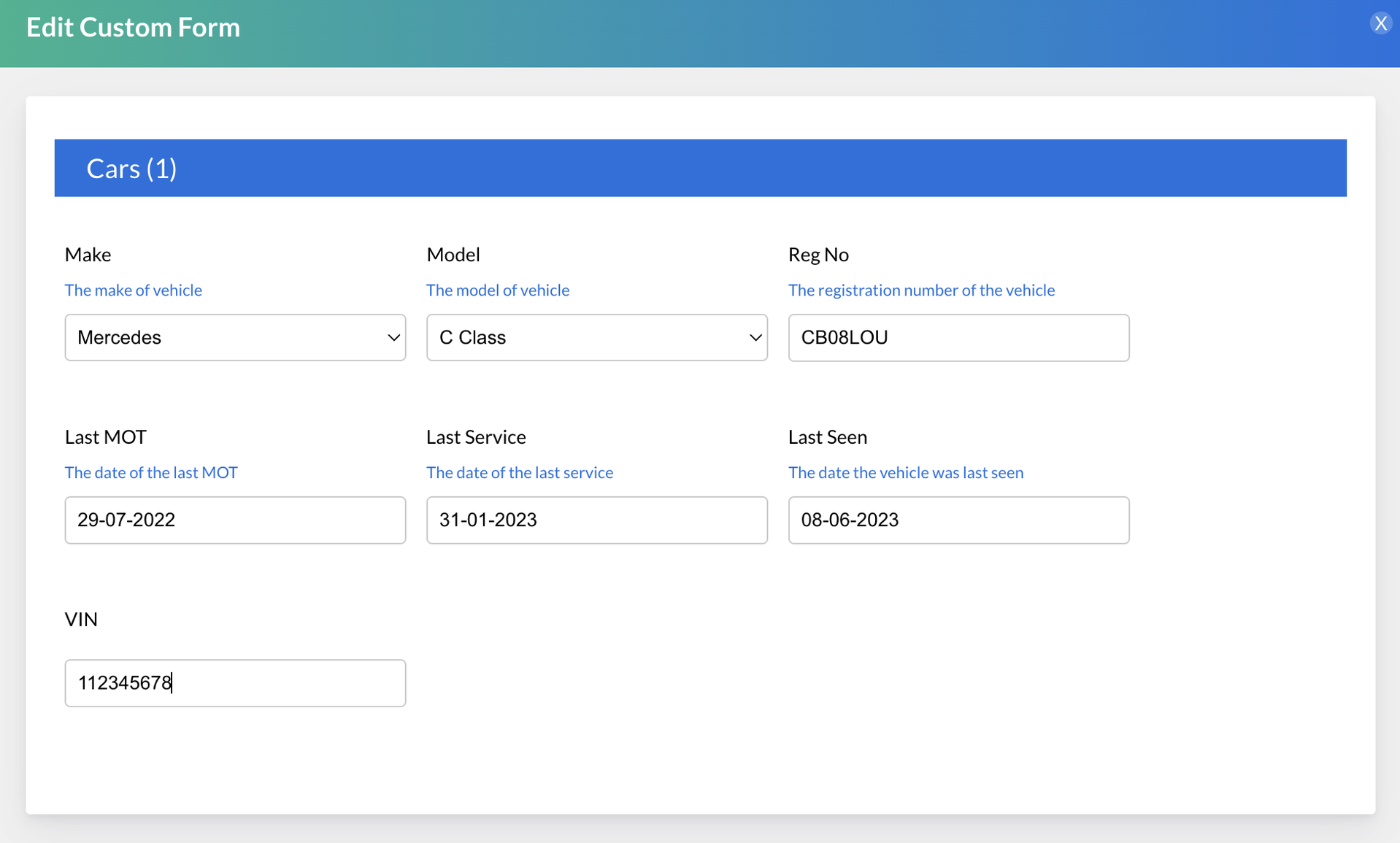
Click into the form and enter data into the fields to create an entry:
Screenshot_2023-07-28_at_14.32.31.png
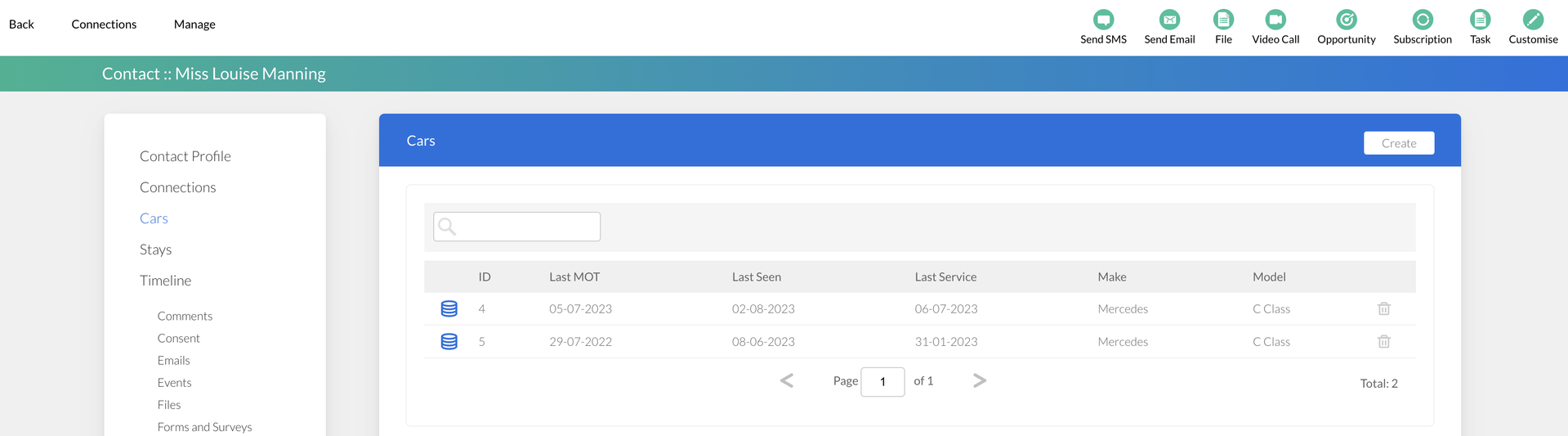
Multiple forms can be created and are listed out as below:
Screenshot_2023-08-23_at_13.39.43.png
Reporting
Upon entries being created in the Custom CRM Forms, Pie chats, Graphs and Total tiles can be created under the Activities Dashboard.
Screenshot_2025-07-24_at_12.52.02.png
Custom CRM can also be used for segmenting contacts in Dynamic Lists. 
Learn more about Dynamic Lists
Screenshot2021-08-30at13.48.01.png