Timesheets
HOME
> SALES
OVERVIEW
Click to visit a section:
Opportunities
Via Task Boards
Create Timesheets against Opportunities and Task Boards.
Opportunities
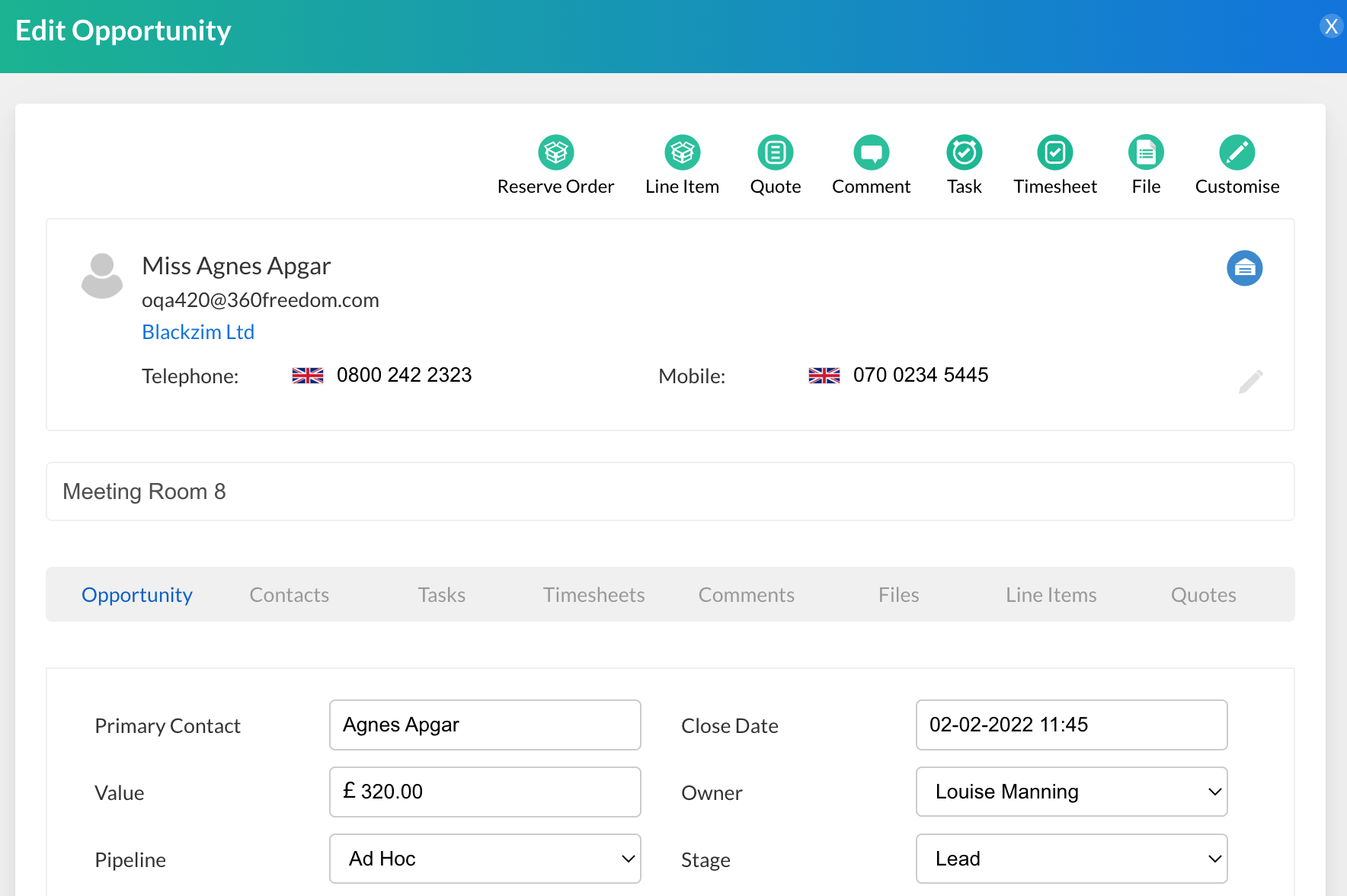
Create a manually entered timesheet within an opportunity. Click on the green Timesheet icon on the opportunity blade:
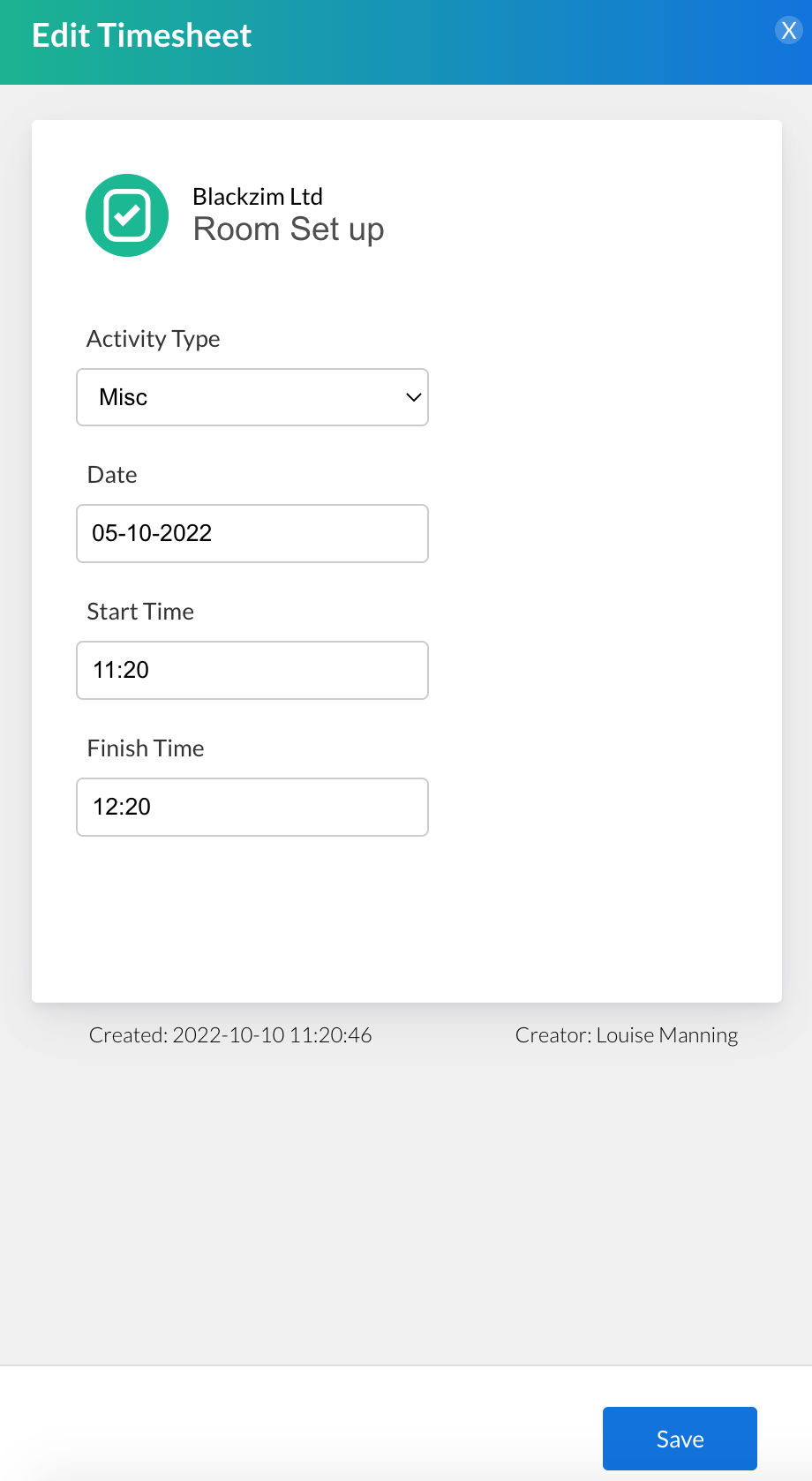
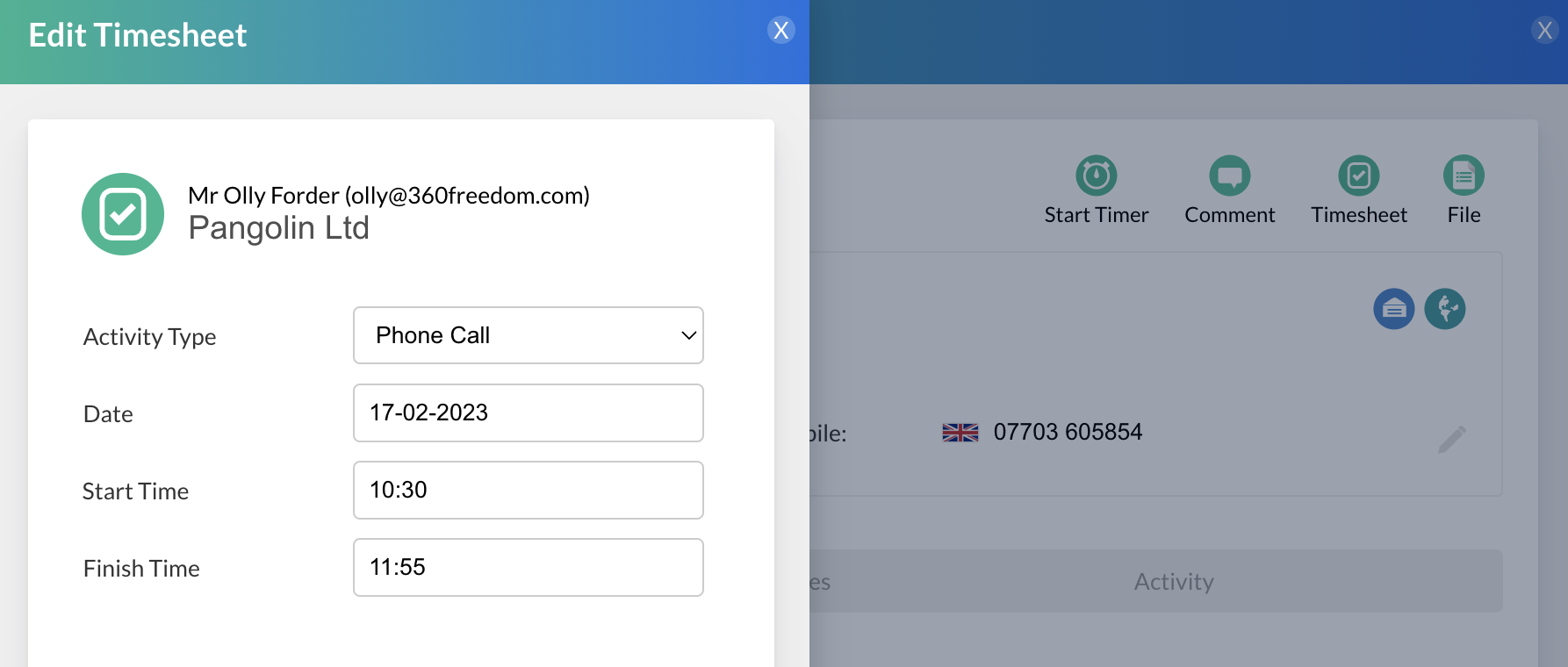
Enter a title to explain what the timesheet is for e.g. Room Set up. Select the Activity Type, Date and Start and Finish Time:
Note:
Define "Activity Type" options in Admin > CRM Settings > Timesheet Activities
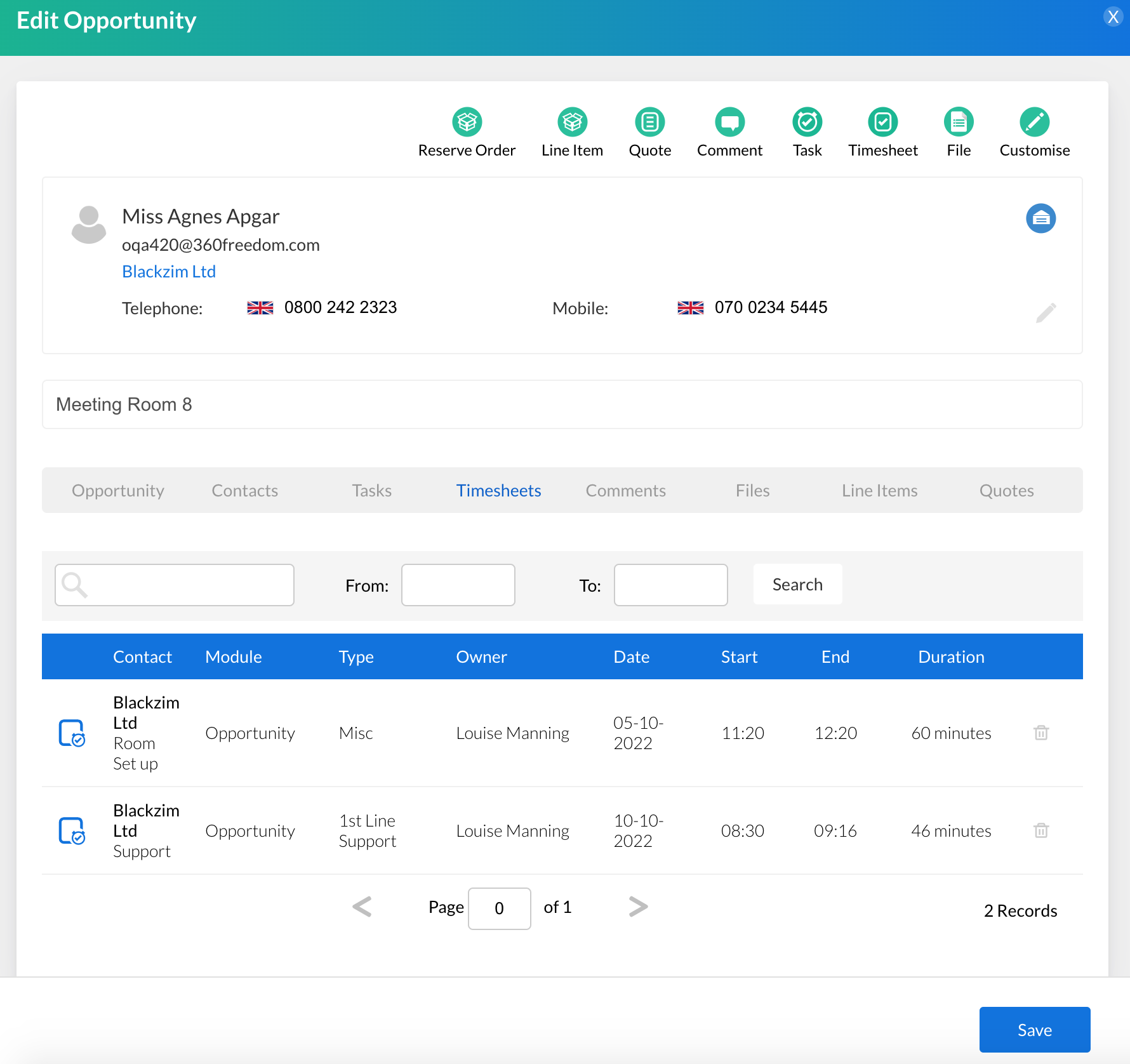
After clicking Save, the timesheet will be stored under the Timesheet tab in the opportunity:
Task Boards
Create both a manually entered and timed timesheet within a task on a Task Board.
Task > Board > click into task > click into the blue speech bubble to slide the task blade out:
Manually
Click on the green Timesheet icon on the Task blade to slide the timesheet :
Enter a title to explain what the timesheet is for e.g. Onboarding Session. Select the Activity Type, Date and Start and Finish Time > Save.
Timed
Create a timesheet by using the timed function on the task blade.
Enter a title to explain what the timesheet is for e.g. Customer Call. Select the Activity Type, Date and Start and Finish Time > Save.
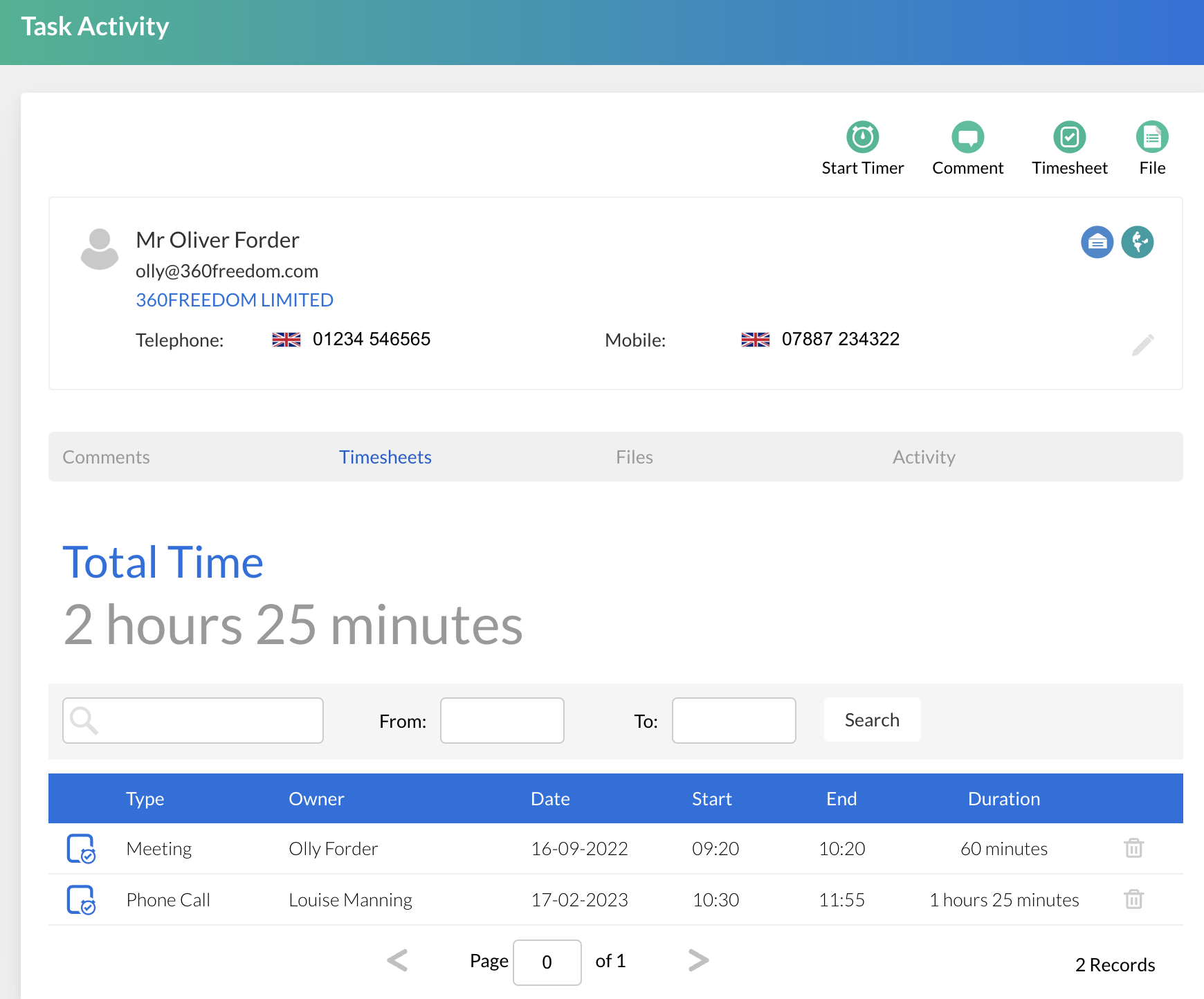
After clicking Save, the timesheet will be stored under the Timesheet tab.