a-text-logo0.png
Single Event Editing
There are a number of areas where you can edit a published event.

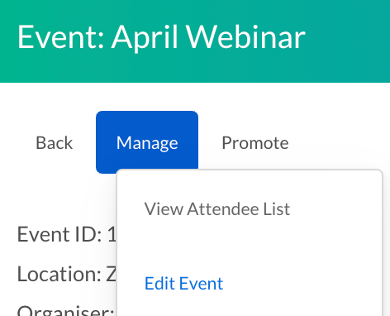
Events > Dashboard > Click into the event you want to manage > you are now on the event dashboard.

This will take you through to the event workflow where you can make any necessary changes to the text or image content. Press Save and Exit top left before exiting the workflow.

These changes will be for future promotional touchpoint communications only.
Picture10123456789101112131415161718192021222324252627282930313233343536373839404142434445464748.png
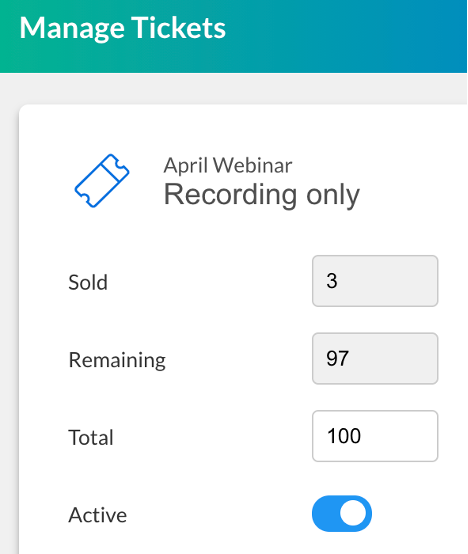
To edit a ticket in a published event, click on the ticket listed on the event dashboard.
EditTicket1.png
Make the relevant changes needed to the ticket (name of ticket, amount of ticket and if it’s Active or not) Press save to confirm the changes you have made.
EditTicket2.png
Edit a Ticket
Making changes to pre existing tickets can be done in two areas - the amount of tickets and the name of the ticket only. 
Note: The value of tickets cannot be edited to protect the data that has already been submitted against them. If changes relating to the value against a pre existing ticket are needed to be made, archive the existing ticket (see below) and create a new ticket with the new value.
Archive a Ticket
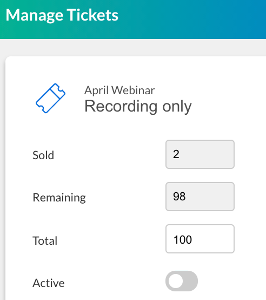
You may want to archive off a ticket from a published event to permanently or temporarily stop contacts being able to register against it.

Click into the ticket you want to archive and switch the Active toggle into the off position.

ArchiveTicket.png
Add a Ticket
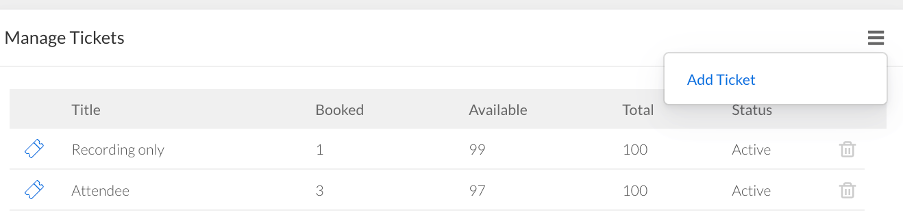
Add an extra ticket to the published event on the event dashboard > hover over menu icon > Add Ticket

Then fill out the details and press save to add the new ticket choice.
AddTicket.png
Delete a Ticket
Delete a ticket via the trash bin at the end of the ticket line so that it is no longer available for selection in future communications.
DeleteTicket.png
Copy an event
Copy an event workflow (touchpoint communications not included) by clicking on the copy button next to the event.
You can copy an existing touchpoint within an event and choose to save that copy to a seperate event:
Screenshot2022-05-12at10.16.17.png
Delete an event
Delete and event and all associated data by clicking on the trash can next to the event.

Filter function

Filter events by clicking on header options in the events lists. Filter by title, date, category, sub category, and status

Search bar
Find a particular event by searching by the event name.

Learn more about Event Promotion

Screenshot2021-08-30at13.48.01.png