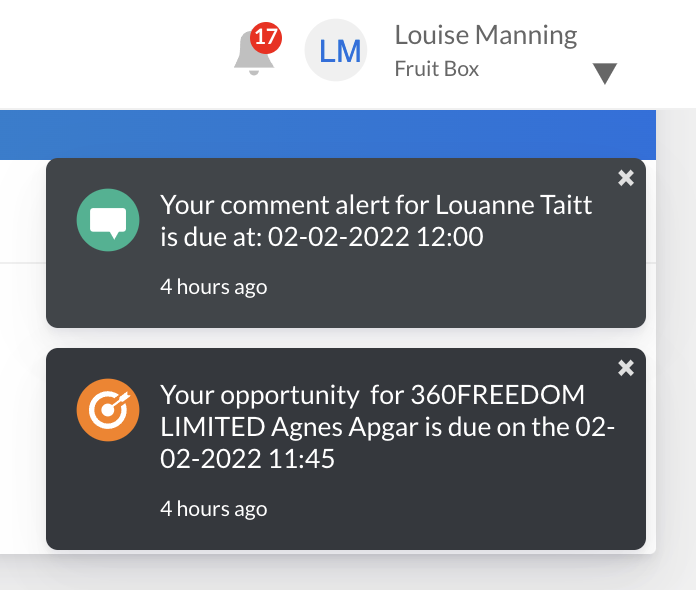
Dependant on the Role and Permission that has been granted to the User, notifications of upcoming activities will show in a list view, top right of the screen:
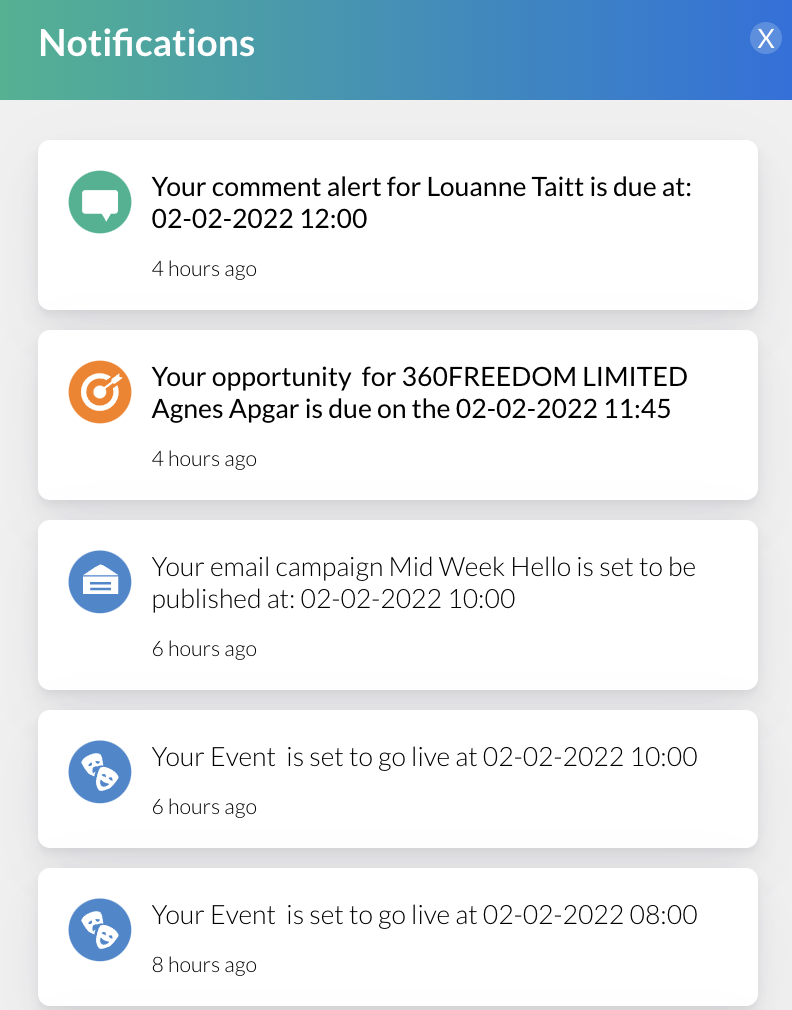
The list view can be clicked on to access the activity directly to make any necessary updates. If the activity is removed by clicking the cross, it can be found for future reference under the bell icon top of the page:
Notifications can be created in the following areas.
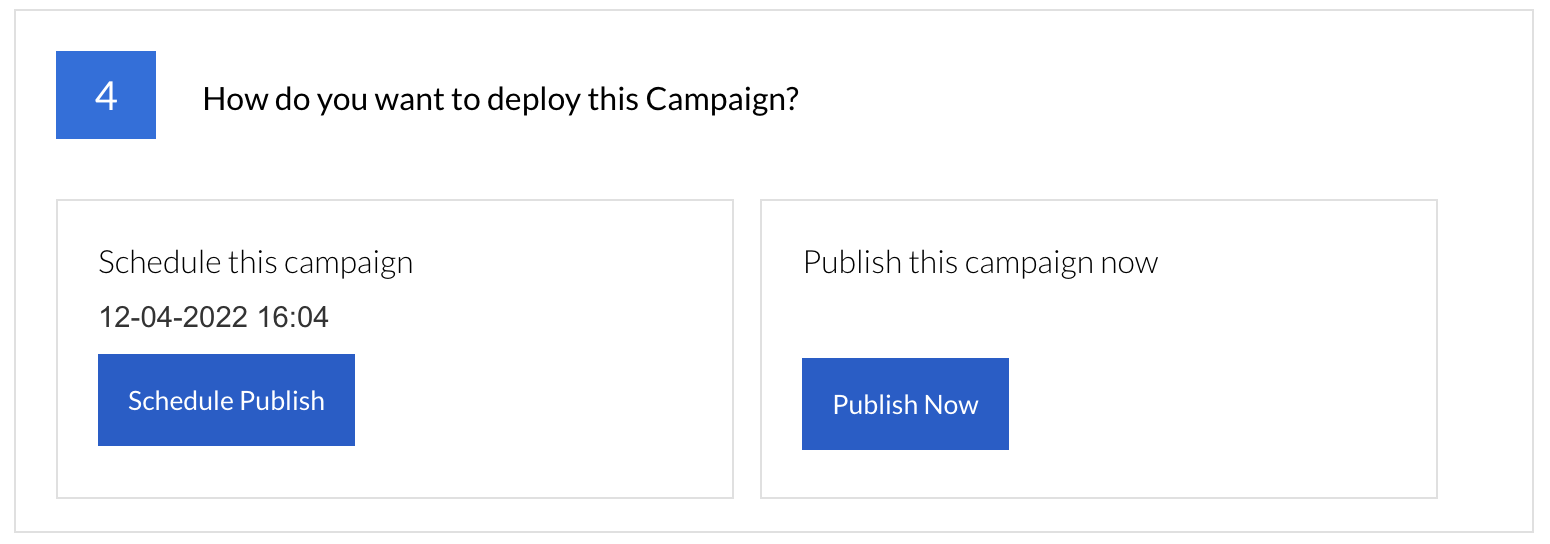
Marketing Campaigns Create, Publish and Schedule Email / Facebook / LinkedIn / Twitter / Instagram marketing campaigns - notification set by the Schedule or Publish date and time:
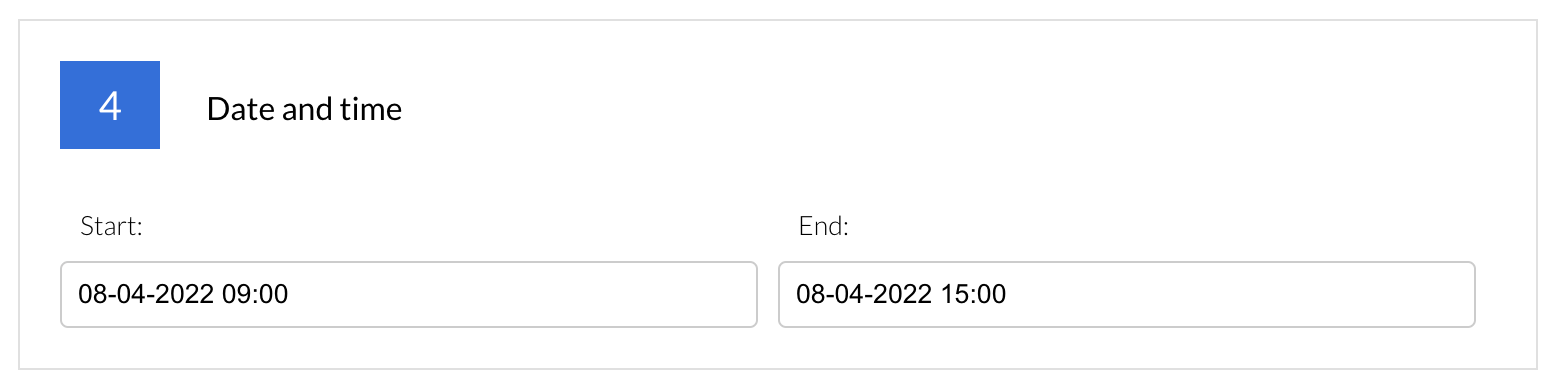
Events Create, Publish or Schedule Events notification set by Date and Time of event:
Tasks and Opportunities Create, Publish and Schedule Tasks and Opportunities - notification set by Due and Close Date of the Opportunity:
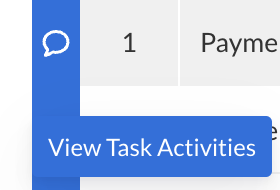
Via a Board by clicking the Task Activities blue speech bubble > setting the Notification:
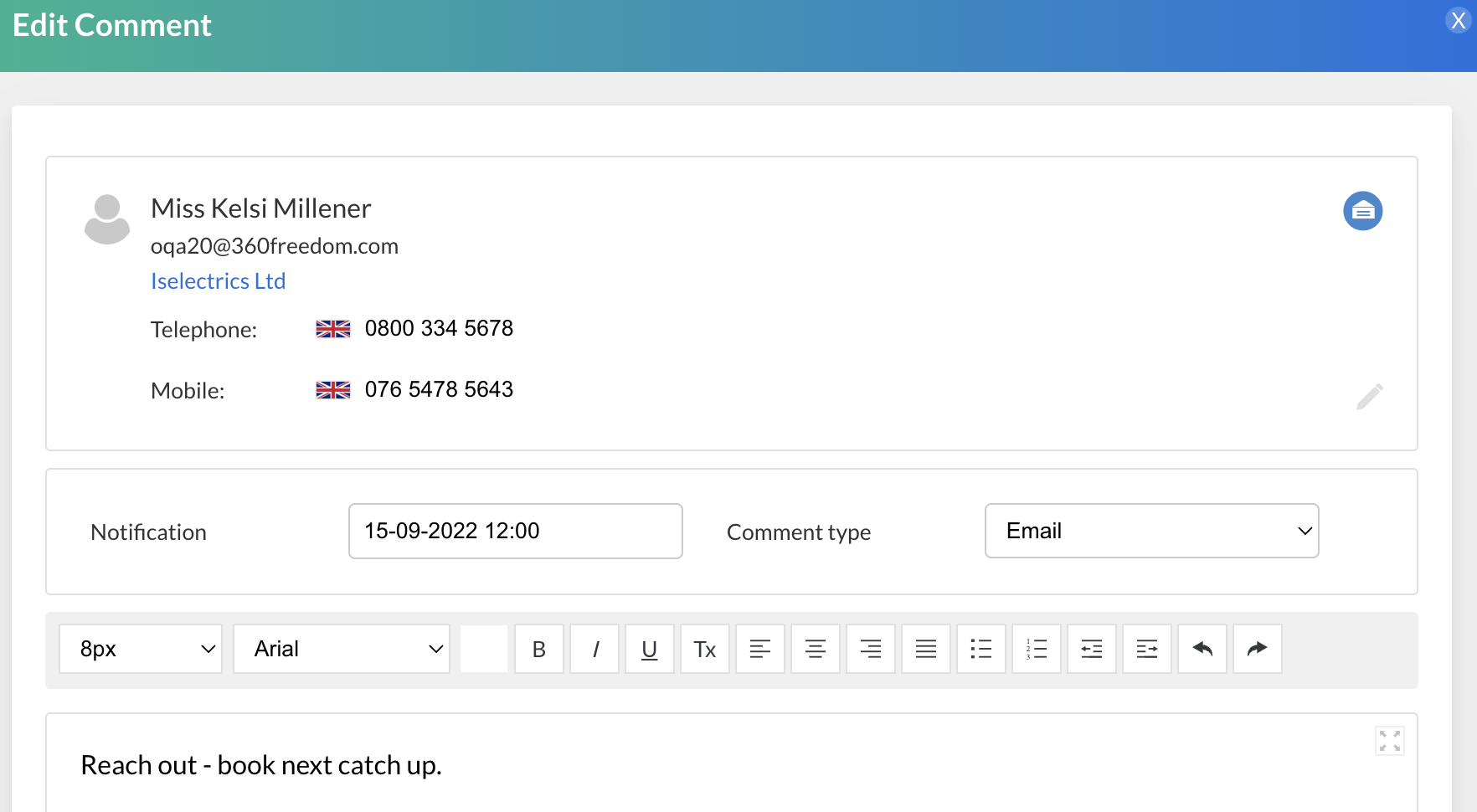
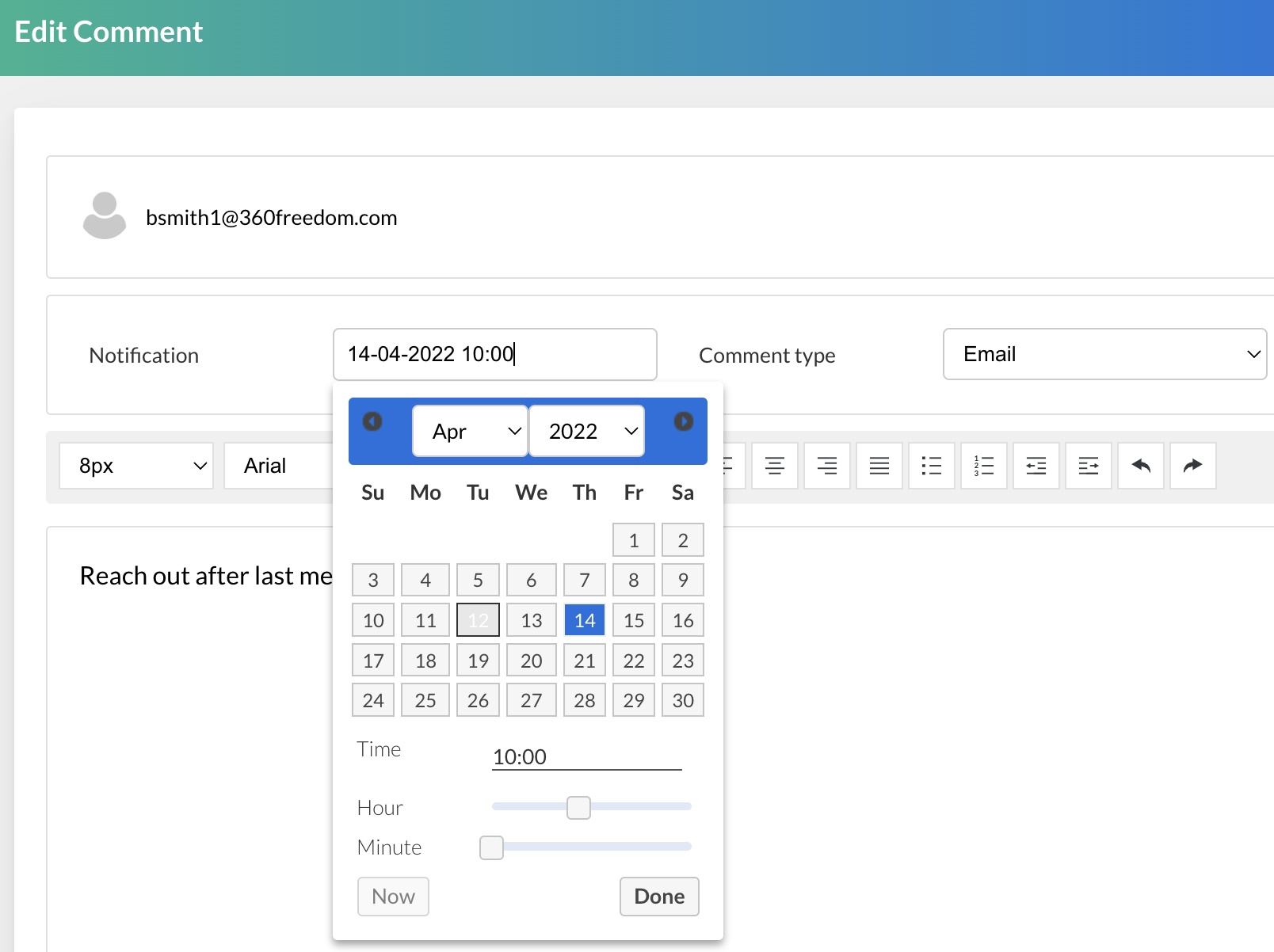
Comments Create Comments directly on the contact timeline or within Tasks and Opportunities - notifications are set by the Notification time and date: